
Microsoft has transformed Notepad from a basic text editor into a smarter productivity tool by integrating AI capabilities powered by Copilot. With these updates, users can now rewrite, summarize, and generate content directly within Notepad, improving note-taking efficiency and workflow organization.
However, AI features in Notepad are currently available only to users with an active Microsoft 365 subscription, and the tool can process only text inside the app.
This guide explains how to enable AI in Notepad and the most effective ways to use it.
Requirements to Use AI in Notepad
Before using AI features, ensure the following:
- Your Windows system is fully updated
- You are logged into a Microsoft account with an active Microsoft 365 subscription
- Copilot AI is enabled in Notepad settings
- AI usage credits are available (credits vary by region and plan)
How to Enable AI in Notepad
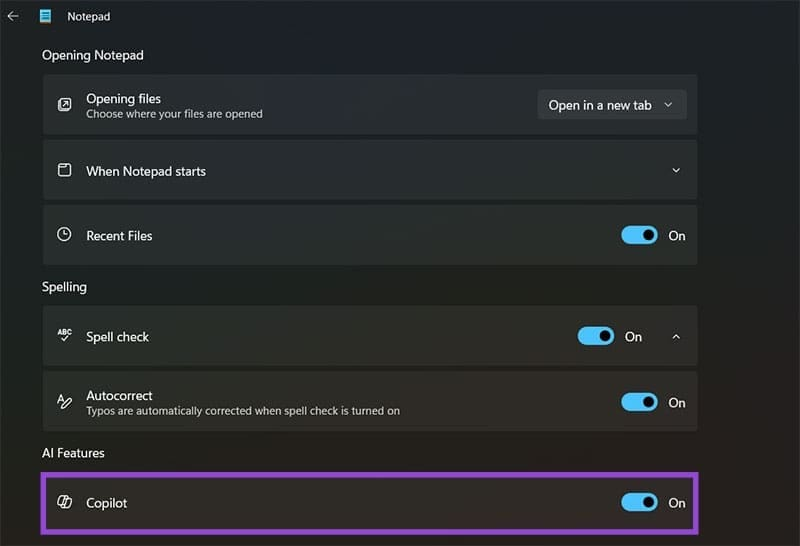
Follow these steps to check whether AI is enabled:
- Open Notepad on your computer
- Click the Settings (⚙️ icon) in the top-right corner
- Scroll down and confirm that Copilot is turned on
If the option is enabled but features do not work, verify your Microsoft 365 subscription status.
1. Rewrite Notes to Improve Clarity
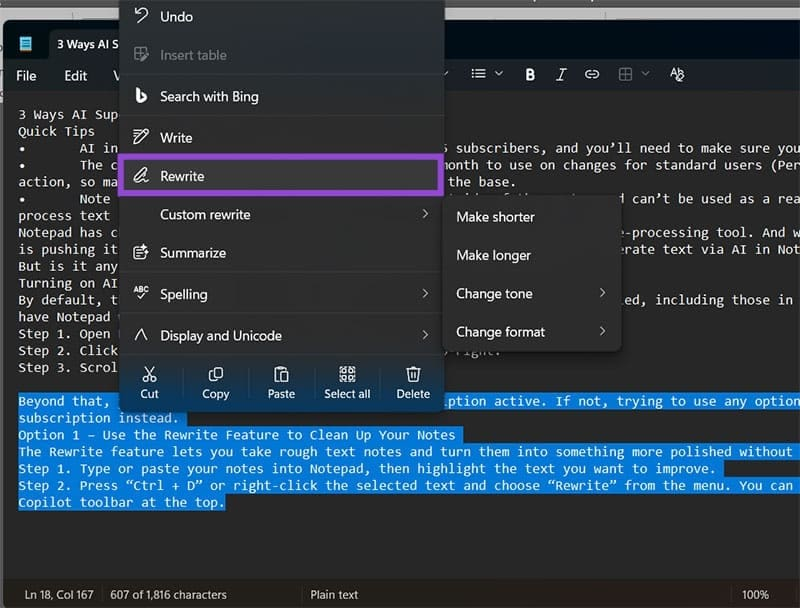
The Rewrite feature helps polish rough notes without manual editing. It adjusts tone, length, and formatting while keeping the original meaning.
Steps:
- Paste or type text in Notepad
- Highlight the section you want to improve
- Press Ctrl + D or right-click and select Rewrite
- Choose tone, format, or length preferences
- Select the preferred rewritten version and replace the original text
This feature is useful for cleaning meeting notes, academic drafts, or brainstorming ideas.
2. Summarize Long Notes Instantly
When dealing with lengthy lecture notes or meeting transcripts, the Summarize feature extracts key points and presents them concisely.
Steps:
- Highlight the text to summarize
- Press Ctrl + M or select Summarize from the menu
- Choose the desired summary length
- Review and insert the summary below the original text
For best results, provide clear context before summarizing.
3. Generate Content With the Write Feature
The Write feature helps create new content from simple prompts, making it useful for drafting emails, lists, or outlines.
Steps:
- Place the cursor where you want the text generated
- Press Ctrl + Q or select Write
- Enter a prompt describing what you need
- Review the generated content and insert it if suitable
This feature supports productivity by overcoming writer’s block and creating structured drafts.
Limitations of AI in Notepad
While helpful, AI in Notepad has some constraints:
- It cannot access files outside the Notepad window
- No real-time voice note transcription support
- AI responses depend on context quality
- Monthly usage credits may limit heavy usage
Final Thoughts
AI integration has significantly improved Notepad’s functionality, turning it into a lightweight productivity tool capable of rewriting, summarizing, and generating text. While it does not replace advanced note-taking applications, it provides a fast and convenient solution for improving text directly within Windows.
For users already subscribed to Microsoft 365, these AI features can streamline daily workflows and enhance note organization without needing additional software.