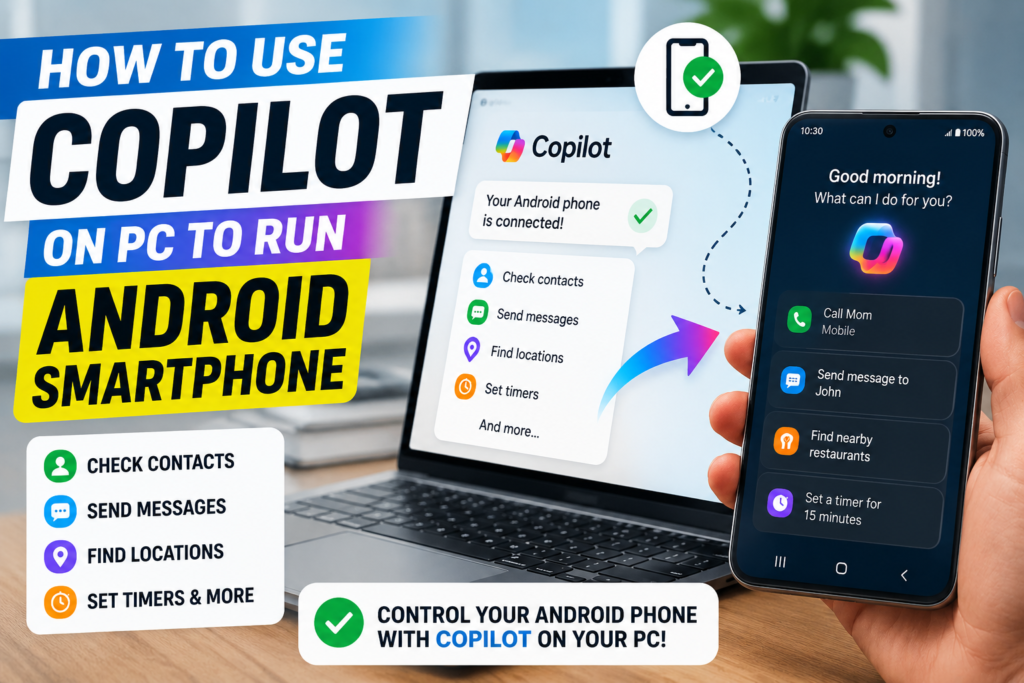

Microsoft Copilot can connect with an Android smartphone through its Phone Connection feature, allowing you to interact with certain phone functions directly from the Copilot desktop app.
Instead of switching between your PC and phone for simple tasks, you can use natural-language prompts in Copilot to check contacts, read or send supported text messages, search for locations, and manage timers.
However, the feature has some limitations, and your Android phone must already meet Microsoft’s requirements for the connection to work.
Quick Tips
- Phone Connection allows Copilot to interact with certain functions on a connected Android phone.
- You need the Link to Windows app and a Microsoft account signed in on the required devices.
- Phone Connection is available through the Copilot desktop app, rather than the web version.
- Available features are limited, but you can perform tasks such as checking contacts, handling supported messages, searching for locations, and setting timers.
What Is Phone Connection in Copilot?
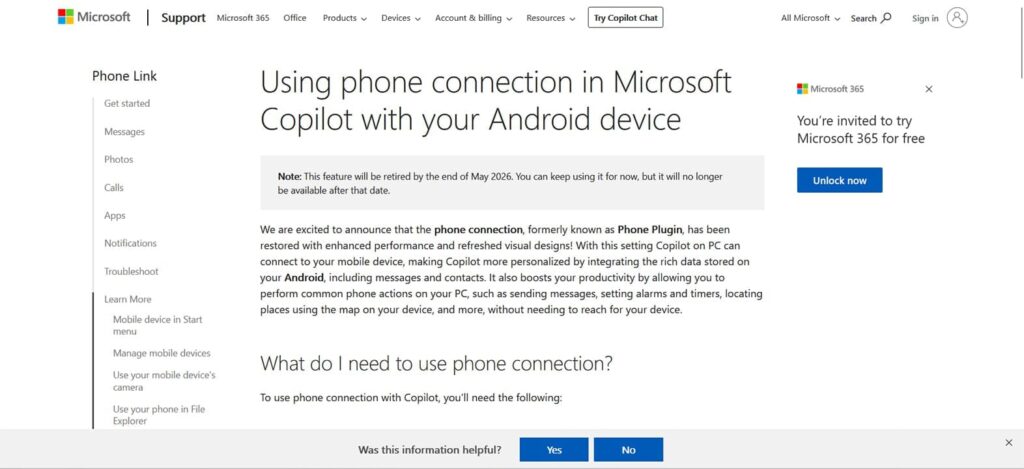
Phone Connection is a Copilot feature that lets the desktop application interact with selected functions on a connected Android smartphone.
It works alongside Microsoft’s phone-to-PC ecosystem. Your Android phone still needs to be connected using Phone Link on the PC and the Link to Windows app on the phone.
Once the connection is enabled, you can use text or voice prompts in Copilot to request certain actions or information from your phone.
What You Need to Connect Your Phone
Before setting up Phone Connection, make sure you have the following:
- A compatible Android smartphone
- The Link to Windows app installed on your phone
- Link to Windows version 1.24112.110.0 or later, where required
- A Microsoft account
- The same Microsoft account signed in on the relevant devices
- The Copilot desktop app
- Your Android phone already linked to your Windows PC
If your Android phone is already connected to your computer through Phone Link, much of the setup should already be complete.
How to Link Your Android Phone to Copilot
Once your phone meets the requirements, enabling Phone Connection is relatively straightforward.
Step 1: Open Copilot
Launch the Copilot desktop app on your Windows PC.
Make sure you’re signed in with your Microsoft account.
Step 2: Open Your Copilot Profile
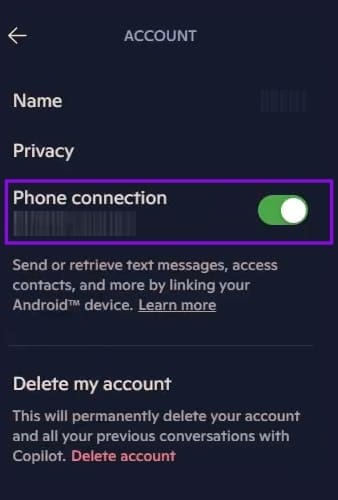
Select your profile picture or account name.
This opens the account and settings menu.
Step 3: Find Phone Connection
Look for the Phone connection option.
If your Android phone has already been linked to the PC correctly, the option should be available.
Step 4: Turn Phone Connection On
Switch Phone connection to On.
Copilot can now access the supported functions available through the connected Android device.
You can return to the same setting and turn the connection off whenever you don’t want Copilot to access your phone.
What Can Copilot Do With Your Android Phone?
Phone Connection doesn’t provide complete control over your smartphone. Instead, it gives Copilot access to selected phone functions.
Here are some of the things you may be able to do.
Check Contacts
You can ask Copilot for information about contacts saved on your phone.
For example, you could ask Copilot to find the details of a particular contact.
Read and Send Supported Messages
Copilot can help you check supported text messages and search through them using information such as senders or keywords.
You can also ask Copilot to send a message to a contact.
However, this functionality does not mean Copilot can automatically control every messaging application installed on your phone.
Search for Locations
You can ask Copilot to search for places based on categories such as:
- Shops
- Restaurants
- Hospitals
- Other locations
Some navigation-related capabilities may depend on your phone model and supported integrations.
Set and Cancel Timers
Another useful feature is managing timers.
You can ask Copilot to set a timer with a specific duration or name, or cancel an existing timer.
What Are the Limitations?
Phone Connection is useful for basic tasks, but it does not turn Copilot into a complete remote-control system for your Android phone.
For example, the feature does not provide unrestricted access to all your installed mobile applications.
The exact capabilities can also vary depending on your Android device, Microsoft’s current Copilot features, and the services supported in your region.
Phone Connection vs. Phone Link
Phone Connection and Phone Link serve different purposes.
Phone Link is Microsoft’s broader phone-to-PC integration that provides features such as notifications, photos, messages, calls, and other supported phone interactions.
Phone Connection in Copilot adds an AI-based interface that lets you use natural-language prompts for certain supported phone tasks.
In other words, Phone Connection works alongside Microsoft’s existing phone connectivity system rather than completely replacing it.
What If the Phone Connection Option Is Missing?
If you don’t see Phone connection in Copilot, check the following:
- Make sure you’re using the Copilot desktop application.
- Confirm that you’re signed in with your Microsoft account.
- Check that the same account is being used where required.
- Make sure your Android phone is linked to Windows.
- Update the Link to Windows app on your phone.
- Restart Copilot and Windows.
- Check whether your phone and region support the feature.
If the phone isn’t linked correctly, the Phone Connection option may not appear in Copilot.
Final Thoughts
Microsoft’s Phone Connection feature provides a convenient way to interact with selected Android phone functions directly through Copilot on your Windows PC.
Once your Android phone is connected through Phone Link and Link to Windows, you can enable Phone Connection in the Copilot desktop app and use natural-language commands for tasks such as checking contacts, handling supported messages, finding locations, and managing timers.
The feature is still limited compared with complete phone control, but it can be useful when you want to perform simple smartphone tasks without constantly reaching for your phone.