
If your PC or laptop is not appearing in your Microsoft account, don’t worry—this usually doesn’t stop you from using Windows. However, it can affect features like Find My Device, license transfer, or device management. Below are simple and effective fixes.
Fix 1: Check If You’re Logged Into a Microsoft Account
Most devices don’t show because Windows is signed in with a local account.
Steps:
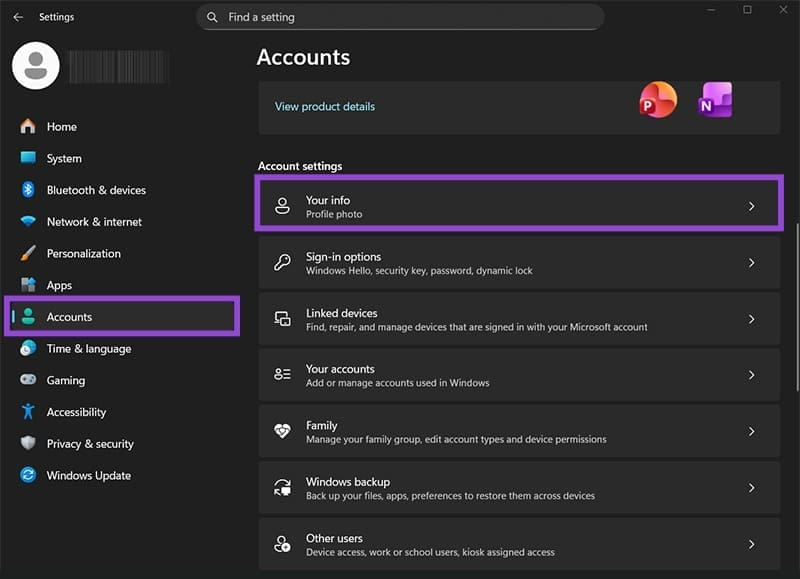
- Press Win + I → Open Settings
- Go to Accounts → Your info
- If it says Local account, sign in with your Microsoft account
- This will automatically register your device
Fix 2: Make Sure Windows Is Activated
An unactivated Windows copy may not sync with your Microsoft account.
Steps:
- Open Settings → System
- Click Activation
- Confirm Windows shows Activated
- Use Troubleshoot if activation is missing
Fix 3: Enable Device Sync & Privacy Settings
Windows needs permission to sync device details.
Steps:
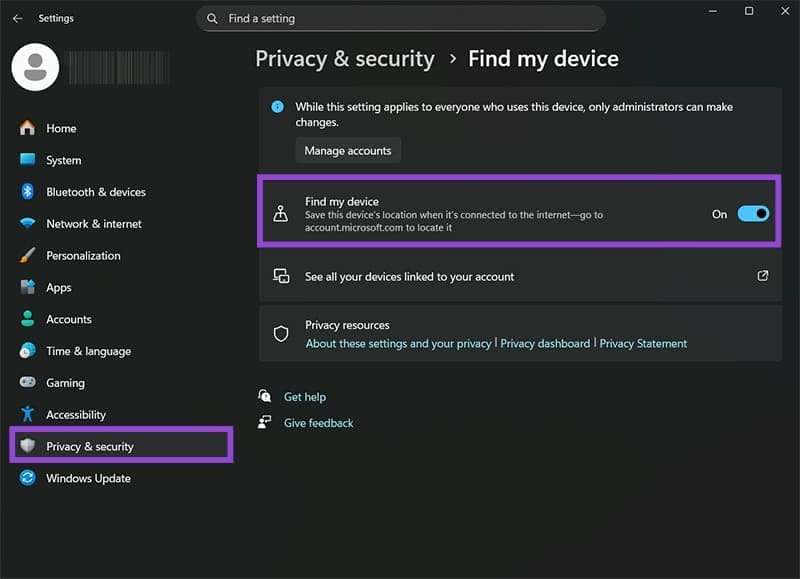
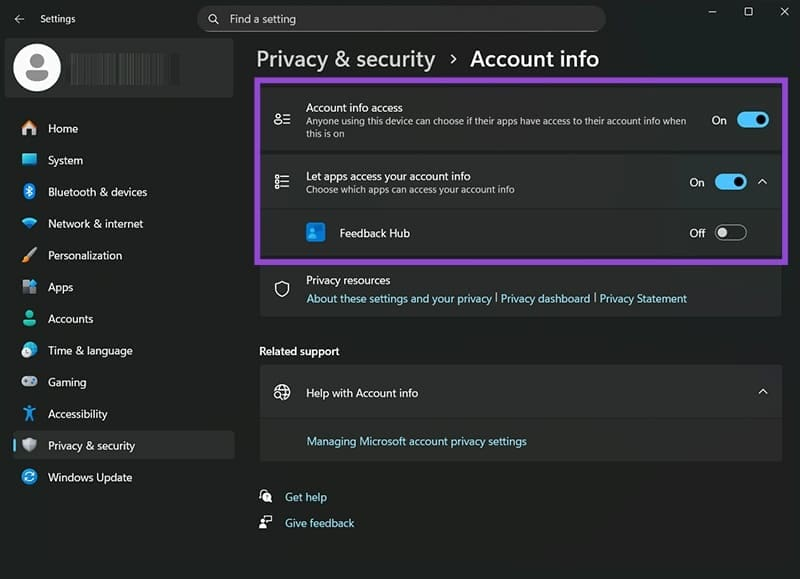
- Go to Settings → Privacy & Security
- Enable Find My Device
- Open Privacy info and turn on all options
Fix 4: Manually Register Your Device
If automatic sync fails, add the device manually.
Steps:
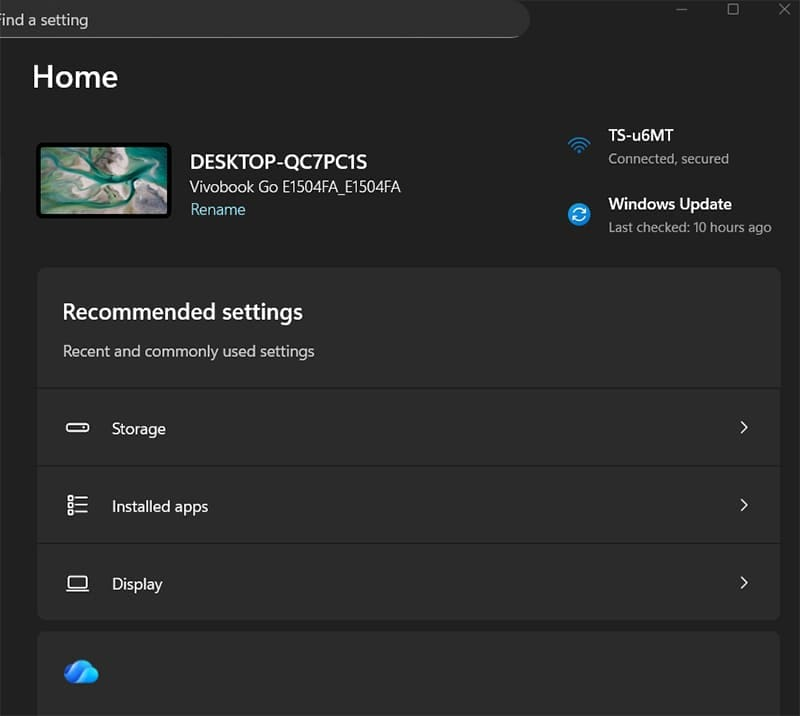
- Rename your PC: Settings → System → About
- Restart and wait a few hours
- Visit account.microsoft.com
- Go to Devices → Register device
- Enter your PC name or serial number
Important Tips
- Using a local account makes license transfer harder later
- A clean Windows reinstall can de-register your device
- Restarting the PC often fixes sync issues automatically
Final Note
If your device still doesn’t appear, give it 24 hours after changes. Microsoft account syncing can take time.
Keywords
Device not showing in Microsoft account, Windows device not listed, Microsoft account devices missing, Windows activation sync issue, Find My Device not working