
Are you frustrated with the new AI-powered Notepad in Windows 11? Microsoft introduced Copilot integration in Notepad starting in early 2025, adding features like Rewrite, Summarize, and text generation. These require signing in with a Microsoft account and can feel intrusive for users who prefer the simple, classic version.
The good news? You can easily disable the AI features for a cleaner experience or revert to the legacy classic Notepad (the basic notepad.exe without any modern UI or AI). These methods are reversible and work on the latest Windows 11 updates as of January 2026.
Quick Tips Before You Start (Classic Notepad in Windows 11)
- Check your current Notepad version: Open Notepad and look for the Copilot button (colorful icon) in the toolbar or top-right corner. If it’s there, you have the AI-enabled version.
- Consider if you need AI features like rewriting text or summarization. If not, disabling them gives a near-classic feel.
- All changes are reversible – you can toggle settings back anytime.
- No third-party tools needed; these are built-in Windows options.
Option 1: Disable AI Features in the New Notepad (Recommended for Most Users)
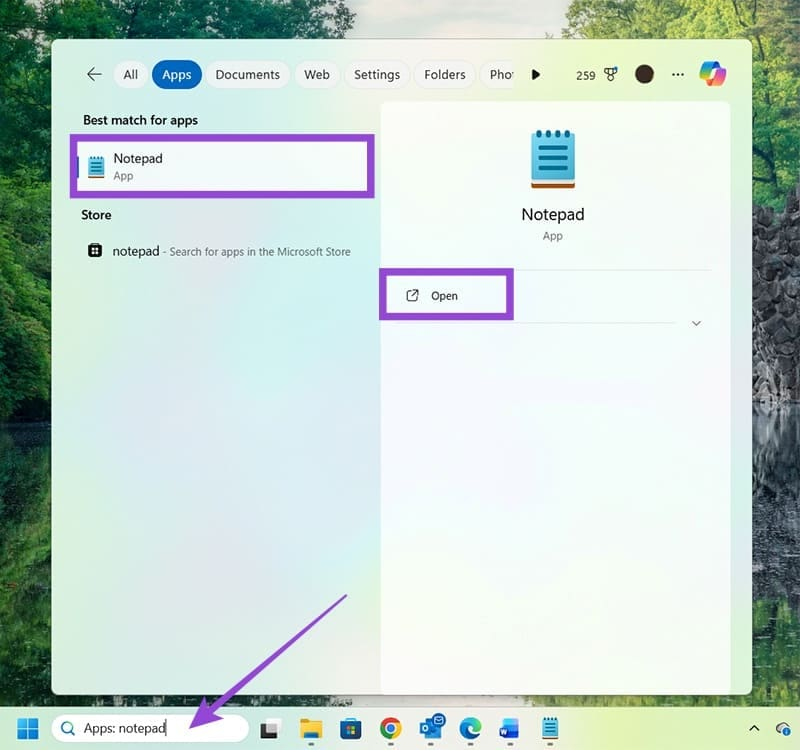
This keeps the modern Notepad (with tabs and better UI) but removes all AI/Copilot elements. No Microsoft account sign-in required after this.
Steps:
- Open Notepad.
- Click the Settings gear icon (top-right corner).
- Scroll down to the AI Features section.
- Toggle off the Copilot switch.
- Restart Notepad – the Copilot button disappears, and AI options are gone.
This provides a “classic-like” experience while retaining useful updates like autocorrect and spellcheck.
Option 2: Fully Revert to Classic Legacy Notepad (No AI, No Modern UI)
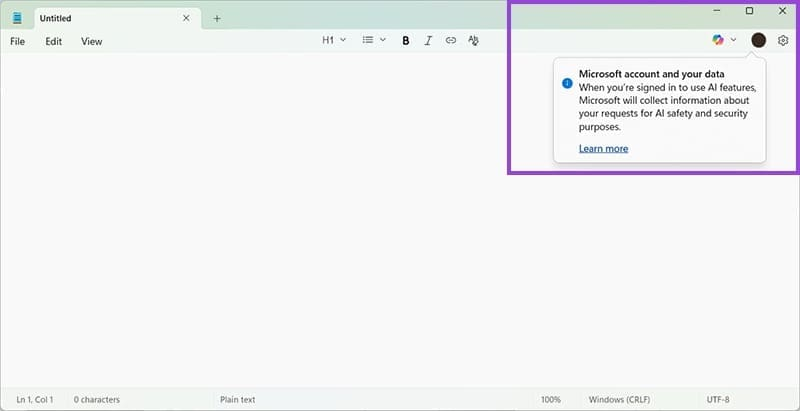
If you want the original bare-bones Notepad (pre-2022 style, no tabs or AI), disable the app execution alias. This redirects launches to the built-in classic notepad.exe.
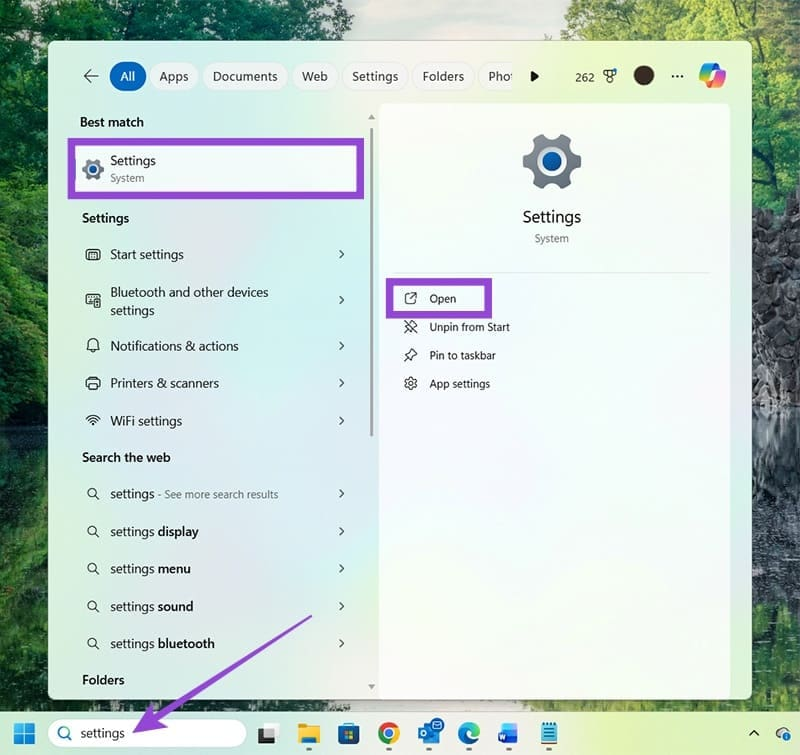
Steps:
- Close Notepad if open.
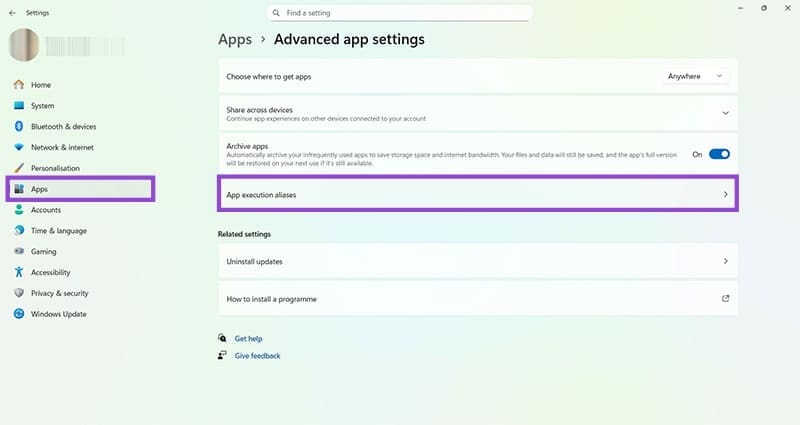
- Open Settings (press Win + I).
- Go to Apps > Advanced app settings > App execution aliases.
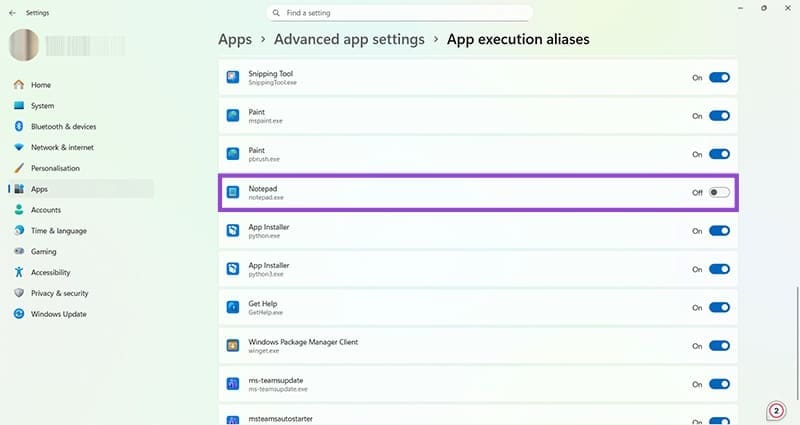
- Scroll down and find Notepad (or notepad.exe).
- Toggle the switch to Off.
- To launch classic Notepad immediately:
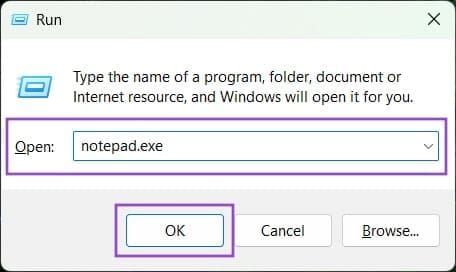
- Press Win + R to open Run.
- Type notepad.exe and press OK.
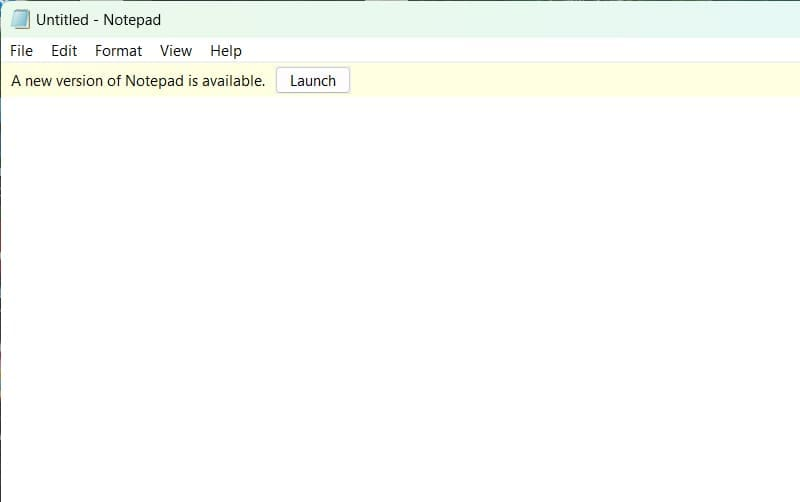
- The plain classic Notepad opens – no AI, no tabs, no sign-in prompts.
Make it default for .txt files:
- Right-click a .txt file > Open with > Choose another app > More apps > Look for another app on this PC.
- Navigate to C:\Windows\System32\notepad.exe and select it.
To revert back: Just toggle the alias switch to On in App execution aliases.
Why Users Prefer Classic Notepad in 2026
- Privacy: No data sent to Microsoft for AI processing.
- Speed: Lightweight and instant startup.
- Simplicity: No bloat – just pure text editing.
- Many power users stick with classics like Notepad++ as alternatives.
These steps are tested on Windows 11 version 25H2 and later. If you run into issues, check for Windows updates or restart your PC.
Prefer video guides? Search YouTube for “disable Notepad AI Windows 11 2026” for visual walkthroughs.