![7 Fixes for “Something Went Wrong [1001]” Error in Microsoft (2026 Guide)](https://techhowlab.com/wp-content/uploads/2026/03/1.png)

If you’re seeing the “Something Went Wrong [1001]” error while signing into Microsoft apps like Outlook, Teams, Edge, OneDrive, or Microsoft 365, you’re not alone. This error usually appears during account authentication and can be caused by network problems, corrupted system files, cache issues, or missing Microsoft components.
This step-by-step guide provides safe, effective solutions to resolve the issue.
Why Does the “Something Went Wrong [1001]” Error Appear?
Common causes include:
- Internet connectivity issues
- Corrupted system files
- Malware interference
- Authentication problems with Microsoft services
- Damaged cache files
- Missing Microsoft Web Account Manager (WAM) components
Let’s fix it step by step.
Fix 1: Check Your Internet Connection
A weak or unstable internet connection can block Microsoft sign-in services.
Steps:
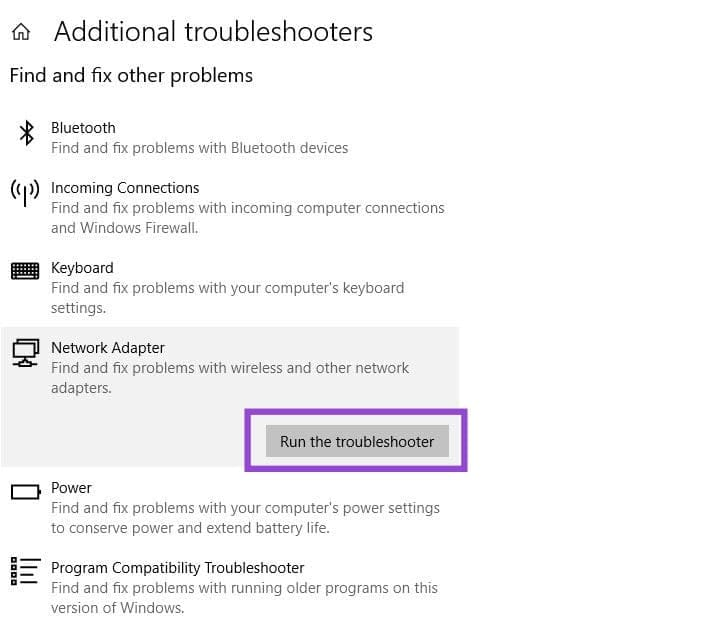
- Open Settings → System → Troubleshoot → Other troubleshooters
- Select Network Adapter
- Click Run
If other apps are also failing to connect, restart your router and check cables.
Fix 2: Restart Your Computer
Temporary system glitches often resolve after a restart.
- Click Start → Power → Restart
- After rebooting, try signing in again.
Fix 3: Scan for Viruses or Malware
Malware can interfere with Microsoft authentication services.
Steps:
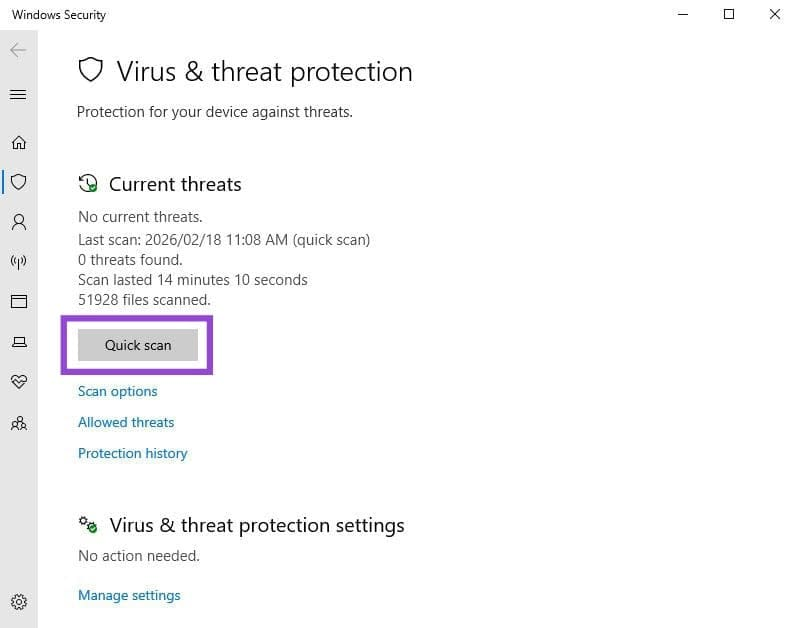
- Open Settings → Privacy & Security → Windows Security
- Click Virus & Threat Protection
- Select Quick Scan
Remove any detected threats before retrying sign-in.
Fix 4: Run System File Checker (SFC & DISM)
Corrupted system files can trigger error 1001.
Steps:
- Search for Command Prompt
- Right-click and select Run as Administrator
- Enter the following command and press Enter:
sfc /scannow
After it completes, run:
DISM /Online /Cleanup-Image /RestoreHealth
Restart your system after completion.
Fix 5: Repair Microsoft Web Account Manager (WAM)
If authentication services are damaged, reinstalling required components may fix the issue.
Steps:
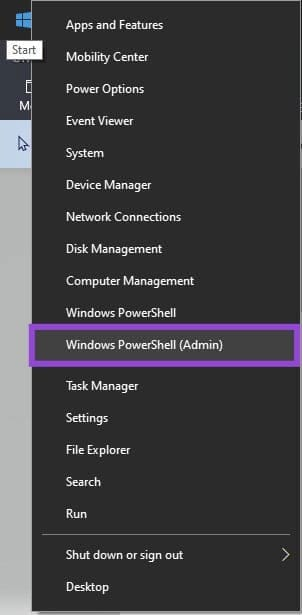
- Right-click Start and choose Windows PowerShell (Admin)
- Paste the appropriate command based on your account type:
For Work Account:
if (-not (Get-AppxPackage Microsoft.AAD.BrokerPlugin)) { Add-AppxPackage -Register "$env:windir\SystemApps\Microsoft.AAD.BrokerPlugin_cw5n1h2txyewy\Appxmanifest.xml" -DisableDevelopmentMode -ForceApplicationShutdown } Get-AppxPackage Microsoft.AAD.BrokerPlugin
For Personal Account:
if (-not (Get-AppxPackage Microsoft.Windows.CloudExperienceHost)) { Add-AppxPackage -Register "$env:windir\SystemApps\Microsoft.Windows.CloudExperienceHost_cw5n1h2txyewy\Appxmanifest.xml" -DisableDevelopmentMode -ForceApplicationShutdown } Get-AppxPackage Microsoft.Windows.CloudExperienceHost
- Press Enter
- Restart your system
Fix 6: Clear Temporary and Cached Data
Corrupted cache files can block login attempts.
Delete Temporary Files:
- Press Windows + R
- Type
%temp% - Delete all files
Clear App-Specific Cache:
For Teams:
- Open
%appdata% - Navigate to
Microsoft → Teams - Delete cache folders
For Outlook:
- Open
%localappdata% - Go to
Microsoft → Outlook - Delete
RoamCachecontents
For OneDrive:
- Open
%localappdata% - Navigate to
Microsoft → OneDrive - Delete cached folders
Restart the affected app afterward.
Fix 7: Repair or Reinstall Microsoft Apps
If the error affects only one app, repair it.
Repair Microsoft 365:
- Go to Settings → Apps → Installed Apps
- Find Microsoft 365
- Click Modify
- Choose Quick Repair
- If needed, use Online Repair
If the problem continues, uninstall and reinstall the app.
When to Contact Microsoft Support
If none of these fixes work, the issue may be account-related or server-side. In that case:
- Check Microsoft Service Status page
- Contact official Microsoft Support
Final Thoughts
The “Something Went Wrong [1001]” error is usually caused by connectivity issues, corrupted system files, or Microsoft authentication problems. In most cases, running system checks, clearing cache, or repairing Microsoft components resolves the issue quickly.
Following these seven solutions systematically should restore normal sign-in functionality across Microsoft apps.