

Backing up your files regularly is one of the smartest things you can do. Unfortunately, many users run into a frustrating issue where Windows Backup and Restore stuck—often freezing at 12%, 58%, or even 97% for hours.
Since Windows Backup and Restore is a legacy feature originally designed for Windows 7, it can behave unpredictably on modern systems like Windows 10 and Windows 11. The good news? In most cases, the issue can be fixed without reinstalling Windows or losing data.
Below are safe, effective fixes you can try to get your backup working again.
Why Does Windows Backup and Restore Get Stuck?
Windows Backup may freeze due to:
- Corrupted system files
- Faulty or inaccessible folders
- Old or incomplete backup data
- Disk errors
- A stalled Windows Backup service
If your backup progress hasn’t moved for a long time, it’s very likely stuck and needs intervention.
Fix 1: Restart the Windows Backup Service
Restarting the service is often enough to resolve temporary freezes.
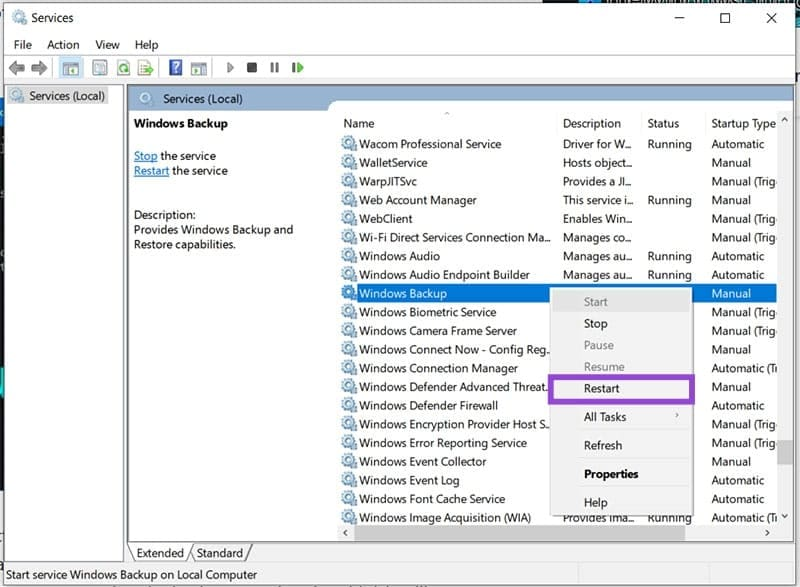
Steps:
- Press Win + R to open the Run dialog
- Type services.msc and press Enter
- Locate Windows Backup
- Right-click it and select Restart
Once restarted, try running the backup again.
Fix 2: Delete Old or Failed Backup Files
Corrupted or incomplete backups from earlier attempts can interfere with new ones.
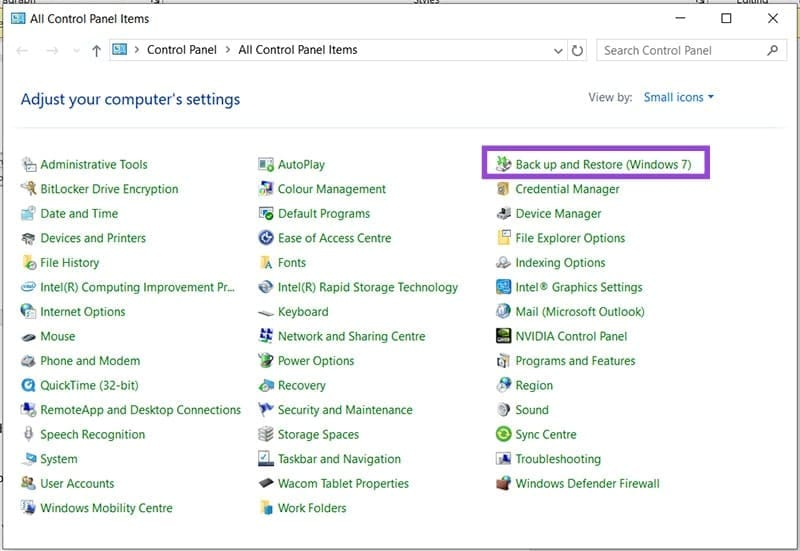
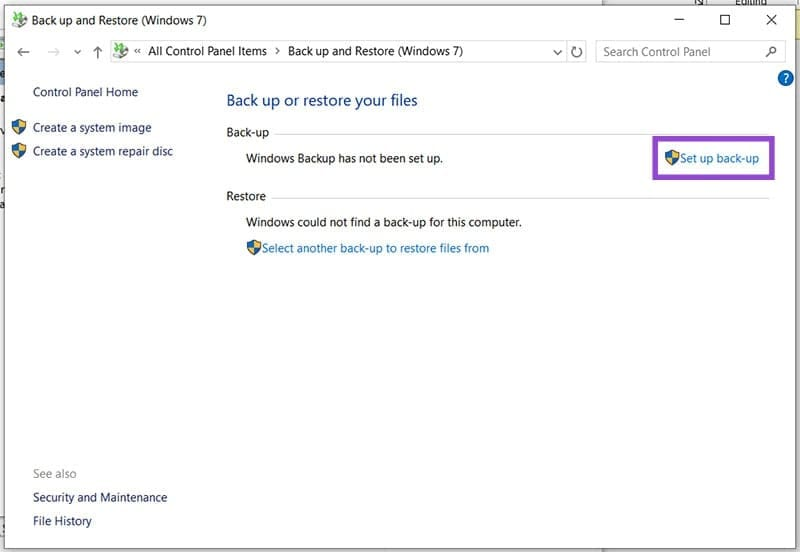
Steps:
- Open Control Panel
- Click Backup and Restore (Windows 7)
- Select Manage space
- Delete existing backup files
After clearing old data, start a fresh backup.
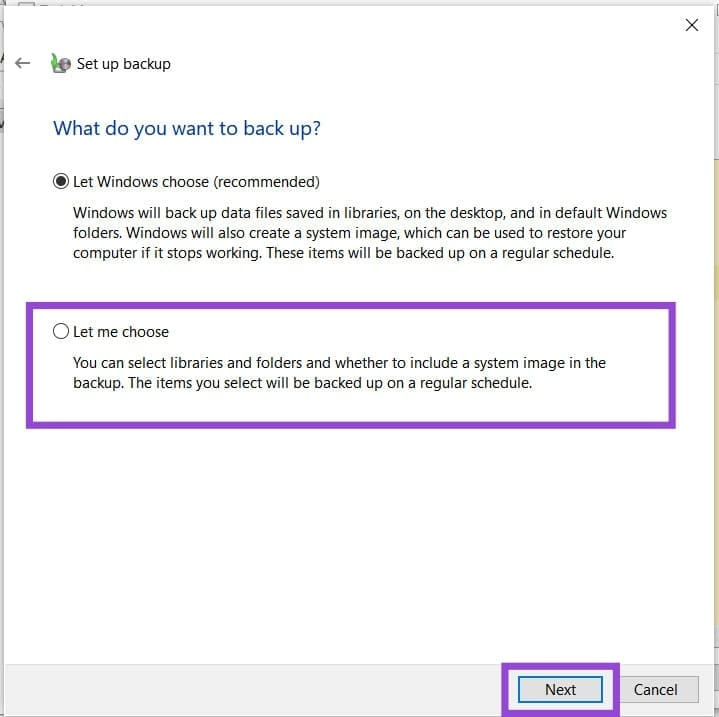
Fix 3: Exclude Problematic Folders from Backup
Some folders frequently cause Windows Backup to hang, especially system-generated ones.
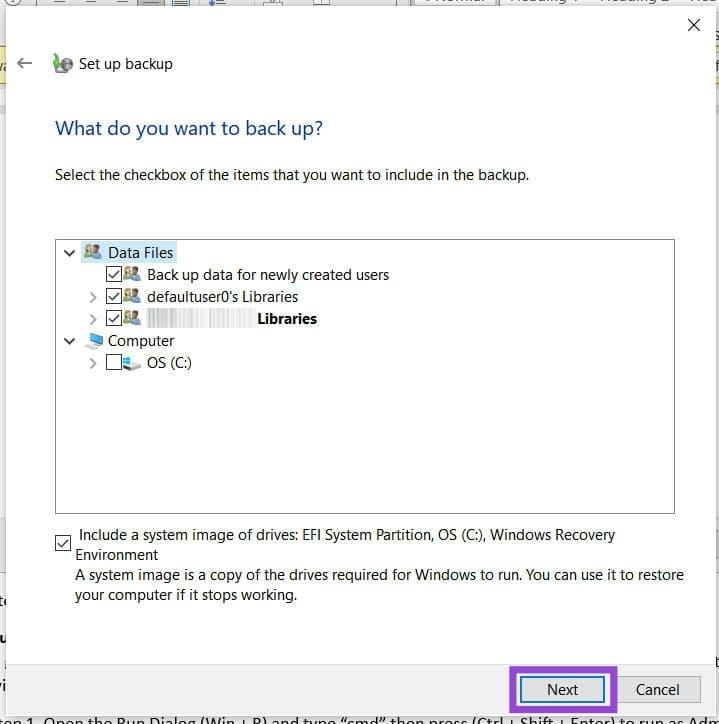
Common problematic folders:
- AppData
- Searches
- Contacts
Steps:
- Open Backup and Restore
- Click Set up backup
- Choose your backup drive
- Select Let me choose
- Exclude problematic folders under Additional Locations
- Continue with the backup
This significantly improves backup stability.
Fix 4: Run System File Checker (SFC)
Corrupted system files can break the backup process.
Steps:
- Press Win + R, type cmd
- Press Ctrl + Shift + Enter (Run as Administrator)
- Enter:
sfc /scannow - Wait for the scan to complete
- Restart your computer
Fix 5: Check Disk for Errors (CHKDSK)
Disk errors are another common reason for stuck backups.
Steps:
- Open Command Prompt as Administrator
- Run:
chkdsk /f - Confirm disk check on restart if prompted
- Restart your PC and let the scan finish
Additional Tips to Prevent Backup Issues
- Ensure sufficient free space on the backup drive
- Avoid backing up while installing updates
- Temporarily disable third-party antivirus software
- Consider modern backup tools for long-term reliability
Final Thoughts
Windows Backup and Restore is functional but outdated, and it can easily freeze if something goes wrong. By restarting services, clearing old backups, excluding problematic folders, and checking system health, you can usually fix the issue without data loss.
Most importantly, never ignore backups—hardware failure, malware, or accidental deletion can strike at any time.
If Windows Backup continues to fail, switching to a modern third-party backup solution may be a smarter long-term choice.