
Windows 11 runs many background processes to keep apps and connected devices working smoothly. Most of them use very few system resources, but occasionally a process can consume an unusually high amount of CPU.
If you notice Microsoft Cross Device Service using high CPU, the issue may be related to cross-device synchronization, Phone Link, background app activity, or a problem with the service itself.
Fortunately, there are several ways to reduce CPU usage and get the process back to normal.
Quick Tips
- High CPU usage from Microsoft Cross Device Service can be related to cross-device connectivity and background synchronization.
- Restarting Windows can clear temporary process or resource-management issues.
- Disabling Phone Link and other related apps from startup can reduce background activity.
- Limiting background permissions can prevent unnecessary cross-device tasks.
- If the problem continues, reinstalling the Cross Device Service may help.
What Is Microsoft Cross Device Service?
Microsoft Cross Device Service is a Windows component that helps Windows communicate and synchronize with other devices, particularly smartphones.
Features and applications such as Phone Link can use cross-device functionality to connect your phone with your Windows PC.
Under normal circumstances, the service should operate quietly in the background. However, synchronization problems, repeated connection attempts, or other software issues can sometimes cause it to consume more CPU resources than expected.
How to Fix Microsoft Cross Device Service High CPU Usage
Try the following solutions in order. Start with the simplest fix before changing Windows settings or reinstalling the service.
Fix 1: Restart Your PC
Restarting Windows is one of the easiest ways to resolve temporary CPU usage problems.
Background processes can occasionally encounter resource-management issues or become stuck while performing a task. A restart closes those processes and starts them again.
Step 1: Save Your Work
Save any open documents and close applications that you are using.
Step 2: Restart Windows
Open the Start menu, select the Power button, and choose Restart.
Step 3: Check CPU Usage
After Windows starts again, open Task Manager with:
Ctrl + Shift + Esc
Check whether Microsoft Cross Device Service is still consuming an unusually high amount of CPU.
Fix 2: Disable Phone Link From Startup
If you do not need Phone Link to launch every time Windows starts, disabling it from startup can reduce background activity.
Step 1: Open Task Manager
Press:
Ctrl + Shift + Esc
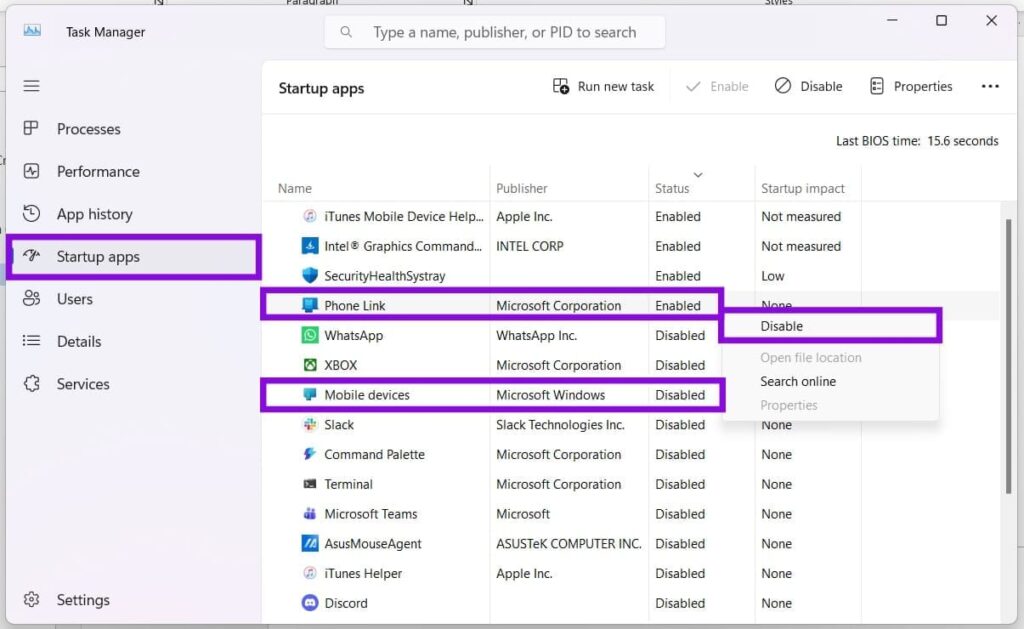
Step 2: Open Startup Apps
Select Startup apps from the sidebar.
Step 3: Find Phone Link
Locate Phone Link in the list.
Step 4: Disable It
Right-click Phone Link and select Disable.
This prevents Phone Link from automatically launching when you sign in to Windows.
You can also check the Startup apps list for Mobile devices and disable it if you do not need that feature to start automatically.
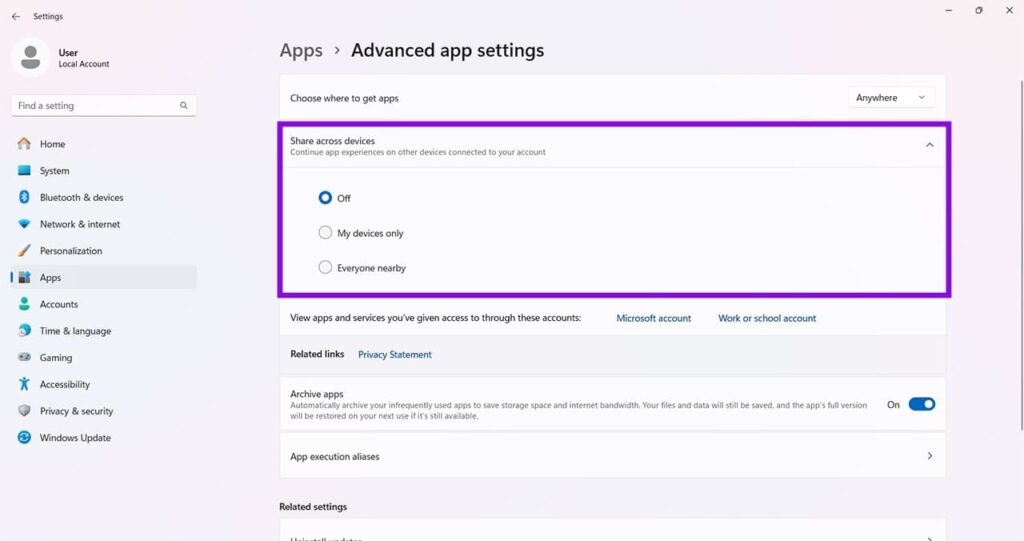
Fix 3: Turn Off Share Across Devices
Windows includes features that allow supported apps and experiences to work across multiple devices. If you do not use these features, disabling them can reduce the amount of background activity associated with cross-device functionality.
Step 1: Open Windows Settings
Press:
Windows + I
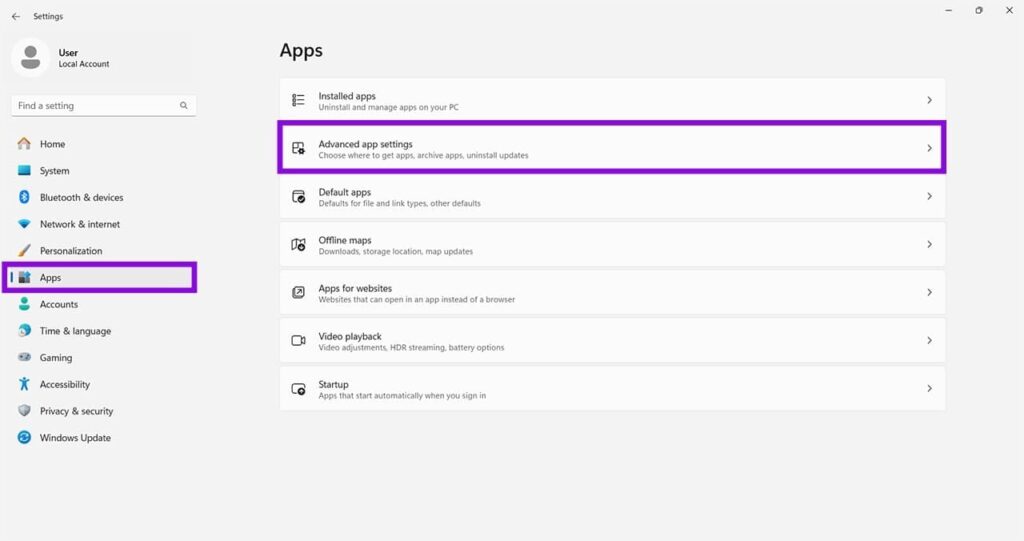
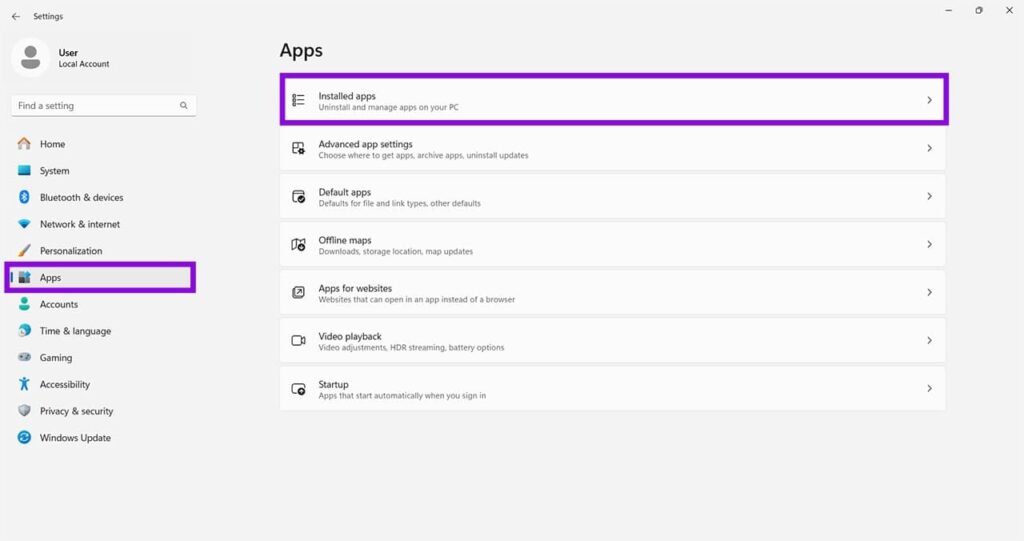
Then select Apps.
Step 2: Open Advanced App Settings
Select Advanced app settings.
Step 3: Open Share Across Devices

Look for Share across devices.
Step 4: Turn the Feature Off
Select Off for the relevant sharing option.
The exact wording or availability of this setting may vary depending on your Windows 11 version and installed features.
Fix 4: Prevent Phone Link From Running in the Background
If Phone Link continues consuming resources even when you are not actively using it, you can restrict its background activity.
Step 1: Open Settings
Press Windows + I.
Go to:
Apps > Installed apps
Step 2: Find Phone Link
Search for Phone Link in the installed applications list.
Step 3: Open Advanced Options
Click the three-dot menu next to Phone Link and select Advanced options.
Step 4: Change Background Permissions
Find Background apps permissions.
Open the dropdown menu and select:
Never
This prevents Phone Link from continuing to run in the background when you are not actively using it.
Fix 5: Reinstall Microsoft Cross Device Service
If Microsoft Cross Device Service continues to consume excessive CPU after trying the previous fixes, reinstalling the relevant Windows package may resolve corrupted or malfunctioning components.
Before doing this, make sure you understand that removing a Windows app package can affect related cross-device features.
Step 1: Open PowerShell as Administrator
Press:
Windows + R
Type:
powershellInstead of pressing Enter normally, press:
Ctrl + Shift + Enter
Approve the User Account Control prompt.
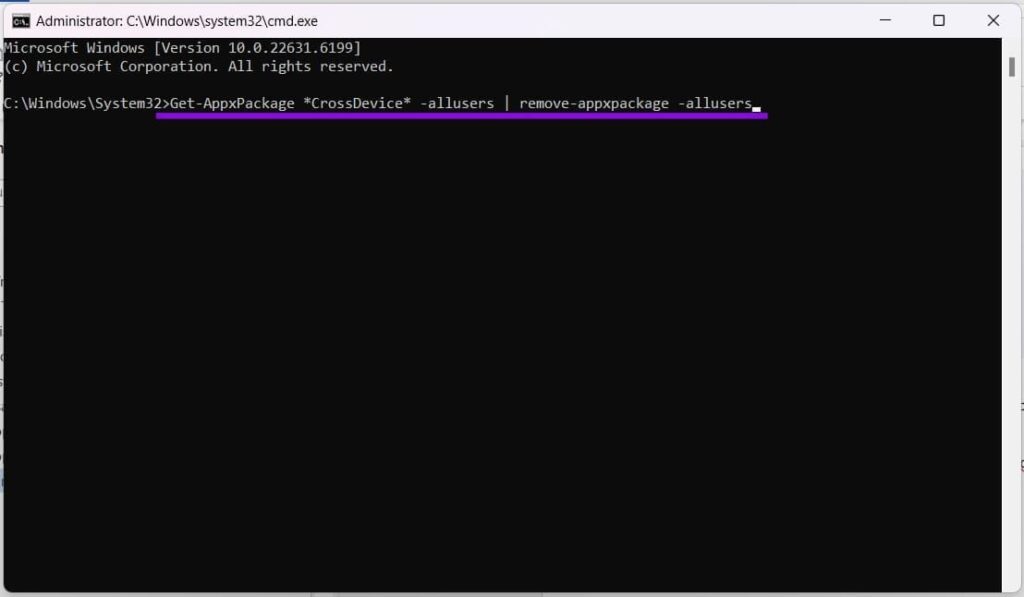
Step 2: Remove the Cross Device Package
In PowerShell, run:
Get-AppxPackage *CrossDevice* -AllUsers | Remove-AppxPackage -AllUsersPress Enter and wait for the command to complete.
Step 3: Restart Windows
Restart your computer.
Step 4: Reinstall the Package
Open PowerShell or Windows Terminal as administrator again.
Run:
winget install 9NTXGKQ8P7N0Press Enter and follow any prompts shown by Windows.
Step 5: Check CPU Usage
After installation completes, restart Windows if requested.
Open Task Manager and check whether Microsoft Cross Device Service is still using excessive CPU resources.
How to Check Whether Cross Device Service Is Causing the Problem
If you want to confirm the process is responsible for the CPU spike, open Task Manager using:
Ctrl + Shift + Esc
Select the Processes tab and look for Microsoft Cross Device Service or a related process.
If CPU usage drops significantly after disabling Phone Link or cross-device features, one of those connected services may be responsible for the background activity.
Final Thoughts
Microsoft Cross Device Service normally works in the background and should not continuously consume a large amount of CPU. If it does, start by restarting Windows and checking whether Phone Link is launching automatically.
If the problem remains, disable unnecessary startup and background activity, turn off cross-device sharing, and restrict Phone Link’s background permissions.
As a final troubleshooting step, you can remove and reinstall the Cross Device package using PowerShell and winget. After reinstalling it, monitor Task Manager to see whether CPU usage returns to normal.