


Microsoft Word can sometimes make numbered lists look uneven, especially when the list contains larger numbers. You may notice that the text does not line up correctly, the space after each number changes, or numbers such as 10, 100, or 1000 push the following text to a different position.
This is usually caused by list indentation, tab stops, ruler settings, or formatting conflicts rather than the numbering format itself.
Here are several ways to fix the Microsoft Word numbering indent problem and make your numbered lists consistent again.
Quick Tips
- Microsoft Word numbering alignment problems are usually related to indentation, tab stops, or list formatting.
- You can adjust numbered-list alignment directly from the ruler or through Adjust List Indents.
- Reducing the font size can sometimes provide additional space for larger numbers.
- Changing the number format alone usually won’t fix an indentation problem.
What Causes Numbering Indent Problems in Microsoft Word?
Several formatting issues can cause numbered lists to become misaligned.
Common causes include:
- Incorrect ruler or indentation settings
- Extra spaces or tabs before list entries
- Formatting copied from another document
- Conflicting numbered-list formatting
- Incorrect tab-stop positions
- Not enough space between the number and the list text
The problem can become especially noticeable when a list moves from single-digit numbers to double- or triple-digit numbers.
For example, numbers such as 1, 2, and 3 require less horizontal space than 100, 101, and 102. If the tab stop is positioned too close to the numbering area, Word may move the text to another tab position, making the list appear uneven.
How to Fix the Microsoft Word Numbering Indent Problem
Before changing your list formatting, make sure the Word ruler is visible.
Go to the View tab and enable Ruler.
You can then use the following methods to correct the alignment.
Fix 1: Reduce the Font Size

If your numbered list contains large numbers and the spacing is very tight, reducing the font size can provide more room before the tab stop.
Step 1: Select the Numbered List
Highlight the entire list that has the alignment problem.
Step 2: Reduce the Font Size
Use the font-size control on the Home tab to slightly reduce the size.
Step 3: Check the Alignment
See whether the numbers and list text now line up consistently.
This is a quick workaround, but it may not be the best solution if you need to keep a specific font size throughout the document.
Fix 2: Adjust List Indents
Instead of changing the font size, you can change the list’s indentation settings.
Microsoft Word’s Adjust List Indents option allows you to control the position of the number, the distance between the number and text, and the position where the list text begins.
Step 1: Select the List
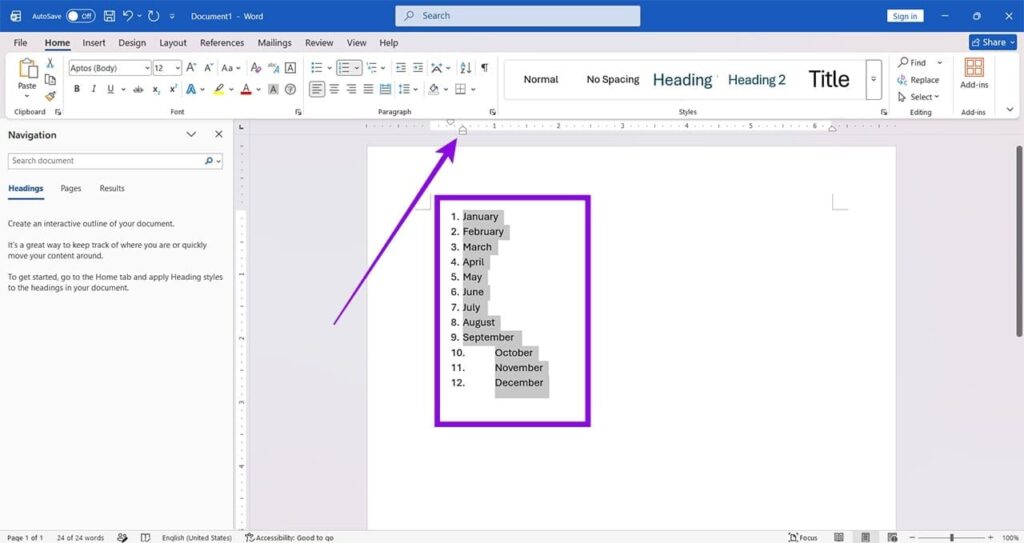
Highlight the numbered list you want to fix.
Step 2: Open Adjust List Indents
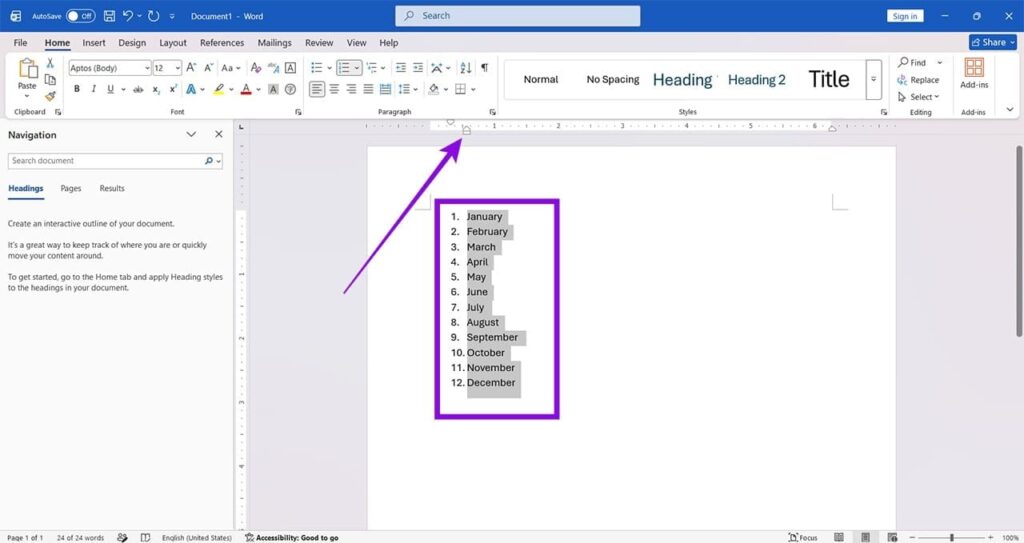
Right-click one of the selected list entries.
Choose Adjust List Indents.
Step 3: Change the Indent Settings
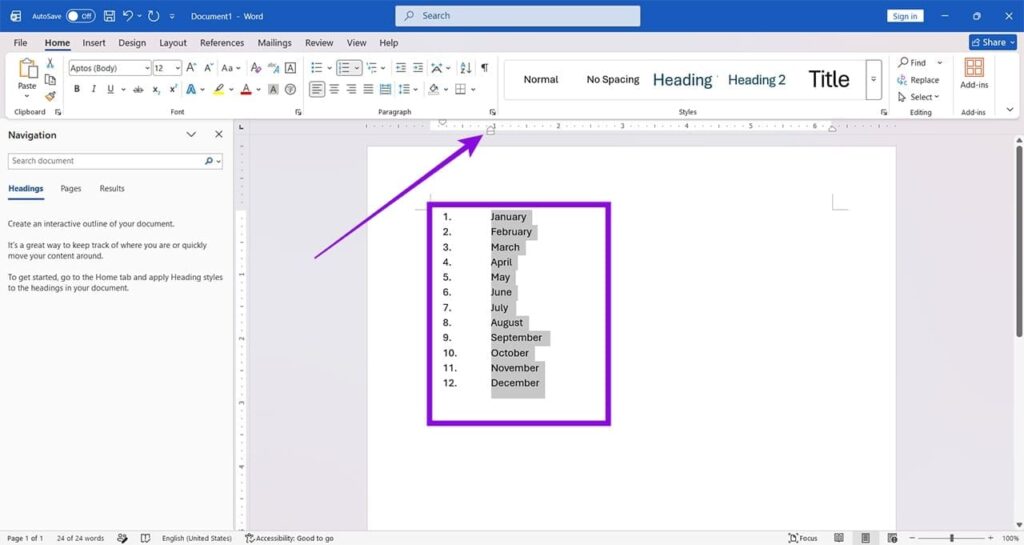
Use the available settings to adjust:
- Number position
- Text indent
- Tab space
- Distance between the number and text
Move the values until the list appears evenly aligned.
Step 4: Apply the Changes
Click OK and check the entire list.
Fix 3: Adjust the Indentation Using the Ruler
The Word ruler provides another quick way to correct numbered-list alignment.
Step 1: Select the Entire List
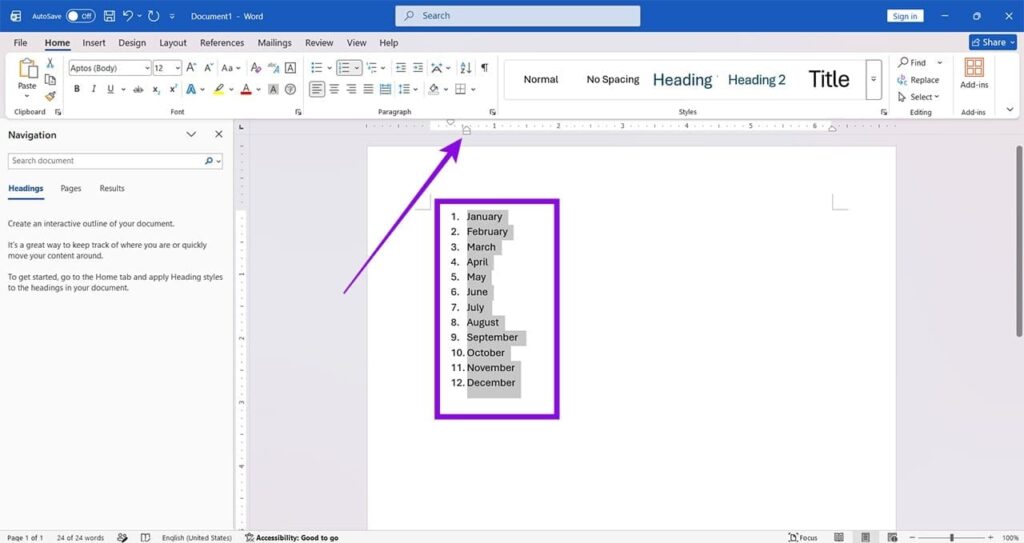
Highlight all of the numbered entries that need to be corrected.
Step 2: Adjust the Left Indent
On the ruler, locate the indentation markers.
Move the left-indent marker to change where the list content is positioned.
Adjust it until the numbers and text align correctly.
Step 3: Adjust the Hanging Indent
Use the hanging-indent marker to control where the text following the number begins.
This is particularly useful when you want every line of a list item to start at exactly the same position.
Step 4: Check the Entire List
Scroll through the list and make sure that single-, double-, and triple-digit numbers all align consistently.
Fix 4: Change What Appears After the Number
Word allows you to control what separates the number from the list text.
You can choose between options such as a Tab character, Space, or Nothing, depending on your Word version and list formatting.
Step 1: Right-Click the List
Select one of the numbered entries and right-click it.
Step 2: Select Adjust List Indents
Choose Adjust List Indents from the context menu.
Step 3: Change “Follow Number With”
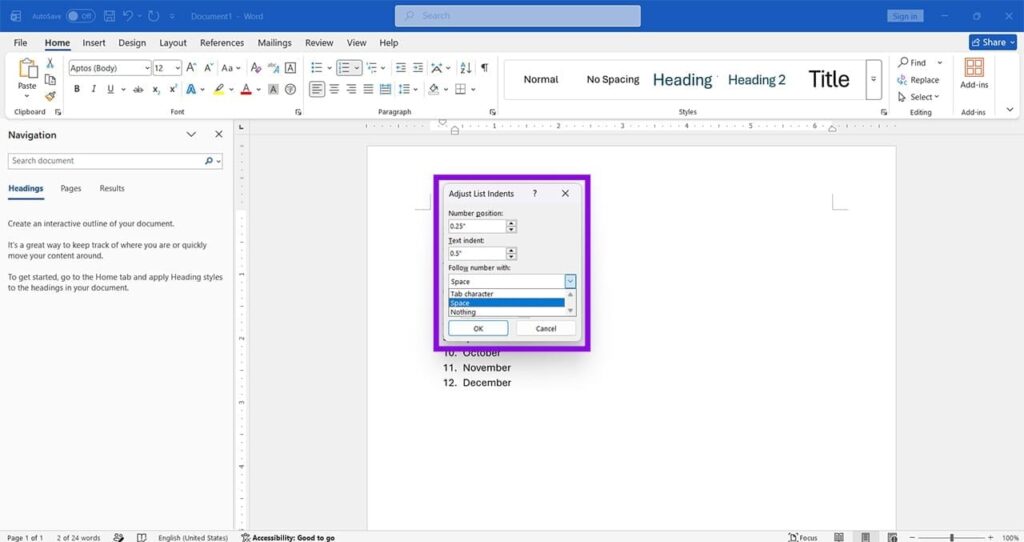
Find Follow number with.
Choose Space if you want a simple and consistent gap between the number and the text.
Step 4: Apply the Setting
Click OK and check the list.
If you prefer using a tab, select Tab character instead and manually adjust the number position and text indent.
Fix 5: Remove Unnecessary Spaces and Tabs
Manually inserted spaces and tabs can interfere with Word’s automatic numbering alignment.
If some entries are aligned differently from others, check whether additional spaces or tab characters were added before the text.
You can enable formatting marks from the Home tab to make spaces, tabs, and paragraph marks visible.
Remove unnecessary spaces or tabs and allow Word’s list formatting to control the alignment.
Why Do Larger Numbers Make the Problem Worse?
Numbered-list indentation problems often become more noticeable when the list reaches two or three digits.
For example:
1. First item
2. Second item
10. Tenth item
100. Hundredth item
The number itself becomes wider as more digits are added. If the tab stop or text indent is too close to the numbering position, Word may not have enough room to place the text where you expect it.
Increasing the distance between the number and text or adjusting the hanging indent usually provides a more reliable solution than changing the numbering format.
Final Thoughts
Microsoft Word numbering indentation problems are usually caused by list indents, tab stops, ruler settings, or inconsistent formatting.
The easiest solution is often to select the entire list and use Adjust List Indents. You can also use the ruler to fine-tune the number position and hanging indent.
If the problem only appears with larger numbers, increase the available space between the number and the list text. Removing unnecessary tabs and spaces can also prevent Word from applying inconsistent formatting.
Once the list indentation is configured correctly, your numbered lists should remain aligned even as the numbering moves from single digits to double- or triple-digit numbers.





Leave a Reply