

If your laptop battery keeps draining while the laptop is shut down, the system may not be completely powered off, or certain hardware and firmware features may still be consuming power.
A small amount of battery loss over several weeks can be normal. However, if your laptop loses a significant amount of charge over a weekend while powered off, it is worth checking the Windows power settings, connected devices, BIOS options, and overall battery health.
Quick Tips
- A laptop battery can naturally lose some charge when the computer is unused for a long period, especially over several weeks.
- Before closing the laptop lid, make sure the computer has completely shut down and that its lights have turned off.
- If the laptop refuses to shut down normally, you can force it to turn off by holding the power button for several seconds.
- If the battery continues losing a large amount of charge while powered off, check the following fixes.
Fix 1: Turn Off Fast Startup
Windows Fast Startup is designed to reduce boot times by saving part of the system state before shutdown. On some systems, however, related power-management behavior may contribute to battery drain when the laptop appears to be off.
Step 1: Open Power Options
Search for Control Panel in Windows and open it.
Go to Hardware and Sound > Power Options.
Step 2: Open Power Button Settings
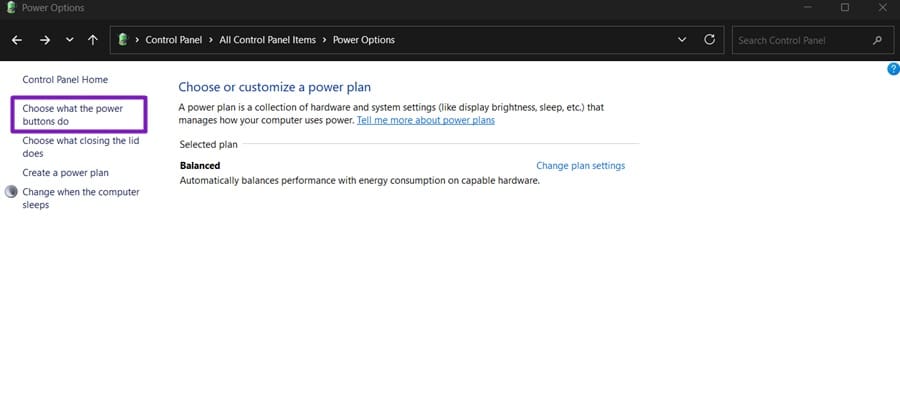
Select Choose what the power buttons do from the left-hand menu.
Step 3: Unlock the Settings
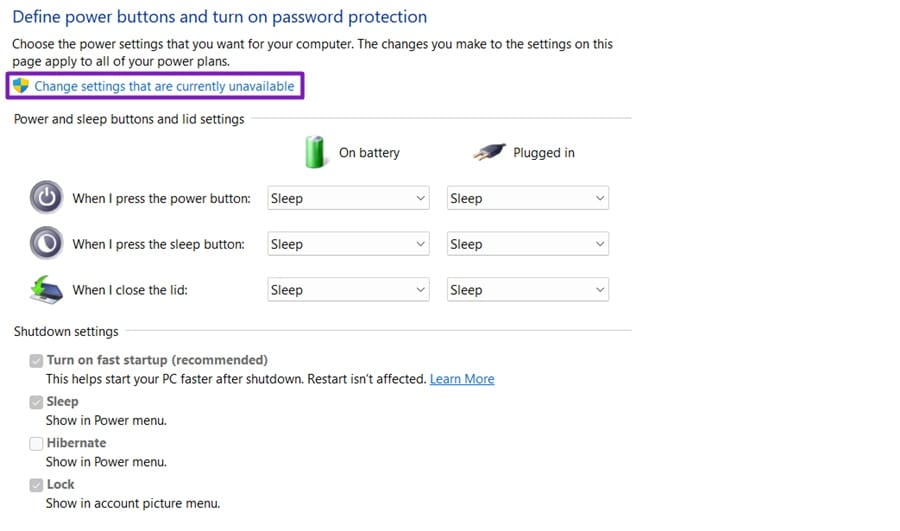
Click Change settings that are currently unavailable.
Step 4: Disable Fast Startup
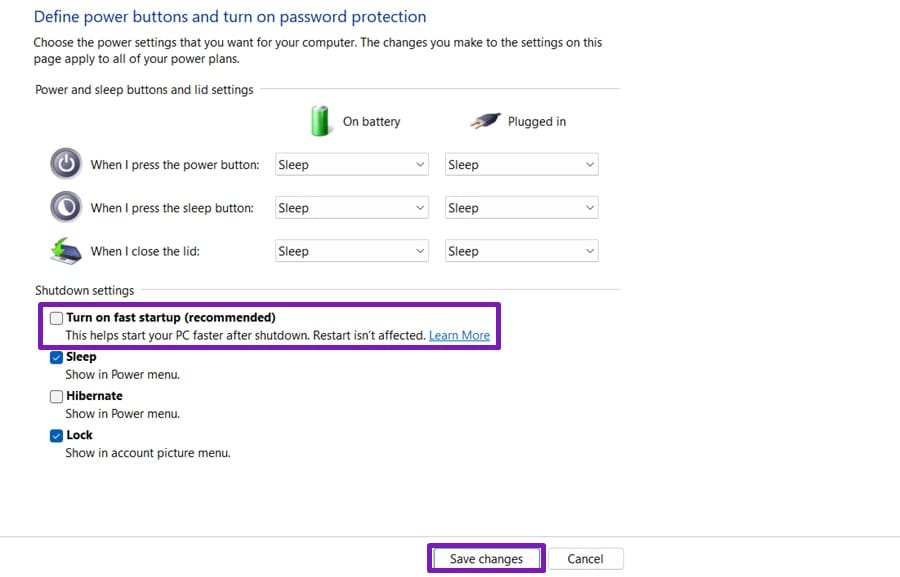
Clear the checkbox next to:
Turn on fast startup (recommended)
Then select Save changes.
Step 5: Shut Down the Laptop
Shut down Windows normally instead of using Sleep or closing the lid.
Step 6: Check the Battery Later
Leave the laptop powered off for several hours and then turn it on.
Compare the battery level with the level recorded before shutdown.
Fix 2: Check and Disable Hibernation
Hibernation saves the current system state to storage and powers down most of the computer. If your laptop is actually entering another low-power state instead of shutting down completely, it may continue consuming some battery.
You can check the supported power states using the powercfg command.
Step 1: Open Command Prompt as Administrator
Search for Command Prompt, right-click it, and select Run as administrator.
Step 2: Check Available Power States
Run:
powercfg /aPress Enter.
Windows will display the sleep and power states supported by your system.
Step 3: Disable Hibernation
If hibernation is available and you want to disable it, run:
powercfg /hibernate offStep 4: Turn Hibernation Back On
If you later want to restore hibernation, run:
powercfg /hibernate onNote: Hibernation itself is designed to use very little power, so this step is mainly useful for troubleshooting unusual power-state behavior rather than being a guaranteed battery-drain fix.
Fix 3: Stop Devices From Waking the Laptop
Some hardware devices can be configured to wake a computer or remain active during certain low-power states.
Windows can show which devices are currently allowed to wake the system.
Step 1: Check Wake-Enabled Devices
Open Command Prompt as administrator and run:
powercfg -devicequery wake_armedPress Enter.
Windows will display devices that are allowed to wake the computer.
Step 2: Open Device Manager
Right-click the Start button and select Device Manager.
Step 3: Find the Relevant Device
Expand categories such as System devices, Network adapters, and other hardware sections.
On Intel-based systems, you may see Intel Management Engine Interface among the system devices.
Step 4: Check Power Management
Right-click the relevant device and select Properties.
If a Power Management tab is available, look for options related to allowing the device to wake the computer.
Step 5: Disable Unnecessary Wake Permissions
If appropriate for the device, disable:
Allow this device to wake the computer
You can repeat this for other devices listed by the powercfg -devicequery wake_armed command.
Note: Available options vary by hardware, Windows version, and driver. Do not disable power-management features blindly if you are unsure what a device controls.
Fix 4: Disable USB Charging While the Laptop Is Off
Some laptops can provide power through USB ports even when Windows is shut down. Features may be called USB Power-Off Charging, Sleep and Charge, Always On USB, or something similar.
If the laptop is unplugged from the wall, this feature can continue using the internal battery.
Step 1: Enter the BIOS or UEFI
Restart your laptop and repeatedly press the manufacturer’s BIOS/UEFI key during startup.
Common keys include:
F2, F10, Delete, or Esc
The correct key depends on your laptop manufacturer.
Step 2: Find USB Power Settings
Look under sections such as:
- Power Management
- Advanced
- USB Configuration
- System Configuration
Look for options such as:
- USB Charging
- USB Power-Off Charging
- Sleep and Charge
- Always On USB
Step 3: Disable the Feature
If the option is available, set it to Disabled.
Save the changes and exit BIOS/UEFI.
If you cannot find the setting, check your laptop manufacturer’s documentation for the exact BIOS/UEFI menu.
Fix 5: Check Battery Health With Windows Battery Report
If the previous fixes do not help, the battery itself may have degraded.
Windows includes a built-in battery reporting tool that compares the battery’s original design capacity with its current full-charge capacity.
Step 1: Open Command Prompt as Administrator
Search for Command Prompt, right-click it, and choose Run as administrator.
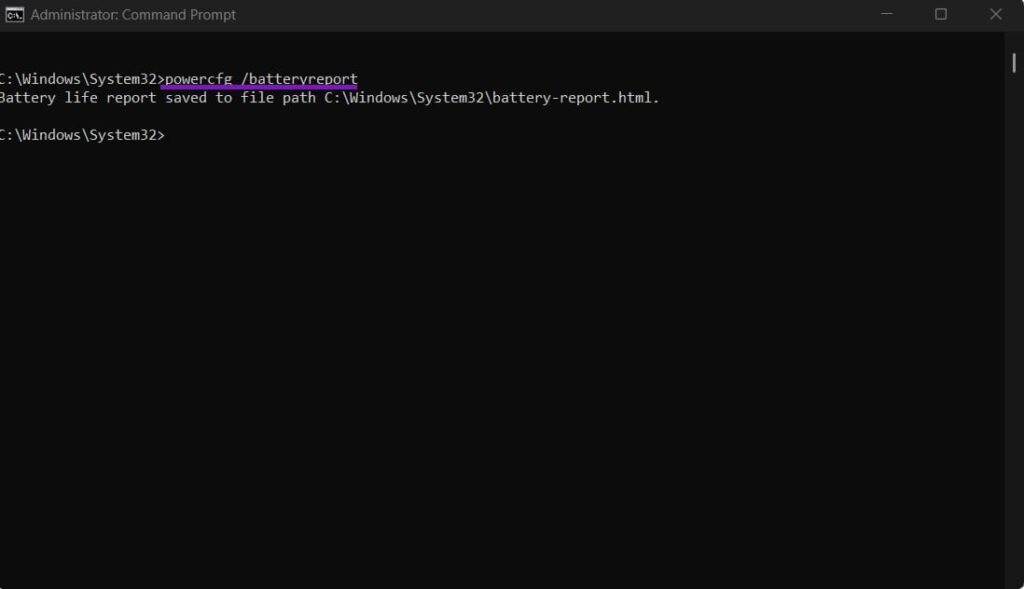
Step 2: Generate the Battery Report
Run:
powercfg /batteryreportPress Enter.
Step 3: Find the Report
Windows will display the location where it saved the HTML battery report.
Open that file in your web browser.
Step 4: Compare Battery Capacity
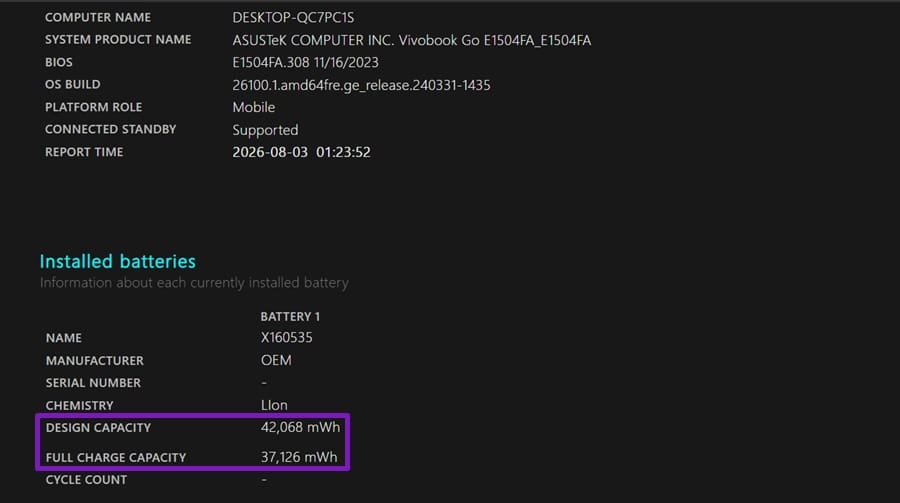
Look for:
Design Capacity
and
Full Charge Capacity
If the full-charge capacity is significantly lower than the original design capacity, the battery has experienced wear.
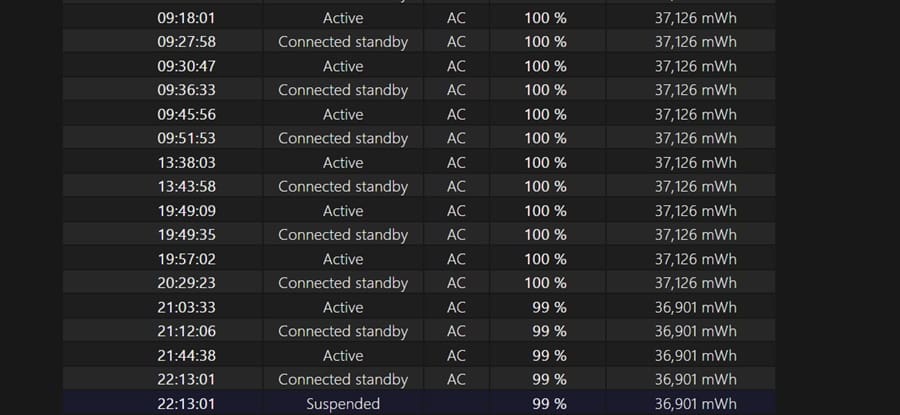
Step 5: Check Battery Usage
Review the Battery usage and Usage history sections.
These details can help you determine whether the laptop was actually powered down or whether it remained in another power state.
Check Your Manufacturer’s Battery Tools
Many laptop manufacturers provide their own diagnostic applications that can provide additional information about battery health.
Depending on your laptop, you may find tools such as HP Support Assistant, Dell SupportAssist, or MyASUS useful for checking hardware and battery information.
Why Does a Laptop Battery Drain When It Is Shut Down?
Several factors can contribute to battery loss while a laptop appears to be off:
- The laptop entered Sleep or another low-power state instead of fully shutting down.
- Fast Startup is enabled.
- USB charging remains active while the laptop is off.
- Certain hardware devices can wake the computer.
- BIOS or firmware features continue using a small amount of power.
- The battery has degraded with age.
- The laptop has been stored in warm conditions for an extended period.
- The computer has not actually completed the shutdown process.
Final Thoughts
A small amount of battery loss while a laptop is switched off can be normal, particularly when the computer is stored for weeks. However, significant battery drain over a few days suggests that something may be preventing the system from entering a low-power state or that the battery itself has degraded.
Start by checking Fast Startup, then investigate wake-enabled devices and BIOS power features. If the problem continues, generate a Windows battery report to determine whether the battery’s capacity has significantly declined.
If the battery health is poor or the laptop loses a large amount of charge even after a complete shutdown, hardware or firmware troubleshooting from the laptop manufacturer may be the next step.





Leave a Reply