

If your Steam game desktop icons are blank or appear as the default white icon, the problem is usually related to Windows Explorer, the icon cache, a damaged shortcut, or changes to your Steam library location.
In most cases, the games themselves are still installed correctly and can be launched from Steam. The issue is mainly with how Windows displays or connects the shortcut to the game’s icon.
Try the following fixes to restore your Steam game icons.
Quick Tips
- If all desktop shortcuts are showing blank icons, the Windows icon cache is likely the problem.
- Steam shortcuts can use
.urlfiles, so checking the shortcut and its associated Steam game may help. - If you recently moved your Steam library, recreate the affected desktop shortcuts after Steam recognizes the new library location.
Fix 1: Restart Windows Explorer
Windows Explorer controls the desktop and taskbar, including how shortcut icons are displayed. Restarting it can quickly resolve temporary icon display problems.
Step 1: Open Task Manager
Right-click the Start button and select Task Manager.
Step 2: Restart Windows Explorer
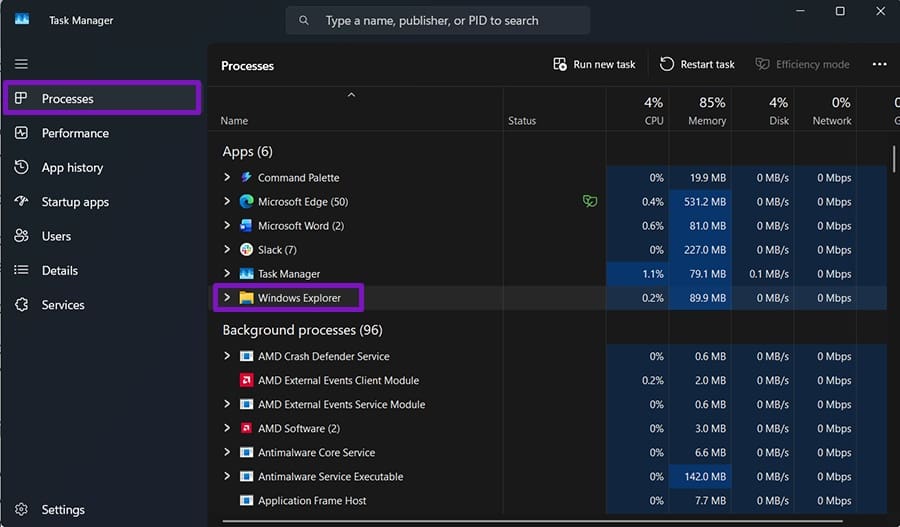
Find Windows Explorer under the Processes list.
Right-click it and select Restart.
Step 3: Wait for the Desktop to Reload
Your desktop and taskbar may disappear briefly. Wait a few seconds while Windows Explorer restarts.
If you selected End task instead, the desktop may remain unavailable. In Task Manager, select Run new task, type:
explorer.exeThen click OK.
Check your Steam shortcuts again.
Fix 2: Rebuild the Windows Icon Cache
Windows stores frequently used icons in a cache. If that cache becomes corrupted, some shortcuts may display as blank icons.
Step 1: Open the Icon Cache Folder
Press Windows + R.
Enter:
%localappdata%\Microsoft\Windows\ExplorerPress Enter.
Step 2: Find the Icon Cache Files
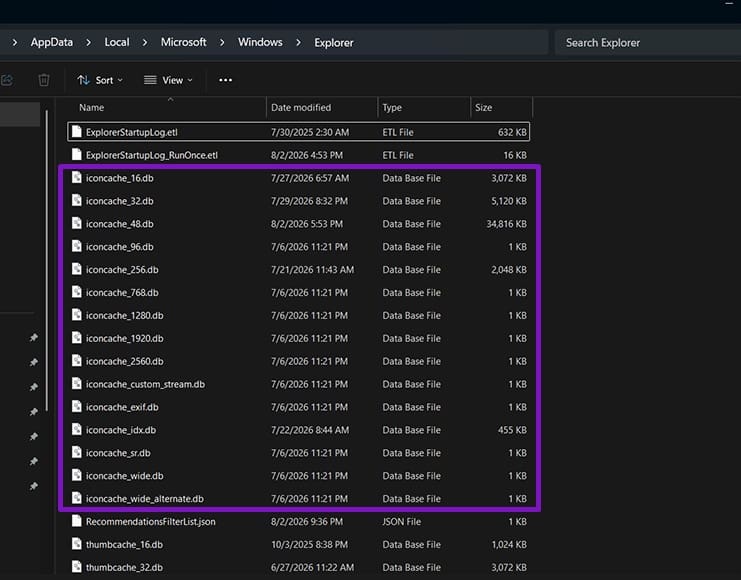
Look for files with names such as:
iconcache_16.db
iconcache_32.db
iconcache_48.db
iconcache_256.db
There may be additional iconcache files in the folder.
Step 3: Delete the Cache Files
Select the relevant icon cache files and delete them.
Windows may prevent some files from being removed because they are currently in use. If that happens, leave those files alone.
Step 4: Restart Windows Explorer
Restart Windows Explorer from Task Manager or restart the entire computer.
Windows will rebuild the icon cache automatically.
Fix 3: Recreate the Steam Desktop Shortcut
The shortcut itself may be damaged or no longer correctly connected to the Steam game.
The simplest solution is to remove the old shortcut and create a new one directly through Steam.
Step 1: Delete the Blank Shortcut
Right-click the blank Steam game shortcut and select Delete.
Step 2: Open Steam
Launch Steam and open the Library section.
Step 3: Create a New Desktop Shortcut
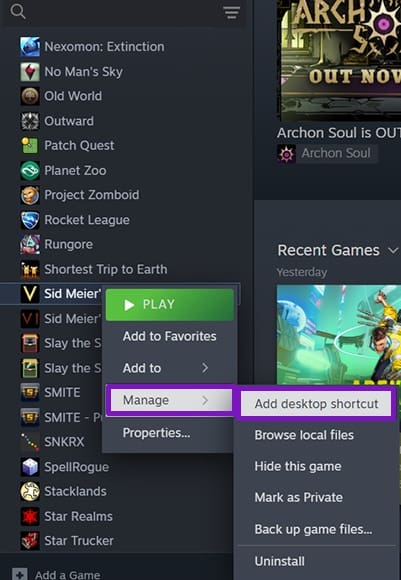
Right-click the affected game and select:
Manage > Add desktop shortcut
Step 4: Check the New Shortcut
Return to your desktop and check whether the game’s icon is displayed correctly.
Fix 4: Check the .URL File Association
Some Steam desktop shortcuts use .url files and the Steam protocol to launch games. If Windows has an unexpected application associated with these files, shortcut behavior may be affected.
Step 1: Open Default Apps
Open Settings > Apps > Default apps.
Step 2: Check File-Type Associations
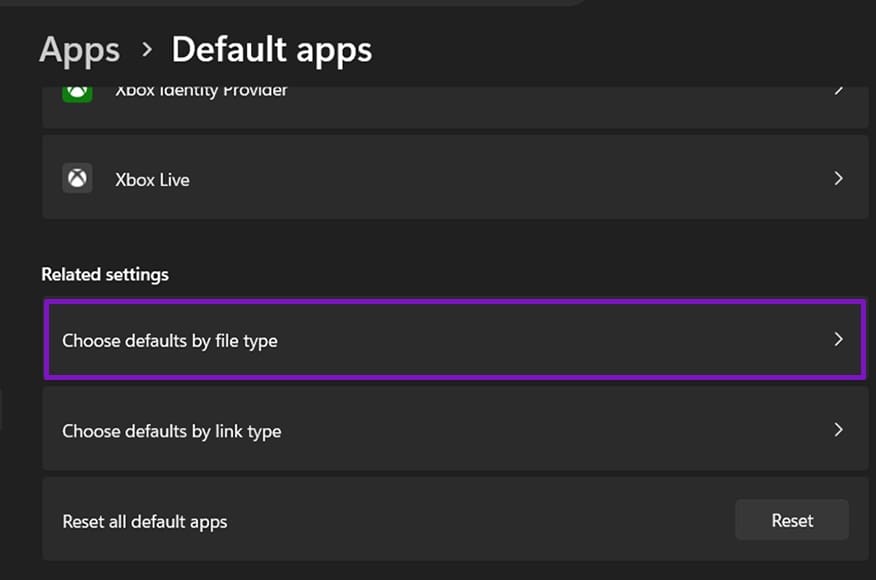
Scroll down and select Choose defaults by file type.
Step 3: Find the .URL Extension
Search for:
.urlIf it is assigned to an unexpected application, correct the association.
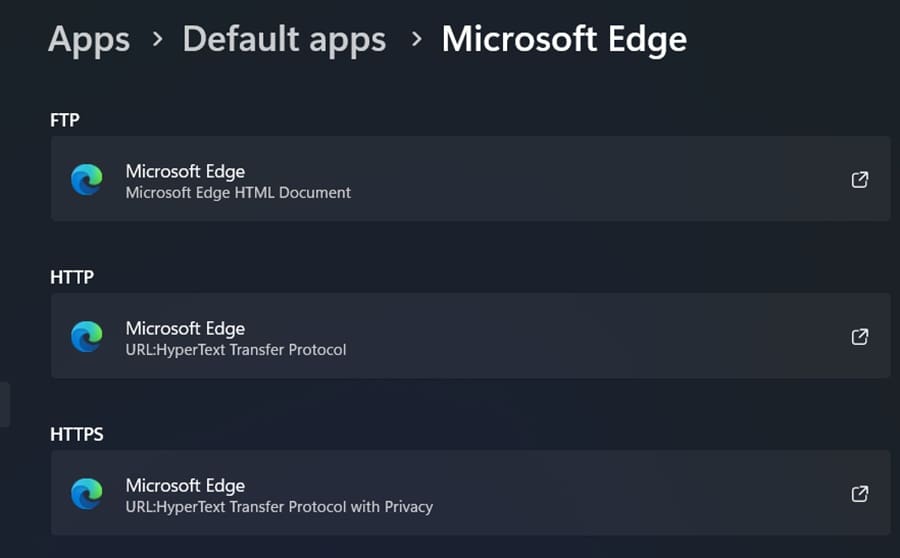
If .url isn’t shown, check that your preferred web browser is correctly configured for HTTP and HTTPS links under Default apps.
Step 4: Restart Windows
Restart your PC and check the Steam shortcuts again.
Fix 5: Verify the Game Files
If only one Steam game has a blank icon, checking its installation files can help determine whether the game’s installation is damaged.
Step 1: Open Steam Library
Launch Steam and go to Library.
Step 2: Open Game Properties
Right-click the affected game and select Properties.
Step 3: Open Installed Files
Select Installed Files from the left-hand menu.
Step 4: Verify the Files
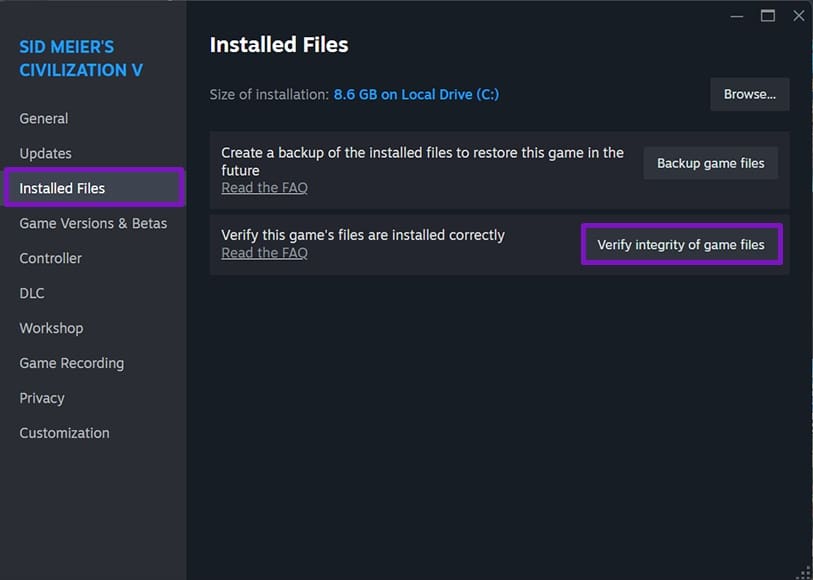
Click Verify integrity of game files.
Wait for Steam to complete the verification process.
Once finished, recreate the desktop shortcut and check whether the icon has returned.
Fix 6: Set the Game Icon Manually
If the shortcut works but continues to display a blank icon, you can manually select an icon file.
Steam may store game icon files in its installation folders.
Step 1: Open Shortcut Properties
Right-click the blank shortcut and select Properties.
Step 2: Select Change Icon
Depending on the shortcut type, look for the Web Document or Shortcut tab.
Select Change Icon.
Step 3: Browse to the Steam Icons Folder
A common Steam installation location is:
C:\Program Files (x86)\Steam\steam\gamesIf Steam is installed somewhere else, use that installation location instead.
Step 4: Select the Correct Icon
Look through the available .ico files and select the icon that belongs to your game.
Click Open, then select Apply and OK.
The filenames may look like hashes instead of game names, so you may need to identify the correct icon using its thumbnail.
Fix 7: Reconnect Your Steam Library After Moving Games
If you recently moved your Steam games to another drive or folder, Steam may not correctly recognize the new library location.
For future moves, use Steam’s built-in storage management options instead of manually moving game folders.
Step 1: Open Steam Storage Settings
Open Steam and click the Steam menu in the top-left corner.
Go to:
Settings > Storage
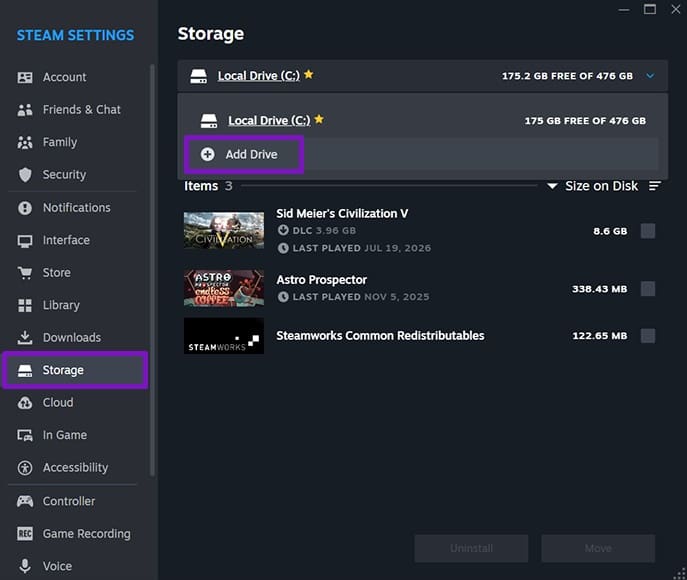
Step 2: Add the New Drive
Use the drive selection menu and choose Add Drive.
Select the drive or Steam library folder where your games are stored.
Step 3: Restart Steam
Close Steam completely and launch it again.
Check whether the affected games appear correctly in your Library.
Step 4: Recreate the Desktop Shortcuts
Once Steam recognizes the games correctly, delete the old blank shortcuts and create new ones using:
Library > Right-click Game > Manage > Add desktop shortcut
Why Are My Steam Desktop Icons Blank?
Blank Steam icons are usually caused by one of the following:
- A corrupted Windows icon cache
- A damaged desktop shortcut
- Windows Explorer temporarily malfunctioning
- Incorrect file associations
- A Steam library being moved incorrectly
- Problems with the game’s installation files
- Missing or incorrectly referenced icon files
If every desktop icon is blank, start with restarting Windows Explorer and rebuilding the Windows icon cache. If only one or two Steam games are affected, recreating the shortcuts is usually a better first step.
Final Thoughts
Steam games showing blank desktop icons can look like a serious problem, but the games themselves are often unaffected. Start with the simple solutions, such as restarting Windows Explorer and recreating the affected Steam shortcuts.
If the issue continues, rebuild the Windows icon cache, verify the game’s files, check your Steam library location, or manually assign the correct icon.
These solutions should help restore Steam desktop icons that are blank or not displaying correctly on Windows.




Leave a Reply