
The NVIDIA icon in the Windows system tray provides quick access to NVIDIA settings and features. However, the icon can sometimes disappear after a Windows update, NVIDIA driver update, system restart, or unexpected software issue.
Fortunately, the missing NVIDIA tray icon usually isn’t a serious problem. You can restore it by checking the NVIDIA Control Panel, restarting an NVIDIA service, refreshing Windows Explorer, or, if necessary, modifying a Registry setting.
Quick Tips
- Turn the NVIDIA notification tray icon back on through the NVIDIA Control Panel.
- Restart the NVIDIA Display Container LS service.
- Restart Windows Explorer from Task Manager.
- Check the relevant NVIDIA Registry settings if the icon still doesn’t appear.
Ways to Restore the Missing NVIDIA Tray Icon
Try the following fixes one at a time. In most cases, the first few methods should be enough to bring the icon back.
1. Enable the NVIDIA Tray Icon from Control Panel
The NVIDIA tray icon may simply be disabled in the NVIDIA Control Panel. You can enable it again in a few clicks.
Step 1: Open Windows Search, type NVIDIA Control Panel, and launch the app.
You can also right-click an empty area of the desktop and select NVIDIA Control Panel if the option is available.
Step 2: Once the NVIDIA Control Panel opens, click Desktop from the menu at the top.
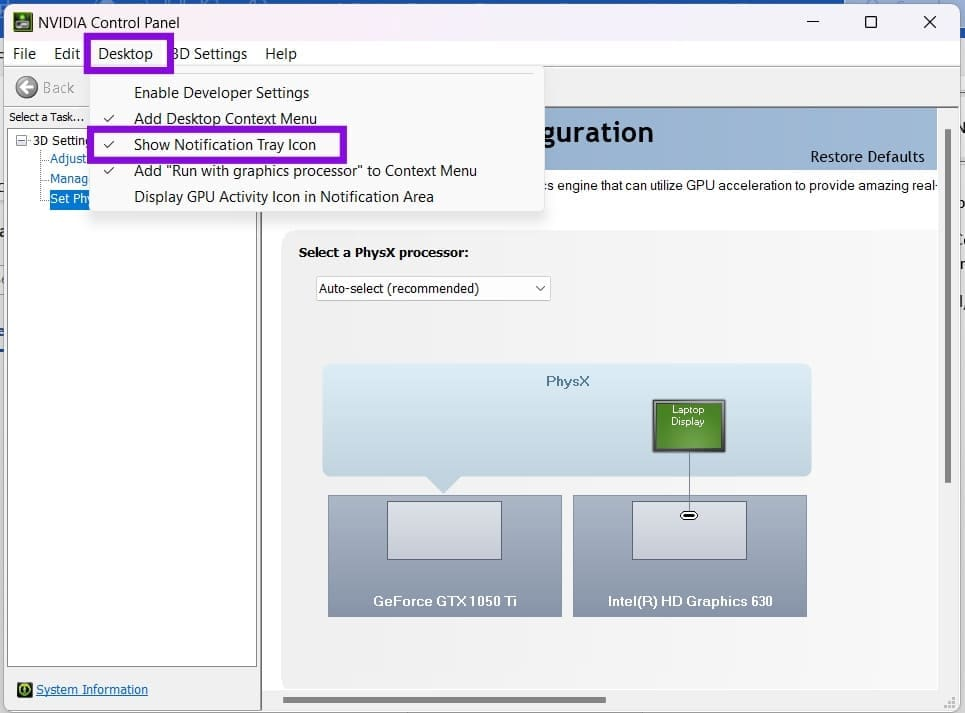
Step 3: Look for Show Notification Tray Icon and make sure it is enabled.
If the option was already enabled but the NVIDIA icon is still missing, move on to the next fix.
2. Restart the NVIDIA Display Container Service
The NVIDIA Display Container LS service handles several NVIDIA-related functions in Windows. If the service has stopped or encountered an error, restarting it may restore the missing tray icon.
Step 1: Press Windows + R to open the Run dialog.
Step 2: Type services.msc and press Enter.
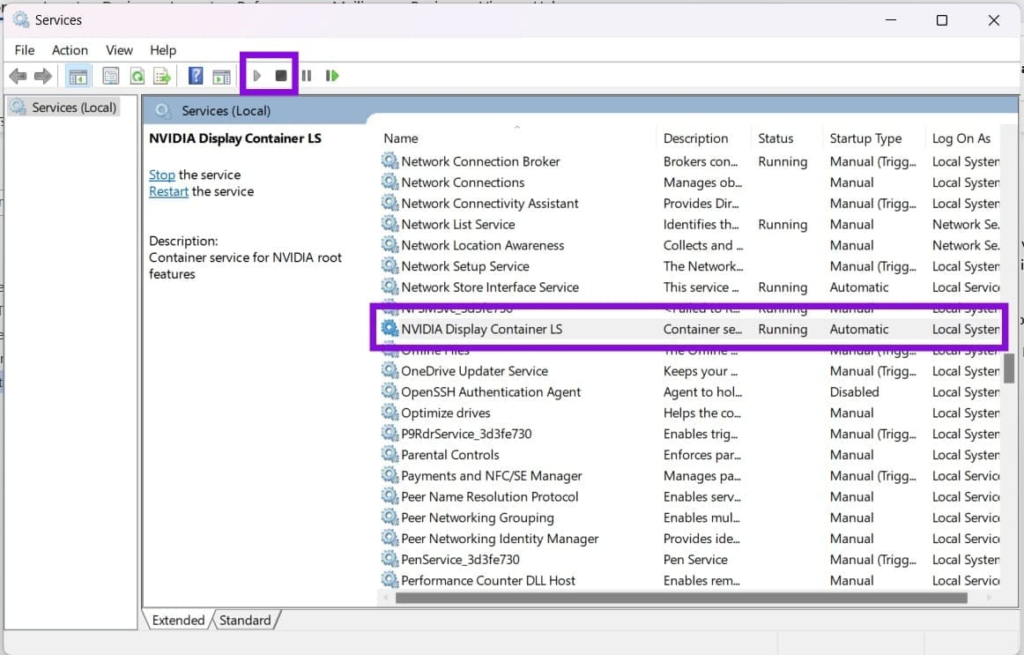
Step 3: In the Services window, scroll down and find NVIDIA Display Container LS.
Step 4: Right-click the service and select Restart.
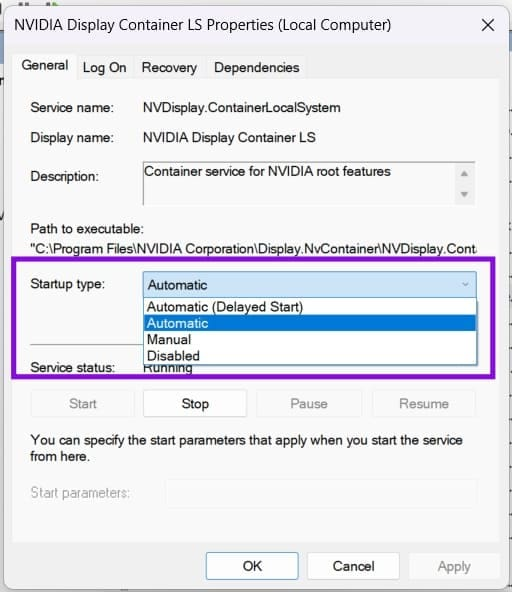
If Restart isn’t available, choose Stop first and then Start.
Step 5: To prevent the service from being disabled during startup, double-click it and check the Startup type. Set it to Automatic if necessary.
Close the Services window and check the system tray again.
3. Restart Windows Explorer
Sometimes the NVIDIA icon is working correctly but Windows Explorer fails to display it properly. Restarting Explorer refreshes the taskbar and notification area without requiring a full system restart.
Step 1: Press Ctrl + Shift + Esc to open Task Manager.
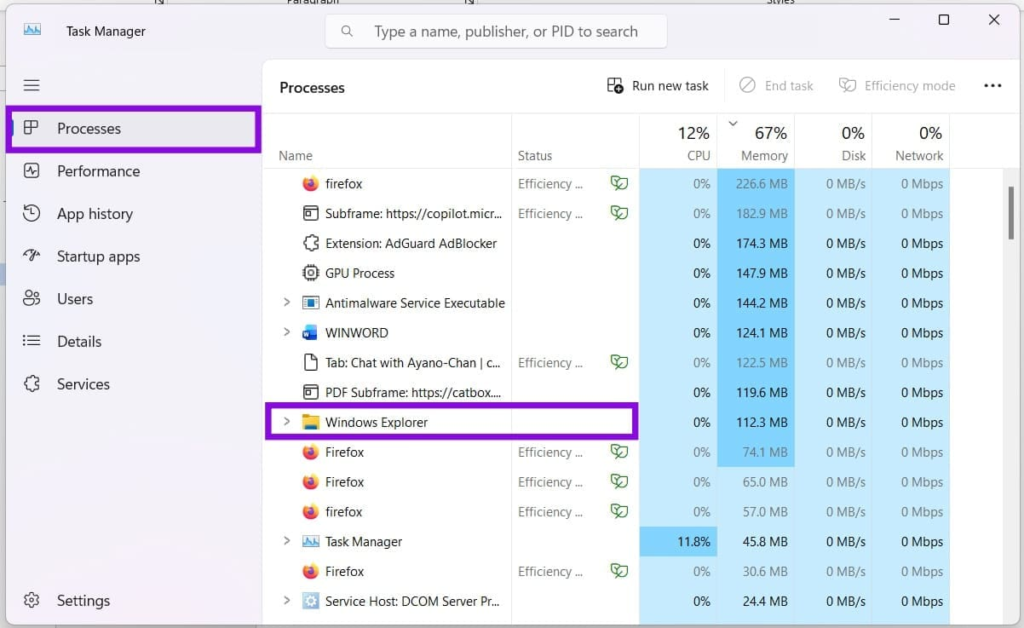
Step 2: Stay on the Processes tab and find Windows Explorer.
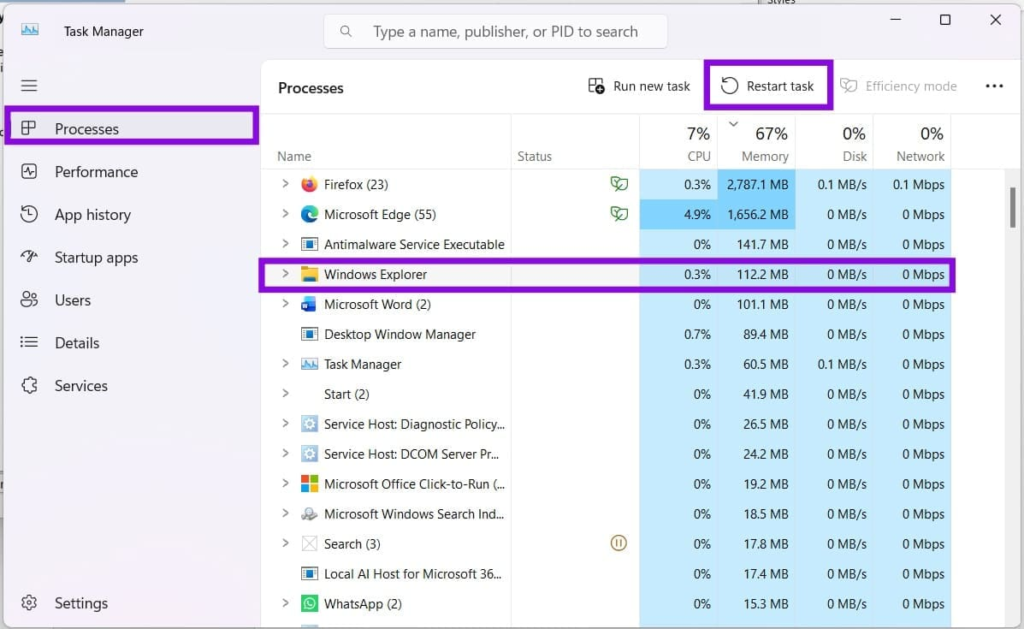
Step 3: Select Windows Explorer and click Restart task.
The taskbar and desktop may briefly disappear while Explorer restarts. This is normal.
Once it comes back, check whether the NVIDIA icon has returned to the notification area.
4. Check NVIDIA Settings in the Windows Registry
If none of the previous solutions work, you can check the NVIDIA Registry entries responsible for launching and displaying the tray icon.
Important: The Windows Registry contains important system settings. Make sure you follow the steps carefully and avoid changing unrelated entries.
Step 1: Press Windows + R, type regedit, and press Ctrl + Shift + Enter to open Registry Editor with administrator privileges.
Step 2: Navigate to the following location:
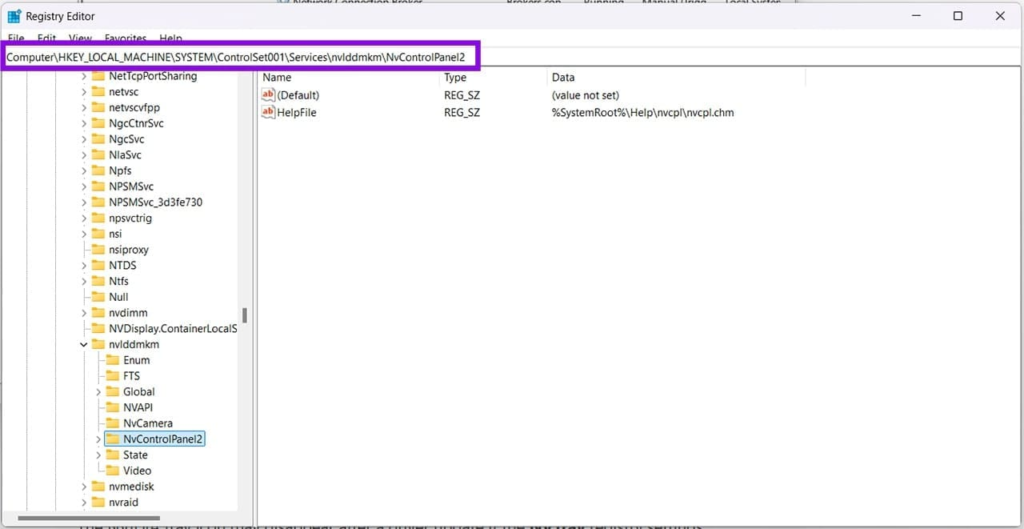
Computer\HKEY_LOCAL_MACHINE\SYSTEM\ControlSet001\Services\nvlddmkm\NvControlPanel2
You can also copy the path and paste it into the Registry Editor address bar.
Step 3: Look for the following values:
- ShowInSedona
- StartOnLogin
If these values are available, double-click each one and make sure its value is set to 1.
Step 4: Close Registry Editor and restart your computer.
After Windows starts again, check the notification area for the NVIDIA icon.
What If the NVIDIA Icon Is Still Missing?
If the icon doesn’t return after trying all the methods above, the issue could be related to the NVIDIA graphics driver or installation.
In that situation, consider checking for a newer NVIDIA driver or reinstalling the existing driver. A corrupted or incomplete driver installation can cause NVIDIA components and services to behave unexpectedly.
Also make sure you’re checking the hidden icons section of the Windows taskbar. Click the small arrow near the notification area to see whether the NVIDIA icon is simply hidden.
Bring Back the NVIDIA Icon
A missing NVIDIA tray icon is usually easy to fix. Start by enabling Show Notification Tray Icon in the NVIDIA Control Panel, then restart the NVIDIA Display Container LS service or Windows Explorer.
If those solutions don’t work, checking the NVIDIA Registry entries can be the next step. For most users, however, one of the first three fixes should be enough to restore the icon without making major changes to Windows.