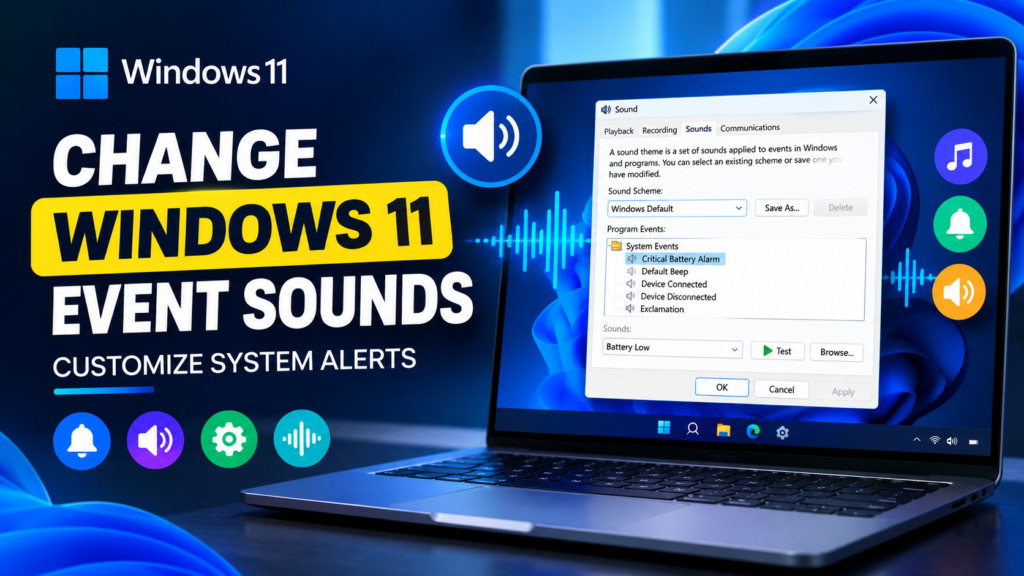

Windows 11 plays different sounds for system events such as notifications, calendar reminders, low-battery alerts, and other actions. While these sounds can be useful, you may eventually get tired of hearing the same default tones.
Fortunately, Windows 11 lets you customize many of these system sounds. You can replace individual event sounds, test new tones, or disable specific sounds entirely through the Sound Control Panel.
Quick Tips
- Windows 11 lets you customize sounds assigned to many system events.
- You can access these options through Control Panel > Hardware and Sound > Sound > Sounds.
- You can select a different built-in sound or use a compatible
.wavfile. - You can also choose No Sounds for individual events.
- Sounds generated directly by third-party apps or certain hardware may not be controlled from this menu.
How to Change Event Sounds in Windows 11
You don’t need any third-party software to change Windows event sounds. The required settings are built into Windows 11.
Step 1: Open Control Panel
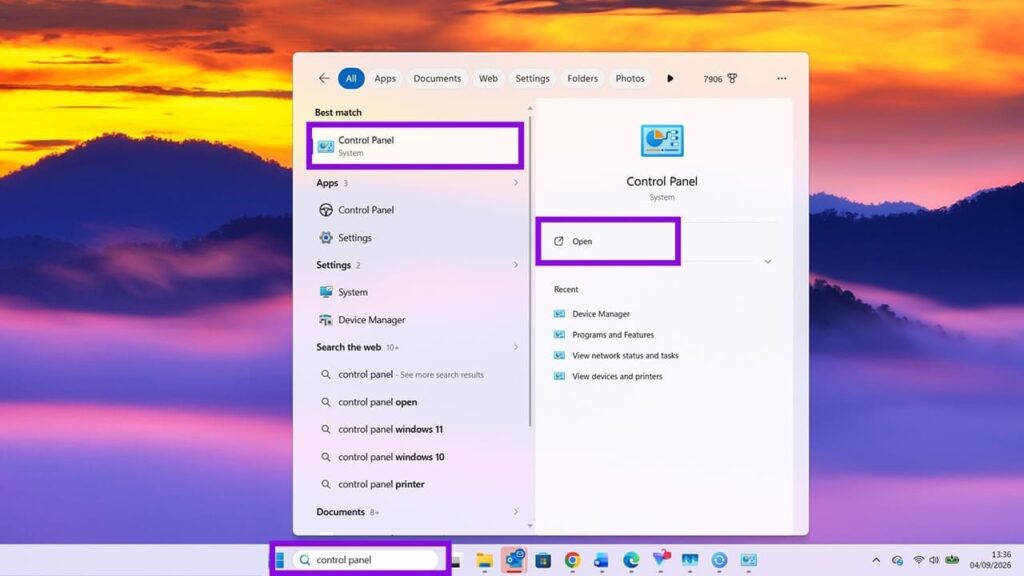
Press the Windows key and type Control Panel.
Select Open from the search results.
Step 2: Open Hardware and Sound
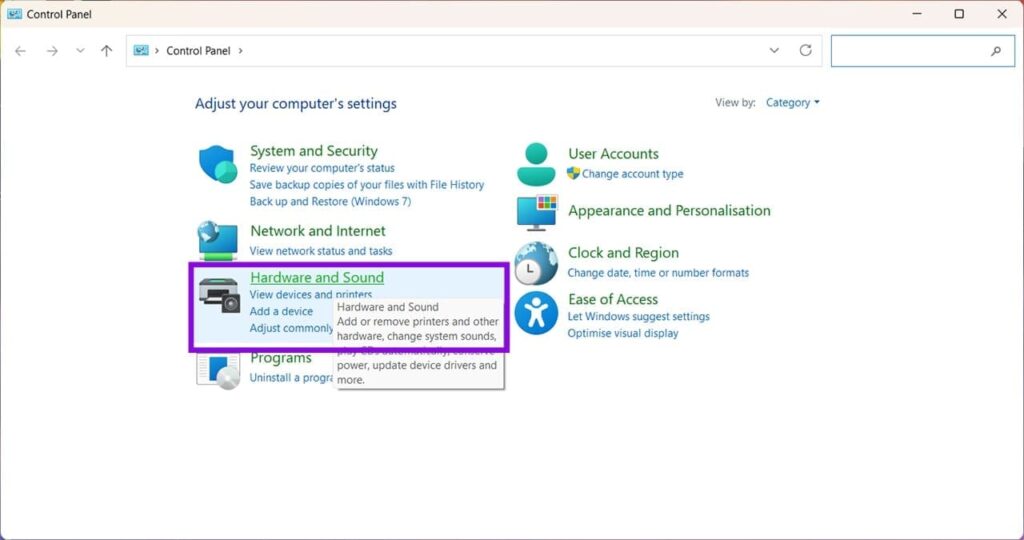
In Control Panel, select Hardware and Sound.
If Control Panel is using a different view, switch to Category view to make the option easier to find.
Step 3: Open the Sound Settings
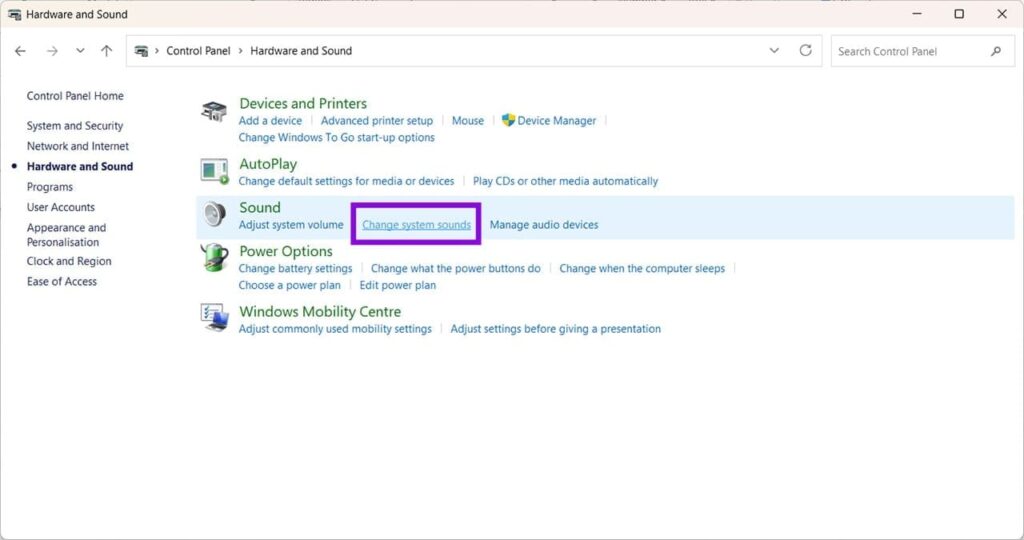
Under Hardware and Sound, select Sound.
A Sound window will appear with several tabs.
Select the Sounds tab at the top.
Step 4: Select a Windows Event
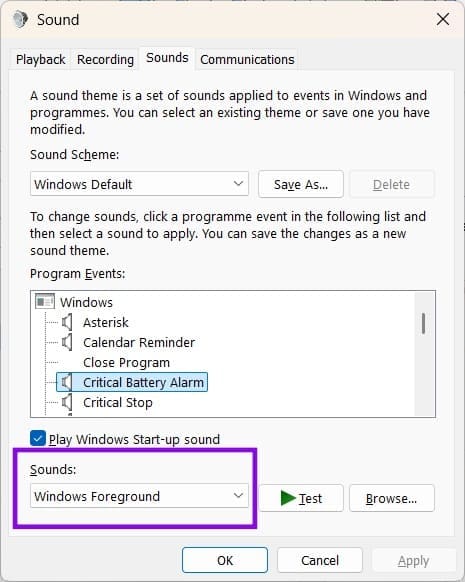
Under Program Events, you’ll see a list of Windows events that can have sounds assigned to them.
These can include events related to notifications, reminders, battery warnings, device connections, and other Windows actions.
Select the event whose sound you want to change.
For example, you can select Critical Battery Alarm if you want to change the sound Windows plays when your battery reaches a critical level.
Step 5: Choose a New Sound
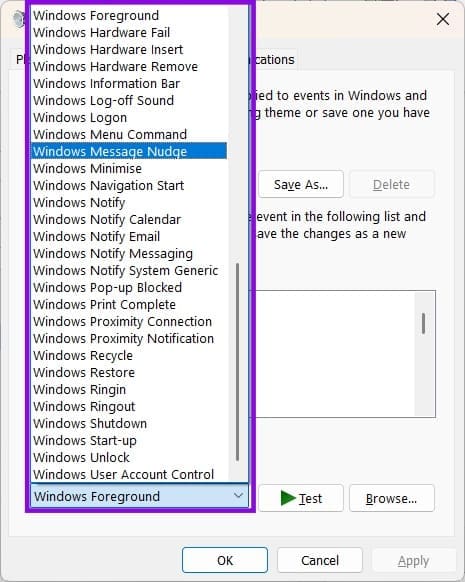
Once you’ve selected an event, look at the Sounds drop-down menu.
Click the menu to see the available sounds.
Select the sound you want to use for that particular event.
You can also select No Sounds if you don’t want Windows to play an alert for that event.
Step 6: Test the New Sound
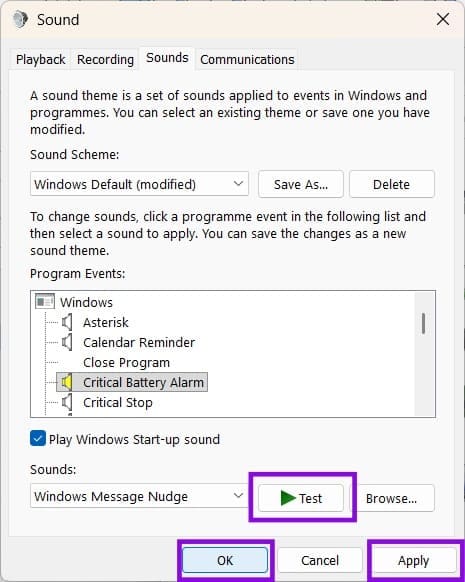
After selecting a sound, click Test.
Windows will play the selected sound so you can hear how it will sound when the event occurs.
If you don’t like it, choose another sound from the list and test it again.
Step 7: Apply the Changes
Once you’re happy with your selection, click Apply.
Then select OK to save the changes and close the Sound window.
The new sound will now be associated with the Windows event you selected. Microsoft’s current instructions follow the same basic process: select an event under Program Events, choose a sound, use Test to preview it, and then select Apply and OK.
How to Use Your Own Sound
Windows also allows you to use a custom sound instead of the built-in options.
To do this:
- Open Control Panel.
- Go to Hardware and Sound > Sound.
- Open the Sounds tab.
- Select the Windows event you want to customize.
- Open the Sounds drop-down menu.
- Select Browse.
- Locate your compatible
.wavaudio file. - Select the file and click Open.
- Click Test to preview it.
- Select Apply, then OK.
This lets you personalize individual Windows alerts with sounds of your choice.
How to Turn Off Windows Event Sounds
If you don’t want notification and system-event sounds at all, you can disable them from the same menu.
Open:
Control Panel > Hardware and Sound > Sound > Sounds
Under Sound Scheme, you can select No Sounds to disable the Windows sound scheme.
Alternatively, you can select individual events under Program Events and choose No Sounds for only those alerts you don’t want to hear.
This is useful if you want to keep important alerts while removing sounds that you find distracting.
Can You Change Every Sound in Windows 11?
Not necessarily.
The Sounds panel primarily controls Windows system events. Sounds produced independently by third-party applications, games, websites, or certain hardware may have their own audio settings.
For example, a game may provide its own sound controls, while an application such as a communication or media app may manage notification sounds independently.
Windows also provides separate sound controls through Settings > System > Sound, including volume and audio-device settings.
Pro Tip: Save Your Original Settings
Before changing several event sounds, make a note of the original sounds you use.
That makes it easier to restore individual events later without resetting all of your customizations.
If you want a quieter Windows experience, you can also disable selected event sounds instead of turning off all system sounds.
Final Thoughts
Changing event sounds is a simple way to personalize Windows 11 without installing additional software. From battery warnings and reminders to other system notifications, you can choose different sounds for individual Windows events or turn off sounds that you don’t need.
Just open the Sound Control Panel, select the Sounds tab, choose an event, pick a new sound, and apply the changes.
With a few adjustments, you can make Windows 11 sound more personal—or much quieter.