
The Cross Device Experience Host is a Windows component that facilitates communication between your PC and connected mobile devices. It works with Windows features designed to connect phones and other devices to your computer.
Normally, Windows installs the Cross Device Experience Host automatically when you enable the option that allows your PC to access mobile devices. However, the installation can sometimes fail because of Microsoft Store problems, Windows services, or corrupted app data.
If the Cross Device Experience Host won’t install, try these troubleshooting methods.
Quick Tips
- Cross Device Experience Host should normally install automatically when mobile-device access is enabled.
- You can manually install the component using Windows Terminal or Command Prompt with
winget. - Resetting the Microsoft Store cache can resolve installation and download problems.
- If the Host is already installed but isn’t working correctly, try repairing or resetting it.
- Before troubleshooting, close any running Cross Device Experience Host processes from Task Manager.
How Is Cross Device Experience Host Normally Installed?
Under normal circumstances, you don’t need to manually install the Cross Device Experience Host.
Windows can download the component through the Microsoft Store after you enable the setting that allows your PC to access mobile devices.
If Windows doesn’t automatically download the Host, or the installation gets stuck or fails, the following fixes can help.
5 Ways to Fix Cross Device Experience Host Won’t Install
Fix 1: Install Cross Device Experience Host Using Command Prompt
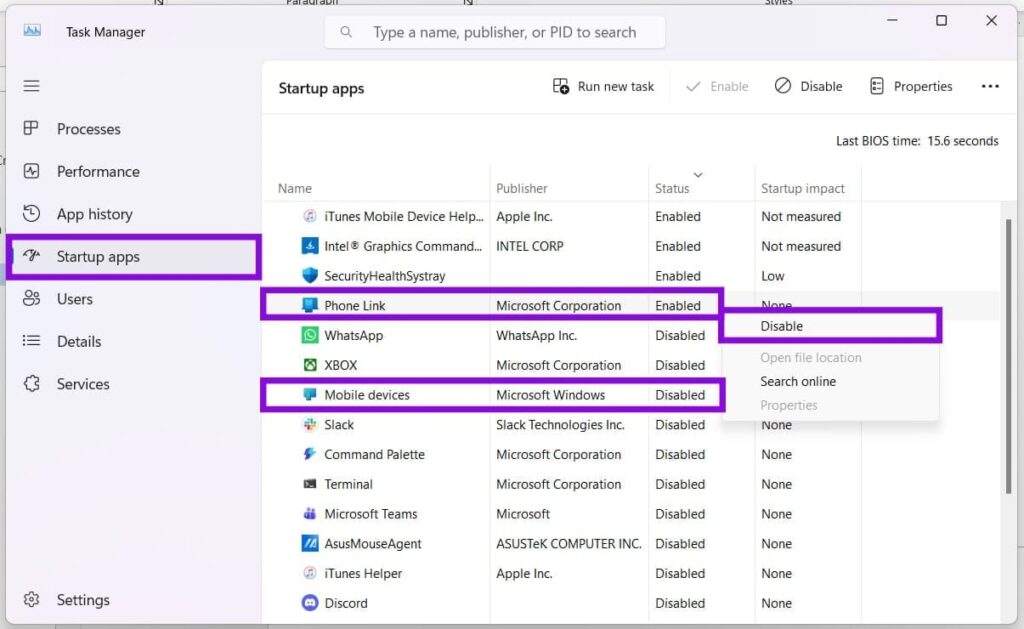
One of the quickest ways to install the Host manually is through the Windows Package Manager (winget).
Step 1: Open Command Prompt as Administrator
Press Windows + R to open the Run dialog.
Type:
cmdInstead of pressing Enter, press:
Ctrl + Shift + Enter
Select Yes if Windows displays the User Account Control prompt.
Step 2: Install the Host
Enter the following command:
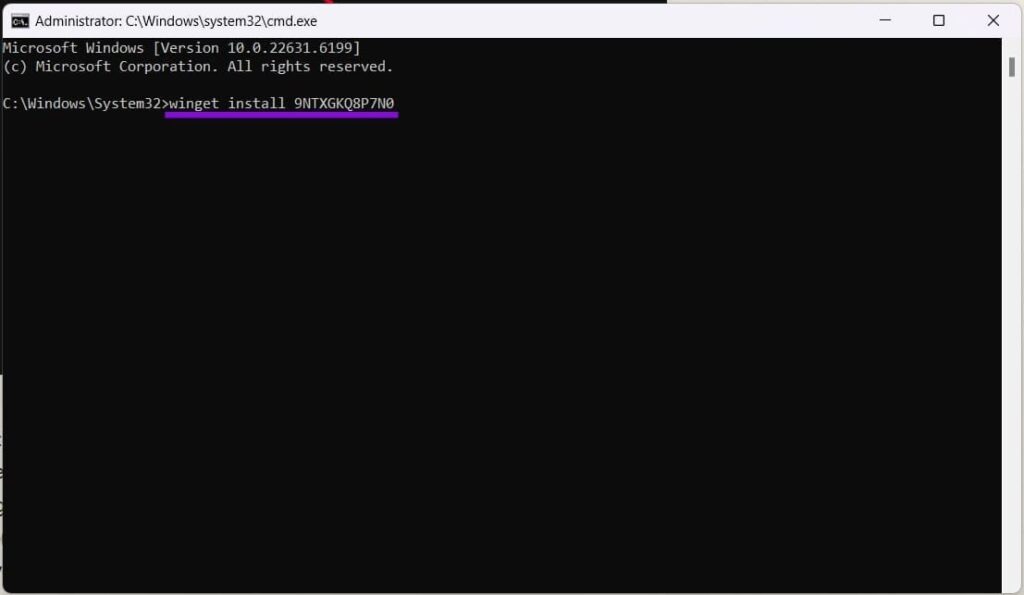
winget install 9NTXGKQ8P7N0Press Enter.
Windows will search for the package and attempt to install it.
Step 3: Check the Installation
Wait for the installation process to finish.
If you see a successful installation message, restart Windows and check whether the Cross Device features are working.
If winget reports that the application is already installed or cannot find the package, continue with the next troubleshooting method.
Fix 2: Reset the Microsoft Store Cache
The Microsoft Store handles many Windows app installations and updates. A damaged Store cache can sometimes prevent an application from downloading or installing correctly.
Step 1: Open Run
Press:
Windows + R
Step 2: Run WSReset
Enter:
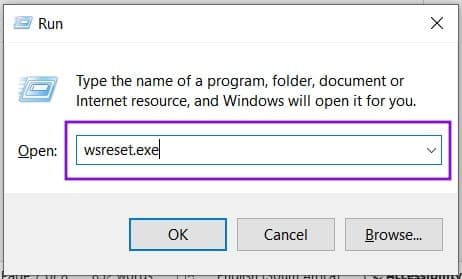
wsreset.exeClick OK or press Enter.
Step 3: Wait for the Reset
Windows will clear the Microsoft Store cache.
The Microsoft Store may open automatically once the process finishes.
Step 4: Restart Your PC
Restart Windows and try installing the Cross Device Experience Host again.
Fix 3: Check the Connected Devices Platform Service
The Cross Device Experience Host relies on Windows components that handle communication between connected devices.
One service worth checking is Connected Devices Platform Service.
Step 1: Open Windows Services
Press:
Windows + R
Type:
services.mscPress Enter.
Step 2: Find Connected Devices Platform Service
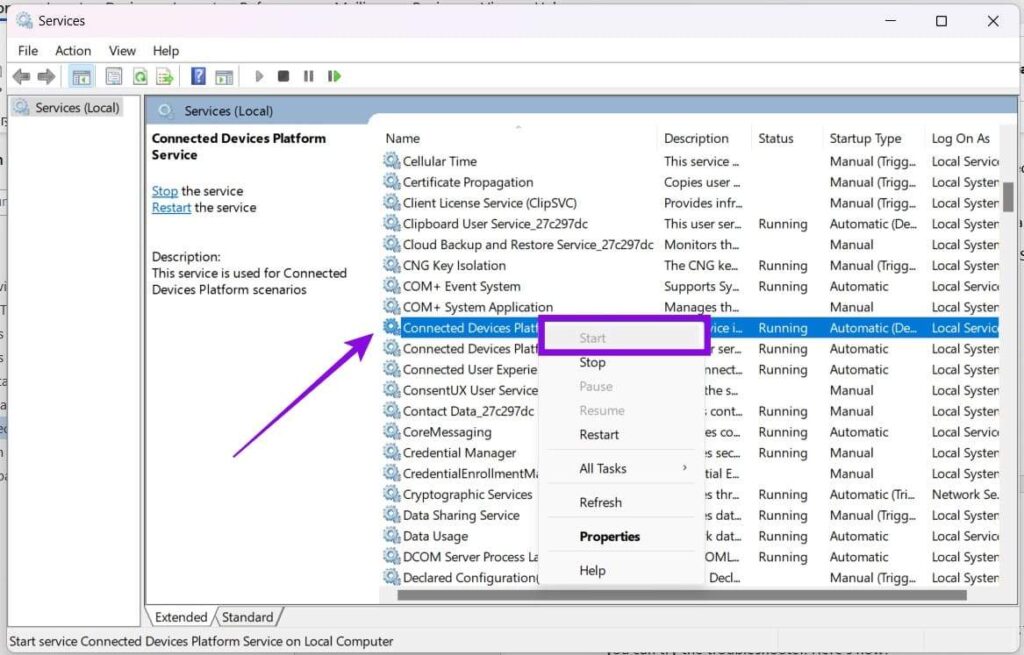
Scroll through the list and locate:
Connected Devices Platform Service
Step 3: Check Its Status
Right-click the service.
If it isn’t running, select Start.
If it is already running, you can restart it by selecting Restart, if that option is available.
Step 4: Try the Installation Again
Close the Services window and attempt to install the Cross Device Experience Host again.
Fix 4: Run the Windows Store Apps Troubleshooter
Windows includes troubleshooting tools that can identify problems with Microsoft Store applications.
Step 1: Open Settings
Press:
Windows + I
Select System.
Step 2: Open Troubleshoot
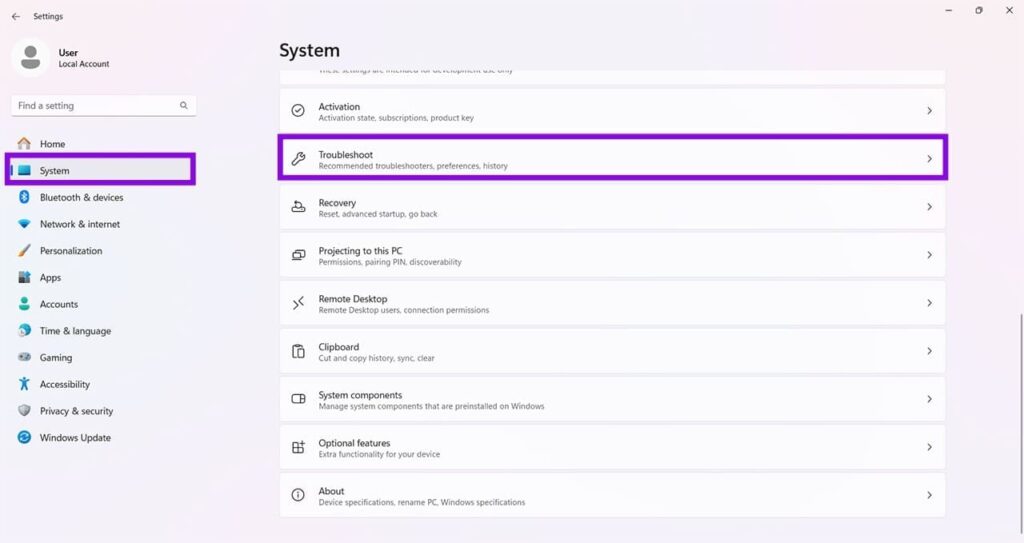
Select Troubleshoot.
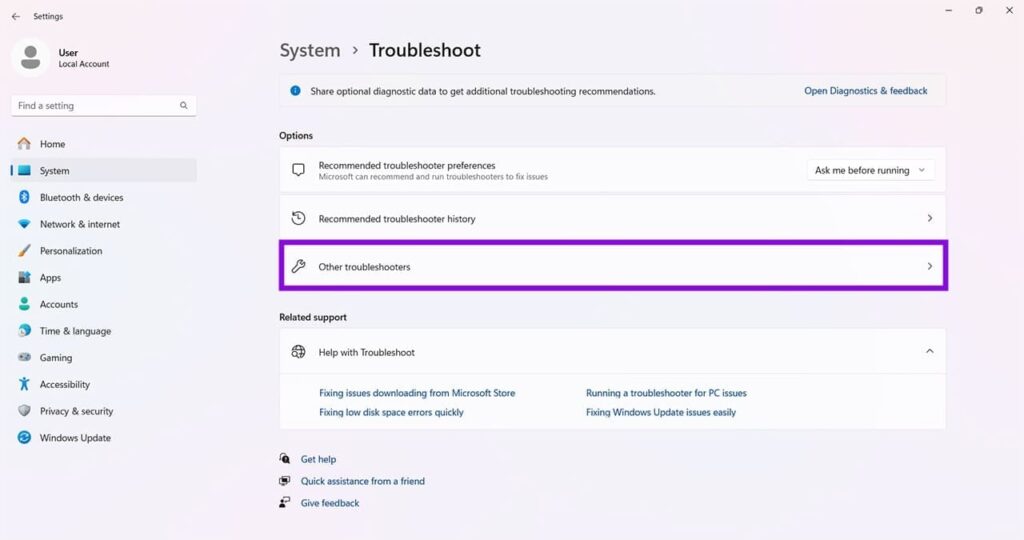
Step 3: Open Other Troubleshooters
Click Other troubleshooters.
Step 4: Run the Store Apps Troubleshooter
Find Windows Store Apps and click Run.
Follow the instructions provided by Windows and allow the troubleshooter to apply any recommended fixes.
After it finishes, restart your computer and try installing the Host again.
Note: The available troubleshooters can vary between Windows 11 versions. If you don’t see the Windows Store Apps troubleshooter, use Microsoft’s current Store and app troubleshooting options instead.
Fix 5: Repair or Reset Cross Device Experience Host
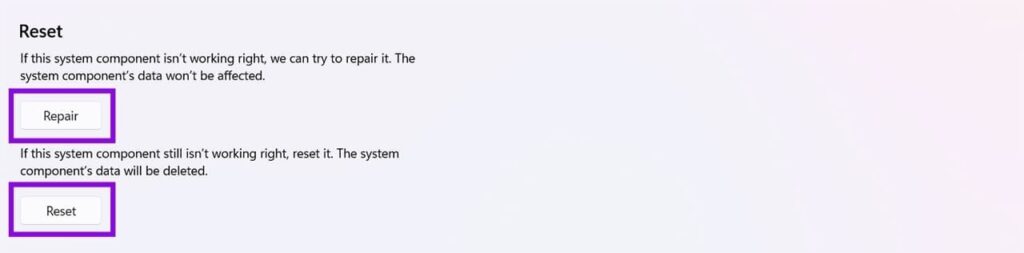
If the Cross Device Experience Host is already installed but doesn’t function correctly, you may be able to repair or reset it through Windows Settings.
Try Repair first because it doesn’t normally remove the app’s data. If that doesn’t help, you can try Reset.
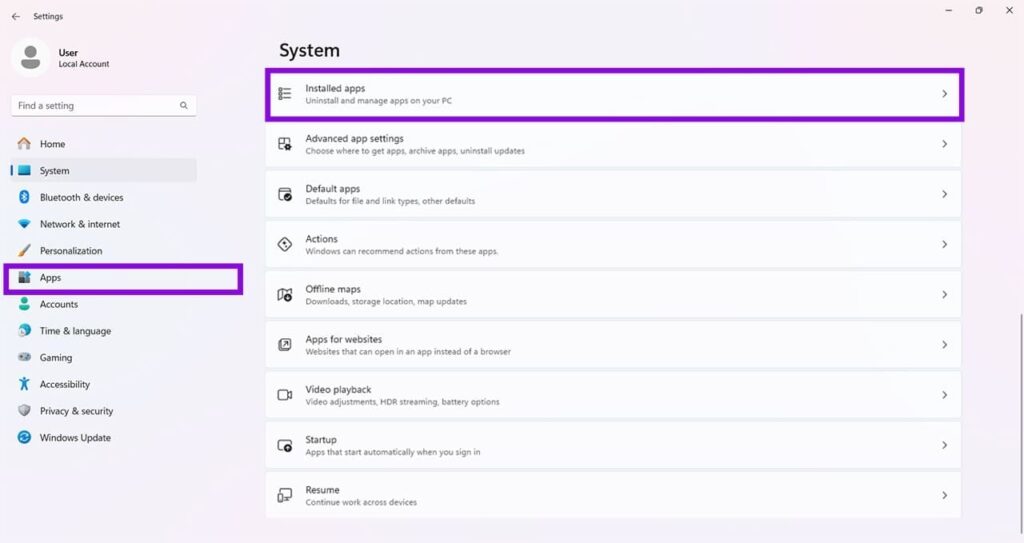
Step 1: Open Installed Apps
Press:
Windows + I
Go to:
Apps > Installed apps
Step 2: Find Cross Device Experience Host
Search for:
Cross Device Experience Host
Step 3: Open Advanced Options
Click the three-dot menu next to the application and select Advanced options.
Step 4: Repair the App
Click Repair.
Wait for Windows to complete the repair process.
Step 5: Test the Host
Try using the cross-device feature again.
Step 6: Reset the App if Necessary
If repairing doesn’t solve the problem, return to the same Advanced options page and select Reset.
Resetting the application can clear its stored data, so use this option after trying Repair.
Why Won’t Cross Device Experience Host Install?
There are several possible reasons for the installation to fail, including:
- Microsoft Store cache problems
- Windows services not running correctly
- A previous installation that is damaged
- Problems with
winget - Temporary Windows update issues
- Corrupted application data
- Connectivity problems between Windows and mobile-device features
If the component doesn’t install automatically, manually installing it with winget is a useful first step. If that fails, resetting the Store cache and checking the required Windows services can help narrow down the cause.
Final Thoughts
The Cross Device Experience Host normally installs automatically when Windows enables the relevant mobile-device features. If that doesn’t happen, you can manually install it using winget.
If the installation still fails, try resetting the Microsoft Store cache, checking the Connected Devices Platform Service, and running Windows’ Store app troubleshooting tools.
If the Host is already installed but isn’t functioning properly, use Repair first and then Reset from its Advanced options. These steps can resolve many common installation and functionality problems without requiring a complete Windows reset.