
If Discord opens to a black screen, freezes during startup, or gets stuck on a blank loading window, the problem may be related to the Discord application or your Windows PC rather than a Discord server outage.
Several things can cause Discord to stop loading correctly, including corrupted cache files, outdated software, graphics problems, security software, or connectivity issues.
Try the following fixes to get Discord working normally again.
Quick Tips
- A Discord black screen can be caused by an issue on your PC rather than a Discord server problem.
- Refreshing or restarting Discord can resolve temporary loading issues.
- Clearing Discord’s cache can fix problems caused by corrupted temporary files.
- Disabling hardware acceleration may help if the problem is related to graphics or GPU rendering.
- Check your firewall and antivirus settings if Discord cannot connect or load properly.
- Make sure Discord is updated to the latest available version.
What Causes Discord to Show a Black Screen?
A frozen or black Discord window can have several causes. Some of the most common include:
- Corrupted Discord cache files
- Outdated Discord software
- Graphics driver or GPU-related problems
- Hardware acceleration conflicts
- Firewall restrictions
- Antivirus software blocking Discord
- Network or DNS problems
- Temporary Discord application glitches
If Discord works normally in your browser but the Windows app remains frozen, the issue is more likely to be related to the desktop application or its local files.
How to Fix Discord Frozen Black Screen
Try these solutions one at a time and check Discord after each fix.
Fix 1: Refresh Discord
If Discord opens but becomes stuck on a black or blank screen, try refreshing the application.
Step 1: Open Discord
Launch Discord and wait for the black screen to appear.
Step 2: Refresh the Application
Press:
Ctrl + R
This forces Discord to reload its interface.
Step 3: Try Again
If the screen remains black, completely close Discord and launch it again.
Refreshing the application can also trigger Discord to check for available updates.
Fix 2: Run Discord as Administrator
Discord may occasionally encounter permission-related problems when accessing certain files or system resources.
Running it with administrator privileges can help determine whether permissions are causing the problem.
Step 1: Find Discord
Locate Discord through the Start menu or File Explorer.
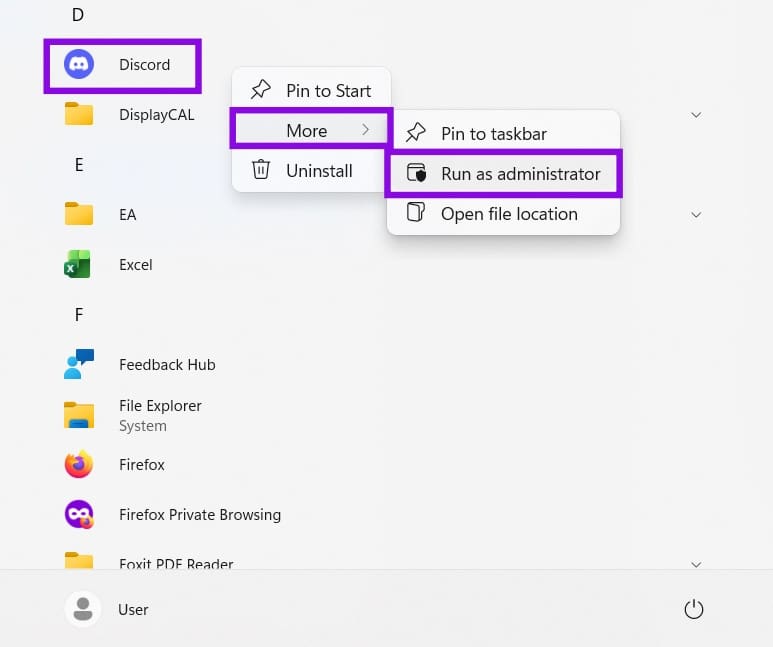
Step 2: Run as Administrator
Right-click Discord and select:
Run as administrator
Step 3: Confirm the Prompt
If Windows displays a User Account Control prompt, select Yes.
Check whether Discord now loads normally.
Fix 3: Clear the Discord Cache
Discord stores temporary files locally to improve performance. If these files become corrupted, the application may freeze or display a black screen.
Clearing the cache forces Discord to create fresh files the next time it starts.
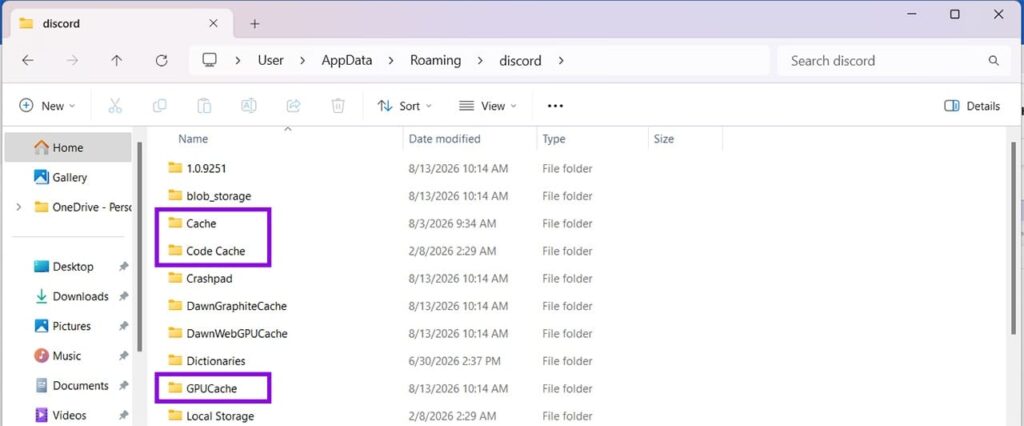
Step 1: Open the AppData Folder
Press:
Windows + R
Enter:
%appdata%Press Enter.
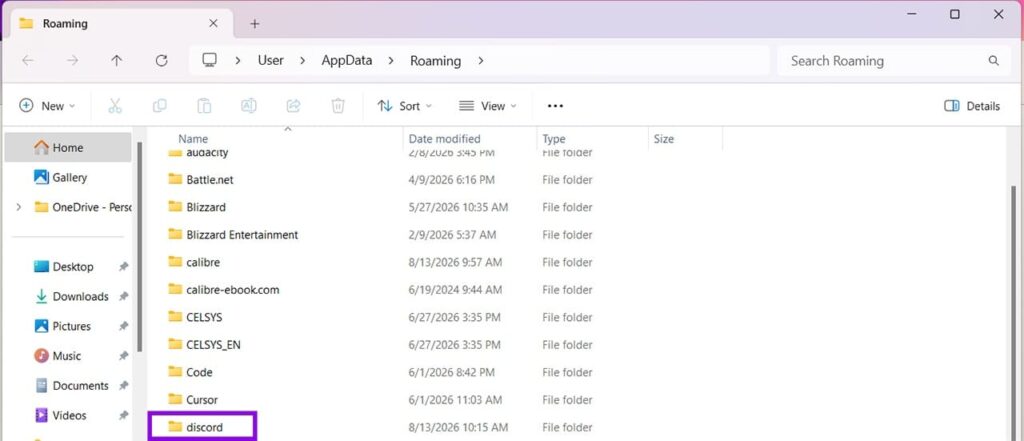
Step 2: Open the Discord Folder
Find and open the discord folder.
Step 3: Delete Cache Folders
Delete these folders if they are present:
Cache
Code Cache
GPUCache
Step 4: Restart Windows
Restart your computer.
Windows will not permanently remove Discord itself; the application can recreate these temporary folders when it starts again.
Launch Discord and check whether the black screen has disappeared.
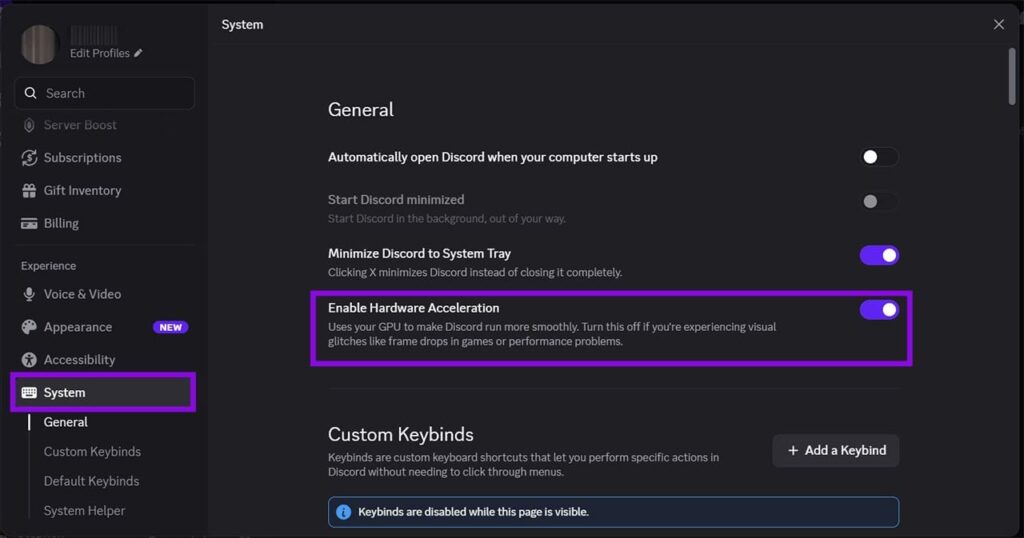
Fix 4: Disable Hardware Acceleration
Discord uses hardware acceleration to use the GPU for certain rendering tasks. While this can improve performance, graphics-driver or GPU-related problems can sometimes cause display issues.
If you can access Discord’s settings, try turning this feature off.
Step 1: Open Discord Settings
Launch Discord and select User Settings.
Step 2: Open Advanced Settings
Look for the relevant system or advanced settings section.
Step 3: Disable Hardware Acceleration
Find:
Enable Hardware Acceleration
Turn the option Off.
Step 4: Restart Discord
Close Discord completely and open it again.
Check whether the application now loads correctly.
Note: The location and wording of this option can change between Discord versions.
Fix 5: Check Your Firewall and Antivirus
Security software can sometimes prevent Discord from connecting to its services correctly.
This can result in a loading screen, blank window, or connection-related errors.
Step 1: Check Windows Security
Open Windows Security from the Start menu.
Review your firewall and network protection settings.
Step 2: Check Firewall Permissions
Make sure Discord is allowed through the firewall.
If you use a third-party firewall or antivirus program, check its application permissions as well.
Step 3: Check Antivirus Restrictions
Look for any notifications or blocked-application lists involving Discord.
If Discord has been incorrectly blocked, add it to the appropriate allowed-app or exception list.
Important: Don’t leave your firewall or antivirus permanently disabled just to test Discord. Restore protection after troubleshooting.
Fix 6: Check for Discord Updates
An outdated Discord installation can sometimes cause compatibility or loading problems.
Completely close Discord and launch it again. The application normally checks for updates when starting.
If an update is available, allow it to finish before testing Discord again.
Fix 7: Check Your Network and DNS
Although a black screen is often caused by the local Discord application, connectivity problems can also prevent Discord from loading correctly.
Try opening another website or online application to confirm that your internet connection is working.
You can also restart your router and reconnect to your network.
If other applications work but Discord continues showing a black screen, focus on the cache, hardware acceleration, firewall, and application troubleshooting steps above.
Final Thoughts
A Discord frozen black screen can be frustrating, but it is often possible to fix without reinstalling Windows or making major system changes.
Start by refreshing Discord and restarting the application. If that doesn’t work, clear the Cache, Code Cache, and GPUCache folders, then check whether hardware acceleration is causing a graphics-related problem.
You should also make sure Discord is updated and that your firewall or antivirus isn’t blocking its connection.
If Discord continues to show a black screen after trying these solutions, reinstalling the Discord desktop application can be considered as a final troubleshooting step.