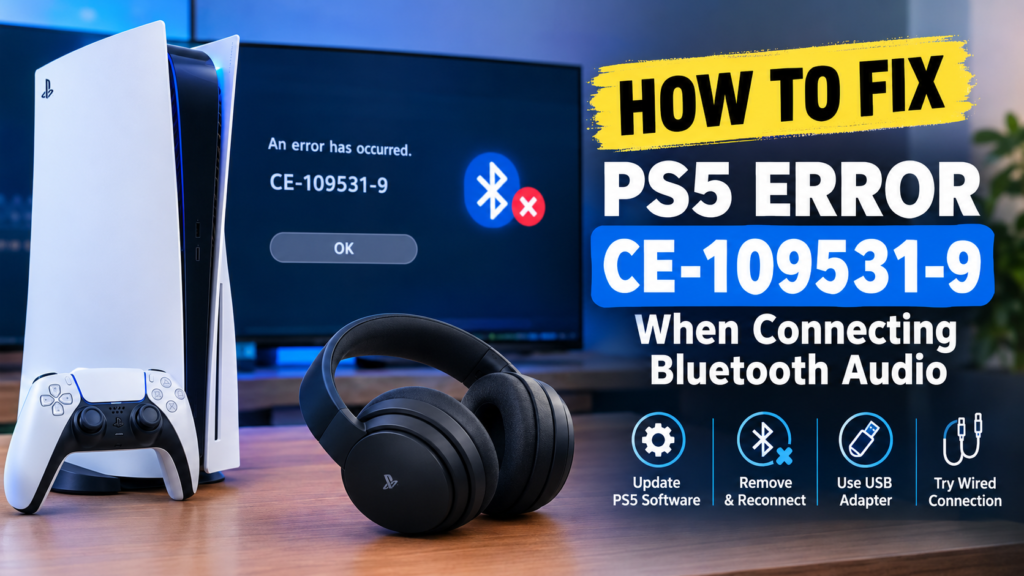

Trying to connect Bluetooth headphones or speakers to your PS5 only to encounter error CE-109531-9 can be frustrating, especially when everything works perfectly with other devices.
The error is generally associated with Bluetooth audio compatibility or connection problems. While the PS5 supports Bluetooth accessories, not every standard Bluetooth audio device can connect directly to the console.
Fortunately, there are several things you can try to troubleshoot PS5 error CE-109531-9.
Quick Tips
- PS5 error CE-109531-9 can occur when a Bluetooth audio device isn’t compatible with the console or cannot establish a connection.
- Disconnecting previously paired Bluetooth accessories and restarting the PS5 can sometimes resolve connection problems.
- Make sure your PS5 system software is completely updated before trying other solutions.
- A compatible USB Bluetooth adapter can provide an alternative connection method for some Bluetooth audio devices.
- If your headphones or speakers support a wired connection, connecting them by cable is another reliable workaround.
What Does PS5 Error CE-109531-9 Mean?
PS5 error CE-109531-9 can appear when you’re trying to connect or use a Bluetooth audio accessory with your PlayStation 5.
Unlike phones and PCs, the PS5 has limitations around standard Bluetooth audio connections. As a result, some third-party Bluetooth headphones and speakers may not work directly with the console.
This doesn’t necessarily mean your headphones or speaker are defective. The problem can simply be related to Bluetooth compatibility, an existing device connection, or PS5 system software.
How to Fix PS5 Error CE-109531-9
Try the following solutions if your Bluetooth headphones or speakers aren’t connecting to your PS5.
Fix 1: Disconnect Bluetooth Devices and Update the PS5
The first thing to try is removing previously connected Bluetooth accessories and making sure your PS5 is running the latest system software.
Step 1: Open PS5 Settings
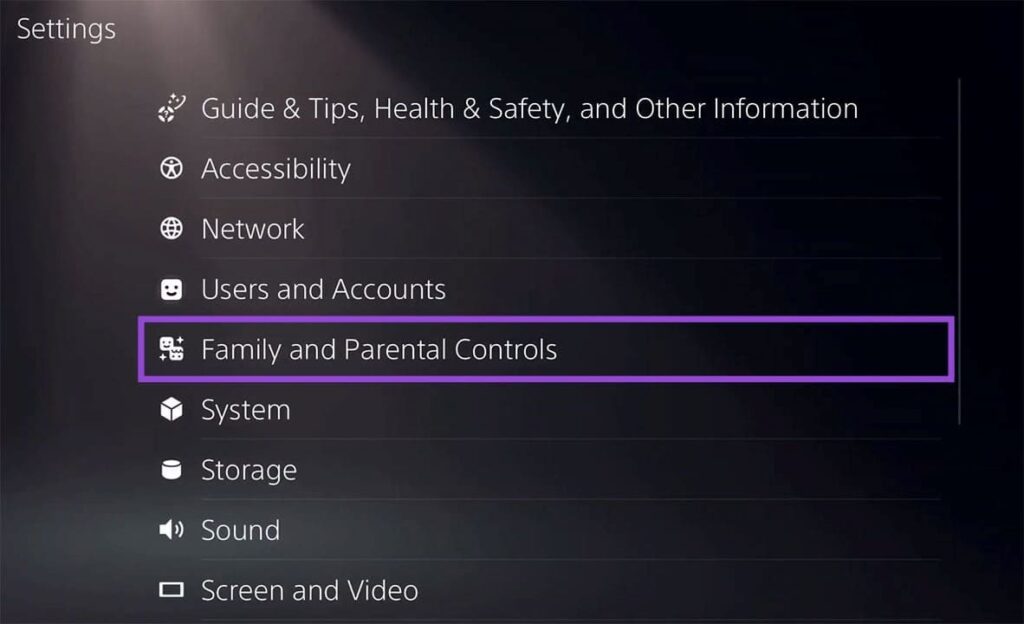
From the PS5 home screen, select Settings.
Step 2: Open Family and Parental Controls
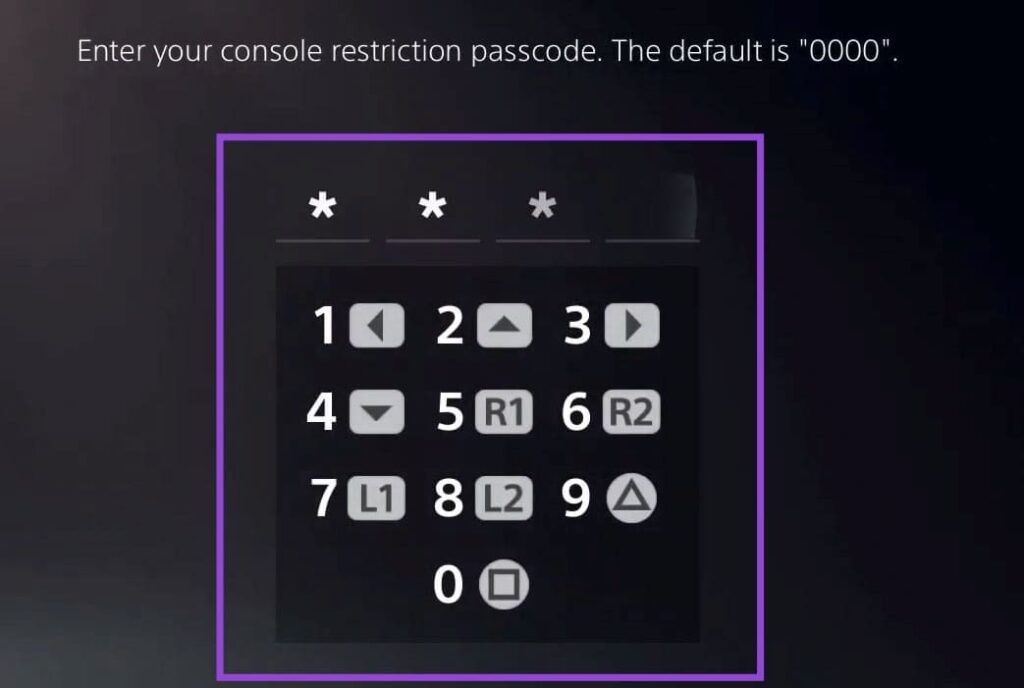
Select:
Family and Parental Controls > PS5 Console Restrictions
Enter your console restriction passcode if prompted.
Step 3: Check Console Restrictions
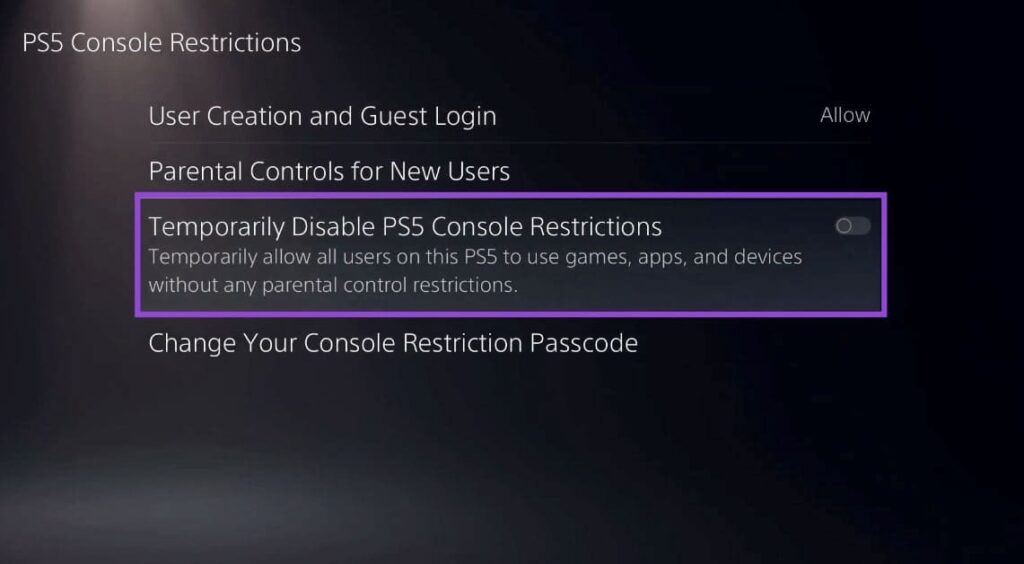
Make sure Temporarily Disable PS5 Console Restrictions is not enabled.
Step 4: Open Bluetooth Accessories
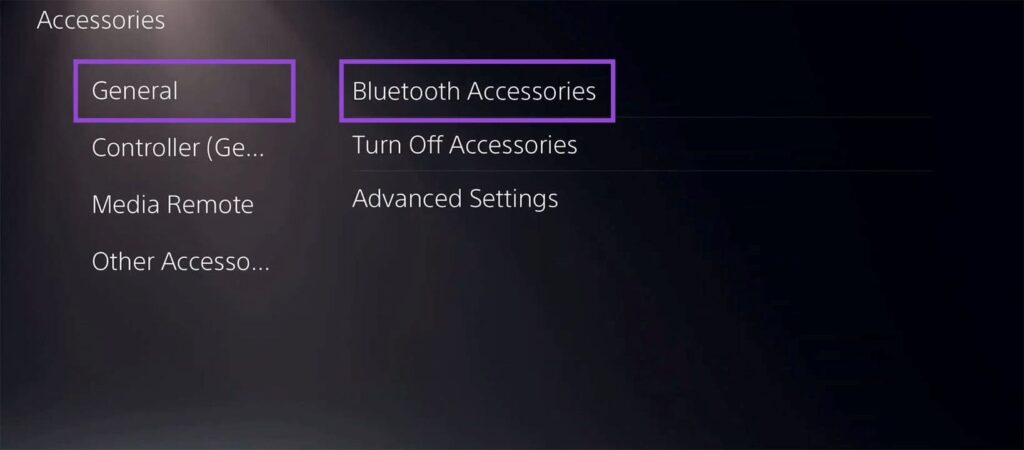
Return to Settings and select:
Accessories > General > Bluetooth Accessories
Step 5: Disconnect or Forget Devices
You’ll see Bluetooth accessories that are currently connected or previously paired.
Select the relevant devices and choose the available Disconnect or Forget option.
Removing old or conflicting connections can give your PS5 a clean start when attempting to pair the audio device again.
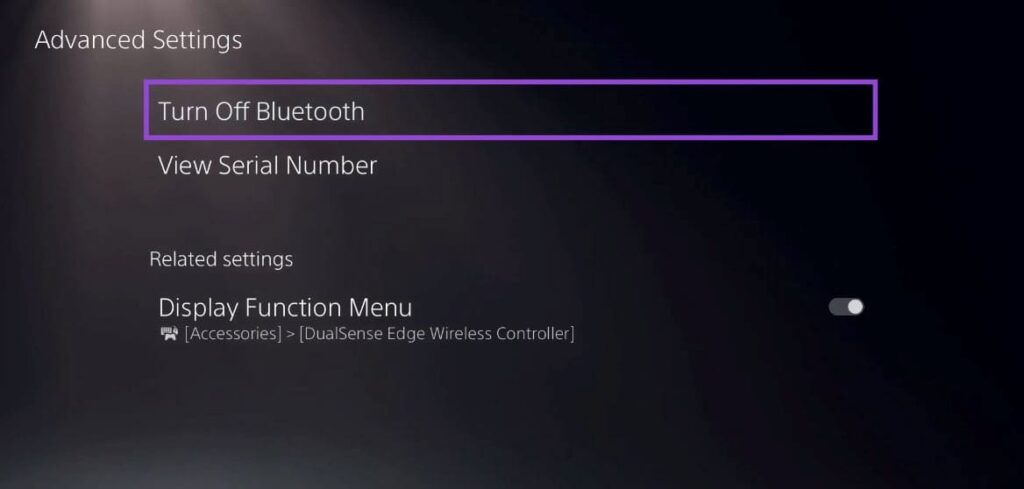
Step 6: Turn Bluetooth Off Temporarily
Return to the Bluetooth settings and, if the option is available on your console, temporarily turn Bluetooth off under the advanced settings.
Wait a few seconds before turning it back on.
Step 7: Enable Automatic Updates
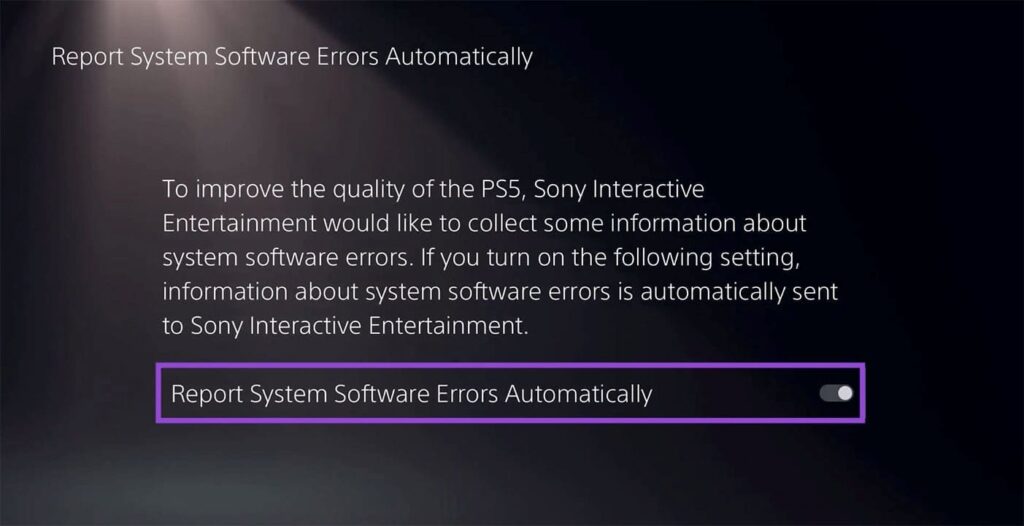
Go to:
Settings > Saved Data and Game/App Settings > Automatic Updates
Make sure automatic downloads and installation while in Rest Mode are enabled if those options are available.
Step 8: Check System Software Updates
Go to:
Settings > System > System Software > System Software Update and Settings
Check for an available update and install it if one is available.
After updating, restart the PS5 and try pairing your Bluetooth audio device again.
Fix 2: Restart the PS5 and Bluetooth Device
A simple restart can also clear temporary Bluetooth connection problems.
Step 1: Turn Off the PS5
Use the PS5’s power menu to completely shut down the console.
Step 2: Turn Off Your Headphones or Speaker
Power off the Bluetooth audio device as well.
Step 3: Wait
Leave both devices turned off for a few seconds.
Step 4: Turn Them Back On
Start the PS5 and put your headphones or speaker into pairing mode.
Then try connecting the device again.
If the device continues to produce CE-109531-9, move on to the next solution.
Fix 3: Use a Compatible USB Bluetooth Adapter
If your Bluetooth headphones aren’t compatible with the PS5’s native Bluetooth audio support, a USB Bluetooth audio adapter may provide another way to connect them.
The adapter acts as an intermediary between the PS5 and your Bluetooth headphones.
Step 1: Get a PS5-Compatible Adapter
Choose a USB Bluetooth audio transmitter that specifically supports PS5 audio.
Step 2: Connect the Adapter
Plug the adapter into a compatible USB port on your PS5.
Step 3: Put Your Headphones Into Pairing Mode
Turn on your headphones and activate Bluetooth pairing mode.
Step 4: Pair the Devices
Follow the adapter manufacturer’s pairing instructions.
If the PS5 recognizes the adapter as an audio device, your headphones may then be able to receive audio through the adapter.
Note: Compatibility varies between adapters, so check the manufacturer’s PS5 compatibility information before buying one.
Fix 4: Connect Your Headphones Using a Cable
If your Bluetooth headphones also support a wired connection, this can be the simplest workaround.
Depending on your headphones and available cables, you may be able to connect them using:
- 3.5mm audio cable
- USB cable
- Compatible audio adapter
For example, if your headset has a 3.5mm connector, you can connect it directly to the DualSense wireless controller.
This avoids Bluetooth pairing completely.
Fix 5: Check Whether the Bluetooth Device Is Compatible
If none of the above solutions work, the biggest issue may simply be compatibility.
The PS5 does not support every standard Bluetooth audio device directly. Therefore, a pair of headphones that works perfectly with your smartphone or laptop may still fail to connect to the PS5.
Before troubleshooting further, check:
- Whether the manufacturer lists PS5 compatibility
- Whether the headphones support a USB wireless receiver
- Whether the device supports a wired connection
- Whether a compatible Bluetooth audio transmitter is available
If another compatible headset connects successfully to your PS5, that can also help determine whether the original Bluetooth device is the source of the problem.
Final Thoughts
PS5 error CE-109531-9 can be frustrating when you’re simply trying to connect Bluetooth headphones or speakers. In many cases, the issue is related to device compatibility rather than a hardware failure.
Start by disconnecting old Bluetooth accessories, restarting your PS5, and installing the latest system software. If the device still won’t connect, using a PS5-compatible USB Bluetooth audio adapter or switching to a wired connection can provide a practical workaround.
If your particular Bluetooth headset isn’t officially compatible with the PS5, using a supported USB receiver or cable may ultimately be the easiest solution.