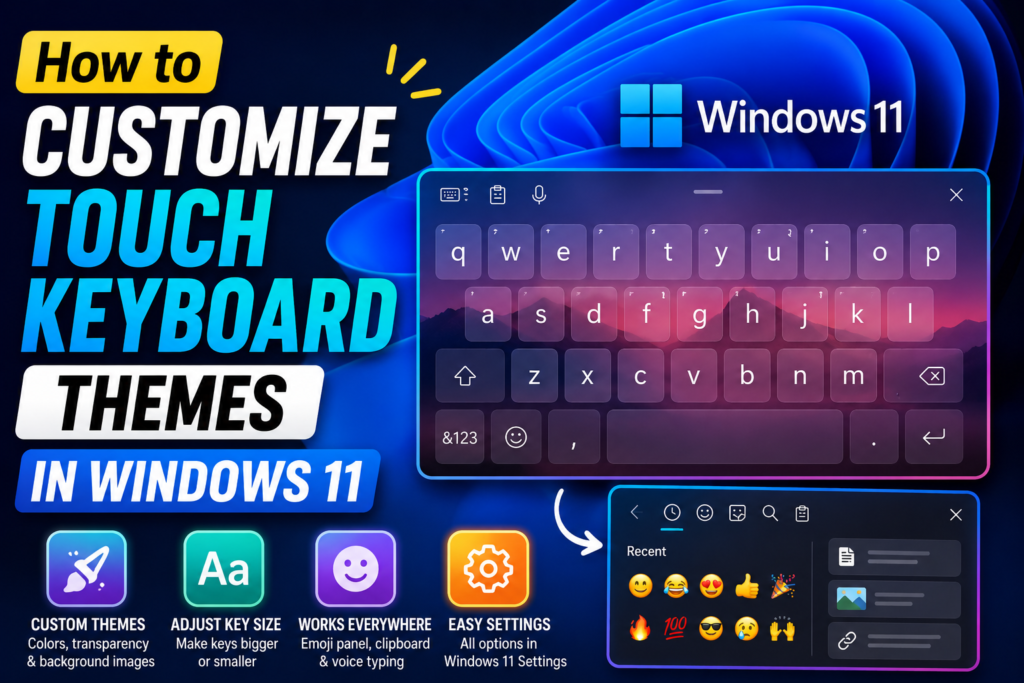

Windows 11 includes several customization options for the Touch Keyboard, allowing you to change its colors, transparency, key appearance, background, and size. You can even add your own background image to create a more personalized keyboard.
If you’re wondering how to customize the Touch Keyboard in Windows 11, you can do everything from the Windows Settings app without installing third-party software.
Quick Tips
- You can customize the Windows 11 Touch Keyboard from Settings > Personalization > Text input.
- Windows lets you change keyboard colors, transparency, key appearance, and background images.
- Custom Touch Keyboard themes can also affect the emoji panel, clipboard history, and voice typing interface.
- You can adjust the keyboard and key text size to make the on-screen keyboard easier to use.
- The Touch Keyboard can be used with a mouse even if your PC doesn’t have a touchscreen.
How to Open Touch Keyboard Customization Settings
Windows 11 keeps the Touch Keyboard customization options inside the Text input section of Personalization.
Microsoft occasionally changes the location of certain Windows settings, so the quickest way to find the option is through Windows Search if you don’t see it immediately.
Step 1. Open Windows Settings
Press Win + I on your keyboard to open Settings.
Step 2. Open Personalization
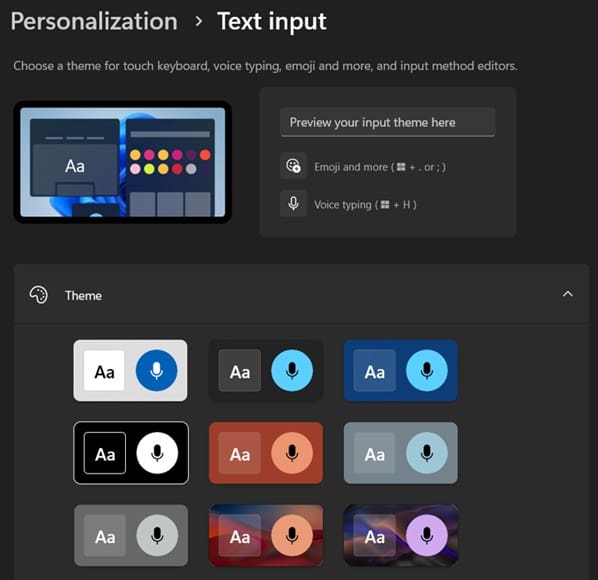
Click Personalization from the left sidebar.
Step 3. Select Text input
Scroll through the available options and select Text input.
If you can’t find it, use the search box at the top of Settings and search for Touch Keyboard or Text input.
Once you’re inside this section, you’ll see several options for customizing the Windows 11 on-screen keyboard.
Create a Custom Touch Keyboard Theme
Windows 11 allows you to create a custom theme instead of relying only on the default keyboard designs.
Step 1. Select Custom Theme
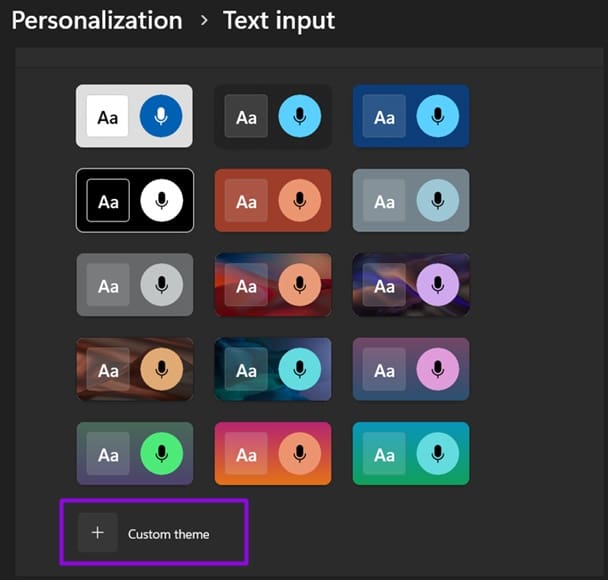
Under the available themes, select Custom theme or click the + button to create a new theme.
Step 2. Change the Background
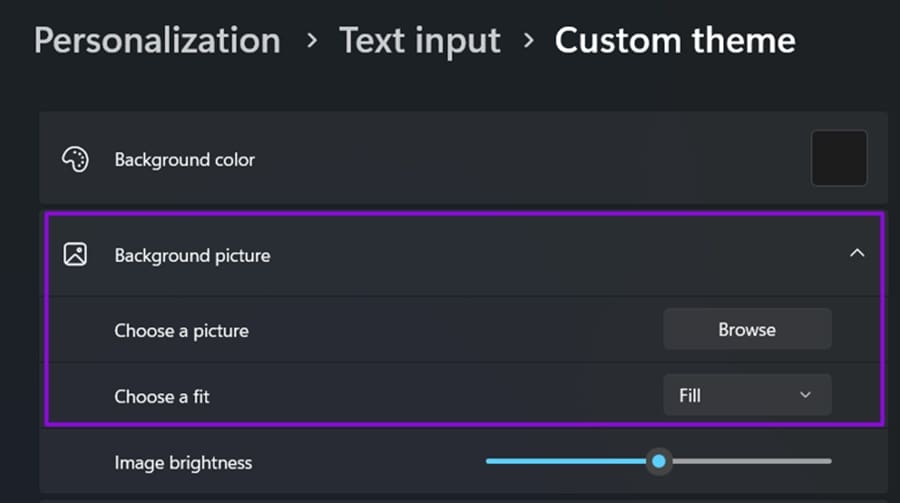
You can choose a solid background color or use your own image.
To use a personal picture:
- Find the Background Picture option.
- Click Browse.
- Select an image stored on your computer.
- Choose how the image should fit using the available layout options.
This lets you use a personal photo, wallpaper, or another image behind the Touch Keyboard.
Step 3. Customize the Keyboard
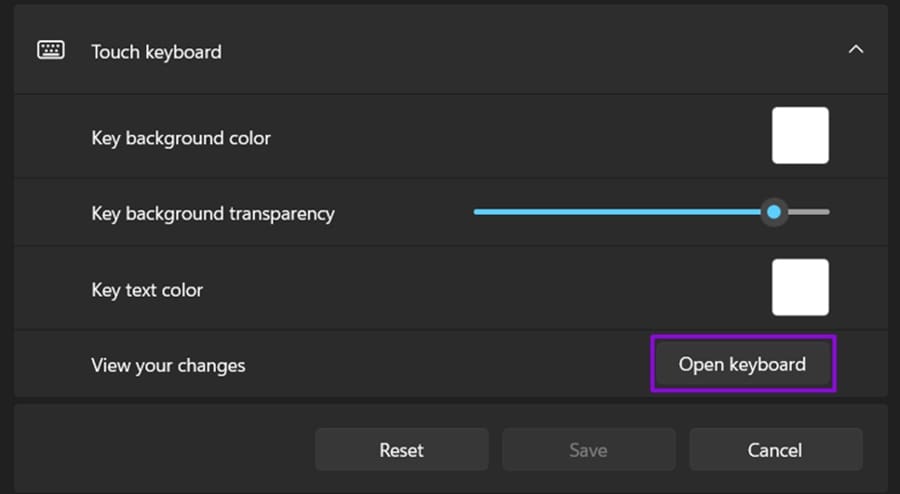
Under the Touch keyboard section, you can change different aspects of the keyboard, including:
- Keyboard background color
- Key background color
- Key text color
- Transparency
- Accent colors
Use the Open keyboard option to preview your changes while customizing the theme.
Step 4. Save the Theme
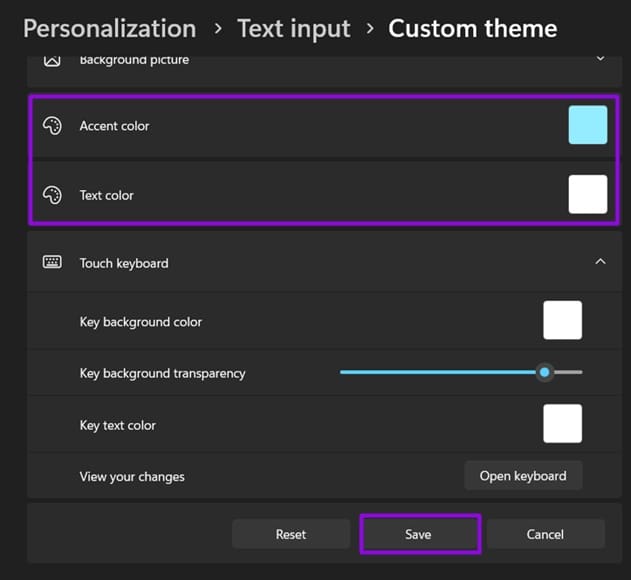
Once you’re happy with the appearance, adjust the text and accent colors and click Save.
Keep in mind that increasing key transparency can make the letters harder to read, particularly when using a detailed background image.
Make the Touch Keyboard Theme Match Other Windows Features
Your Touch Keyboard theme isn’t necessarily limited to the keyboard itself. Windows can apply the same visual design to several related input interfaces.
Emoji Panel
Press Win + . (period) to open the Windows emoji panel.
The panel should use the same general appearance as your customized input theme.
Clipboard History
Press Win + V to open Clipboard History.
Your selected input theme can also affect this interface.
Voice Typing
Press Win + H to open Windows Voice Typing and check whether the new appearance has been applied.
Show the Touch Keyboard on the Taskbar
If the Touch Keyboard icon isn’t visible:
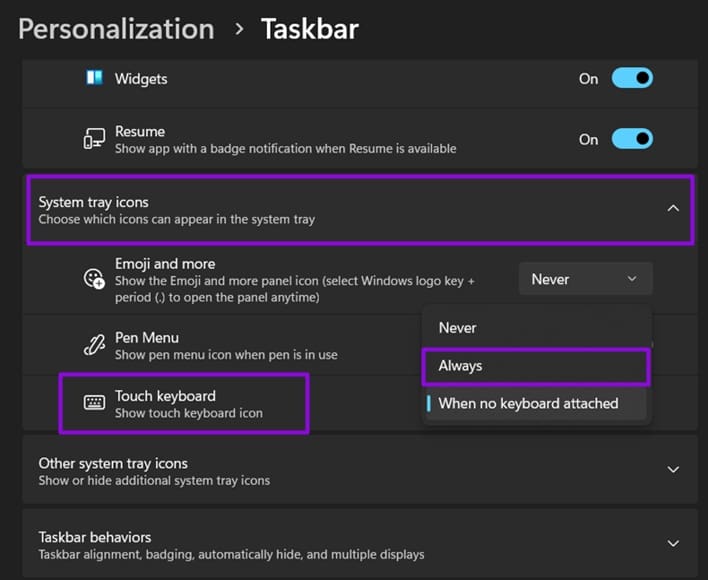
Step 1. Right-click an empty area of the taskbar.
Step 2. Select Taskbar settings.
Step 3. Find the System tray icons section.
Step 4. Locate Touch keyboard.
Step 5. Change its setting to Always if you want the icon permanently visible.
You can then open the Touch Keyboard directly from the taskbar whenever you need it.
Change the Touch Keyboard Size
Windows 11 also allows you to change the size and appearance of the keyboard.
Return to:
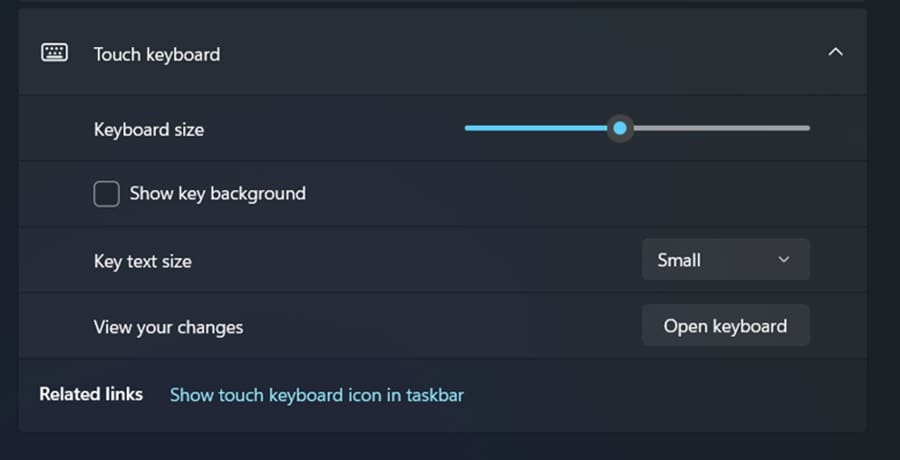
Settings > Personalization > Text input
You’ll find several options related to keyboard sizing and key appearance.
Keyboard Size
The keyboard size controls how large the on-screen keyboard appears relative to your display.
Increasing it can make the keyboard easier to use on a touchscreen or with a mouse.
Key Text Size
You can also change the size of the characters displayed on individual keys.
A larger text size can make letters easier to identify.
Show Key Background
The Show key background option controls whether individual keys have visible backgrounds.
Turning it on provides a more traditional keyboard appearance, while disabling it gives the keyboard a simpler look.
Why Customize the Windows 11 Touch Keyboard?
The default Touch Keyboard is functional, but customization can make it considerably more comfortable to use.
You can:
- Match the keyboard to your Windows theme.
- Add a personal background image.
- Change key and text colors.
- Adjust transparency.
- Increase the keyboard size.
- Make keyboard characters easier to read.
- Customize the appearance of related input interfaces.
The best part is that these options are built directly into Windows 11, so you don’t need third-party keyboard customization software.
Final Thoughts
Customizing the Touch Keyboard in Windows 11 is relatively straightforward once you know where Microsoft has placed the settings. Go to Settings > Personalization > Text input to access the available themes and customization options.
From there, you can create a custom keyboard theme, add your own background image, change colors and transparency, and adjust the size of the keyboard and its keys.
If you regularly use the Windows 11 Touch Keyboard, these small changes can make it much easier and more enjoyable to use.