
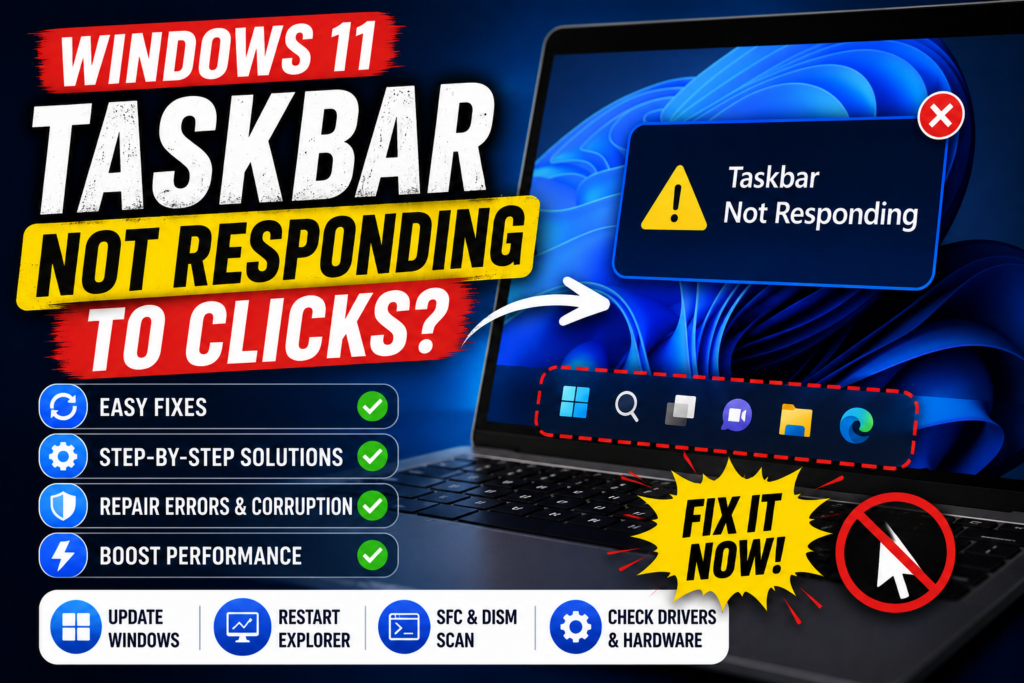

The Windows 11 Taskbar is one of the most important parts of the operating system, giving you quick access to the Start menu, open applications, notifications, system controls, and other features. However, sometimes the Windows 11 Taskbar stops responding to clicks, leaving you unable to open the Start menu or interact with pinned applications.
The problem can be caused by a temporary Windows Explorer issue, corrupted system files, an incomplete update, outdated drivers, or problems with connected hardware.
Fortunately, there are several troubleshooting methods you can try before considering more advanced solutions.
Quick Tips
- A frozen Windows 11 Taskbar can be caused by software, system files, drivers, or even faulty input hardware.
- Restarting Windows Explorer can quickly refresh the Taskbar and Start menu.
- Locking and unlocking Windows or restarting the PC can resolve temporary glitches.
- Check Windows Update and install available updates.
- SFC and DISM can repair corrupted Windows system files.
- Check your mouse, keyboard, and other input devices if clicks aren’t registering correctly.
What Causes the Windows 11 Taskbar to Stop Responding?
There isn’t always one specific reason why the Taskbar becomes unresponsive. Common causes include:
- A temporary Windows 11 system glitch
- Windows Explorer becoming unresponsive
- Corrupted or incomplete Windows updates
- Damaged Windows system files
- Outdated or problematic graphics drivers
- Third-party software or shell extensions
- Problems with the mouse or keyboard
- Issues with the Windows Start menu processes
If both the Start button and Taskbar stop responding, the problem is often related to the Windows shell rather than the Taskbar hardware itself.
How to Fix Windows 11 Taskbar Not Responding to Clicks
Try the following fixes in order. After each method, check whether the Taskbar is responding normally again.
Fix 1: Lock and Unlock Your PC
Before trying complicated troubleshooting methods, start with a simple solution.
Press:
Windows + L
This locks your computer.
Wait a few seconds and unlock the PC using your PIN, password, or other sign-in method.
Once you’re back on the desktop, try clicking the Start button and Taskbar again.
A temporary Windows interface glitch can sometimes disappear after locking and unlocking the computer.
Fix 2: Check Your Mouse and Keyboard
If Windows isn’t registering your clicks correctly, the problem might not actually be the Taskbar.
Check your mouse and keyboard for physical problems.
Try the following:
- Disconnect and reconnect your mouse.
- Try another USB port.
- Test another mouse if available.
- Check whether the mouse buttons are working elsewhere.
- Make sure no keyboard keys are stuck.
- Disconnect unnecessary input devices temporarily.
If the mouse works normally inside other applications but the Taskbar doesn’t respond, continue with the Windows troubleshooting steps below.
Fix 3: Restart Windows Explorer
The Windows Taskbar is closely connected to the Windows shell and Windows Explorer. If Explorer becomes frozen or encounters an error, parts of the desktop interface can stop responding.
Restarting Explorer is one of the quickest ways to refresh the Taskbar.
Step 1: Open Task Manager
Press:
Ctrl + Shift + Esc
This should open Task Manager.
If the normal Task Manager window doesn’t appear, try selecting More details if available.
Step 2: Find Windows Explorer
Under the Processes section, find:
Windows Explorer
Step 3: Restart Explorer
Select Windows Explorer and click:
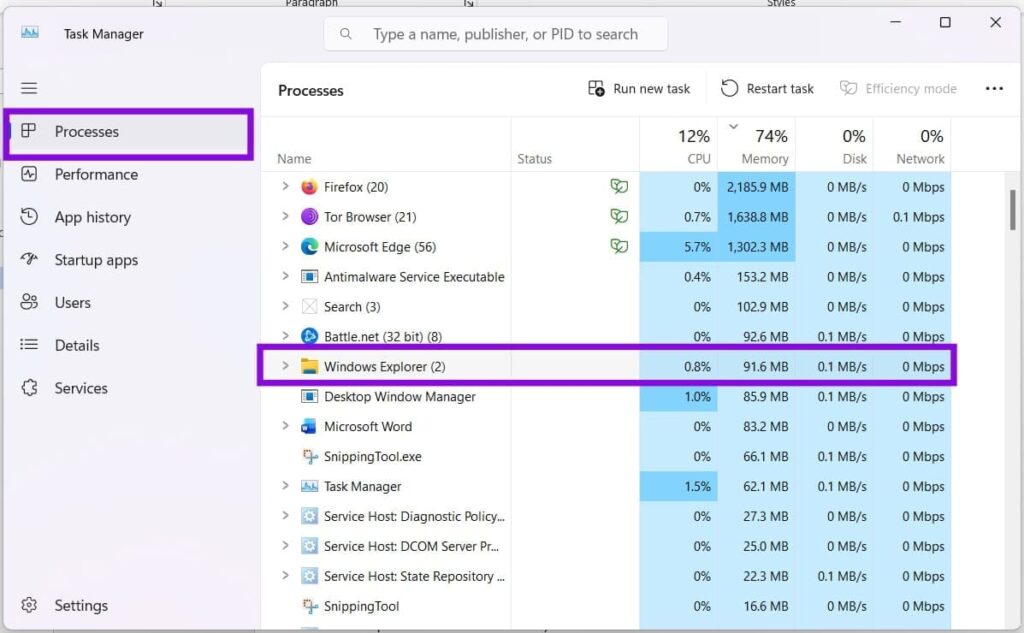
Restart task
The desktop and Taskbar may disappear for a few seconds.
Step 4: Test the Taskbar
Wait for Explorer to restart and then try clicking the Start button and Taskbar again.
If this doesn’t help, restart the entire PC and test it again.
Fix 4: Clear Windows Notifications
In some situations, notification-related processes can contribute to problems with the Windows interface.
If you’re still able to access the notification area, try clearing your notifications.
Step 1: Open Notifications
Click the clock/date area on the right side of the Taskbar.
Step 2: Clear Notifications
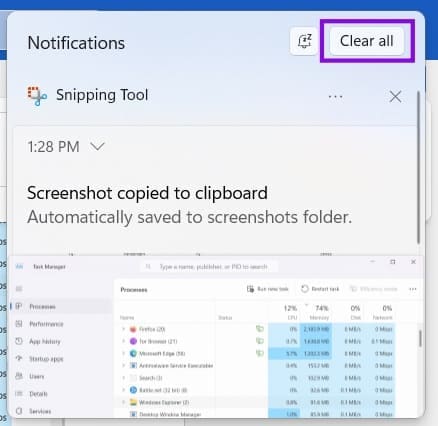
Select:
Clear all
This removes the current notifications.
Step 3: Disable Notifications Temporarily
You can also enable Do not disturb to temporarily prevent new notifications from appearing.
Test the Taskbar again.
If you can’t interact with the notification area because the entire Taskbar is frozen, skip this method and continue with the next fix.
Fix 5: Update Windows 11
A Windows 11 bug or incomplete update can sometimes cause problems with the Start menu and Taskbar.
Microsoft regularly releases Windows updates that include bug fixes and system improvements.
Step 1: Open Settings
Press:
Windows + I
Step 2: Open Windows Update
Select:
Windows Update
Step 3: Check for Updates
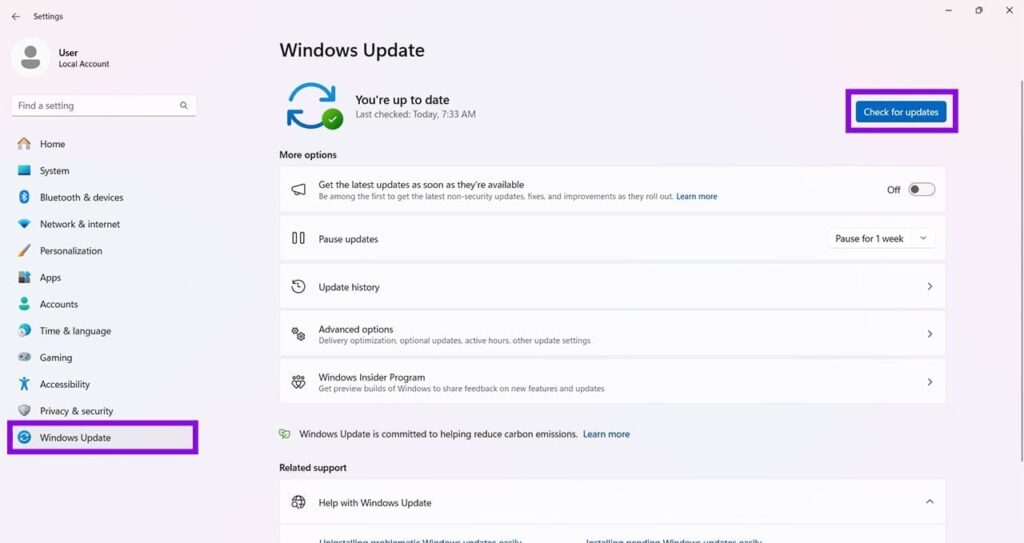
Click:
Check for updates
If updates are available, download and install them.
Step 4: Restart Your PC
Restart Windows after the installation is complete.
Then check whether the Taskbar is responding normally.
Fix 6: Run DISM and SFC
If corrupted Windows system files are responsible for the problem, Microsoft’s built-in DISM and System File Checker (SFC) tools can help repair them.
It is generally useful to run DISM first and then SFC.
Step 1: Open Command Prompt as Administrator
Press:
Windows + R
Type:
cmd
Instead of pressing Enter, press:
Ctrl + Shift + Enter
Select Yes when the User Account Control prompt appears.
Step 2: Run DISM
Enter:
DISM.exe /Online /Cleanup-image /RestoreHealth
Press Enter.
Allow the scan to complete. It may take some time.
Step 3: Run SFC
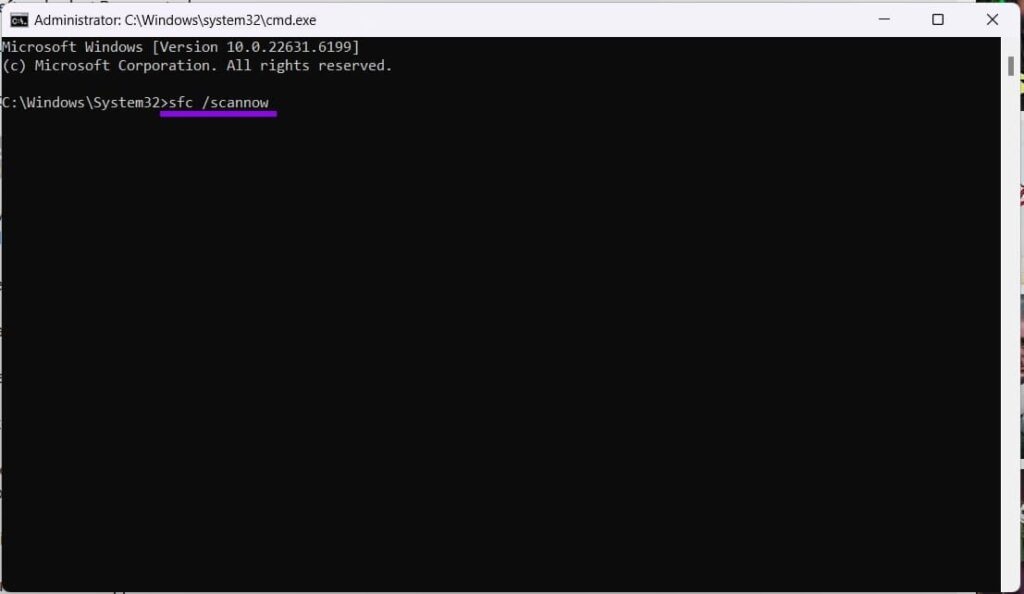
After DISM finishes, enter:
sfc /scannow
Press Enter.
Wait until Windows completes the system file check.
Step 4: Restart Windows
Restart your PC after both scans finish.
Then check whether the Start menu and Taskbar respond to clicks.
Fix 7: Update Your Graphics Driver
Graphics drivers can also affect Windows’ desktop interface. If the Taskbar started freezing after a driver update or Windows update, checking your graphics driver is worthwhile.
Open Device Manager and expand:
Display adapters
Right-click your graphics device and check for an available driver update.
You can also visit your laptop or graphics-card manufacturer’s official support page and download the latest compatible driver.
What If the Windows 11 Taskbar Still Doesn’t Work?
If the Taskbar remains unresponsive after restarting Explorer, updating Windows, and repairing system files, the problem may require more advanced troubleshooting.
Before making major system changes, check whether the problem occurs only with your current Windows account. Creating a temporary local user account can help determine whether the issue is related to your user profile.
You should also consider recently installed software, Windows updates, drivers, and third-party customization tools that modify the Windows interface.
Final Thoughts
A Windows 11 Taskbar not responding to clicks can be frustrating, especially when the Start button and other system controls stop working at the same time.
Start with simple solutions such as locking and unlocking the PC, checking your mouse and keyboard, and restarting Windows Explorer. If the problem continues, install the latest Windows updates and run DISM followed by SFC to check for corrupted system files.
If none of these methods work, investigate graphics drivers, recently installed software, and possible user-profile problems before moving to more advanced Windows recovery options.

Signing up was incredibly quick and the mobile version works like a dream on my phone. I have tested several payment methods and everything goes through smoothly every time. The game library keeps growing and I always find something fun to play after work. bd7j7777
I recently discovered this platform and I am genuinely impressed by how organized everything feels. The interface is clean and the promotions actually make a difference in my bankroll. It feels like a trusted friend that always has your back. theu9