
A laptop touchpad is designed to recognize different gestures and clicks, but sometimes left and right touchpad clicks start behaving the same. For example, clicking the right side may produce a normal left-click, or accidental two-finger touches may repeatedly trigger the right-click menu.
This problem is commonly related to touchpad settings, click-zone configuration, Windows drivers, or touchpad software.
Here are several ways to fix the problem and restore normal left- and right-click behavior.
Quick Tips
- If your touchpad cannot distinguish between left and right clicks, the problem may be caused by settings, click-zone mapping, or drivers.
- Disabling two-finger right-clicking can prevent accidental right-clicks.
- On supported Windows versions, you can adjust the size of the touchpad’s right-click zone.
- Advanced users can modify the right-click zone through the Windows Registry.
- If the problem continues, reinstalling the touchpad driver may help.
How Do Touchpad Left and Right Clicks Work?
Modern laptop touchpads can recognize different actions depending on where and how you touch them.
Depending on your laptop, a touchpad may recognize:
- A single-finger tap as a left-click
- A two-finger tap as a right-click
- A click on the lower-left area as a left-click
- A click on the lower-right area as a right-click
- Multi-finger gestures for additional actions
If left and right clicks are behaving identically, a Windows setting, touchpad configuration, or driver problem may be responsible.
How to Fix Touchpad Left and Right Clicks Acting the Same
Try the following solutions in order.
Fix 1: Disable Two-Finger Right-Clicking
Many Windows laptops use a two-finger tap to perform a right-click. If your touchpad is overly sensitive, an accidental second finger can trigger a right-click when you intended to perform a normal tap.
Step 1: Open Touchpad Settings
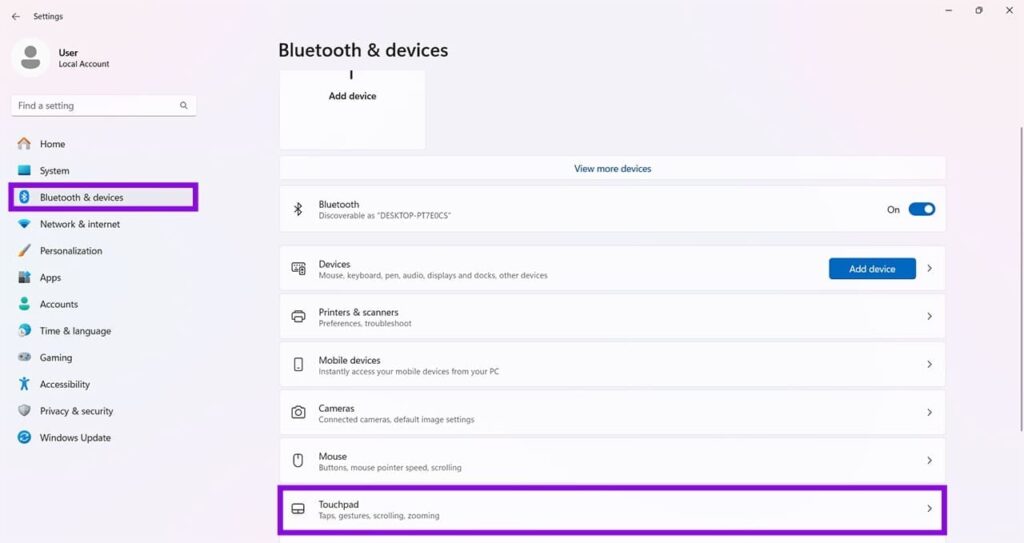
Press:
Windows + I
Go to:
Bluetooth & devices > Touchpad
Step 2: Open Taps
Select Taps to expand the available touchpad options.
Step 3: Disable Two-Finger Right-Click
Find:
Tap with two fingers to right-click
Turn this option off.
Step 4: Test the Touchpad
Try using the touchpad normally and check whether the unwanted right-click behavior has stopped.
Fix 2: Increase the Right-Click Zone
On supported Windows versions and compatible Precision Touchpads, you may be able to change the size of the area used for right-clicking.
This can be useful if the right-click area is too small or difficult to activate consistently.
Step 1: Open Settings
Press:
Windows + I
Select:
Bluetooth & devices > Touchpad
Step 2: Open Taps
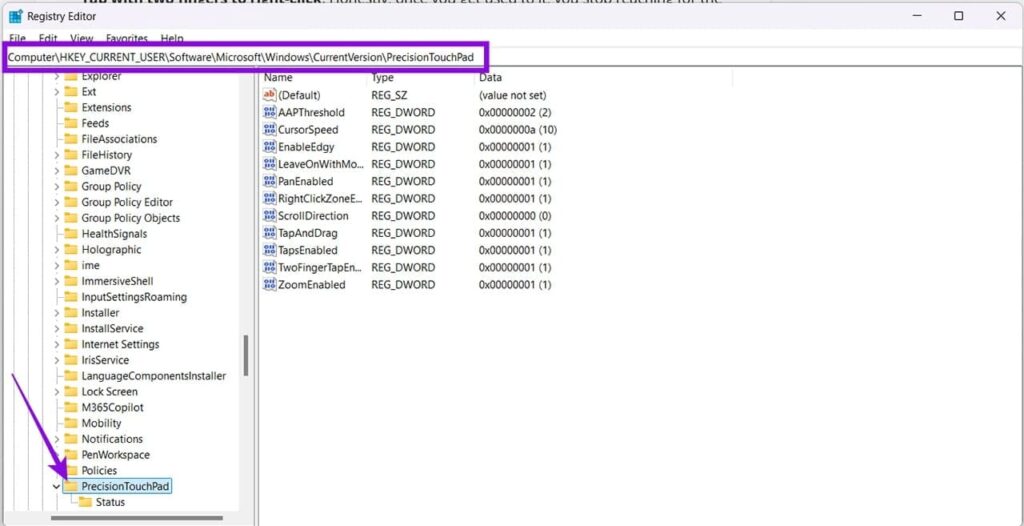
Select Taps.
Step 3: Find Right-Click Zone Size
If the option is available, look for:
Right-click zone size
You may see options such as:
- Default
- Small
- Medium
- Large
Step 4: Choose a Larger Zone
Select Medium or Large and test the touchpad.
If the setting isn’t available on your laptop, your touchpad driver or Windows version may not support this option.
Fix 3: Change the Right-Click Zone Using the Registry
Advanced users can also modify the touchpad’s right-click zone through the Windows Registry.
Important: The Registry contains important Windows configuration settings. Create a backup or restore point before making changes, and don’t modify unrelated entries.
Step 1: Open Registry Editor
Press:
Windows + R
Type:
regedit.mscPress Ctrl + Shift + Enter to open Registry Editor with administrator privileges.
Step 2: Open the Precision Touchpad Location
Navigate to:
HKEY_CURRENT_USER\Software\Microsoft\Windows\CurrentVersion\PrecisionTouchPadYou can also paste the path into the Registry Editor address bar.
Step 3: Create the Right-Click Values
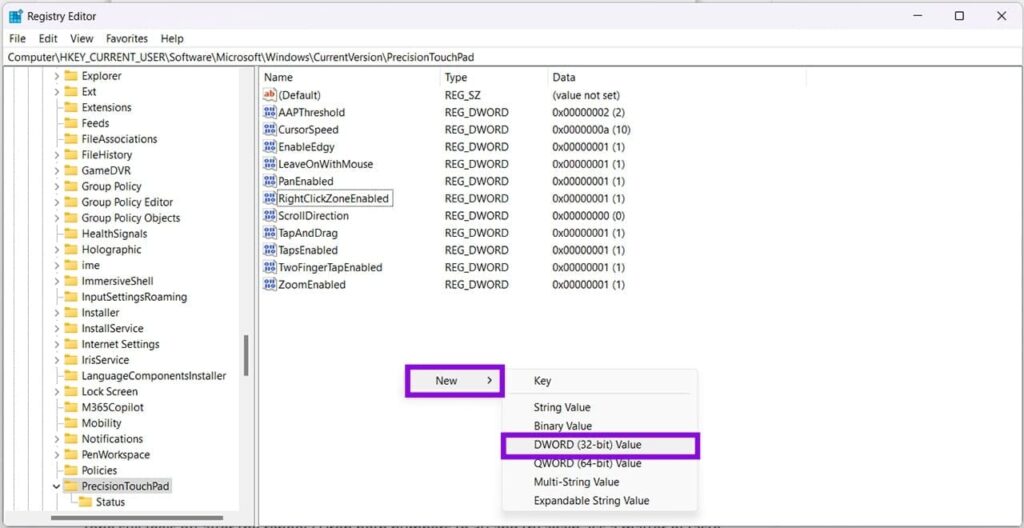
Right-click an empty area in the right-hand pane.
Select:
New > DWORD (32-bit) Value
Create the following entries:
RightClickZoneWidth
RightClickZoneHeight
Step 4: Set the Values
Double-click each entry.
Select Decimal as the base and enter an appropriate value supported by your configuration.
These values control the size of the right-click zone.
Step 5: Restart Windows
Close Registry Editor and restart your PC.
Test the touchpad after Windows starts again.
If the change causes unexpected behavior, revert the Registry changes you made.
Fix 4: Reinstall the Touchpad Driver
A damaged, outdated, or incorrectly configured touchpad driver can cause unusual click behavior.
Reinstalling the driver allows Windows to detect the hardware again and load the appropriate driver.
Step 1: Open Device Manager
Press:
Windows + R
Type:
devmgmt.mscPress Enter.
Step 2: Find the Touchpad
Look under categories such as:
Human Interface Devices
or
Mice and other pointing devices
The exact location and name depend on your laptop manufacturer and touchpad hardware.
Step 3: Uninstall the Touchpad Device
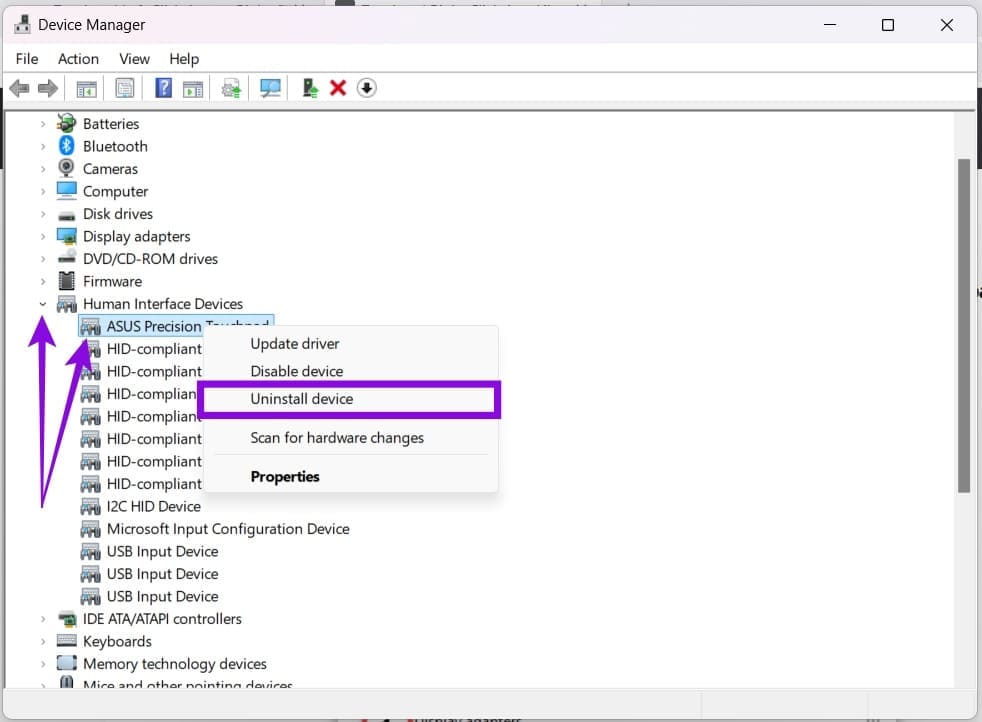
Right-click the touchpad device and select:
Uninstall device
If Windows offers an option to remove the driver software, don’t select it unless you have a replacement driver available from your laptop manufacturer.
Step 4: Scan for Hardware Changes
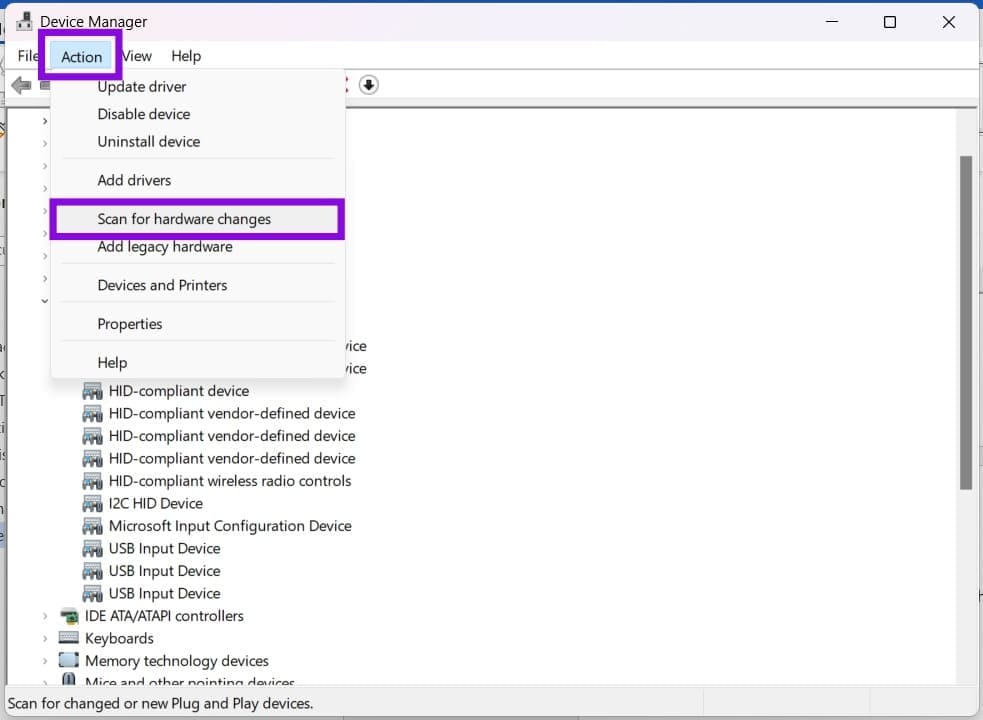
In Device Manager, select:
Action > Scan for hardware changes
Windows should detect the touchpad again.
Step 5: Restart Your PC
Restart Windows and test the touchpad.
If Windows doesn’t automatically install the correct driver, download the latest touchpad driver from your laptop manufacturer’s official support page.
Why Are My Touchpad Left and Right Clicks the Same?
The problem can have several causes, including:
- Two-finger right-click gestures
- Incorrect touchpad settings
- A small or incorrectly configured right-click zone
- Corrupted touchpad drivers
- Outdated drivers
- Windows configuration changes
- Touchpad hardware problems
If the issue started immediately after a Windows or driver update, checking for a newer driver or rolling back the affected driver may also be worth considering.
Final Thoughts
When touchpad left and right clicks act the same, start with the simplest settings first. Disable two-finger right-clicking and check whether your Windows version provides a Right-click zone size option.
If those settings don’t solve the problem, advanced users can adjust the right-click zone through the Registry. Reinstalling or updating the touchpad driver is another useful step when the issue is caused by driver corruption or configuration problems.
If none of these solutions work and the touchpad continues to behave incorrectly, the problem may be hardware-related and may require further diagnosis from the laptop manufacturer.