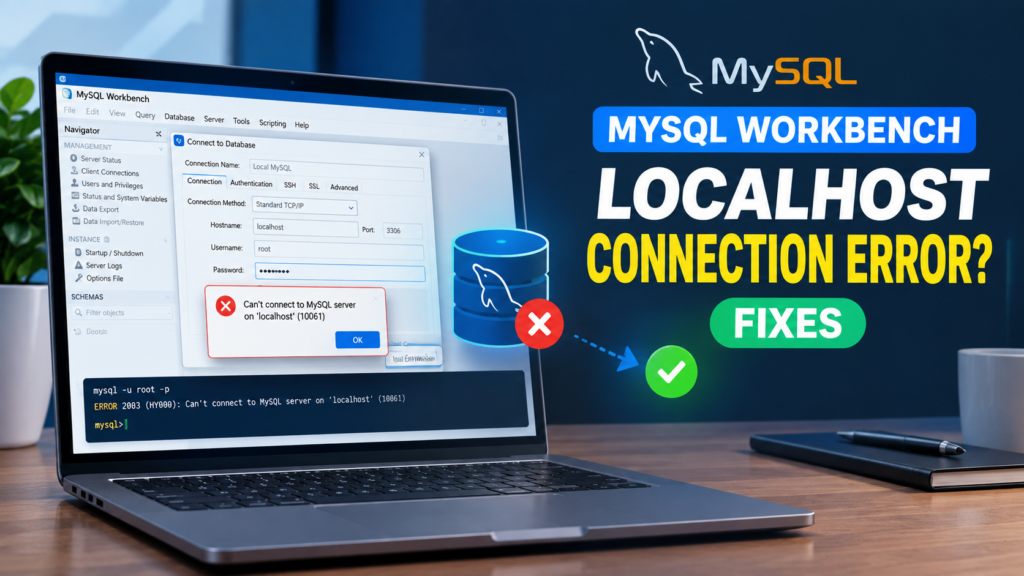

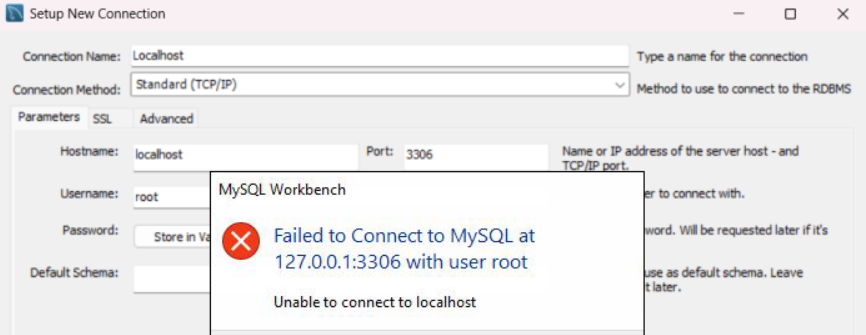
MySQL Workbench may sometimes fail to connect to a MySQL Server running on your Windows PC. When this happens, you may see errors such as “Unable to connect to localhost,” “Can’t connect to MySQL server on ‘localhost’,” or “Error 10061: No connection could be made because the target machine actively refused it.”
The problem is usually related to the MySQL Server service, an incorrect port, or connection settings that don’t match your MySQL installation.
If you’re unable to connect to localhost in MySQL Workbench, try the fixes below.
Quick Tips
- Make sure the MySQL Server service is running before opening MySQL Workbench.
- Check whether MySQL is listening on the default 3306 port.
- Verify that the port configured in MySQL Workbench matches the MySQL Server configuration.
- Try 127.0.0.1 instead of
localhostas the hostname. - If you use XAMPP, WampServer, Laragon, or another development environment, check for port conflicts.
Why Can’t MySQL Workbench Connect to Localhost?
MySQL Workbench is a client application. It needs a running MySQL Server to establish a database connection.
If the server service has stopped, Workbench cannot connect to it. Similarly, if MySQL is listening on a different port than the one configured in Workbench, the connection will fail.
For a standard TCP/IP connection, MySQL Workbench uses a hostname or IP address together with a TCP/IP port. The default port for the classic MySQL protocol is 3306.
Here are the main fixes to try.
1. Start the MySQL Server Service
The first thing you should check is whether the MySQL Server service is running.
Step 1: Open Windows Services
Press Windows + R to open the Run dialog.
Type:
services.mscPress Enter.
Step 2: Find MySQL
Scroll through the list and look for a service such as:
MySQL80
Your installation may use a different MySQL service name.
Step 3: Start the Service

If the service shows Stopped:
- Right-click the MySQL service.
- Select Start.
- Wait for Windows to start the service.
- Open MySQL Workbench.
- Try the connection again.
MySQL Workbench cannot connect to a local server if the corresponding MySQL Server service isn’t running.
Start MySQL From Command Prompt
You can also start the service from an elevated Command Prompt.
First, find the MySQL service name:
sc query type= service state= all | findstr /I "mysql"Once you know the service name, start it using:
net start MySQL80Replace MySQL80 with the actual service name installed on your computer.
2. Check Whether MySQL Is Listening on Port 3306
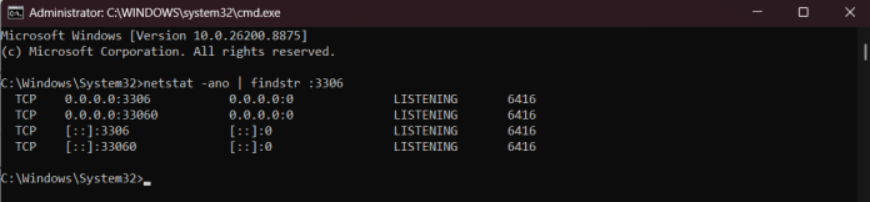
If the MySQL service is running but Workbench still can’t connect, check whether the server is actually listening for connections.
Open Command Prompt as Administrator and run:
netstat -ano | findstr :3306You may see an entry similar to:
TCP 127.0.0.1:3306 0.0.0.0:0 LISTENINGThe important part is LISTENING.
If you don’t see anything listening on port 3306, MySQL may be configured to use another port or the server may not have started correctly.
3. Check Your MySQL Port
Don’t assume that every MySQL installation uses port 3306.
If you installed MySQL alongside software such as XAMPP, WampServer, or Laragon, another service may already be using the default port.
MySQL’s default classic protocol port is 3306, but the server can be configured to use another port.
Find the Configured Port
Locate your MySQL configuration file, usually named:
my.iniLook for the [mysqld] section.
You may see:
[mysqld]
port=3306
If your configuration contains something different, such as:
port=3307then MySQL Workbench needs to use 3307 instead of 3306.
For example:
Hostname: 127.0.0.1
Port: 3307
After changing the MySQL configuration, restart the MySQL service and test the connection again.
4. Check for a Port Conflict
Another application may already be using port 3306.
Open Command Prompt and run:
netstat -ano | findstr :3306You may see something like:
TCP 0.0.0.0:3306 0.0.0.0:0 LISTENING 4520The final number is the PID, or Process ID, of the application using the port.
You can identify the process with:
tasklist /FI "PID eq 4520"Replace 4520 with the PID shown on your computer.
If another MySQL installation is using the port, you may have multiple MySQL Server instances installed.
Don’t randomly terminate the process just because it is using port 3306. First determine which application owns the process and whether it is the MySQL instance you actually want to use.
5. Use 127.0.0.1 Instead of localhost
If MySQL is running and listening on the expected port, try changing the hostname in your MySQL Workbench connection.
Open your connection settings and use:
Hostname: 127.0.0.1
Port: 3306
Instead of:
Hostname: localhost
Port: 3306
Then click Test Connection.
MySQL’s documentation notes that localhost can resolve to 127.0.0.1 or ::1, depending on the system. Using 127.0.0.1 explicitly tells Workbench to use the IPv4 loopback address.
This can help when the server is listening on one local address but localhost resolves differently.
6. Check Your MySQL Workbench Connection Settings
If the server is running correctly, make sure the Workbench connection settings match the server.
For a typical local MySQL installation, your connection may look like:
Connection Method: Standard TCP/IP
Hostname: 127.0.0.1
Port: 3306
Username: root
The exact username depends on the account you created during MySQL installation.
MySQL Workbench’s connection manager allows you to configure the hostname, port, username, password, and other connection parameters. It also provides a Test Connection option to check whether the configured connection works.
7. Check Whether You Have Multiple MySQL Installations
If you’ve previously installed MySQL, XAMPP, WampServer, or another local development environment, you may have more than one MySQL or MariaDB installation.
This can create confusion because:
- One MySQL service may be running.
- Another installation may use a different port.
- Workbench may be configured for the wrong server.
- Port 3306 may already be occupied.
Check services.msc and look for multiple MySQL-related services.
Then determine which server instance you actually want to connect to and make sure Workbench uses its hostname and port.
8. Restart the MySQL Server
If you’ve changed the port or configuration, restart the MySQL service before testing again.
Open:
services.mscFind your MySQL service, right-click it, and select Restart.
Then open MySQL Workbench and select Test Connection.
If the service refuses to start, the problem may be related to the MySQL configuration or another application using the configured port. In that situation, check the MySQL error log for more information.
Why Does MySQL Workbench Say “Error 10061”?
Error 10061 generally means that the connection attempt was actively refused.
For a local MySQL connection, common causes include:
- MySQL Server isn’t running.
- The configured port is incorrect.
- Another application is using the expected port.
- MySQL is listening on a different address.
- Workbench has incorrect connection settings.
Start by checking the MySQL service and then verify the listening port with:
netstat -ano | findstr :3306These checks can quickly tell you whether Windows has a MySQL server actually listening for connections.
Final Thoughts
If MySQL Workbench cannot connect to localhost, the problem is usually easier to diagnose than it first appears.
Start by checking whether the MySQL Server service is running. Then verify that MySQL is listening on the expected port, usually 3306, and make sure the same port is configured in MySQL Workbench.
If everything looks correct but the connection still fails, try using:
127.0.0.1instead of:
localhostAlso check for conflicts caused by multiple MySQL installations or development environments such as XAMPP, WampServer, and Laragon.
In most cases, checking the MySQL service, port, and Workbench connection settings will identify the reason for the localhost connection failure.
Also read: https://techhowlab.com/external-drive-not-recognized/