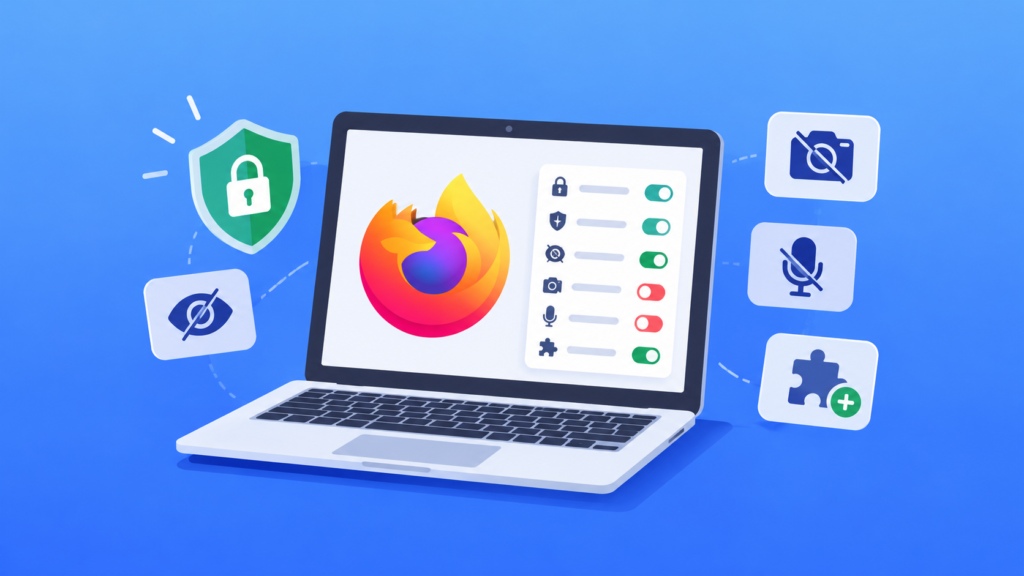

Your web browser knows a lot about what you do online, from the websites you visit to the permissions you give individual sites. If you use Mozilla Firefox, you have several built-in privacy and security controls that can reduce tracking and give you more control over your browsing data.
The problem is that many of these options aren’t enabled or configured exactly how every user would prefer by default.
Firefox’s Privacy & Security section gives you control over tracking protection, website permissions, browsing history, and more. Spending a few minutes reviewing these settings can help improve your privacy without installing additional security software.
Here are five Firefox privacy settings worth checking.
1. Turn On HTTPS-Only Mode
HTTPS encrypts the connection between your browser and a website, making it much harder for someone on the network to intercept the information being exchanged.
Firefox includes an HTTPS-Only Mode that attempts to use a secure HTTPS connection whenever possible.
How to enable HTTPS-Only Mode
Step 1: Open Firefox and click the three-line menu in the upper-right corner.
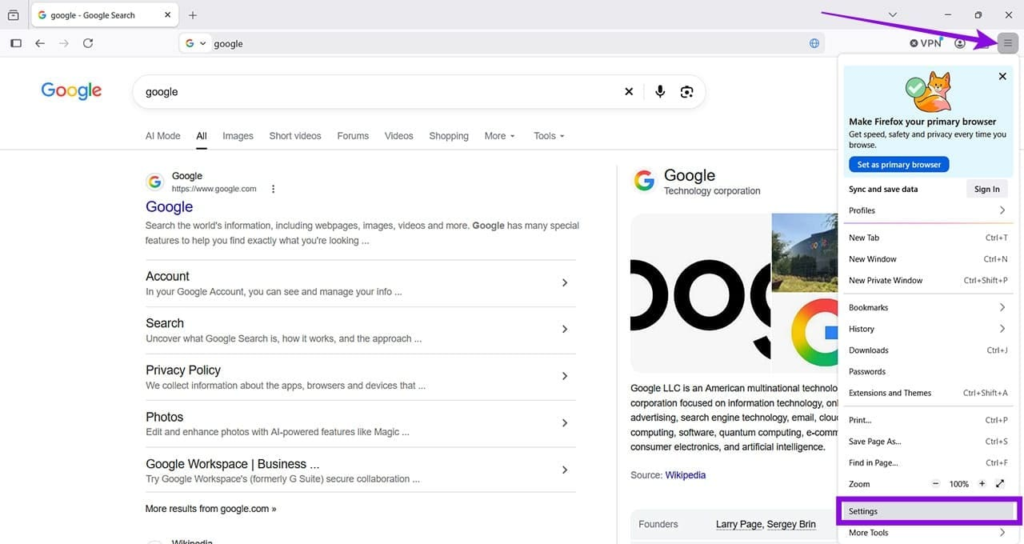
Select Settings.
Step 2: Click Privacy & Security from the left-hand menu.
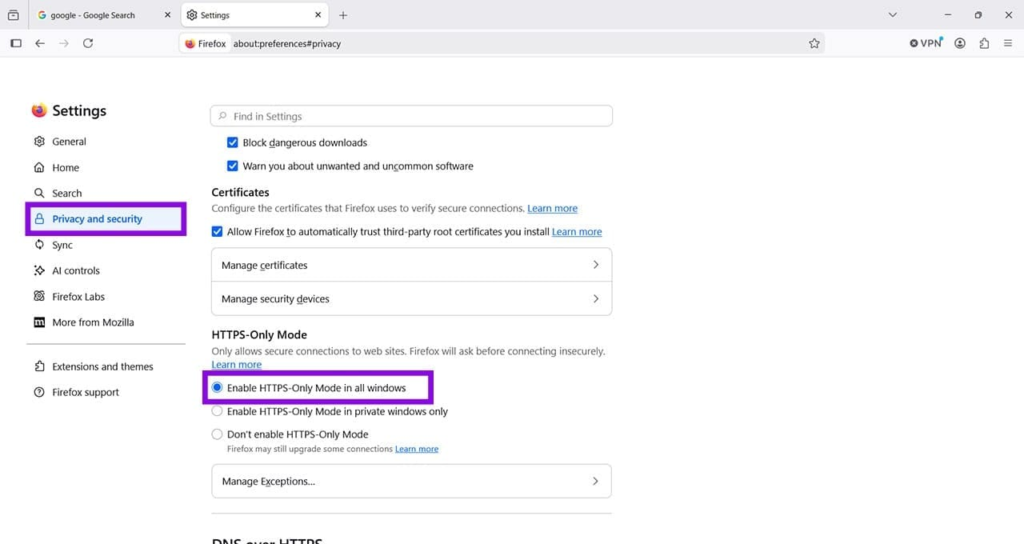
Scroll down until you find the HTTPS-Only Mode section.
Step 3: Select the option to enable HTTPS-Only Mode for all windows.
Firefox will then try to upgrade HTTP connections to HTTPS automatically.
If a website genuinely doesn’t support HTTPS, Firefox may warn you before allowing the connection. This can help prevent accidentally entering sensitive information on an unsecured connection.
2. Use Enhanced Tracking Protection
Online trackers can collect information about your browsing activity and are commonly used for advertising, analytics, and other purposes.
Firefox’s Enhanced Tracking Protection is designed to block many known tracking technologies automatically.
Change the tracking protection level
Step 1: Open:
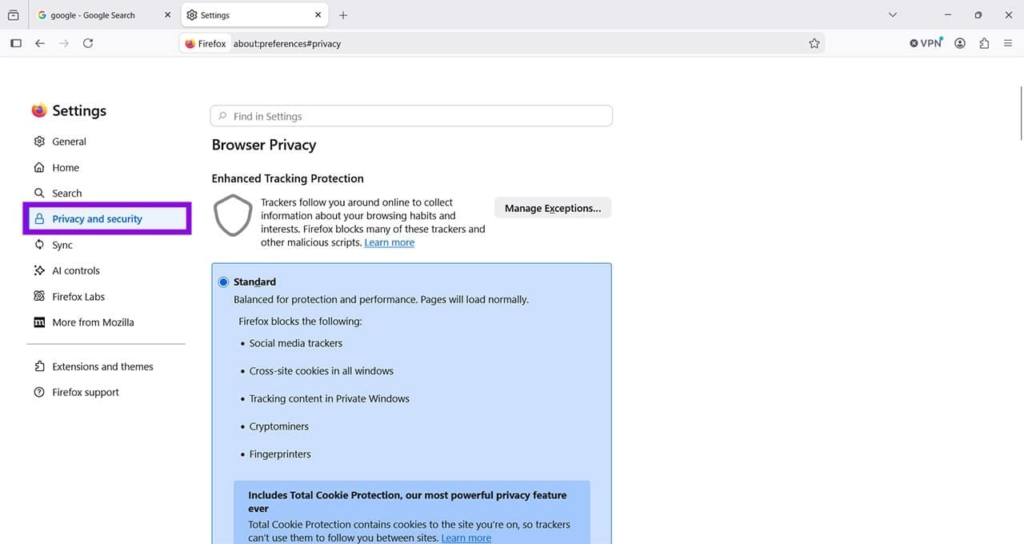
Settings > Privacy & Security
You’ll find Enhanced Tracking Protection near the top of the page.
Step 2: Firefox provides different protection levels. Select Strict if you want stronger protection against known trackers.
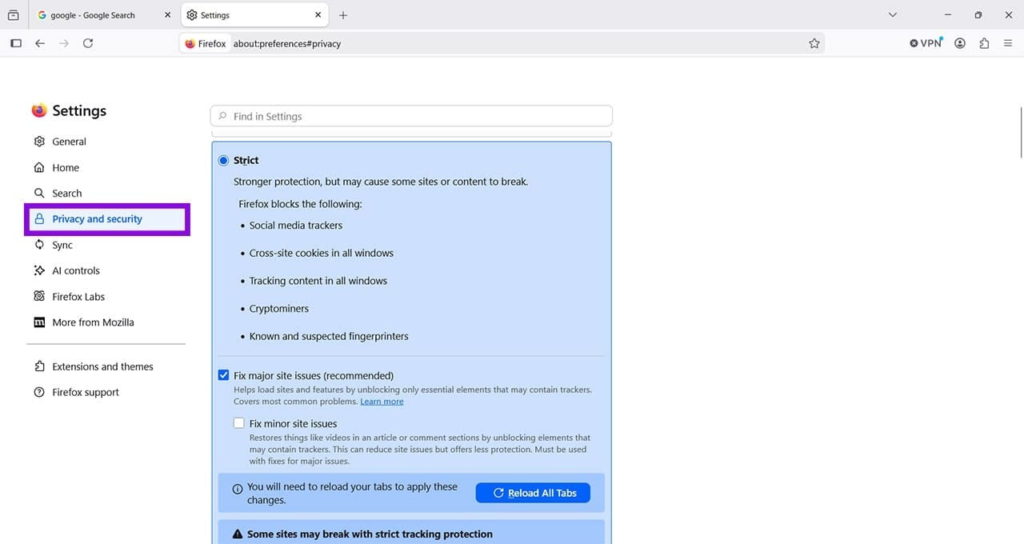
However, stronger blocking can occasionally interfere with websites. Some pages may depend on scripts or cookies that Firefox blocks, which can cause certain features to stop working.
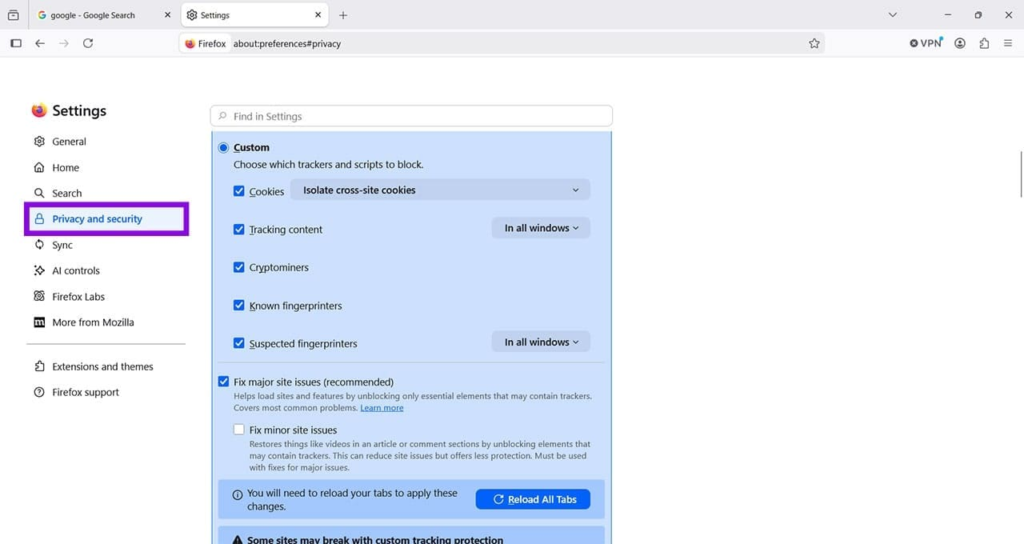
If you experience problems, you can switch back to the standard setting or use the Custom option.
What is Custom mode?
Custom protection lets you decide which types of content Firefox should block.
This is useful if you want more control instead of applying the same protection level to every website.
3. Stop Firefox From Keeping Your Browsing History
If you use Firefox on a shared computer, you may not want the browser to retain your browsing history after you close it.
Firefox can be configured not to remember your browsing history.
Change the history setting
Step 1: Open Firefox and go to:
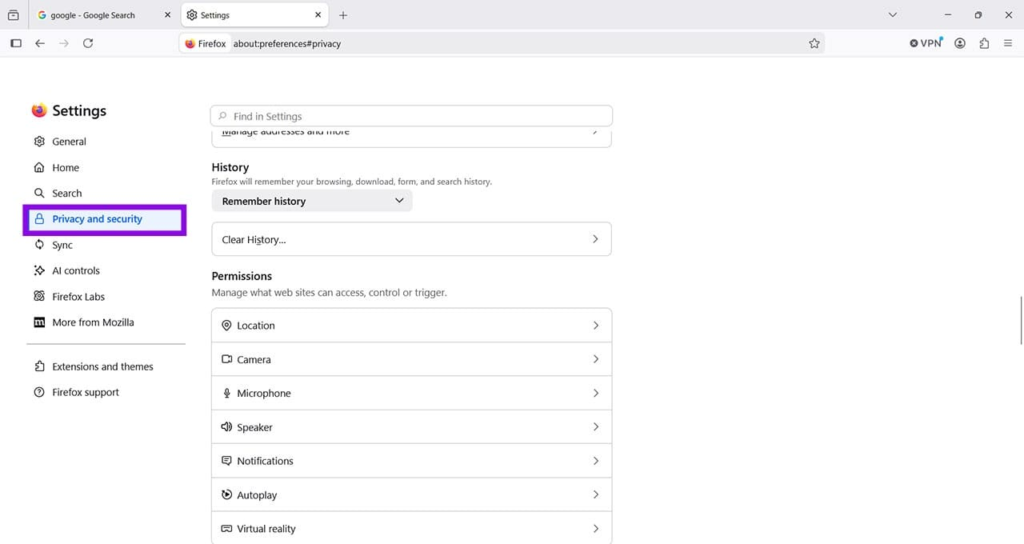
Settings > Privacy & Security
Scroll down to the History section.
Step 2: Open the drop-down menu next to the history option and choose Never remember history.
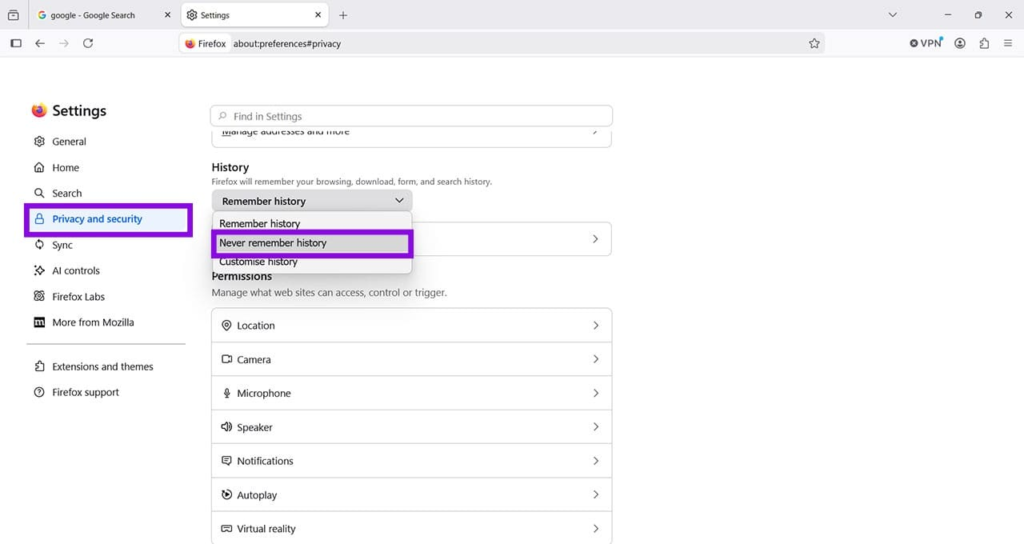
Firefox will then use private-browsing behavior rather than maintaining your normal browsing history.
This can be useful when you’re using a shared computer and don’t want your visited pages stored in the browser’s history.
Remember: Private Browsing isn’t complete anonymity
Private Browsing mainly prevents Firefox from retaining certain information locally.
It does not make you invisible online.
Your internet service provider, employer or school network, websites, and other network systems may still be able to observe or record activity depending on how the connection is configured.
4. Control Camera and Microphone Permissions
Many websites can request access to your computer’s camera and microphone. This can be necessary for services such as video meetings, online calls, and voice recording.
However, you don’t have to allow every website to request these permissions.
Firefox lets you control how websites access your camera and microphone.
Block new camera requests
Step 1: Open:
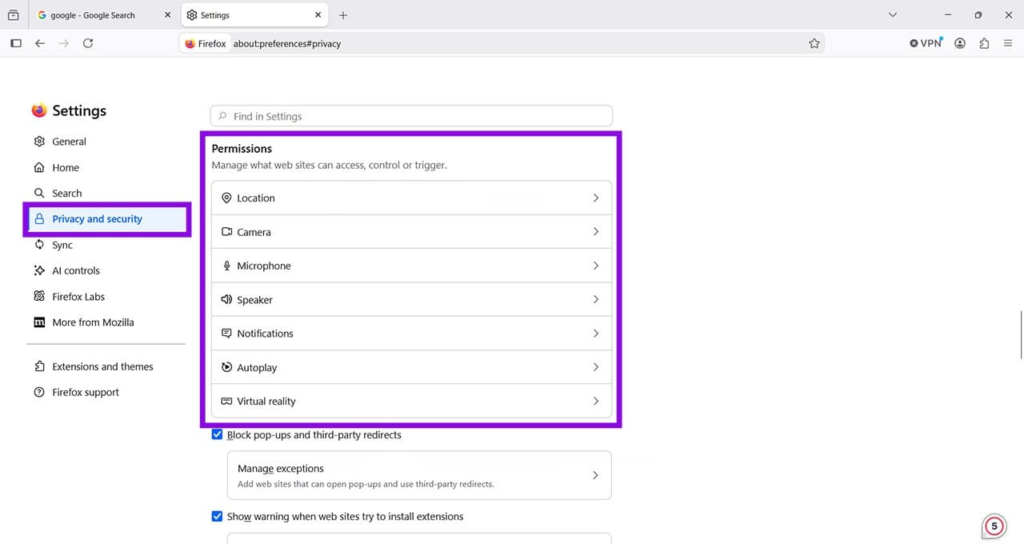
Settings > Privacy & Security
Scroll down to the Permissions section.
Step 2: Find Camera and click Settings.
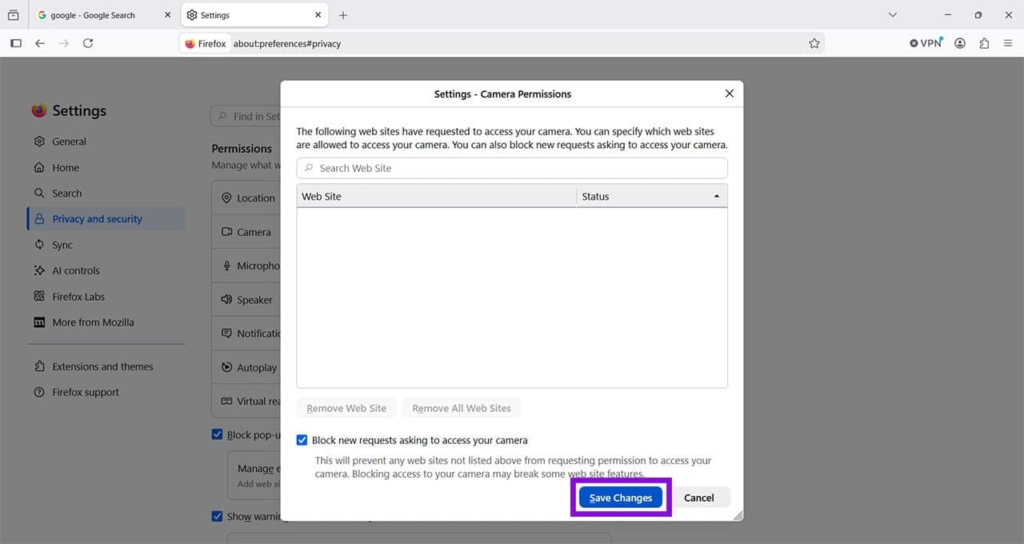
Step 3: Enable the option that blocks new requests asking to access your camera.
Click Save Changes.
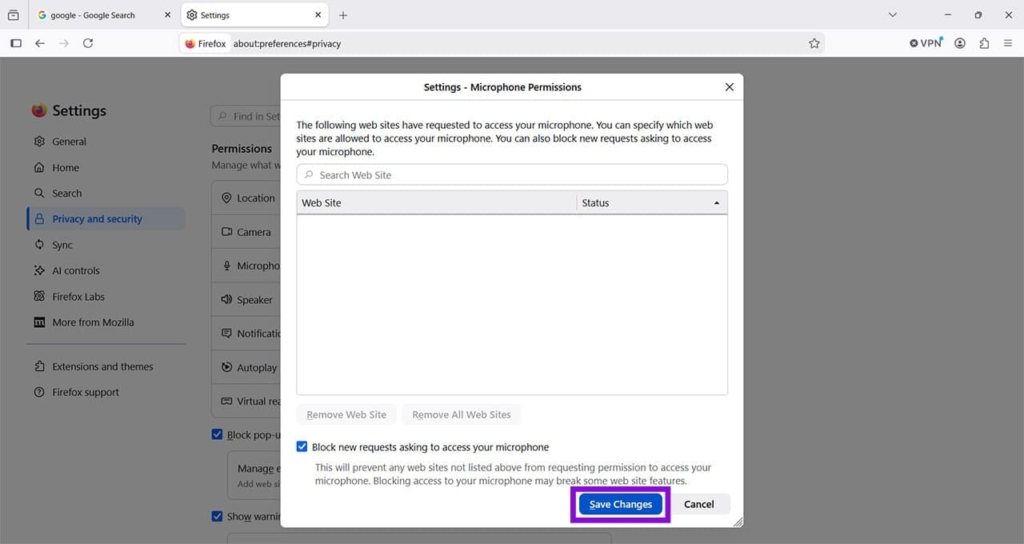
Do the same for your microphone
Repeat the process for Microphone.
This doesn’t necessarily mean you can never use your camera or microphone again. You can manage individual website permissions when you actually need to give a trusted site access.
This approach can reduce unexpected permission requests while browsing.
5. Remove Extensions You Don’t Need
Browser extensions can add useful features to Firefox, but they can also receive permissions that give them access to browser-related information.
That’s why it’s worth reviewing your installed extensions from time to time.
If you haven’t used an extension for months, there’s little reason to keep it installed.
Review your Firefox extensions
Step 1: Open the Firefox menu by clicking the three horizontal lines.
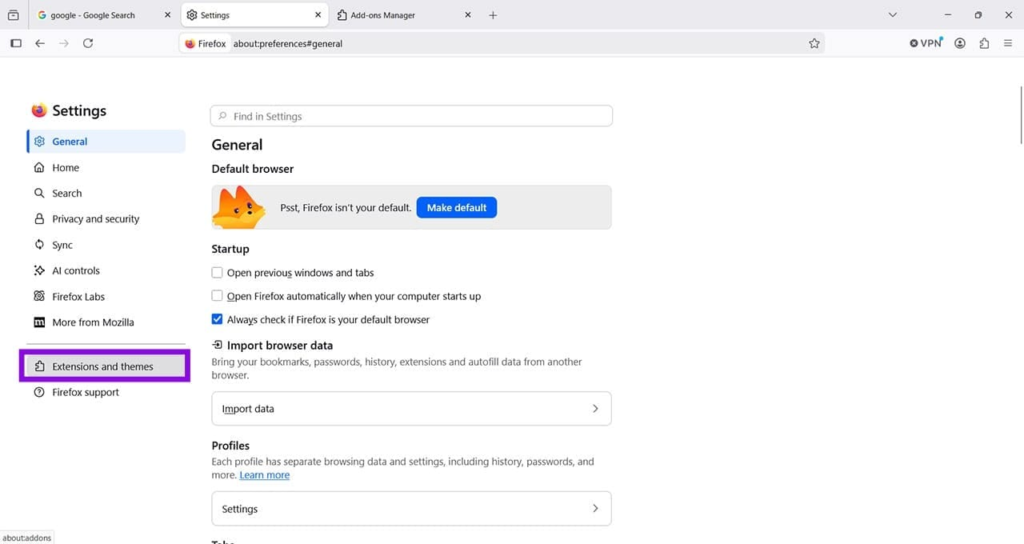
Choose Add-ons and themes.
Step 2: Select Extensions.
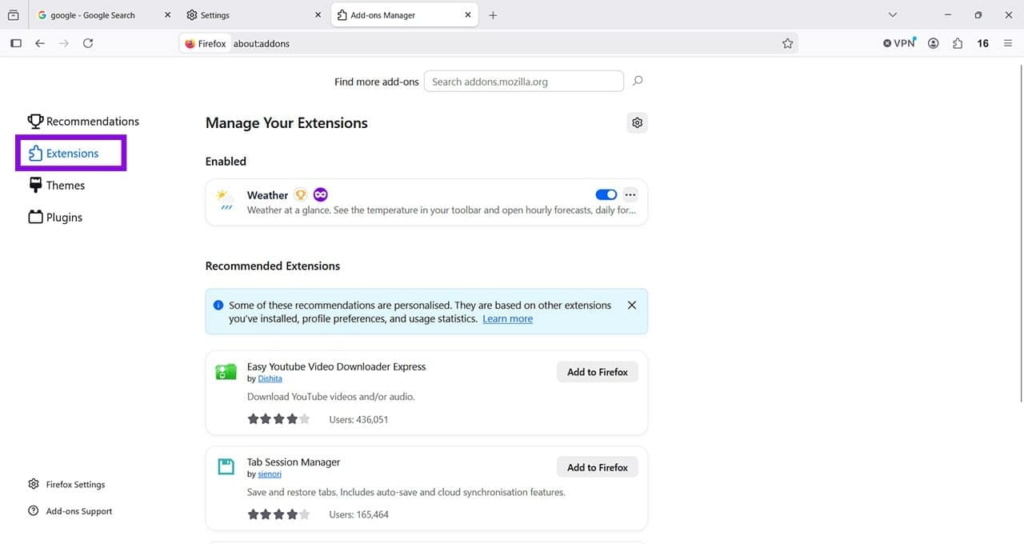
You’ll see the extensions currently installed in Firefox.
Step 3: Disable an extension if you don’t need it temporarily.
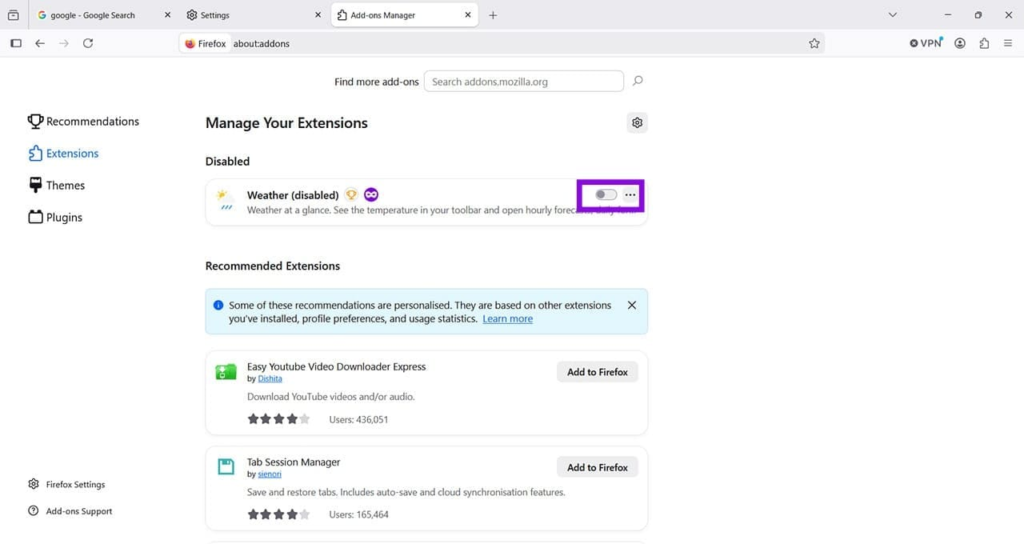
You can also open the extension’s menu and choose Remove if you no longer need it.
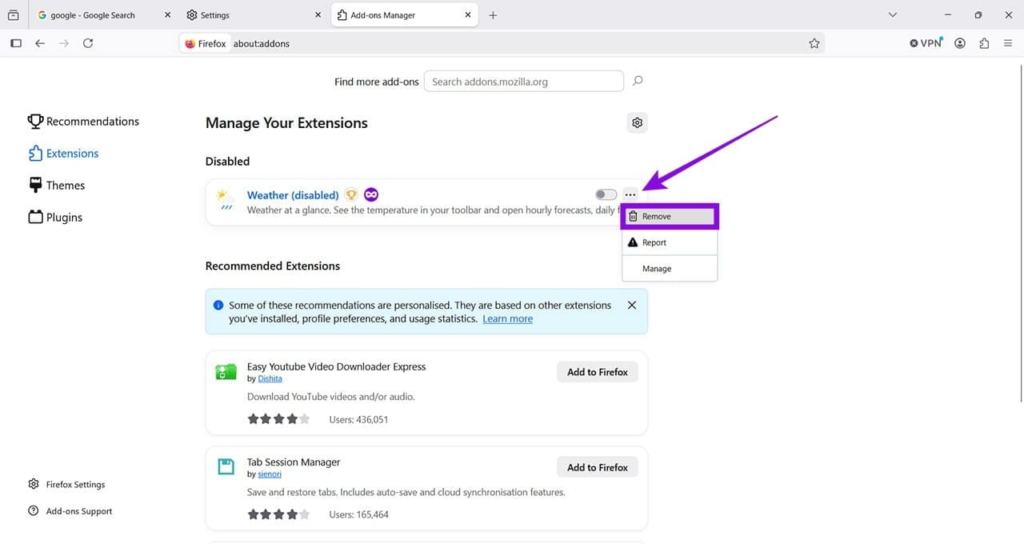
Before keeping an extension, it’s also worth checking what permissions it requests and whether you actually trust the developer.
A Few Minutes of Privacy Settings Can Make a Difference
You don’t need to install dozens of privacy extensions to make Firefox more privacy-conscious.
Start by reviewing these five areas:
- HTTPS-Only Mode for more secure website connections
- Enhanced Tracking Protection to reduce unwanted tracking
- History settings to control what Firefox stores locally
- Camera and microphone permissions to control website access
- Extensions to remove unnecessary browser add-ons
The right configuration depends on how you use Firefox. For example, stronger tracking protection may occasionally break website functionality, while blocking camera and microphone requests can require you to manually allow access when using video-call services.
Take a few minutes to review these settings and adjust them according to your needs. Regularly checking your browser permissions and installed extensions is also a good habit for maintaining better online privacy.