
The Microsoft iSCSI Initiator Service allows Windows to communicate with storage devices and virtual disks over an iSCSI network connection. When the service stops or refuses to start, your computer may fail to connect to an iSCSI target.
Fortunately, this problem can often be resolved through Windows services, PowerShell, Event Viewer, or network configuration rather than replacing any hardware.
In this guide, we’ll walk through several ways to get the iSCSI service working again.
Why Is the Microsoft iSCSI Service Not Starting?
There can be several reasons why the iSCSI Initiator Service fails to run. Common causes include:
- The service is disabled or configured with an incorrect startup type
- Another Windows service required by iSCSI is not working correctly
- Windows system files or service configurations have become corrupted
- Permissions related to Windows Event Logging are incorrect
- A firewall is preventing communication with the iSCSI target
- Network configuration is preventing the target from being reached
Before making advanced changes, start with the basic Windows service checks.
1. Check the Microsoft iSCSI Initiator Service
The quickest way to determine whether the service is disabled is through the Windows Services console.
Step 1: Open Windows Services
Press Win + R to open the Run dialog.
Enter:
services.msc
Press Enter.
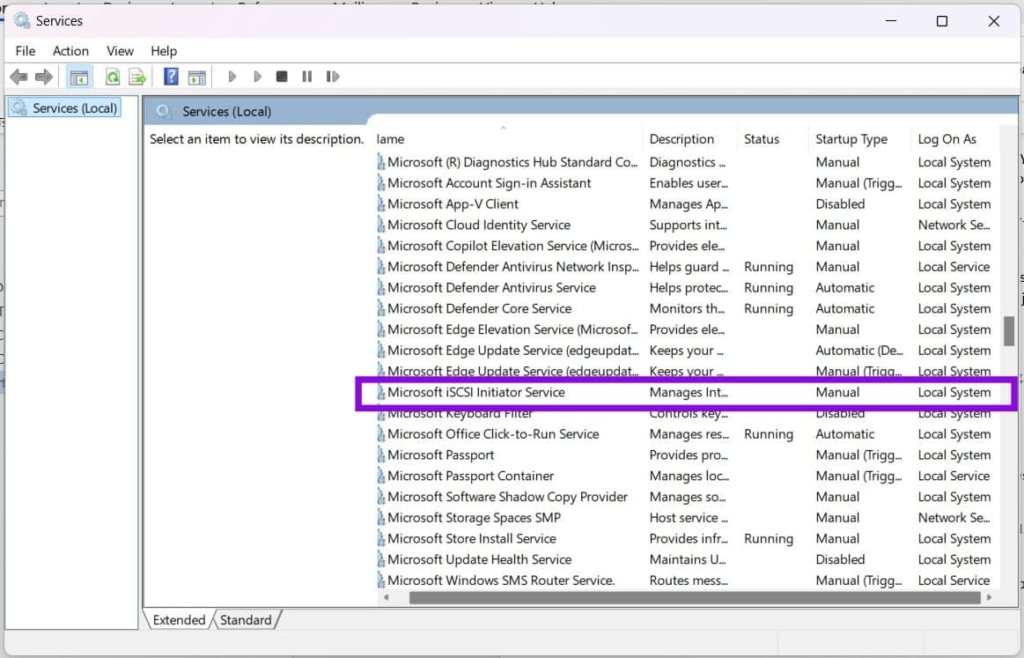
Step 2: Find the iSCSI Service
Look through the list for Microsoft iSCSI Initiator Service.
Check whether its status shows Running. Also look at the Startup Type column.
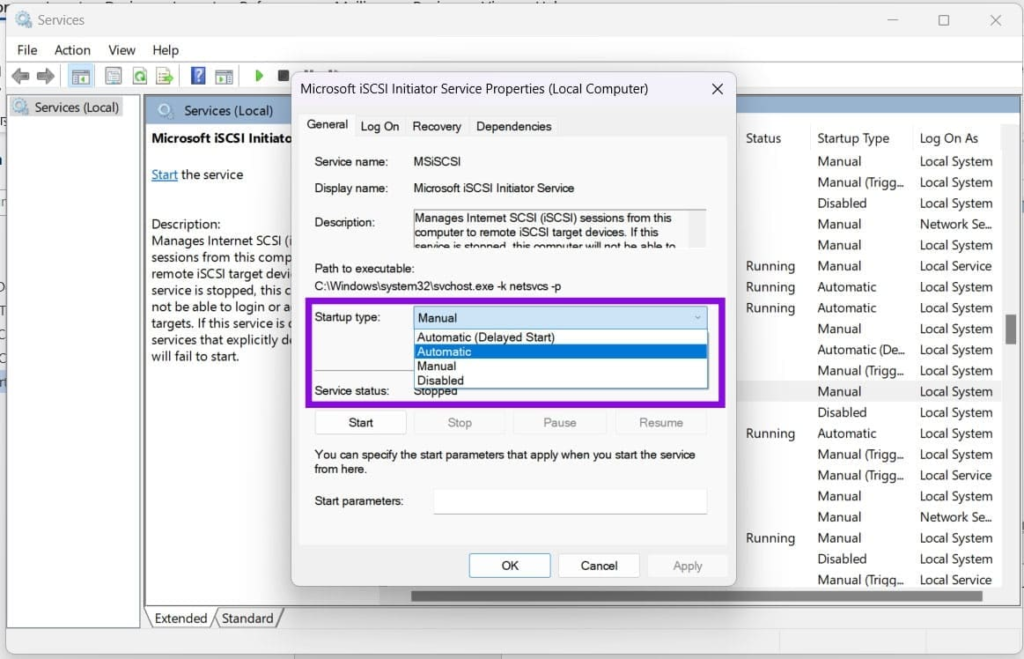
Step 3: Start the Service
If the service isn’t running, right-click it and select Start.
If you want Windows to launch the service automatically when required, double-click it and set Startup type to Automatic.
Click Apply, followed by OK.
If Windows displays an error while starting the service, note the exact message because it can point toward the underlying cause.
2. Make Sure Windows Event Log Is Working
The Windows Event Log service is important because Windows uses it to record information about services and system activity.
If Event Log isn’t functioning correctly, other services can also experience startup problems.
Step 1: Open Services
Press Win + R, enter services.msc, and press Enter.
Step 2: Locate Windows Event Log
Find Windows Event Log in the services list.
Check its current status and startup configuration.
Step 3: Correct the Configuration
If the service is stopped or has been disabled unexpectedly, open its properties and check the Startup type.
Make sure it hasn’t been manually disabled.
Apply any necessary changes and restart Windows before checking the iSCSI service again.
3. Use PowerShell to Start iSCSI
If the Services window isn’t allowing you to start the service, PowerShell provides another way to manage it.
Step 1: Launch PowerShell as Administrator
Open the Start menu and search for PowerShell.
Right-click Windows PowerShell and select Run as administrator.
Step 2: Start the Service
Run this command:
Start-Service -Name MSiSCSI
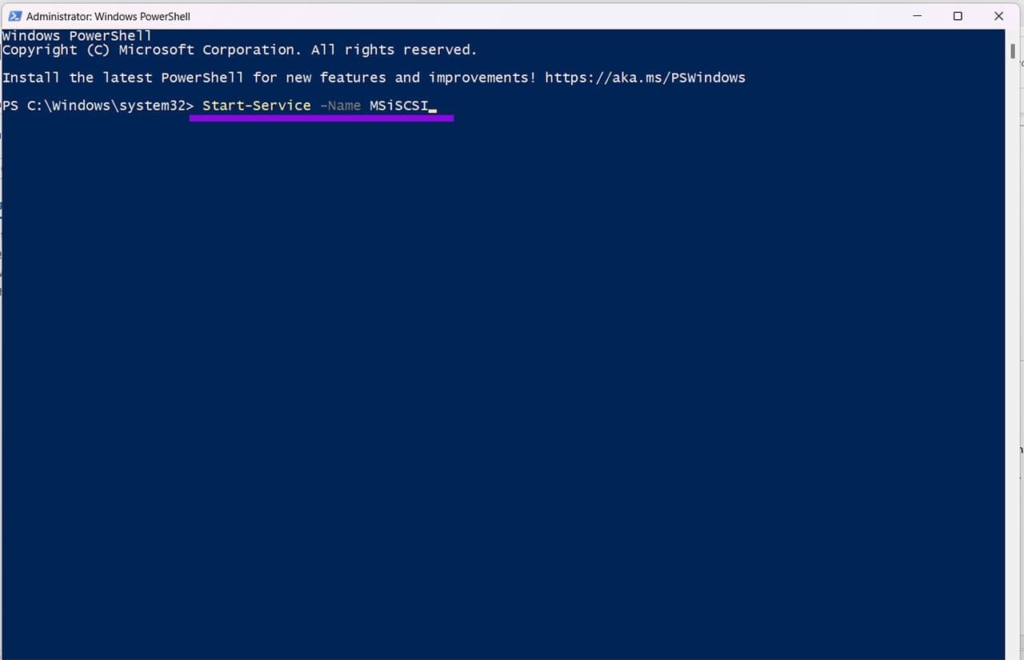
Press Enter.
If the command completes successfully, open the iSCSI Initiator again and check whether Windows can connect to your target.
You can also check the current status with:
Get-Service -Name MSiSCSI
If PowerShell returns an error, the message may provide additional information about why the service cannot start.
4. Inspect Windows Event Logs
When a service repeatedly fails to start, Windows Event Viewer can provide more useful information than the Services window.
Press Win + R, type:
eventvwr.msc
and press Enter.
Look under areas such as:
Windows Logs > System
and
Windows Logs > Application
Search for errors recorded around the same time that you attempted to start the iSCSI service.
Pay particular attention to messages mentioning:
- MSiSCSI
- Service Control Manager
- EventLog
- Permissions
- Network connectivity
The exact error code or message can help identify whether the issue is related to permissions, dependencies, or configuration.
5. Check Registry Permissions Carefully
Registry modifications should be treated as an advanced troubleshooting step. Incorrect changes can cause additional Windows problems, so create a registry backup before modifying anything.
Step 1: Open Registry Editor
Press Win + R and enter:
regedit
To launch it with administrator privileges, press Ctrl + Shift + Enter.
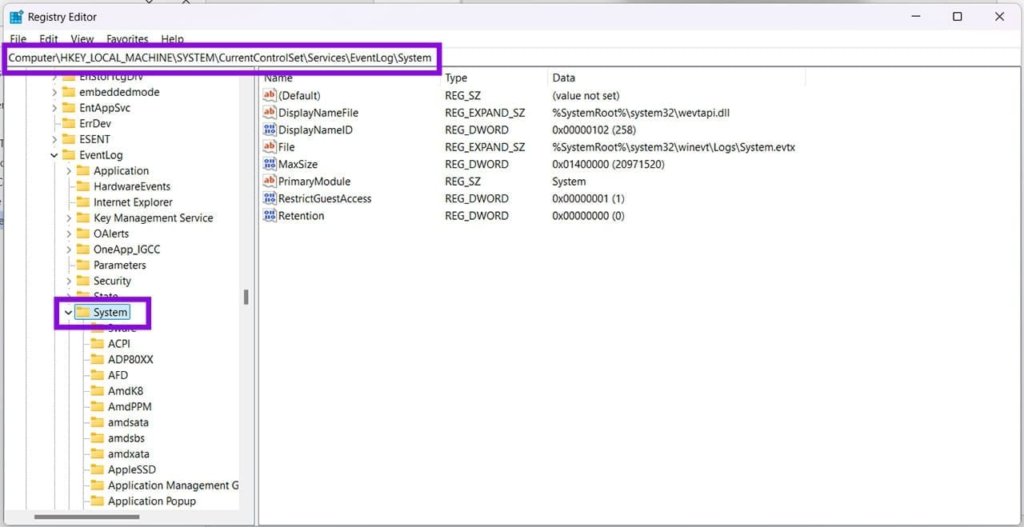
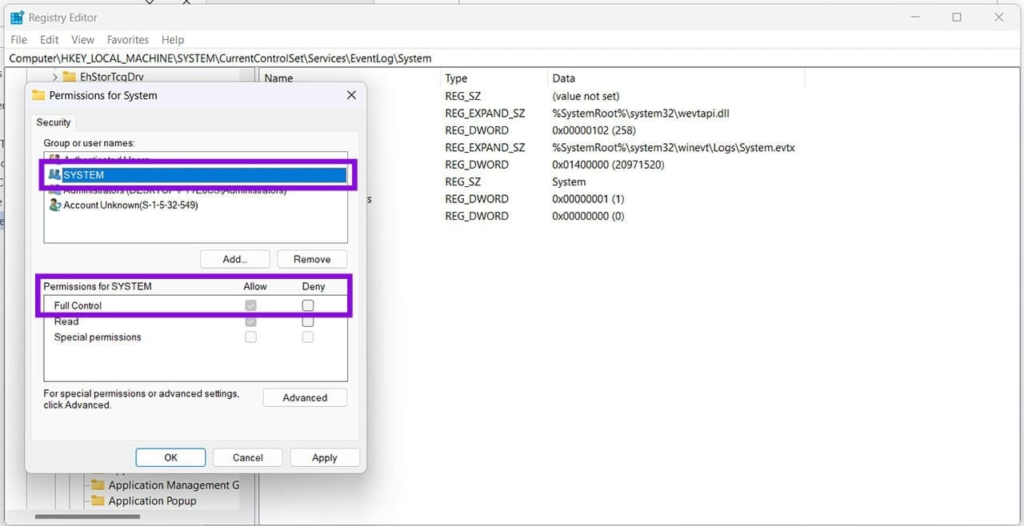
Step 2: Navigate to the Event Log Key
Go to:
HKEY_LOCAL_MACHINE\SYSTEM\CurrentControlSet\Services\EventLog\System
Step 3: Review Permissions
Right-click the System key and select Permissions.
Check the permissions assigned to the SYSTEM account.
Do not make changes simply because the permissions look unfamiliar. Modify them only if the Event Viewer error specifically indicates that the SYSTEM account cannot access or write to the required event log resources.
After reviewing the permissions, click OK.
6. Check the Firewall and iSCSI Connection
If the iSCSI service is running but you still cannot connect to a storage target, the Windows Firewall or another network firewall could be blocking the connection.
The standard iSCSI communication port is:
TCP 3260
Check your firewall configuration and make sure the appropriate inbound and outbound traffic is allowed between your Windows computer and the iSCSI target.
If you’re using a third-party firewall or security application, check its network rules as well.
Avoid disabling your firewall permanently just to test the connection. Instead, create an appropriate rule for the required iSCSI traffic.
7. Restart Windows and Test the Target Again
After making service or configuration changes, restart your PC.
Once Windows loads:
- Open Microsoft iSCSI Initiator
- Check that the iSCSI service is running
- Enter the target portal information if necessary
- Attempt to reconnect to the iSCSI target
- Check Event Viewer again if the connection still fails
A restart can also clear temporary service and network-state problems.
What Should You Try First?
If you’re dealing with a Microsoft iSCSI service that won’t start, don’t immediately modify the Registry.
Start with the simplest checks:
- Verify Microsoft iSCSI Initiator Service is running
- Check its Startup Type
- Confirm Windows Event Log is functioning
- Try starting MSiSCSI through PowerShell
- Review Event Viewer for specific errors
- Check Registry permissions only when the logs point to a permissions issue
- If the service runs but the target cannot be reached, investigate TCP 3260 and firewall rules
In many cases, the exact error shown when starting the service is more useful than changing settings blindly. Identify that error first, then choose the appropriate troubleshooting step.
If Windows repair tools fail along the way, see how to fix DISM error 0x800f0915.
Local USB drive not showing up? See why an external drive isn’t recognized after ejecting.