

Windows 11’s Task View feature allows you to view open applications, switch between windows, and manage virtual desktops. However, the Task View button may sometimes stop responding or fail to display your open apps.
In many cases, the feature itself is still working, but the taskbar, Windows Explorer, system files, or a third-party customization tool may be causing the problem. Try the following solutions to restore Task View.
Quick Checks
- Press Windows + Tab. If Task View opens with this shortcut, the feature is working and the taskbar button may simply be disabled or malfunctioning.
- If you have created many virtual desktops, close the unnecessary ones and try again.
- If you use a third-party taskbar customization tool, check for updates or temporarily disable it.
Fix 1: Enable the Task View Button
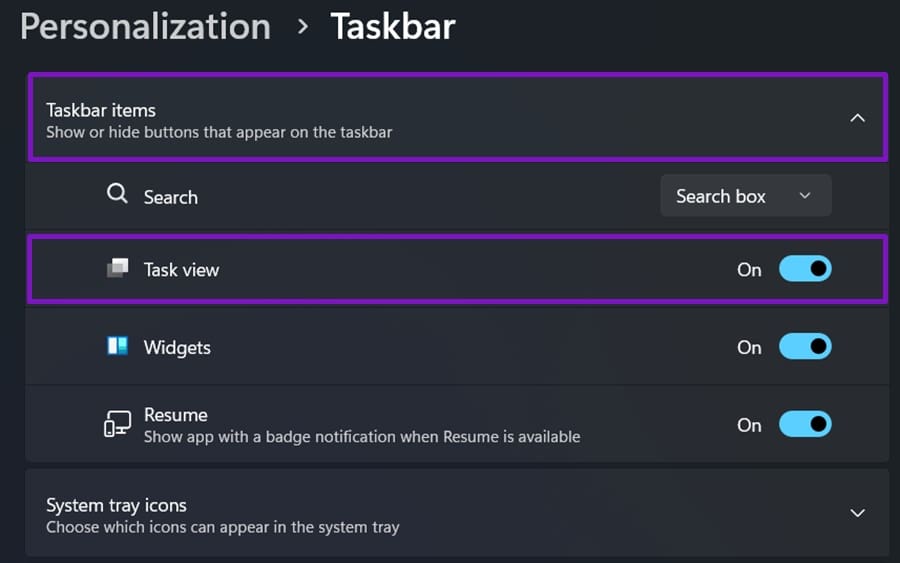
Windows 11 allows users to hide the Task View button from the taskbar. The feature may still be available even when the icon is hidden.
- Right-click an empty section of the taskbar.
- Select Taskbar settings.
- Locate the Task View option under Taskbar items.
- Turn the toggle on.
- Click the Task View icon and check whether it opens correctly.
Fix 2: Restart Windows Explorer
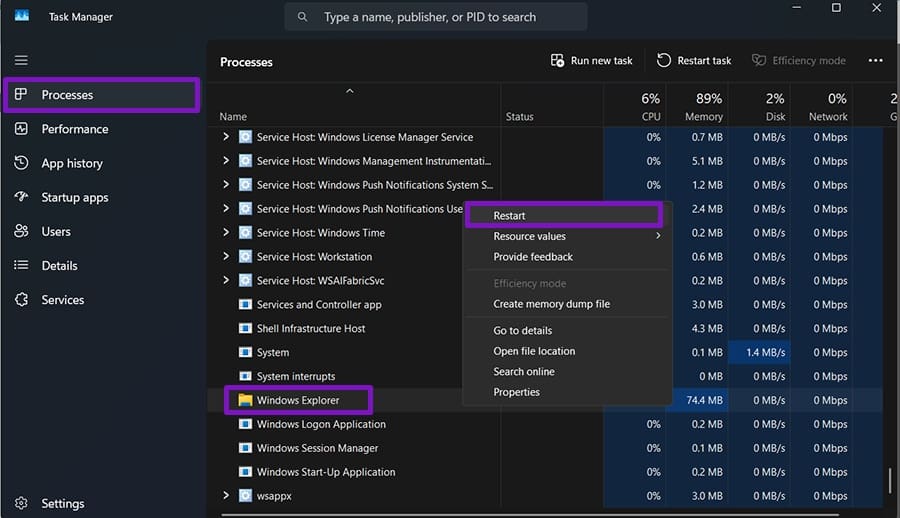
Windows Explorer manages the desktop, taskbar, Start menu, and several related interface features. If it becomes unresponsive, Task View may also stop working.
- Press Ctrl + Shift + Esc to open Task Manager.
- Find Windows Explorer in the list of processes.
- Right-click it and select Restart.
- Wait a few seconds while the taskbar and desktop refresh.
- Try opening Task View again.
The screen may flicker briefly during the restart. This is normal.
Fix 3: Close Unnecessary Virtual Desktops
A large number of virtual desktops can sometimes make Task View slower or less responsive. You can close the current virtual desktop using a keyboard shortcut.
- Press Windows + Ctrl + F4.
- The current desktop will close, and its open windows will move to another desktop.
- Repeat the shortcut until the unnecessary desktops have been removed.
- Press Windows + Tab to test Task View.
Avoid closing a desktop if you still need to keep its windows organized separately.
Fix 4: Install Available Windows Updates
A Windows update may resolve problems affecting Task View, Windows Explorer, or other desktop components.
- Open Settings.
- Select Windows Update.
- Click Check for updates.
- Download and install any available updates.
- If updates are paused, resume them first.
- Restart your computer and test Task View.
Keeping Windows updated can also help resolve compatibility issues with taskbar utilities.
Fix 5: Repair Corrupted System Files
Damaged or missing Windows system files may prevent Task View from functioning properly. The System File Checker and DISM tools can help repair these components.
- Search for Command Prompt.
- Right-click it and select Run as administrator.
- Run the following command:
textsfc /scannow
- Wait until the scan is complete.
- Then run:
textDISM /Online /Cleanup-Image /RestoreHealth
- Restart your computer after both commands have finished.
Do not close the Command Prompt window while either scan is running.
Fix 6: Disable Third-Party Taskbar Tools
Applications that modify the appearance or behavior of the Windows 11 taskbar may interfere with Task View. This can include tools designed to restore older Windows taskbar layouts or add custom features.
Try the following:
- Check the tool’s official website for updates.
- Review its support page for known Task View issues.
- Temporarily disable the customization features.
- Uninstall the tool temporarily and test Task View again.
If the feature works after disabling the utility, the application is likely responsible for the problem.
Fix 7: Test Task View with a New User Account
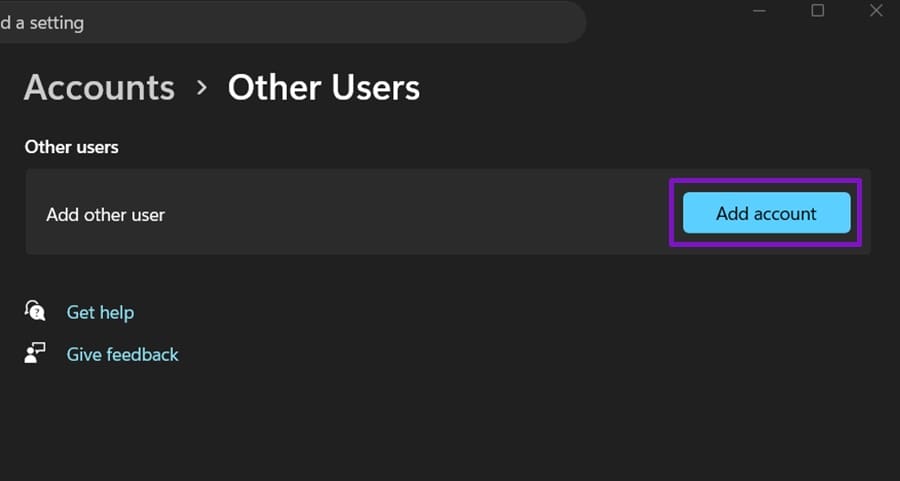
If Task View works normally in a different Windows account, the issue may be limited to your current user profile.
- Open Settings.
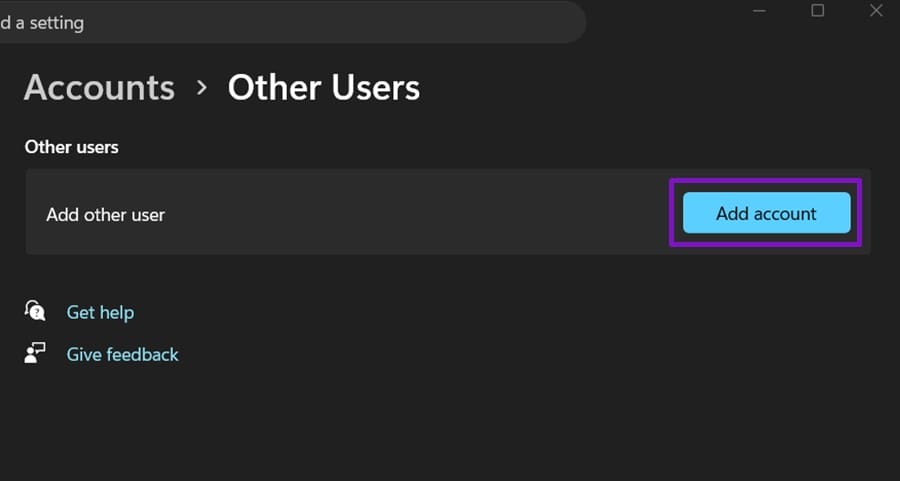
- Go to Accounts.
- Select Other users.
- Click Add account.
- Choose I don’t have this person’s sign-in information.
- Select Add a user without a Microsoft account.
- Create the new account.
- Sign out of your current account and sign in to the new one.
- Test Task View.
If Task View works in the new profile, you can consider transferring your personal files and important settings to that account.
Final Thoughts
Task View usually stops working because of a hidden taskbar button, an unstable Windows Explorer process, outdated software, corrupted system files, or interference from taskbar customization tools. Start with the simpler solutions, such as enabling the button and restarting Windows Explorer, before repairing system files or creating a new user account.
Article posted by TechHowLab


Leave a Reply