
Quick Tips
- An AMD GPU driver may become disabled after a Windows update because of driver compatibility issues or a conflicting driver version.
- Re-enable the graphics card through Device Manager before trying other troubleshooting methods.
- If Windows keeps replacing your AMD driver, temporarily change Device Installation Settings before reinstalling the correct driver.
- Disabling Hardware-accelerated GPU scheduling (HAGS) can help determine whether the feature is contributing to graphics problems.
- Download AMD graphics drivers from AMD’s official support page whenever possible.
Windows updates are designed to improve security, stability, and performance, but they can occasionally introduce compatibility problems with existing drivers.
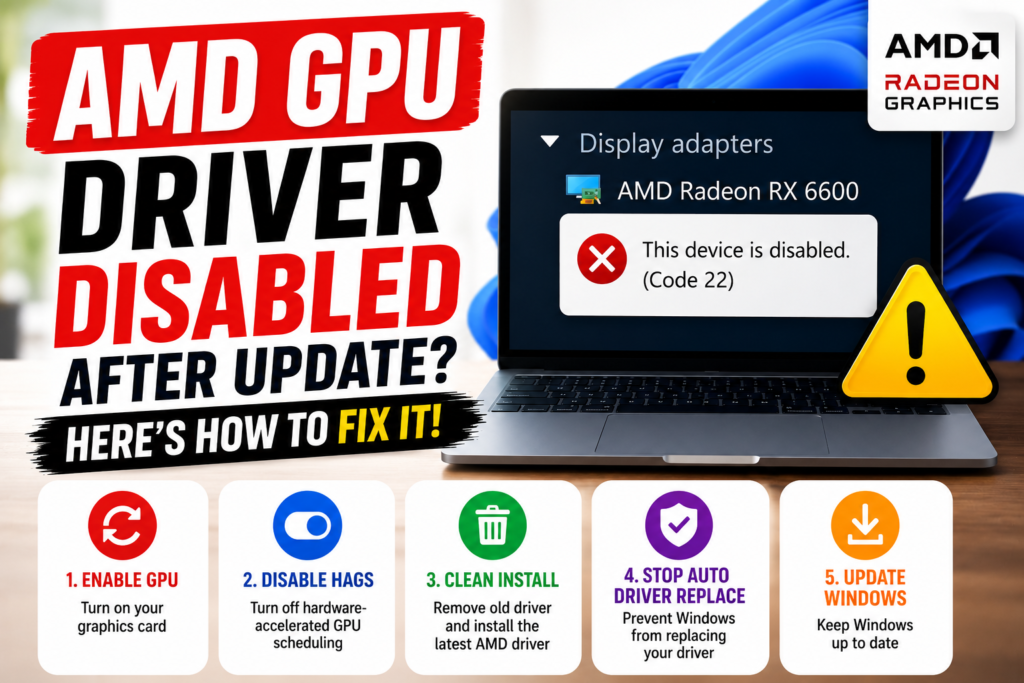
One common issue is an AMD GPU driver becoming disabled after a Windows update. You may suddenly notice reduced graphics performance, display problems, games failing to launch, or the AMD graphics card appearing disabled in Device Manager.
The problem is often related to Windows installing or reverting to a driver version that does not work properly with your AMD graphics hardware or current Windows build. AMD also acknowledges that Windows Update can revert an AMD graphics driver after the AMD software package has been installed.
Here are the best ways to troubleshoot the problem.
Why Does Windows Disable an AMD GPU Driver?
Several things can cause an AMD graphics driver to stop working after an update, including:
- An incompatible graphics driver
- Windows Update replacing the AMD driver
- A corrupted or incomplete driver installation
- Conflicts between AMD Software and the installed driver
- Windows or system file problems
- Graphics settings causing compatibility issues
If the problem appeared immediately after a Windows update, the driver version should be one of the first things you investigate.
AMD GPU Driver Disabled After Update: Fixes to Try
1. Re-Enable Your AMD Graphics Card
Before reinstalling anything, check whether Windows has simply disabled the graphics device.
Step 1: Press Win + R to open the Run dialog.
Step 2: Type devmgmt.msc and press Enter.

Step 3: Expand Display adapters in Device Manager.
Step 4: Find your AMD Radeon graphics card.
Step 5: Right-click the GPU and select Enable device if that option is available.
Restart your PC and check whether the AMD GPU is working normally again.
If Windows immediately disables the device again, continue with the next fixes.
2. Turn Off Hardware-Accelerated GPU Scheduling
Hardware-accelerated GPU scheduling allows Windows to offload much of the GPU scheduling workload to dedicated hardware on the graphics processor. The option is only available when the GPU and display driver support it.
If you started experiencing graphics problems after an update, temporarily disabling HAGS can help determine whether it is involved.
Step 1: Open Settings using Win + I.
Step 2: Select System and then click Display.

Step 3: Select Graphics.

Step 4: Look for Change default graphics settings.
Step 5: Turn Hardware-accelerated GPU scheduling off.
Step 6: Restart your computer.
If you cannot see the HAGS option, your hardware or current graphics driver may not support the feature.
3. Completely Remove the AMD Graphics Driver
If the driver became corrupted during the Windows update, a clean driver installation may resolve the problem.
You can use a trusted display-driver cleanup utility to remove the existing graphics driver before installing a fresh version.
Step 1: Download a reputable display driver cleanup utility.
Step 2: Restart Windows in Safe Mode.
One way to access Safe Mode is to press Win + R, enter msconfig, open the Boot tab, enable Safe boot, and restart the computer.
Step 3: Launch the driver cleanup utility after Windows starts in Safe Mode.
Step 4: Select the option to remove the AMD graphics driver and restart the computer.
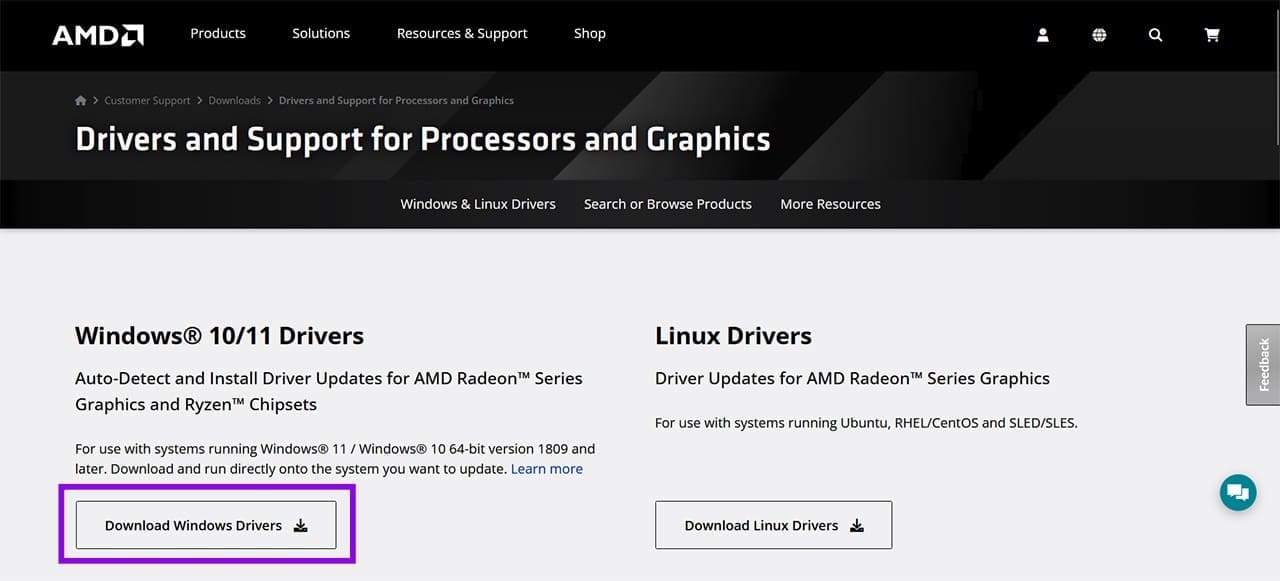
Step 5: After Windows starts normally, download the appropriate driver for your graphics card from the official AMD support website. AMD provides both automatic driver detection and manual driver selection for supported Windows systems.

Step 6: Install the AMD graphics driver and restart your PC.
Check Device Manager again to confirm that the Radeon GPU is enabled and working correctly.
4. Stop Windows From Replacing the AMD Driver
If everything works after reinstalling the AMD driver but Windows Update keeps replacing it, you may need to temporarily prevent Windows from automatically changing the device driver.
AMD specifically documents a situation where Windows may revert an AMD graphics driver and recommends temporarily disabling Device Installation Settings before reinstalling the AMD Software package.
Step 1: Press Win + R.
Step 2: Type:
sysdm.cpl
and press Enter.
Step 3: Open the Hardware tab.
Step 4: Click Device Installation Settings.
Step 5: Select No when asked whether Windows should automatically download manufacturers’ apps and custom icons for your devices.
Step 6: Save the changes and restart your PC.
Now reinstall the correct AMD graphics driver.
Note: Device Installation Settings can affect how Windows obtains drivers for hardware, so consider restoring the setting after you have successfully installed and verified the AMD driver.
5. Install the Correct AMD Driver
Windows Update does not always provide the best driver version for every graphics card. If your AMD GPU stopped working after an update, compare the installed driver with the latest compatible version available directly from AMD.
You can use AMD’s official driver page to identify your graphics card and download the appropriate Windows driver.
When choosing a driver, make sure it matches:
- Your AMD GPU model
- Your Windows version
- Your system architecture
- Your laptop or desktop configuration
For laptops, the manufacturer’s driver can sometimes be preferable because it may contain system-specific optimizations.
6. Update Windows Again
If the issue started with a particular Windows update, check whether another cumulative update is available.
Open:
Settings → Windows Update → Check for updates
Install available updates and restart your computer.
This is especially worth trying if the AMD driver installer reports an operating-system or compatibility problem. AMD recommends keeping Windows up to date when troubleshooting AMD Software installation issues.
Get Your AMD GPU Working Again
An AMD graphics driver being disabled after a Windows update can be frustrating, but it does not necessarily mean that your graphics card has failed.
Start by checking Device Manager and re-enabling the GPU. If that does not work, try disabling Hardware-accelerated GPU scheduling, completely remove the existing driver, and install a compatible driver directly from AMD.
If Windows repeatedly replaces the working driver, changing Device Installation Settings can help prevent the same driver-replacement problem from occurring during the troubleshooting process.
If none of these solutions work, check for additional Windows updates and consider using your laptop or motherboard manufacturer’s graphics driver if you are using an OEM system.