
Quick Fixes
- Inspect your keyboard for stuck or malfunctioning keys.
- Check whether your laptop touchpad gestures are triggering Task View.
- Disconnect external input devices such as controllers or drawing tablets.
- Disable the Task View button or related settings if necessary.
- Install pending Windows and driver updates.
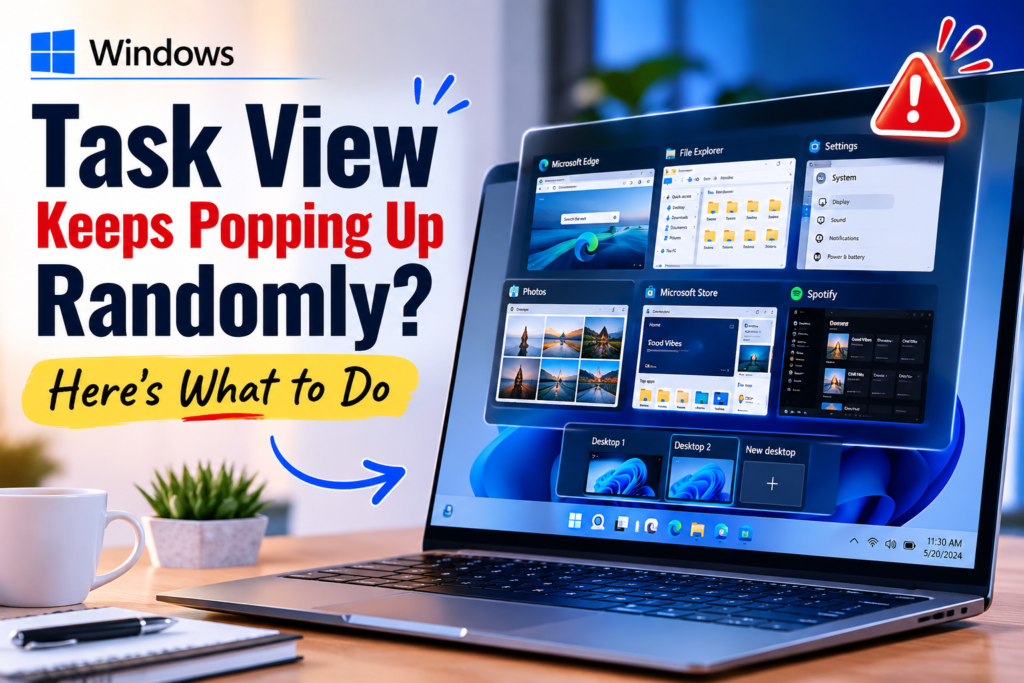
Windows Task View is useful when you want to switch between applications or manage multiple virtual desktops. However, it can quickly become annoying when it appears repeatedly without you intentionally opening it.
If Task View keeps showing up while you are working, the cause could be something as simple as an accidental touchpad gesture or a problematic keyboard key. In other cases, a Windows update, driver problem, or third-party application may be responsible.
Below are several practical ways to identify the cause and prevent Task View from appearing unexpectedly.
Why Does Task View Open Automatically?
There isn’t always a single reason behind this behavior. Windows Task View can be triggered through keyboard shortcuts, touchpad gestures, or the Task View button on the taskbar.
Some of the most common causes include:
- A damaged, stuck, or overly sensitive keyboard key
- Accidental touchpad gestures
- A faulty mouse, controller, or other connected device
- Outdated or malfunctioning device drivers
- Recently installed Windows updates
- Background applications interfering with Windows Explorer
- Incorrect touchpad gesture configuration
The easiest approach is to start with the physical input devices and then move toward Windows settings and software-related solutions.
Ways to Stop Task View From Opening Randomly
Try the following solutions one at a time. After each change, use your computer normally for a while to determine whether the problem has disappeared.
1. Inspect the Keyboard and Connected Devices
Task View can be opened using the Windows + Tab keyboard shortcut. Therefore, a faulty Windows or Tab key could potentially cause Task View to appear even when you aren’t deliberately pressing the shortcut.
Start by pressing both keys individually several times to make sure neither feels stuck.
If you’re using an external keyboard, disconnect it temporarily and check whether the issue continues. You can also restart your PC after reconnecting it.
Don’t forget about other input devices. Game controllers, drawing tablets, programmable keyboards, and similar accessories can sometimes send unexpected commands.
Disconnect unnecessary peripherals temporarily and see whether Task View continues to appear.
2. Review Your Touchpad Gestures
On laptops, accidental touchpad gestures are another common possibility.
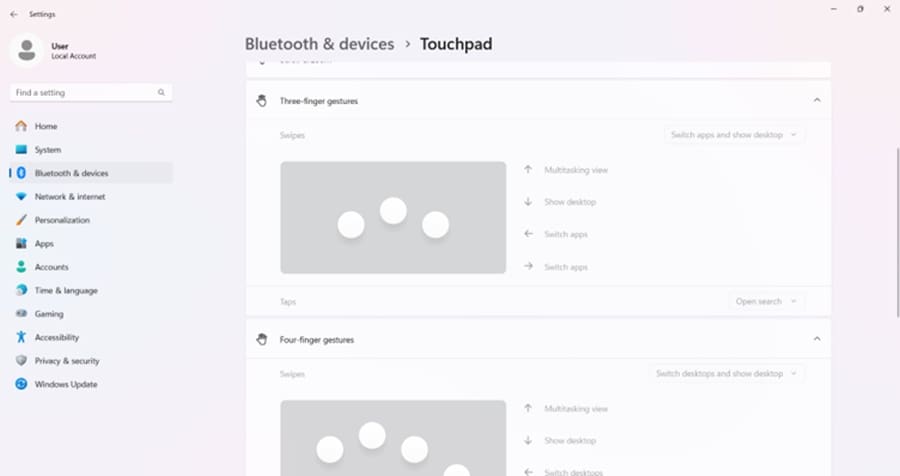
Windows supports multi-finger gestures that can perform different actions. Depending on your configuration, a three-finger swipe can bring up Task View.
If your hand frequently touches the touchpad while typing, you may unintentionally activate the gesture.
To check your settings:
Step 1: Press Windows + I to open Settings.
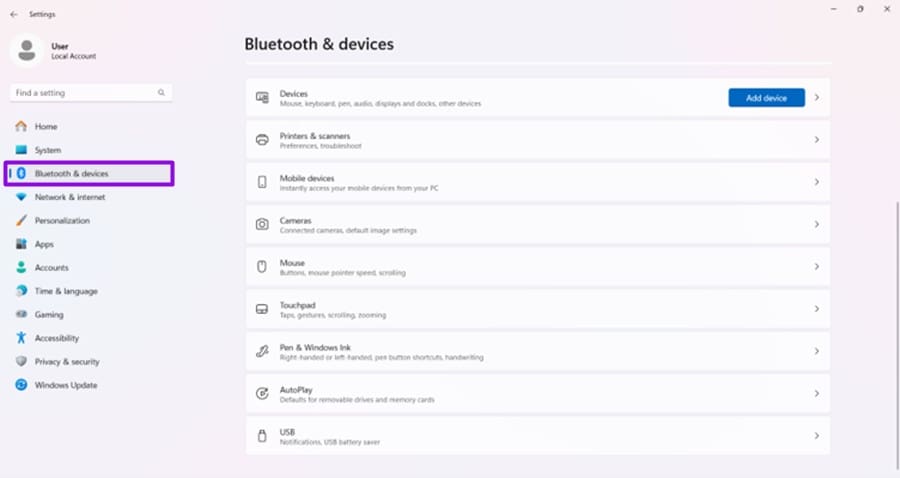
Step 2: Select Bluetooth & devices from the left-hand menu.
Step 3: Click Touchpad.
Step 4: Expand the available gesture settings.
Step 5: Look for the Three-finger gestures section and review the actions assigned to swipes.
If Task View is assigned to one of the gestures, change that action to Nothing or another function that you are less likely to trigger accidentally.
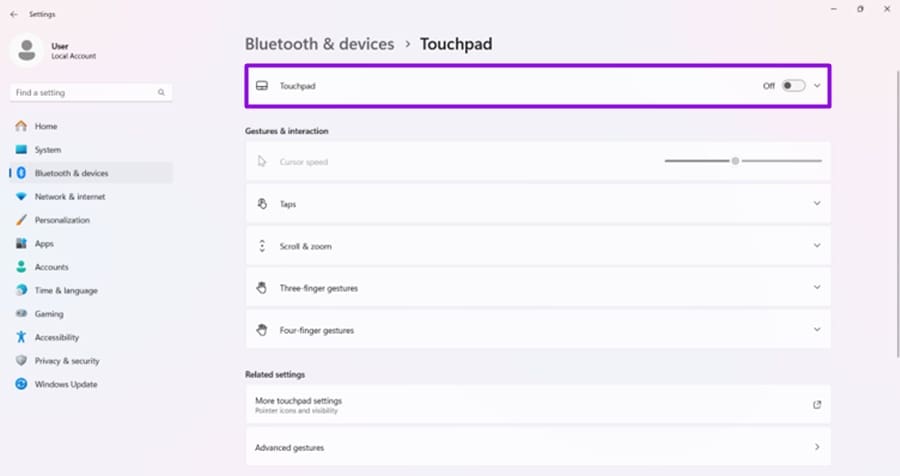
You can also temporarily switch the touchpad off if you normally use a separate mouse. This is a useful way to confirm whether the touchpad is actually responsible.
3. Hide the Task View Button
If the Task View button itself isn’t useful to you, you can remove it from the taskbar.
Right-click an empty area of the Windows taskbar and open the relevant Taskbar settings. Look for the option associated with Task View and turn it off.
This does not necessarily stop every keyboard shortcut or gesture from opening Task View, but it removes the taskbar button and can help prevent accidental activation.
4. Disable the Task View Button Through Registry Editor
If you want to hide the Task View button through Windows Registry, you can modify the relevant setting manually.
Important: Registry changes should be made carefully. Creating, deleting, or modifying the wrong entry can cause Windows problems.
Follow these steps:
Step 1: Press Windows + R to launch the Run dialog.
Step 2: Enter regedit and press Enter.
Step 3: Navigate to:
HKEY_CURRENT_USER\Software\Microsoft\Windows\CurrentVersion\Explorer\Advanced
Step 4: Search for an entry named ShowTaskViewButton.
Step 5: If it isn’t available, right-click an empty area, select New > DWORD (32-bit) Value, and name it ShowTaskViewButton.
Step 6: Open the value and change its data to 0.
Step 7: Select OK.
Finally, restart Windows Explorer or sign out of your Windows account and sign back in.
This hides the Task View button from the taskbar. If the feature is still being triggered by a keyboard or touchpad, you’ll need to address that input source separately.
5. Install the Latest Windows Updates
Windows occasionally receives fixes for bugs affecting system components, drivers, and input functionality.
If Task View started behaving strangely after a recent system change, check whether another update is available.
Open:
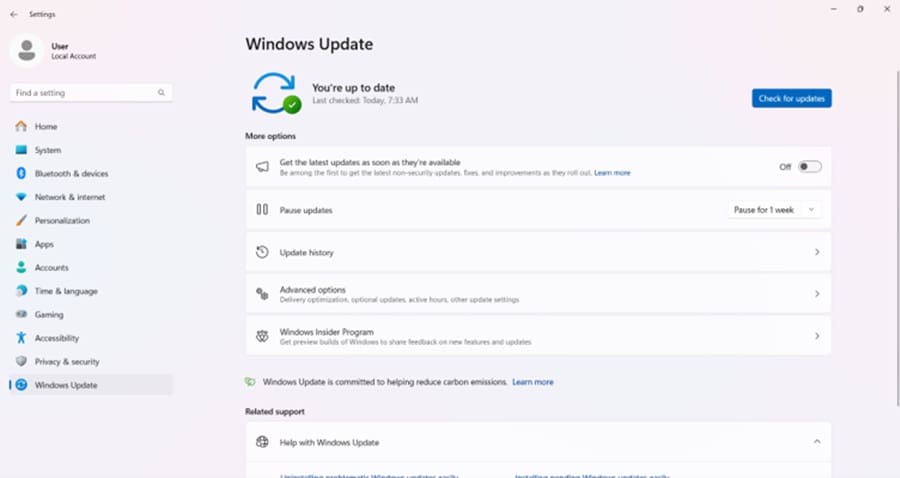
Settings → Windows Update
Then select Check for updates.
If Windows finds available updates, install them and restart your computer when prompted.
It is also worth checking for updated keyboard, touchpad, and chipset drivers from your laptop manufacturer’s support application or website.
Final Thoughts
Task View appearing repeatedly doesn’t necessarily mean that Windows itself is seriously damaged. In many cases, the problem comes from an accidental keyboard shortcut or a touchpad gesture being triggered unintentionally.
Start by checking your keyboard and disconnecting unnecessary peripherals. If you’re using a laptop, pay particular attention to three-finger touchpad gestures. If the issue remains, review Windows settings, update your system and drivers, and consider hiding the Task View button.
By testing these possibilities one at a time, you should be able to identify what is triggering Task View and get back to using your PC without constant interruptions.