
Your printer is switched on and connected, yet Windows 11 insists it is Offline and nothing prints. This is one of the most common printer problems, especially with Wi-Fi printers. This guide is for home and small office users on Windows 11, and it explains why Windows loses track of printers and how to bring yours back online and keep it there.
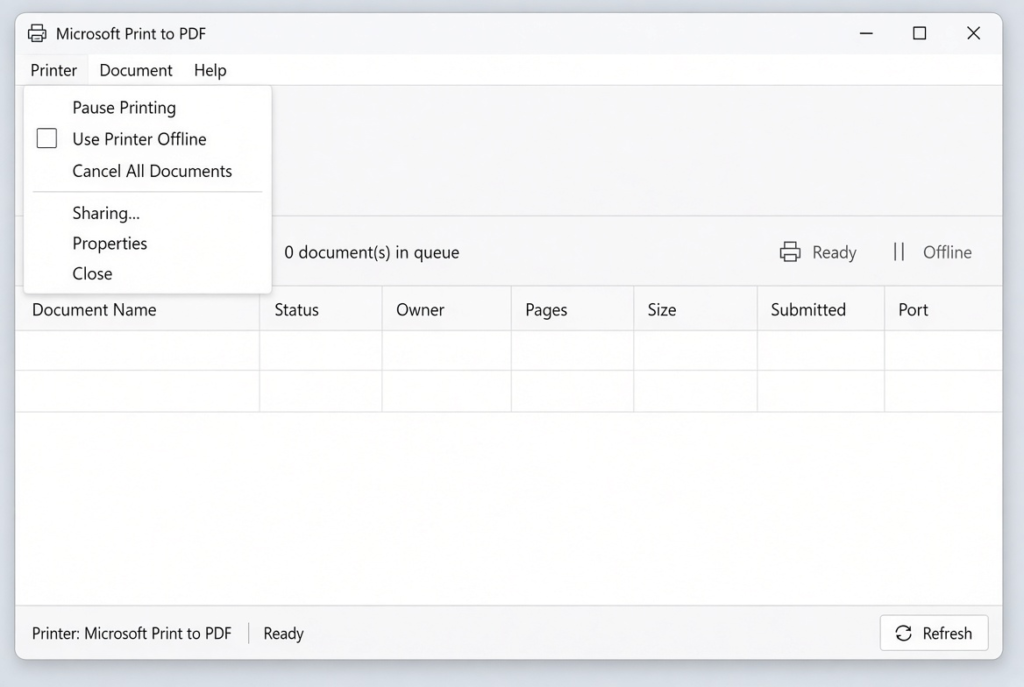
Quick Answer: Turn the printer off and on, then open Settings > Bluetooth & devices > Printers & scanners, select your printer and click Open print queue. Open the Printer menu, untick Use Printer Offline, and cancel any stuck documents. Then try printing again.
Tested on: Ideapad 1 15ALC7
Why This Happens
Windows marks a printer offline when it cannot get a reply from it. That can happen even when the printer is working. Common reasons are:
- The printer changed its network address. Your router may give the printer a new IP address, so Windows looks in the wrong place.
- Use Printer Offline is turned on. This setting tells Windows to hold jobs instead of sending them.
- A stuck print job. One failed document can block the whole queue.
- The Print Spooler service has hung. This service manages printing and can stop responding.
- Status checks fail. Windows sometimes uses a status check that the printer does not answer properly, so it is reported as offline.
Fix 1: Restart the Printer, PC and Router
- Turn the printer off, wait 30 seconds and turn it back on.
- For Wi-Fi printers, check the printer’s screen or print a network status page to confirm it is connected to the same network as your PC.
- Restart your PC. If several devices have network trouble, restart your router too.
Fix 2: Turn Off “Use Printer Offline” and Clear the Queue
- Open Settings > Bluetooth & devices > Printers & scanners.
- Click your printer, then Open print queue.
- Click the Printer menu at the top and untick Use Printer Offline if it is ticked.
- Right-click any stuck documents and choose Cancel.
Fix 3: Restart the Print Spooler
- Press Win + R, type services.msc and press Enter.
- Find Print Spooler, right-click it and choose Restart.
- Make sure its Startup type is Automatic.
- Try printing again.
Fix 4: Run the Printer Troubleshooter
Open Settings > System > Troubleshoot > Other troubleshooters and run the Printer troubleshooter if it is listed. Newer versions may open the Get Help app instead. Follow the steps and apply any fixes it suggests.
Fix 5: Point Windows to the Printer’s IP Address
If your printer keeps going offline, Windows may be using an automatic connection that breaks when the printer’s address changes. A fixed IP port is more reliable.
- Find the printer’s IP address on its screen or network status page.
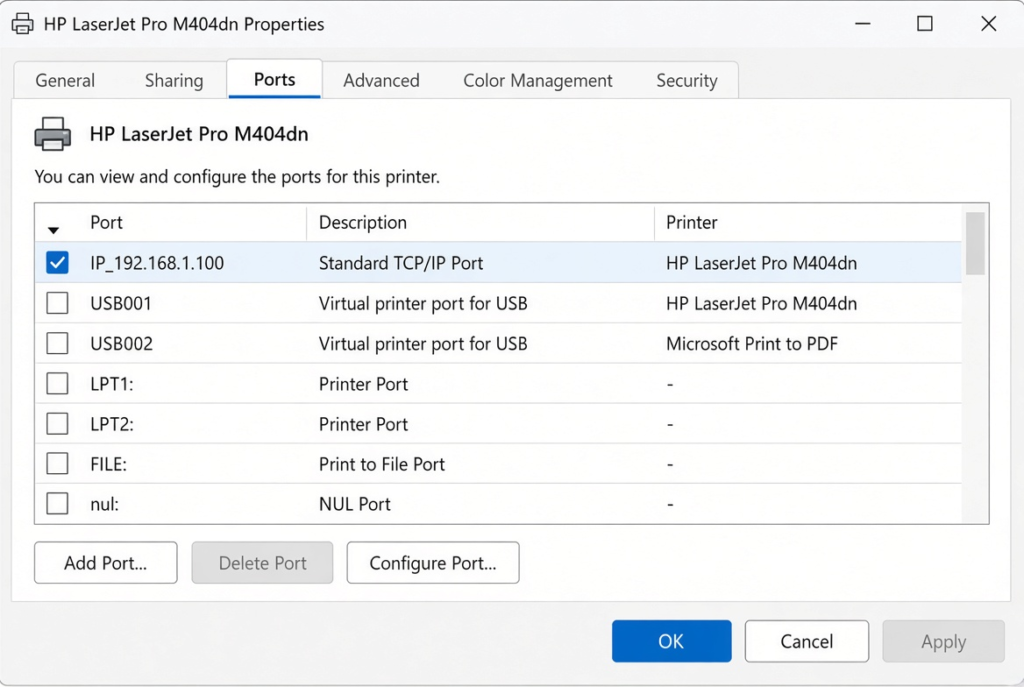
- In Printers & scanners, click your printer and choose Printer properties.
- Open the Ports tab and click Add Port.
- Choose Standard TCP/IP Port, click New Port, and enter the printer’s IP address. Finish the wizard.
- Make sure the new port is ticked and click Apply.
For a lasting fix, reserve the printer’s IP address in your router’s settings (often called DHCP reservation) so it never changes.
Fix 6: Turn Off SNMP Status
- In the printer’s Ports tab, select the TCP/IP port and click Configure Port.
- Untick SNMP Status Enabled.
- Click OK and Apply.
This stops Windows from relying on a status check that some printers do not answer correctly. Printing still works normally.
Fix 7: Remove and Re-Add the Printer
- In Printers & scanners, click the printer and choose Remove.
- Download the latest driver or software for your model from the printer maker’s official website and install it.
- Click Add device and add the printer again.
Using a USB Printer?
If your printer connects with a cable, the network fixes above do not apply. Instead, try these checks:
- Unplug the USB cable from both ends and plug it back in firmly.
- Connect it directly to a USB port on the PC rather than through a hub or docking station.
- Try a different USB port and, if you have one, a different cable.
- Open Device Manager and check whether the printer appears under Print queues or with a warning icon.
Does Your Printer Fall Asleep?
Many printers have a sleep or auto-off timer. In deep sleep, some models drop off the network and Windows reports them as offline. Check the printer’s settings menu or its built-in web page for Sleep, Auto Off or Energy Saving options. Keep sleep mode on to save power, but turn off any option that switches the printer off completely or disconnects Wi-Fi.
My Experience
In my experience, restarting the printer and checking the print queue are the best first steps when Windows shows a printer as offline. Sometimes, the printer is connected and ready, but Windows has enabled Use Printer Offline or a stuck document is blocking other jobs. Restarting the Print Spooler can help when the queue stops responding. If the same problem returns regularly with a Wi-Fi printer, I would check its network connection and IP address before reinstalling drivers. For USB printers, testing another cable or connecting directly to the PC can help rule out connection problems.
Which Fix Should You Try First?
Restart the printer and PC, then turn off Use Printer Offline and clear the queue. Restart the Print Spooler if jobs still will not move. If the printer keeps going offline every few days, switch to a Standard TCP/IP port with a reserved IP address and consider turning off SNMP status. Remove and re-add the printer as a last step.
Frequently Asked Questions
Why does my printer keep going offline?
Most often its network address changes or Windows loses contact with it on Wi-Fi. Using a fixed IP port and reserving the address in your router usually stops it.
Is it safe to restart the Print Spooler?
Yes. It only restarts the printing service. Any documents waiting to print may need to be sent again.
Can I print while the printer shows offline?
Not normally. Windows holds the jobs until it can reach the printer. Once you fix the connection, cancel and resend any stuck documents.
Related: Wi-Fi keeps dropping on Windows 11