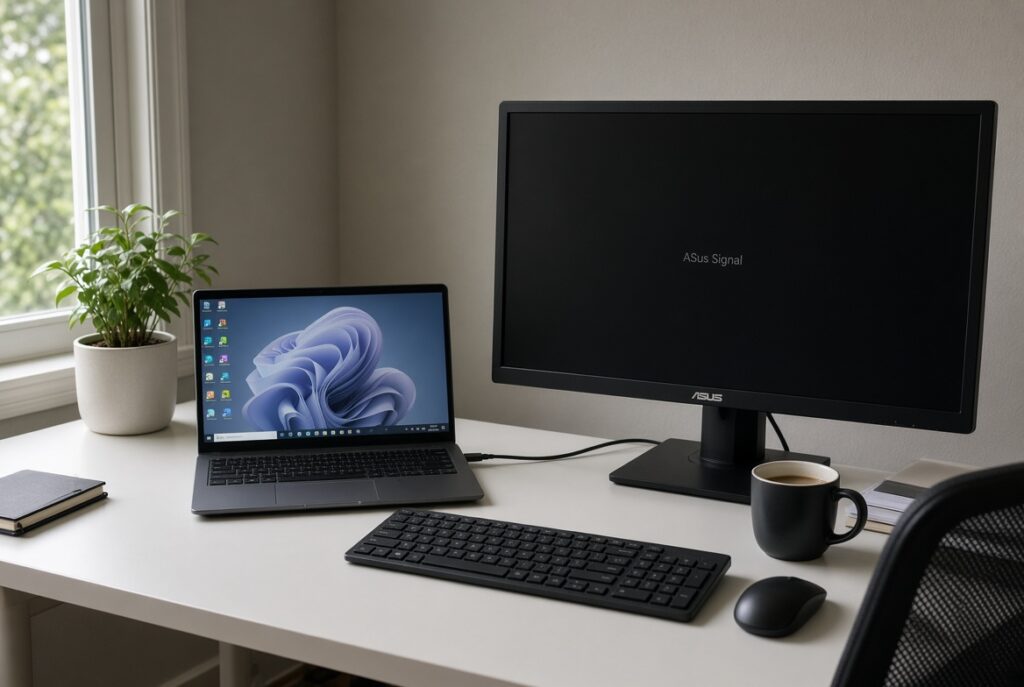

You plug in a second monitor and nothing happens. The screen says No signal, or Windows 11 simply does not list it in display settings. A second screen is a huge productivity boost, so it is frustrating when it will not appear. This guide is for desktop and laptop users on Windows 11, and it works from the cable and input checks most people miss through to drivers, adapters and docks.
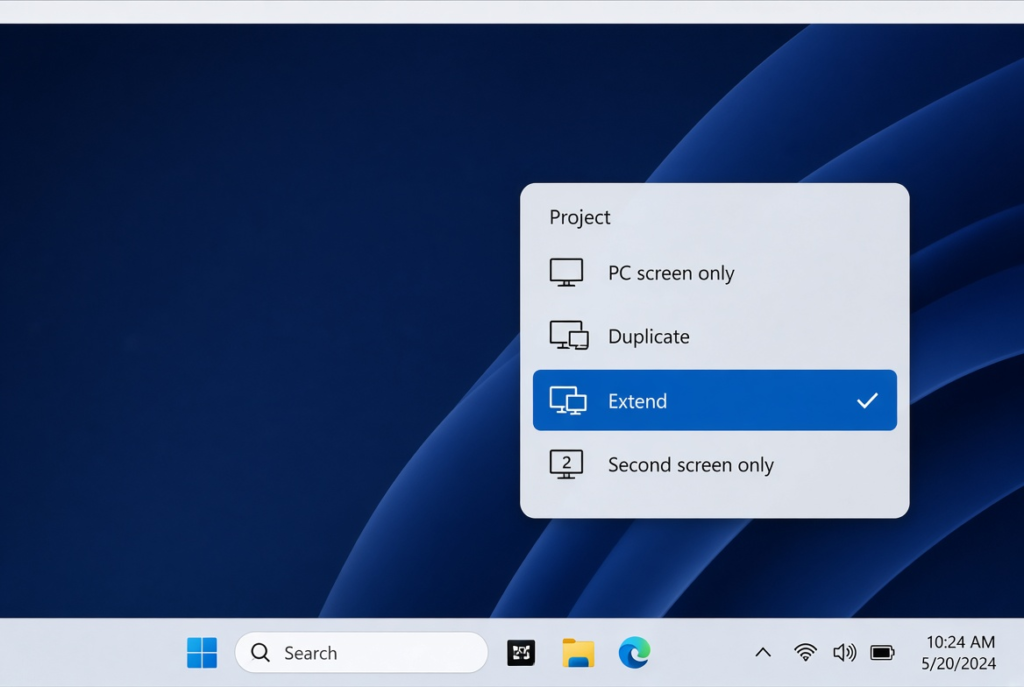
Quick Answer: Check that the monitor is on and set to the right input (HDMI, DisplayPort and so on), then press Win + P and choose Extend. If it still does not appear, open Settings > System > Display, expand Multiple displays and click Detect.
Tested on: Ideapad 1 15ALC7
Why This Happens
For a second monitor to appear, the cable, port, monitor input, graphics driver and Windows display settings all have to line up. Common problems are:
- Wrong input or loose cable. The monitor may be set to a different input, or the cable may not be fully seated.
- Windows is set to one screen. The projection mode may be on PC screen only.
- Wrong port on a desktop. If you have a graphics card, the motherboard’s video ports may be disabled.
- Driver problems. An outdated or damaged graphics driver can fail to detect new displays.
- Adapters and docks. Some USB-C ports, adapters and docks do not support video, or need their own drivers.
Fix 1: Check Power, Cable and Input
- Make sure the monitor is switched on and its power light is on.
- Use the monitor’s buttons to select the input that matches your cable, such as HDMI 1 or DisplayPort.
- Unplug the video cable at both ends and plug it back in firmly.
- If possible, try a different cable or a different port on the PC.
Fix 2: Use Win + P to Choose a Display Mode
- Press Win + P.
- Choose Extend to use both screens separately, or Duplicate to show the same image on both.
- Wait a few seconds for the screens to adjust.
Fix 3: Ask Windows to Detect the Monitor
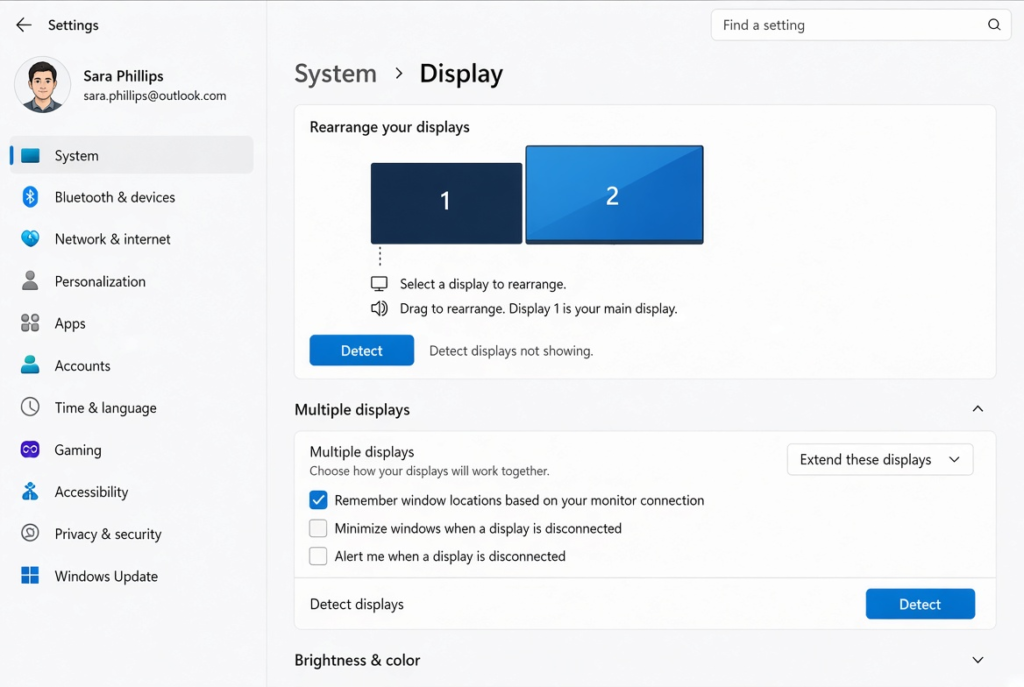
- Open Settings > System > Display.
- Expand Multiple displays.
- Click Detect.
- If the monitor appears, select it and set Extend these displays in the dropdown.
Fix 4: Use the Right Port on a Desktop PC
If your desktop has a separate graphics card, connect both monitors to the ports on the graphics card (usually lower down, running horizontally), not to the ports on the motherboard (higher up, near the USB ports). Motherboard ports are often disabled when a graphics card is installed.
Fix 5: Restart and Update the Graphics Driver
- Press Win + Ctrl + Shift + B. The screen will flash briefly as Windows restarts the graphics driver.
- If that does not help, right-click Start, choose Device Manager, expand Display adapters, right-click your graphics card and choose Update driver.
- For best results, download the latest driver from your graphics card or laptop maker’s website.
- If the problem started after a driver update, open the driver’s properties and click Roll Back Driver instead.
Fix 6: Check USB-C Ports, Adapters and Docks
- USB-C: not every USB-C port carries video. Look for a DisplayPort or Thunderbolt symbol next to the port, or check your laptop’s manual.
- Adapters: cheap adapters can fail at higher resolutions. Try a different adapter or a direct cable.
- Docks: some docks need their own display drivers from the dock maker. Install them and update the dock’s firmware if available.
Fix 7: Scan for Hardware Changes
- Open Device Manager.
- Expand Monitors. If you see a monitor with a warning icon, right-click it and choose Uninstall device.
- Click Action > Scan for hardware changes.
- Check display settings again.
Fix 8: Test the Monitor Elsewhere
Connect the monitor to another computer or a games console. If it does not work there either, the monitor or cable may be faulty. If it works, the problem is on your PC side, so focus on ports and drivers.
Monitor Detected but Something Looks Wrong?
Once the second screen appears, you may need to tidy up a few settings in Settings > System > Display:
- Arrangement: drag the numbered screen boxes so they match how your monitors sit on your desk. This controls which way your mouse moves between them.
- Resolution: select the second monitor and choose the resolution marked (Recommended) for a sharp picture.
- Scale: adjust the scale if text looks too large or too small compared with your main screen.
- Refresh rate: open Advanced display and choose the highest refresh rate your monitor supports.
My Experience
In my experience, checking the monitor’s input and cable connections is the best first step when Windows cannot detect a second display. A monitor can be powered on but still show no signal if it is set to the wrong HDMI or DisplayPort input. Pressing Win + P and selecting Extend is also worth trying before changing drivers or other settings. If the monitor still does not appear, using Detect in Display settings and restarting the graphics driver can help. I would also check whether a USB-C port supports video output, since not every port can connect directly to an external monitor.
Which Fix Should You Try First?
Check power, cable and the monitor’s input first, then press Win + P and choose Extend. Use Detect in display settings if the monitor still does not appear. On desktops, make sure you are using the graphics card ports. Update or roll back the graphics driver next, and check USB-C ports, adapters and docks if you are not using a direct cable.
Frequently Asked Questions
Why does my second monitor say “No signal”?
The monitor is not receiving video. Usually it is set to the wrong input, the cable is loose, or Windows is not sending a picture to that port. Check the input and use Win + P to choose Extend.
Can a USB-C port connect to a monitor?
Only if the port supports video, often shown by a DisplayPort or Thunderbolt symbol. Otherwise, you need a dock that supports displays or a different port.
What does Win + Ctrl + Shift + B do?
It restarts the graphics driver. The screen flickers or goes black for a moment, and it can fix display detection problems without restarting the PC.
Related: AMD graphics driver disabled after a Windows update | NVIDIA tray icon missing on Windows 11