
You open Windows Update and see Downloading – 0%, and it stays there for hours. Or the progress bar creeps forward and then stalls. Updates bring security fixes, so leaving them stuck is not a good option. This guide is for Windows 11 users whose updates will not download, and it moves from simple checks to resetting Windows Update’s own files.
Quick Answer: Restart your PC, make sure you have at least 20 GB free on your C: drive and that your connection is not set as metered, then click Check for updates again. If it stays at 0%, reset the update components by stopping the update services and renaming the SoftwareDistribution folder, as shown in Fix 5.
Tested on: Ideapad 1 15ALC7
Why This Happens
Windows Update downloads files in the background, stores them in a special folder and then installs them. It can stall at any stage. Common causes are:
- It is preparing in the background. Large updates can sit at 0% while Windows checks what is needed.
- Connection limits. A metered connection, VPN or unstable Wi-Fi can pause downloads.
- Not enough disk space. Feature updates need a lot of free space to download and unpack.
- Damaged update files. If a previous download was interrupted, the files in the update cache may be corrupt.
- Stopped services. Windows Update relies on several services that must be running.
Fix 1: Give It Time, Then Restart
- Leave the PC plugged in and connected for 30 to 60 minutes, especially for big feature updates.
- Open Task Manager with Ctrl + Shift + Esc and check the Network and Disk columns. Activity means Windows is still working.
- If nothing changes, restart your PC and click Check for updates again.
Fix 2: Check Connection and Free Space
- Turn off any VPN.
- Open Settings > Network & internet, select your connection and turn off Metered connection.
- Open Settings > System > Storage and free up space on your C: drive if it is low. Use Cleanup recommendations for quick wins.
Fix 3: Pause and Resume Updates
- Open Settings > Windows Update.
- Click Pause for 1 week.
- Wait a minute, then click Resume updates.
- Click Check for updates.
This simple trick often restarts a stuck download cleanly.
Fix 4: Run the Windows Update Troubleshooter
Open Settings > System > Troubleshoot > Other troubleshooters and click Run next to Windows Update, if your version shows it. Newer versions may open the Get Help app instead; follow its steps.
Fix 5: Reset Windows Update Components
⚠️ Warning: This fix stops system services and renames Windows Update folders using Command Prompt as administrator. It is a standard repair, but create a restore point first by searching for Create a restore point in the Start menu, and type the commands carefully.
- Click Start, type cmd, right-click Command Prompt and choose Run as administrator.
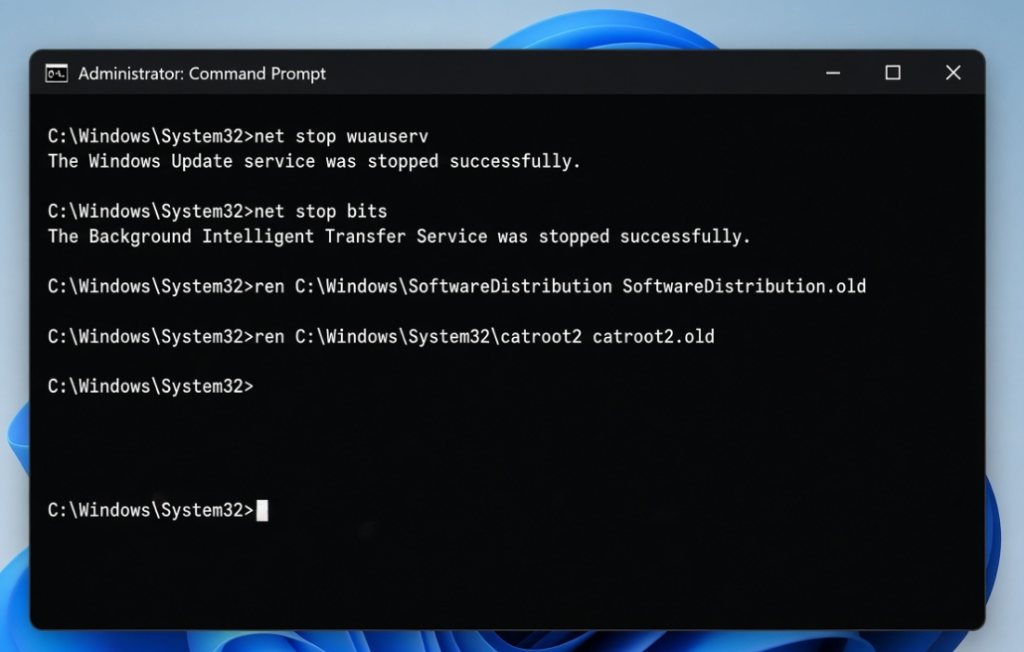
- Stop the update services by running these commands one at a time: net stop wuauserv, net stop bits, net stop cryptsvc.
- Rename the update cache folders: ren C:\Windows\SoftwareDistribution SoftwareDistribution.old and ren C:\Windows\System32\catroot2 catroot2.old.
- Start the services again: net start wuauserv, net start bits, net start cryptsvc.
- Restart your PC and check for updates. Windows creates fresh folders automatically.
Your update history list may look empty afterwards. That is normal and does not remove installed updates.
Fix 6: Turn Off Delivery Optimisation
- Open Settings > Windows Update > Advanced options > Delivery Optimization.
- Turn off Allow downloads from other devices.
- Go back and check for updates.
Fix 7: Install the Update Manually
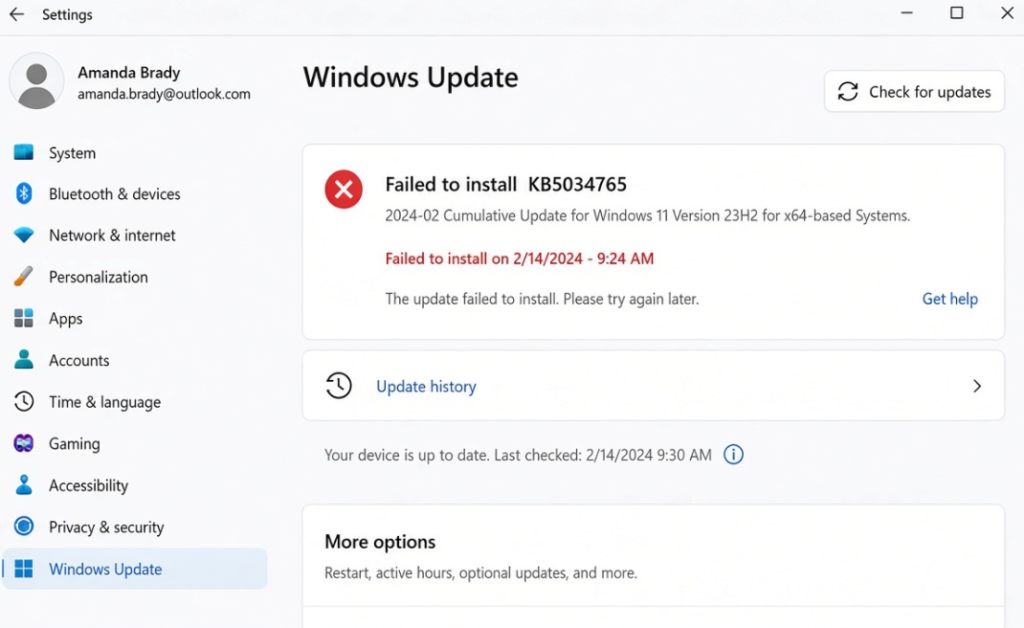
- In Settings > Windows Update, note the KB number of the stuck update (for example KB followed by digits).
- Go to the official Microsoft Update Catalog website and search for that KB number.
- Download the version that matches your system (usually x64 for Windows 11) and run it.
- Restart when it finishes.
Fix 8: Repair System Files
⚠️ Warning: These commands run as administrator. Create a restore point first.
- Open Command Prompt as administrator.
- Run DISM /Online /Cleanup-Image /RestoreHealth and wait.
- Run sfc /scannow.
- Restart and try Windows Update again.
Stuck on “Working on Updates” During a Restart?
This is a different problem from a download stuck at 0%. When the screen says Windows is working on updates, it is installing, and turning the PC off can cause damage. Leave it for at least an hour or two, plugged in.
If it truly has not moved for several hours, hold the power button to turn the PC off, then turn it on again. If Windows does not start normally, it should open the recovery screen. From there choose Troubleshoot > Advanced options > Uninstall Updates and remove the latest quality update. Back up your files once Windows is working again.
My Experience
In my experience, checking the internet connection, available storage and pending background activity is the best place to start when Windows Update gets stuck at 0%. Sometimes, Windows needs extra time to prepare large updates, so restarting immediately is not always necessary. If the download remains frozen, pausing and resuming updates is a simple step worth trying. For more persistent problems, resetting the SoftwareDistribution folder can help by clearing potentially corrupted update files. I would keep the manual update option as a backup when only one particular KB update refuses to download or install.
Which Fix Should You Try First?
Give large updates some time, then restart and check your connection and free space. Pausing and resuming updates is a quick next step. If it still sits at 0%, reset the Windows Update components, which fixes most stubborn cases. Install the update manually or repair system files when one specific update keeps failing.
Frequently Asked Questions
How long should I wait if Windows Update is at 0%?
Give it at least 30 to 60 minutes for large updates, as long as there is disk or network activity in Task Manager. If nothing happens after that, try the fixes in this guide.
Is it safe to delete or rename the SoftwareDistribution folder?
Yes, when the update services are stopped. It only contains temporary update files, and Windows creates a new folder automatically.
Can I keep using my PC while updates are stuck?
Yes, but install security updates as soon as possible. Avoid shutting down while an update is actually installing, as that can cause problems.
Related: DISM error 0x800f0915 | Microsoft Store won’t download apps