
Your laptop was quiet until a Windows update, and now the fan runs loudly even when you are only reading email. The bottom may feel warmer than usual and the battery may drain faster. This guide is for Windows 11 laptop owners, and it helps you work out whether the noise is temporary background work or a setting or driver that needs attention.
Quick Answer: Leave the laptop plugged in and idle for an hour so Windows can finish post-update tasks, then restart. If the fan is still loud, open Task Manager, sort by CPU and look for anything using a lot of processing power, and set Settings > System > Power & battery > Power mode to Balanced.
Tested on: Ideapad 1 15ALC7
Why This Happens
The fan speeds up when the processor or graphics chip gets warm. After an update, several things can make them work harder:
- Post-update background work. Windows often re-indexes files, optimises apps, scans with Microsoft Defender and finishes installing components after an update.
- A runaway process. An app or service may get stuck using a lot of CPU after an update.
- Changed power settings. An update or driver can switch the power mode to a higher-performance setting.
- Driver changes. New chipset, graphics or power drivers can change how the laptop manages heat and fan speed.
- Dust and airflow. An update may simply expose an existing cooling problem, such as blocked vents.
Fix 1: Let Windows Finish, Then Restart
- Plug the laptop in and leave it on and idle for 30 to 60 minutes.
- Check Settings > Windows Update for any update waiting for a restart.
- Restart the laptop.
In many cases, the fan calms down once this background work is done.
Fix 2: Find What Is Using the CPU
- Press Ctrl + Shift + Esc to open Task Manager.
- On the Processes tab, click the CPU column to sort by usage.
- Watch for a minute. Note any app or process that stays near the top.
- If it is an app you recognise and do not need, right-click it and choose End task. If it is a Windows process, search for its name before ending it.
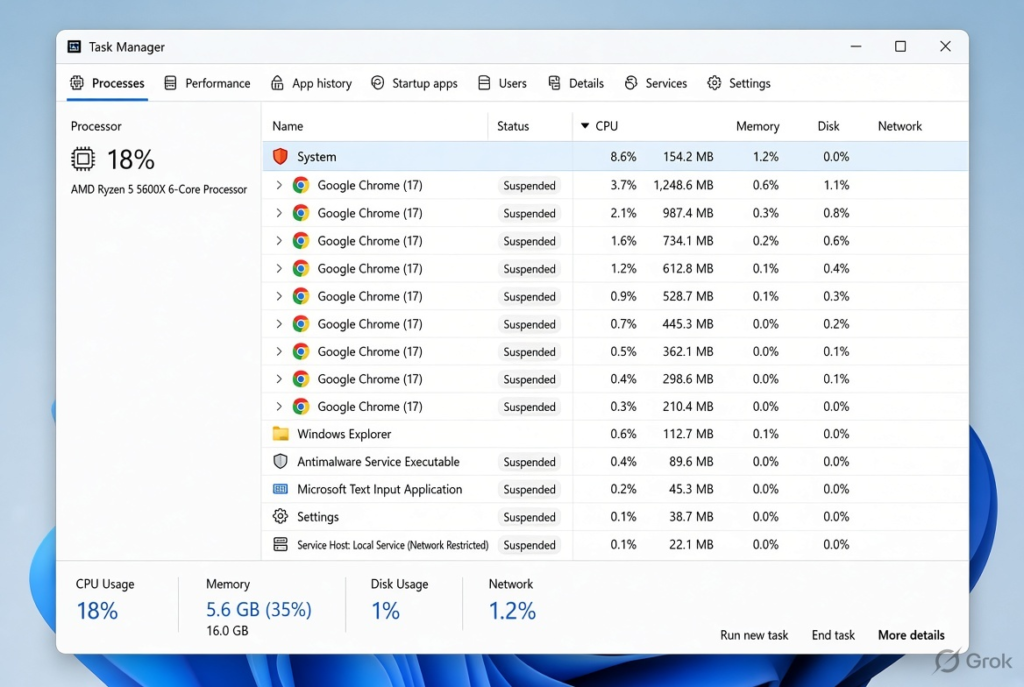
Also open Startup apps in Task Manager and disable apps you do not need running all the time.
Fix 3: Change the Power Mode
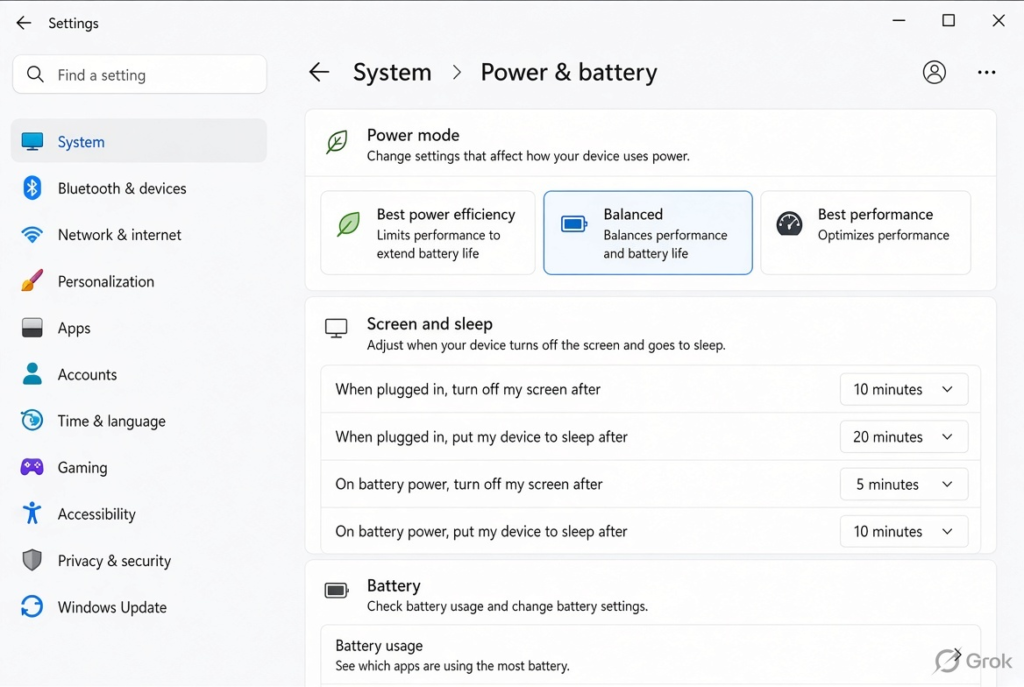
- Open Settings > System > Power & battery.
- Under Power mode, choose Balanced or Best power efficiency.
- Check both on battery and when plugged in, as some laptops remember them separately.
Fix 4: Check Your Laptop Maker’s Performance App
Many laptops come with an app from the manufacturer that controls fan and performance profiles, often with modes such as quiet, balanced and performance. Updates can reset it. Open the app (search the Start menu for your laptop brand) and choose a quiet or balanced mode.
Fix 5: Limit Maximum Processor Speed
Lowering the maximum processor state slightly can reduce heat on many laptops, at the cost of a little speed in heavy tasks.
- Open Control Panel > Power Options.
- Click Change plan settings next to your plan, then Change advanced power settings.
- Expand Processor power management > Maximum processor state.
- Set it to 99% for both On battery and Plugged in, then click OK.
If you notice the laptop feels slow, set it back to 100%.
Fix 6: Update Drivers and BIOS From the Laptop Maker
⚠️ Warning: BIOS updates change your laptop’s firmware. Only use the official update from your laptop maker’s support website for your exact model, keep the laptop plugged in throughout, and back up your files first. Do not turn it off during the update.
- Find your model number on the sticker underneath or in Settings > System > About.
- On the laptop maker’s support site, install the latest chipset, graphics and power management drivers.
- If a BIOS update mentions fan, thermal or power fixes, install it following the maker’s instructions.
Fix 7: Roll Back the Update
If the fan became loud immediately after a specific update and nothing else helps, open Settings > Windows Update > Update history > Uninstall updates and remove the most recent one. Install it again later once a newer fix is available.
Fix 8: Improve Airflow
- Use the laptop on a hard, flat surface, not a bed or sofa that blocks vents.
- Gently blow out dust from the vents with short bursts of compressed air while the laptop is off.
- Consider a laptop stand or cooling pad if you use it for long periods.
Tip: browsers with many open tabs are a common hidden cause of fan noise. Close tabs you are not using, especially ones playing video, and check whether the fan settles down.
My Experience
In my experience, a loud fan after a Windows update is often caused by background processes using more CPU than usual. I would first leave the laptop plugged in for some time and allow Windows to finish its pending tasks before changing any settings. If the fan remains loud, Task Manager helps identify apps that are putting extra load on the processor. Switching the power mode to Balanced can also reduce unnecessary heat during everyday use. On laptops, checking the manufacturer’s performance settings and keeping the vents clear are useful additional steps. If the noise continues for several days, check the drivers and cooling system.
Which Fix Should You Try First?
Give Windows time to finish post-update tasks, then restart. If the fan stays loud, check Task Manager for a busy process and set the power mode to Balanced. Use your laptop maker’s app and the maximum processor state setting to reduce heat, update drivers and BIOS from the maker, and roll back the update only if the problem started immediately after it.
Frequently Asked Questions
Is a loud fan after a Windows update normal?
For a short time, yes. Windows often does extra background work after an update. If the fan stays loud for days, something else is keeping the processor busy.
Can a loud fan damage my laptop?
The fan itself is protecting the laptop by removing heat. Constant high temperatures over long periods are not good for components, so it is worth finding the cause.
Will lowering the maximum processor state slow my laptop?
Slightly, in demanding tasks such as gaming or video editing. For browsing and office work, most people do not notice a difference.
Related: Laptop battery draining while turned off | Windows Update stuck at 0%