
A message arrives on your friend’s phone instantly, but you only see it when you unlock yours an hour later. Or certain apps never show notifications at all. On Android, this is usually caused by battery-saving features doing their job a little too well. This guide is for Android phone users, and it shows you which settings delay notifications and how to adjust them for the apps that matter to you.
Quick Answer: Open Settings > Apps, choose the app with late notifications, tap Battery (or App battery usage) and select Unrestricted. Then check that Notifications are allowed for that app and that Battery Saver and Do Not Disturb are off. Menu names vary slightly between phone brands.
Tested on: Vivo V3
Why This Happens
Android tries hard to save battery by limiting what apps can do in the background. That is good for battery life but can delay alerts. Common causes are:
- Battery optimisation. Apps that are restricted or optimised may only check for new messages occasionally.
- Battery Saver or power saving modes. These limit background activity across the whole phone.
- Brand-specific app sleeping. Many phone makers add their own features that put unused apps to sleep.
- Data restrictions. Data Saver or blocked background data stops apps from receiving updates.
- Notification settings. The app, or one of its notification categories, may be silenced or blocked.
Fix 1: Check the App’s Notification Settings
- Open Settings > Apps (or Apps & notifications).
- Select the app, such as your messaging or email app.
- Tap Notifications and make sure they are allowed.
- Check the notification categories inside the app’s settings and turn on the ones you need, such as messages or calls.
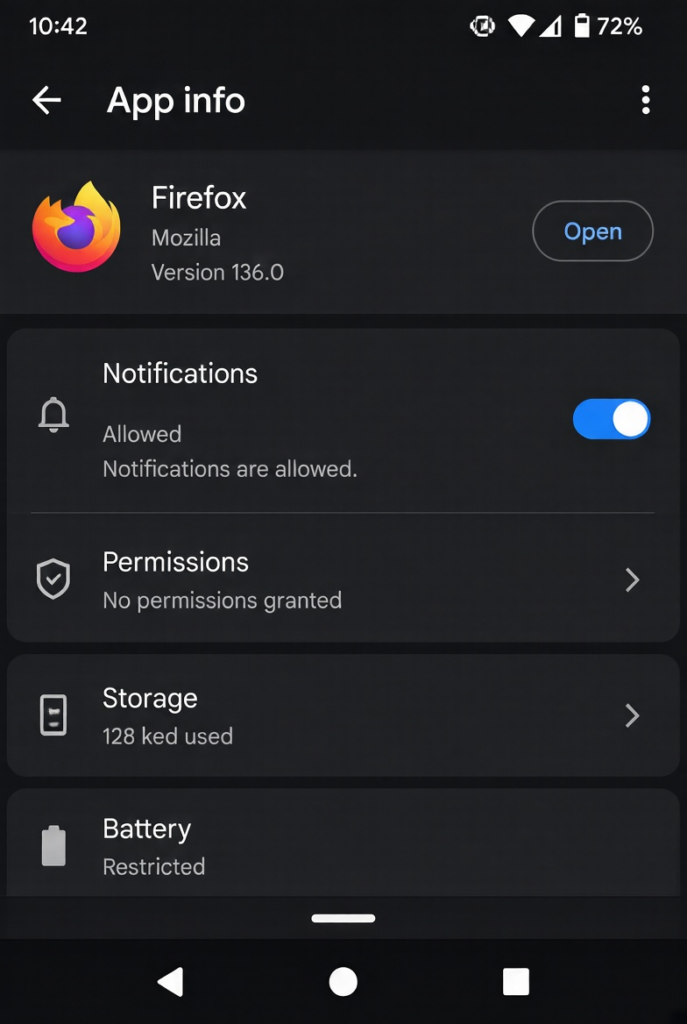
Also open the app itself and check its own notification settings, as many apps have separate switches.
Fix 2: Remove Battery Restrictions for Important Apps
- In Settings > Apps, select the app.
- Tap Battery or App battery usage.
- Choose Unrestricted (on some phones, turn off Optimise or allow background activity).
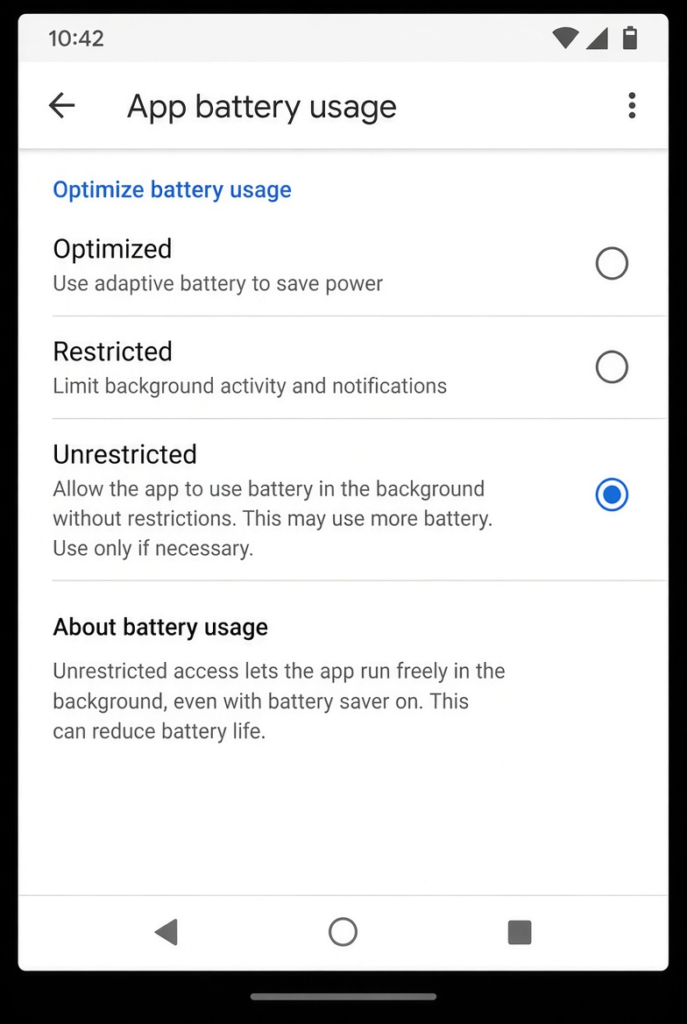
Only do this for apps where timely notifications really matter, as unrestricted apps can use more battery.
Fix 3: Check Your Phone Maker’s Sleeping Apps List
Many phones have their own battery tools that put apps to sleep. On Samsung phones, for example, go to Settings > Battery > Background usage limits and make sure your important apps are not in Sleeping apps or Deep sleeping apps; add them to Never sleeping apps. Other brands use names such as app launch, auto-start or background management, so search your Settings for those terms.
Fix 4: Turn Off Battery Saver and Check Do Not Disturb
- Swipe down to open Quick Settings and turn off Battery Saver or Power saving if it is on.
- Turn off Do Not Disturb, or open its settings and allow your important apps and contacts.
- Check any schedules or modes, such as bedtime mode, that turn on Do Not Disturb automatically.
Fix 5: Allow Background Data
- Open Settings > Network & internet (or Connections) and turn off Data Saver, or add your important apps as unrestricted.
- In Settings > Apps > the app > Mobile data, make sure Background data is allowed.
Fix 6: Update the App and Google Play Services
- Open the Play Store, tap your profile picture and choose Manage apps & device.
- Update the app with delayed notifications.
- Also check Settings > Security or About phone for system updates, as many notification fixes arrive this way.
Fix 7: Stop Clearing Apps From Recents
Swiping all apps away from the recent apps screen does not usually save battery on modern Android, and on some phones it can stop apps from receiving notifications until you open them again. Leave messaging apps in recents, or use your phone’s option to lock an app in the recent apps view if it has one.
Notifications Arrive but Make No Sound?
Sometimes notifications are on time but silent, so you only notice them later. Check these settings:
- Make sure your phone is not on silent or vibrate-only mode.
- In the app’s notification settings, open the specific category (for example, messages) and check that it is set to make a sound or alert rather than Silent.
- Turn on pop-up or heads-up display for that category if you want notifications to appear on screen.
- Choose a notification sound you will recognise for important apps.
How to Test Your Changes
After changing settings, lock your phone and leave it untouched for 10 to 15 minutes so Android has time to put apps into their normal background state. Then ask a friend to send you a message, or send one to yourself from another device. If it arrives straight away, your changes have worked.
My Experience
In my experience, checking notification permissions and battery optimisation settings is the best starting point when Android notifications arrive late. Setting important messaging apps to Unrestricted can help them receive updates while running in the background. I would also check Battery Saver, Do Not Disturb and any sleeping apps feature provided by the phone manufacturer. If notifications still arrive late, allowing background data and updating the affected apps are useful next steps. After making changes, lock the phone and test notifications for a few minutes. These adjustments can improve notification reliability, although unrestricted background activity may slightly increase battery consumption.
Which Fix Should You Try First?
Check the app’s notification settings, then set the app’s battery usage to Unrestricted. That combination fixes most delayed notifications. Check your phone maker’s sleeping apps list, turn off Battery Saver and Do Not Disturb, and allow background data next. Update apps and stop clearing recents if delays continue.
Frequently Asked Questions
Why do I only get notifications when I open the app?
The app is being restricted in the background by battery optimisation or a sleeping apps feature. Set its battery usage to Unrestricted and remove it from any sleeping list.
Will unrestricted battery use drain my phone?
It can use a little more battery, which is why you should only change it for apps where timely notifications matter, such as messaging and email.
Why are notifications delayed only on Wi-Fi?
Some routers drop idle connections. Restarting the router and turning off Wi-Fi power saving features on the phone, if available, can help.
Related: Android phone not showing on PC over USB | Phone Link not opening on Windows 11