
You plug your Android phone into your Windows PC to copy photos, but it only charges. It does not appear in File Explorer, or it shows up as an empty device. This guide is for Android users connecting to a Windows 11 or Windows 10 PC with a USB cable, and it covers the phone settings, cables and Windows drivers that decide whether your files appear.
Quick Answer: Unlock your phone, swipe down from the top of the screen, tap the USB notification (often Charging this device via USB) and choose File transfer. If there is no notification or nothing changes, try a different USB cable, because many cables only carry power.
Tested on: Ideapad 1 15ALC7
Why This Happens
For safety, Android only shares files over USB when you allow it. On top of that, both the cable and Windows need to support file transfer. Common causes are:
- The phone is in charging-only mode. By default, most phones only charge when connected to a PC.
- The phone is locked. Many phones hide storage until you unlock them.
- A charge-only cable. Some cables, especially cheap or bundled ones, have no data wires.
- Driver problems. Windows uses a driver called MTP to show phones. If it is missing or damaged, the phone will not appear.
- Missing media features. Some editions of Windows lack media components that phone connections rely on.
Fix 1: Unlock the Phone and Choose File Transfer
- Connect the phone and unlock it.
- Swipe down from the top of the screen to open notifications.
- Tap the USB notification.
- Choose File transfer (sometimes called Transferring files or MTP).
- If a message asks whether to allow access to phone data, tap Allow.
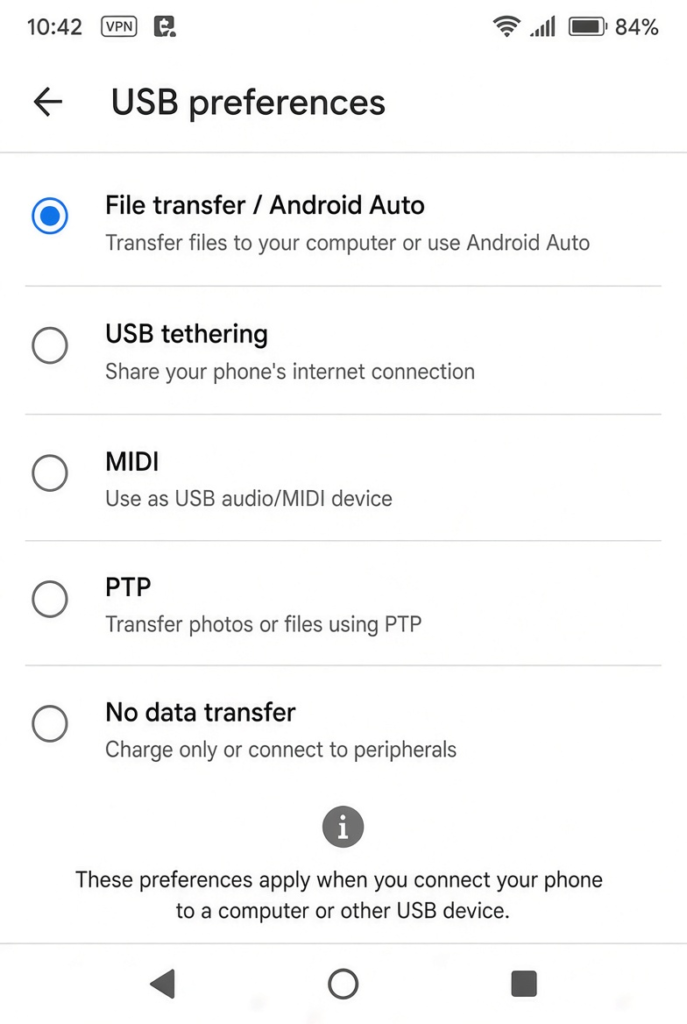
Open File Explorer on your PC. The phone should appear under This PC.
Fix 2: Try a Different Cable and Port
- Use the cable that came with your phone, or another cable you know transfers data.
- Plug it directly into a USB port on the PC, not a hub, keyboard or monitor port.
- Try a different port, preferably one on the back of a desktop PC.
Fix 3: Restart Both Devices
Unplug the phone, restart both the phone and the PC, then connect again and repeat Fix 1. This clears many temporary connection problems.
Fix 4: Set File Transfer as the Default (Developer Options)
- On your phone, open Settings > About phone and tap Build number seven times to turn on Developer options. Menu names vary slightly by brand.
- Go to Settings > System > Developer options (or search Settings for Developer options).
- Find Default USB configuration and choose File transfer.
Only change this one setting in Developer options. You can turn Developer options off again afterwards.
Fix 5: Reinstall the Phone Driver in Windows
- Connect the phone and set it to File transfer.
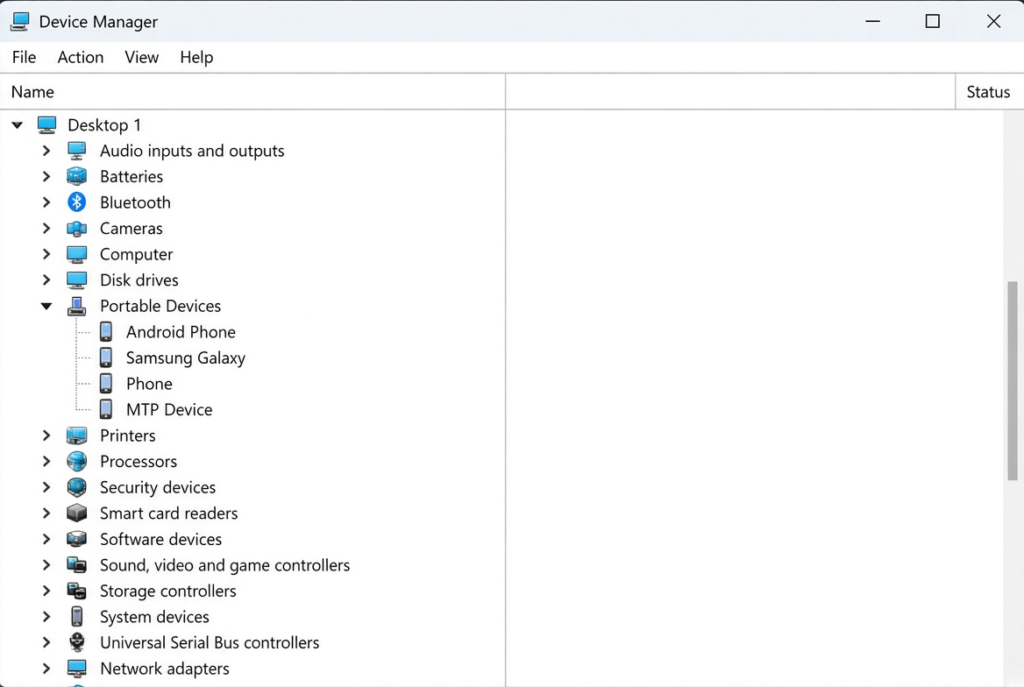
- Right-click Start and choose Device Manager.
- Look under Portable Devices or Other devices for your phone or an MTP device. A yellow warning icon means a driver problem.
- Right-click it and choose Uninstall device.
- Unplug the phone, wait a few seconds and plug it back in. Windows reinstalls the driver.
Fix 6: Install Your Phone Maker’s USB Driver
Some phone brands provide their own USB drivers for Windows. Visit your phone maker’s official support website, search for the USB driver for your model, and install it. Restart your PC and connect again.
Fix 7: Add the Media Feature Pack (N Editions)
If your Windows edition name ends in N (for example, Windows 11 Pro N), it does not include some media components phones need. Open Settings > System > Optional features, click View features, search for Media Feature Pack, install it and restart.
Phone Appears but Folders Are Empty?
If the phone shows in File Explorer but has no folders, or the folders look empty, the phone is usually still locked or has not finished sharing its storage. Unlock it, make sure File transfer is still selected, wait a few seconds and press F5 in File Explorer to refresh. Your photos are normally in Internal storage > DCIM > Camera, and screenshots are often in Pictures > Screenshots.
Copying a Lot of Photos? Do It Safely
- Keep the phone unlocked and the screen on during large transfers, as some phones disconnect when they lock.
- Copy in smaller batches, such as one month of photos at a time, rather than thousands of files at once.
- Do not unplug the cable until the copy window has completely finished.
- Copy files to your PC first and check them before deleting anything from your phone.
My Experience
In my experience, selecting File transfer on the Android phone is the first thing to check when Windows does not recognise a connected device. Sometimes the phone is only charging, so its files remain hidden in File Explorer. If that does not work, trying a different USB cable and port can quickly identify a connection problem. Restarting both devices and checking the MTP driver are useful next steps if the phone still does not appear. I also recommend keeping the phone unlocked during large transfers. These simple checks can help restore file access without requiring additional software or complicated troubleshooting.
Which Fix Should You Try First?
Unlock your phone and choose File transfer from the USB notification. That is the fix most people need. If there is no notification, try another cable and port, then restart both devices. Reinstall the driver or install your phone maker’s driver if Windows shows errors, and add the Media Feature Pack on N editions of Windows.
Frequently Asked Questions
Why is my phone only charging when connected to my PC?
Android starts in charging-only mode for security. Unlock the phone and choose File transfer in the USB notification. If that option never appears, the cable may be charge-only.
How do I know if my USB cable supports data?
Try it with another device you know works, or use the original cable that came with your phone. Charge-only cables often look identical to data cables.
Can I transfer files without a cable?
Yes. Phone Link, cloud storage and wireless sharing tools let you move photos and files without USB, which is handy if your cable or port is damaged.
Related: Phone Link not opening on Windows 11 | Control your Android phone from your PC with Copilot