
Snipping Tool is the quickest way to grab part of your screen on Windows 11. When Win + Shift + S does nothing, the app will not open, or your screenshots seem to vanish, it interrupts everything from work emails to bug reports. This guide is for Windows 11 users, and it covers shortcut settings, hidden notifications, saving options and app repairs.
Quick Answer: Press Win + Shift + S, take a snip, and check the notification in the bottom-right corner. If you see nothing, turn on notifications for Snipping Tool in Settings > System > Notifications. If the app itself will not open, go to Settings > Apps > Installed apps > Snipping Tool > Advanced options and click Repair, then Reset if needed.
Tested on: Ideapad 1 15ALC7
Why This Happens
Snipping Tool is a Microsoft Store app linked to keyboard shortcuts and notifications. Problems usually come from:
- Hidden notifications. After a snip, Windows shows a notification you click to edit it. If notifications are off, it looks as if nothing happened.
- Shortcut conflicts. Other screenshot apps can take over Win + Shift + S or the Print Screen key.
- Do not disturb. Focus settings can hide the snip notification.
- A damaged or outdated app. Like other Store apps, Snipping Tool can break after an update.
- Saving settings. Snips may be copied to the clipboard without being saved as files, depending on your settings.
Fix 1: Check the Shortcut and Print Screen Key
- Press Win + Shift + S. The screen should dim and show snip options at the top.
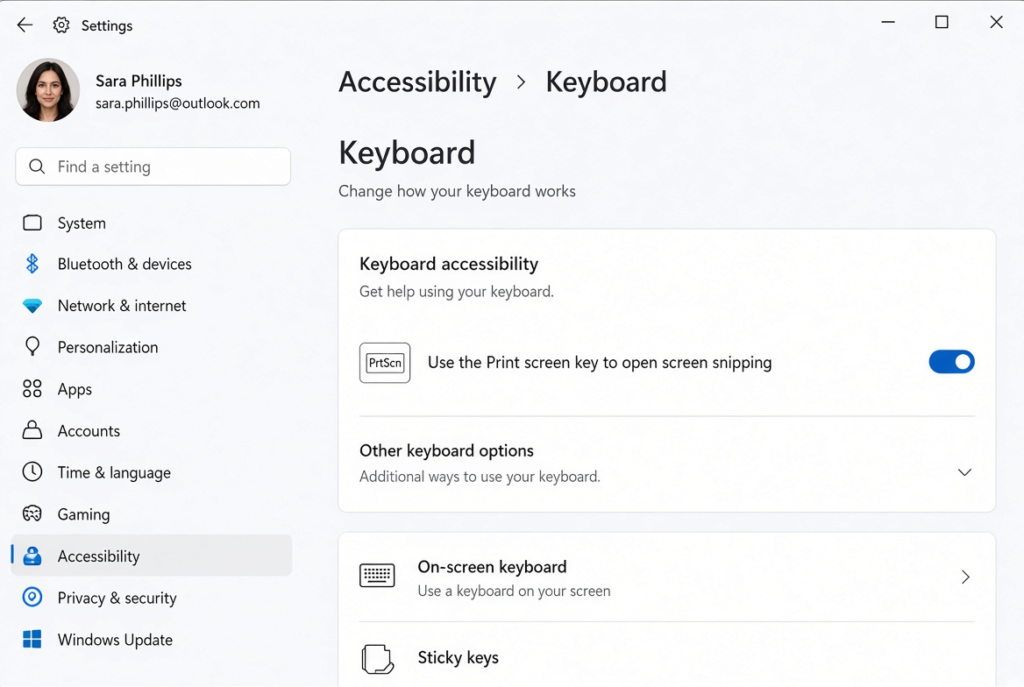
- If you prefer the Print Screen key, open Settings > Accessibility > Keyboard and turn on Use the Print screen key to open screen capture.
- Close other screenshot apps that might use the same keys, and try again.
Fix 2: Turn On Snipping Tool Notifications
- Open Settings > System > Notifications.
- Make sure notifications are on and Do not disturb is off.
- Scroll down to the app list and turn on Snipping Tool.
- Take a snip and watch for the notification.
Even without the notification, every snip is copied to the clipboard. Open Paint or a document and press Ctrl + V to check.
Fix 3: Turn On Auto-Save for Screenshots
- Open the Snipping Tool app from the Start menu.
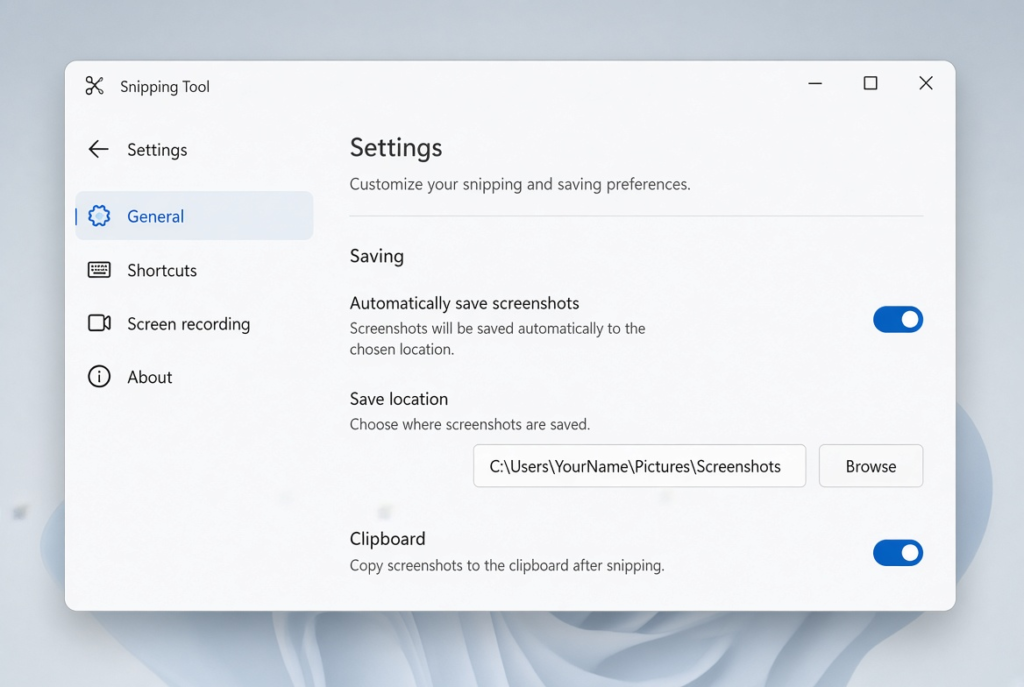
- Click the three dots (See more) and choose Settings.
- Turn on the option to automatically save screenshots.
- Snips are then saved in Pictures > Screenshots.
Fix 4: Restart Windows Explorer
Press Ctrl + Shift + Esc, right-click Windows Explorer and choose Restart. This often fixes cases where the screen dims but the snip bar never appears.
Fix 5: Update Snipping Tool
Open the Microsoft Store, click Library and then Get updates. Make sure Snipping Tool is up to date, then restart your PC.
Fix 6: Repair or Reset the App
- Open Settings > Apps > Installed apps.
- Search for Snipping Tool, click the three dots and choose Advanced options.
- Click Terminate, then Repair, and test.
- If it still fails, click Reset. This clears the app’s settings.
Fix 7: Re-Register Snipping Tool
⚠️ Warning: This fix uses PowerShell as administrator. Create a restore point first by searching for Create a restore point in the Start menu and clicking Create. Copy the command exactly.
- Right-click Start and choose Terminal (Admin).
- Paste this command and press Enter: Get-AppxPackage Microsoft.ScreenSketch -AllUsers | Foreach {Add-AppxPackage -DisableDevelopmentMode -Register “$($_.InstallLocation)\AppXManifest.xml”}
- Restart your PC and try Snipping Tool again.
Microsoft.ScreenSketch is the internal package name for Snipping Tool.
Fix 8: Reinstall From the Microsoft Store
If nothing else works, uninstall Snipping Tool from Settings > Apps > Installed apps, restart, then search for Snipping Tool in the Microsoft Store and install it again.
Get More Out of Snipping Tool
Once it is working again, a few features make Snipping Tool much more useful:
- Snip modes. After pressing Win + Shift + S, use the bar at the top to choose rectangle, free-form, window or full-screen snips.
- Delay timer. In the Snipping Tool app, set a delay of a few seconds so you can open a menu before the snip is taken.
- Annotations. Click the snip notification to open it in Snipping Tool, where you can draw, highlight and crop before saving or sharing.
- Screen recording and text tools. Newer versions of Snipping Tool can record part of the screen and copy text from screenshots. Look for these options in the app’s toolbar if your version includes them.
If these options are missing, update Snipping Tool from the Microsoft Store, as Microsoft adds features over time.
My Experience
In my experience, checking Snipping Tool notifications is the best first step when screenshots seem to disappear in Windows 11. Sometimes, the screenshot is captured successfully but the notification needed to open and edit it is hidden. Enabling automatic screenshot saving also makes it easier to find captured images later. If the Win + Shift + S shortcut still does not work, restarting Windows Explorer and updating Snipping Tool through the Microsoft Store are worth trying. For persistent problems, repairing or resetting the app can help restore normal behaviour without requiring a complete Windows reinstall.
Which Fix Should You Try First?
Check the shortcut and turn on Snipping Tool notifications first, because snips often work but stay hidden. Turn on auto-save so you can always find your screenshots. Restart Windows Explorer and update the app if the snip bar does not appear, then repair, reset, re-register or reinstall when the app itself will not open.
Frequently Asked Questions
Where do Snipping Tool screenshots go?
Every snip is copied to the clipboard. If auto-save is on, it is also saved in the Screenshots folder inside Pictures.
Why does Win + Shift + S dim the screen but nothing happens?
The snip is probably being taken, but the notification is hidden. Turn on Snipping Tool notifications and check that Do not disturb is off.
Can I use the Print Screen key for Snipping Tool?
Yes. Turn on Use the Print screen key to open screen capture in Settings, Accessibility, Keyboard.
Related: Win + V clipboard history not working | File Explorer slow or not responding