
File Explorer should open instantly, but on some Windows 11 PCs it takes ages, shows Working on it… for a long time, or freezes with Not responding. Since you use Explorer for almost everything, a slow one makes the whole PC feel sluggish. This guide covers the most common causes and gives you clear steps to make Explorer fast again.
Quick Answer: Restart Windows Explorer from Task Manager, then open File Explorer Options, set Open File Explorer to This PC, and click Clear next to Clear File Explorer history. For a single slow folder, right-click it, choose Properties > Customize and set Optimize this folder for to General items.
Tested on: Ideapad 1 15ALC7
Why This Happens
File Explorer does more than list files. It loads recent items, thumbnails, cloud status, network locations and add-ons from other apps. Any of these can slow it down:
- Large recent and Quick Access lists. Explorer’s Home page loads recent files, which can be slow if many come from cloud or network locations.
- Folder type detection. Folders treated as Pictures or Videos generate thumbnails and read file details, which takes time with thousands of files.
- Unreachable network drives. Explorer waits for mapped drives or network locations that are offline.
- Cloud sync. OneDrive and other sync apps add status icons and may be busy syncing.
- Shell extensions. Apps that add items to the right-click menu or Explorer can slow it or make it crash.
Fix 1: Restart Windows Explorer
- Press Ctrl + Shift + Esc to open Task Manager.
- On the Processes tab, right-click Windows Explorer and choose Restart.
- Open File Explorer again.
Fix 2: Open to This PC and Clear History
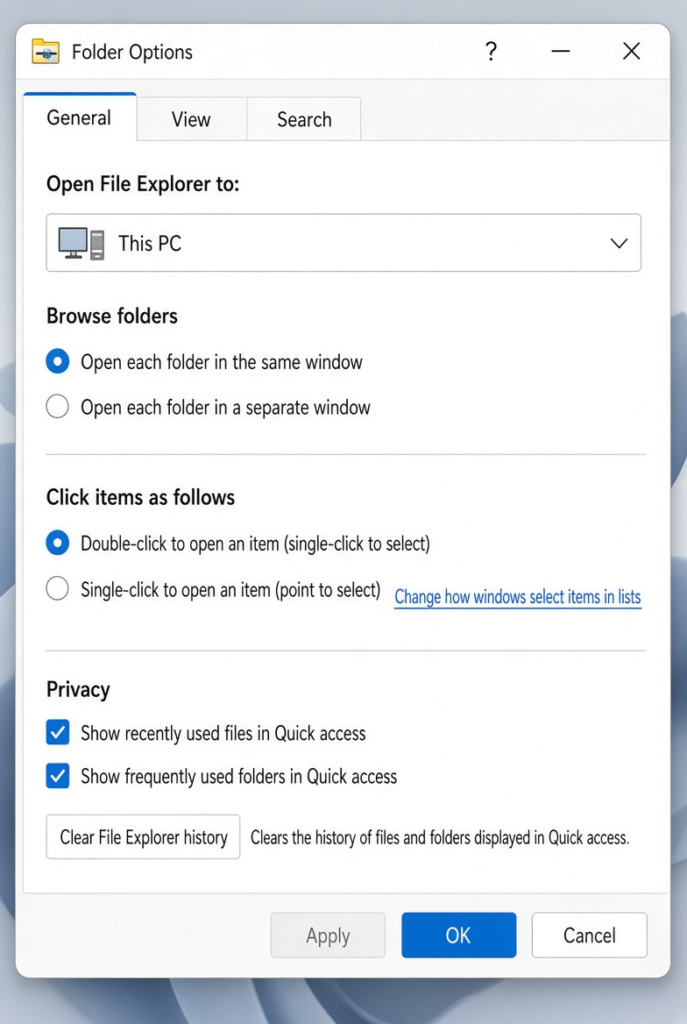
- Open File Explorer, click the three dots (See more) in the toolbar and choose Options.
- On the General tab, set Open File Explorer to This PC.
- Under Privacy, untick the options to show recently used files and frequently used folders if you do not need them.
- Click Clear next to Clear File Explorer history, then OK.
Fix 3: Optimise Slow Folders for General Items
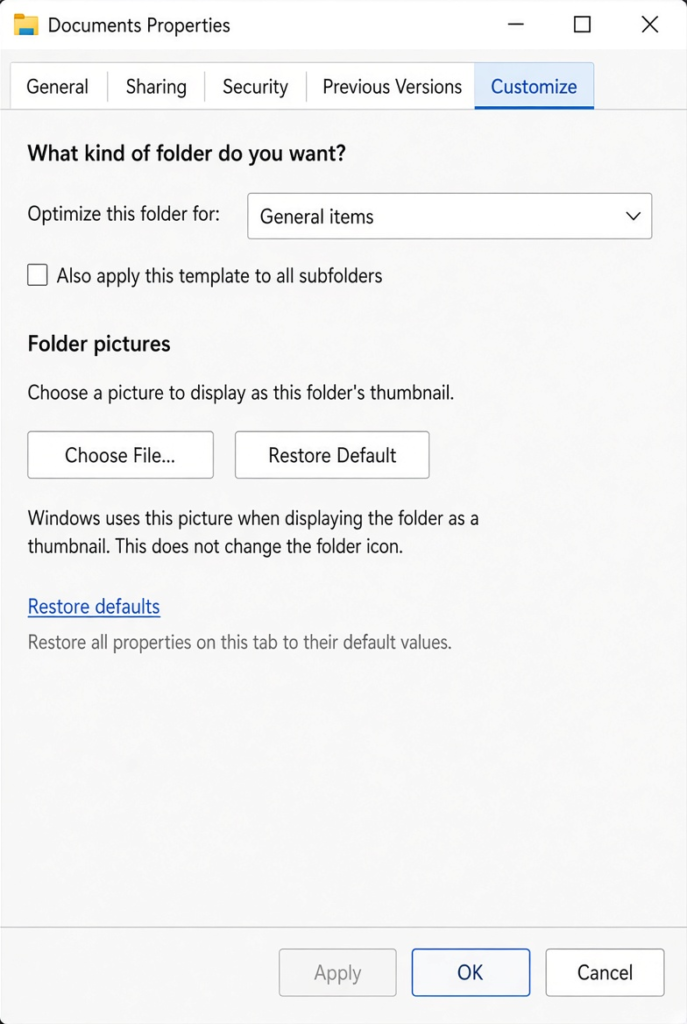
- Right-click the folder that loads slowly and choose Properties.
- Open the Customize tab.
- Set Optimize this folder for to General items.
- Tick Also apply this template to all subfolders and click OK.
This is especially helpful for Downloads folders full of mixed files.
Fix 4: Disconnect Unavailable Network Drives
- Open This PC in File Explorer.
- Look for network drives with a red cross or that you no longer use.
- Right-click them and choose Disconnect.
- Restart Explorer and test again.
Fix 5: Check OneDrive and Other Sync Apps
Click the OneDrive cloud icon near the clock. If it is syncing a large number of files, Explorer may be slow until it finishes. You can pause syncing temporarily from the OneDrive settings menu to test whether it is the cause. Do the same for any other cloud storage apps.
Fix 6: Turn Off Thumbnails to Test
- Open File Explorer Options and go to the View tab.
- Tick Always show icons, never thumbnails and click OK.
- Open a slow folder. If it is much faster, thumbnails were the cause. You can leave this on or turn it back off for photo folders only.
Fix 7: Remove Problem Add-Ons
If Explorer became slow after installing an app that adds right-click menu items (such as archive tools, cloud apps or file utilities), try updating or uninstalling that app from Settings > Apps > Installed apps, then restart. Re-install only what you need.
Fix 8: Repair System Files
⚠️ Warning: These commands run as administrator. They are built-in repair tools, but create a restore point first by searching for Create a restore point in the Start menu and clicking Create.
- Click Start, type cmd, right-click Command Prompt and choose Run as administrator.
- Run DISM /Online /Cleanup-Image /RestoreHealth.
- Run sfc /scannow.
- Restart your PC.
Check Your Drive’s Space and Health
A nearly full or struggling drive makes everything slower, including File Explorer. Open Settings > System > Storage and make sure your C: drive has plenty of free space; use Cleanup recommendations if it is nearly full.
Under Advanced storage settings > Disks & volumes, select your drive and click Properties. On many PCs with an NVMe SSD, Windows shows a drive health section here with estimated remaining life and any warnings. If you see a warning, back up your files right away.
If your PC still uses an older spinning hard drive, File Explorer will always be slower than on an SSD. Upgrading to an SSD is often the single biggest speed improvement for older computers.
My Experience
In my experience, setting File Explorer to open to This PC is a useful first step when it takes too long to load. It avoids loading the Home page’s recent files and frequently used folders every time Explorer opens. Clearing File Explorer history can also help, especially if recent items include files stored in cloud or network locations. If only one folder is slow, optimising it for General items is worth trying before changing other settings. I would also check OneDrive activity and available drive space, as background syncing or a nearly full drive can make Explorer feel unresponsive.
Which Fix Should You Try First?
Restart Windows Explorer, then set it to open to This PC and clear its history. For one slow folder, optimise it for General items. Disconnect unused network drives and check OneDrive if Explorer hangs on opening. Turn off thumbnails to test, remove add-ons that arrived around the time the problem started, and repair system files if nothing else helps.
Frequently Asked Questions
Why does File Explorer say “Working on it” for so long?
It is reading file details, thumbnails or network locations. Optimising the folder for General items and disconnecting unavailable network drives usually speeds it up.
Will clearing File Explorer history delete my files?
No. It only clears the list of recently used files and folders. Your files stay exactly where they are.
Why is only my Downloads folder slow?
Downloads often contain thousands of mixed files, and Windows may treat it as a picture or video folder. Set it to General items and consider tidying old downloads.
Related: Windows 11 search not working | Windows 11 taskbar frozen