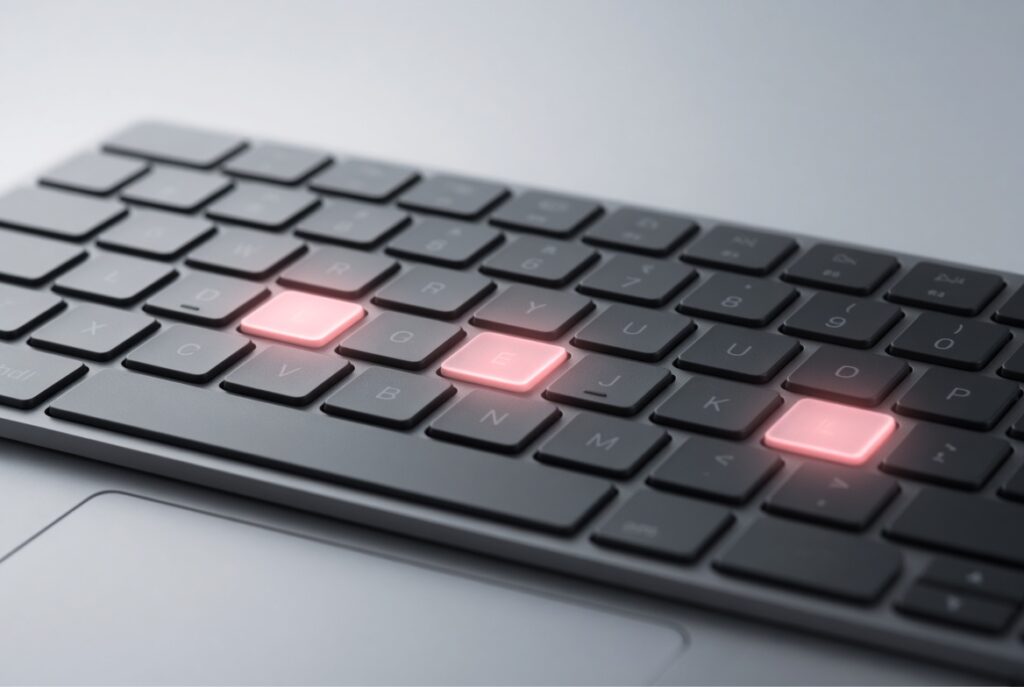

You press Shift + 2 expecting @ and get a quotation mark, or certain letters type numbers, or symbols appear in the wrong places. When your keyboard types the wrong characters, every password and email becomes a struggle. This guide is for Windows 11 users, and in most cases the cause is a settings issue rather than a broken keyboard.
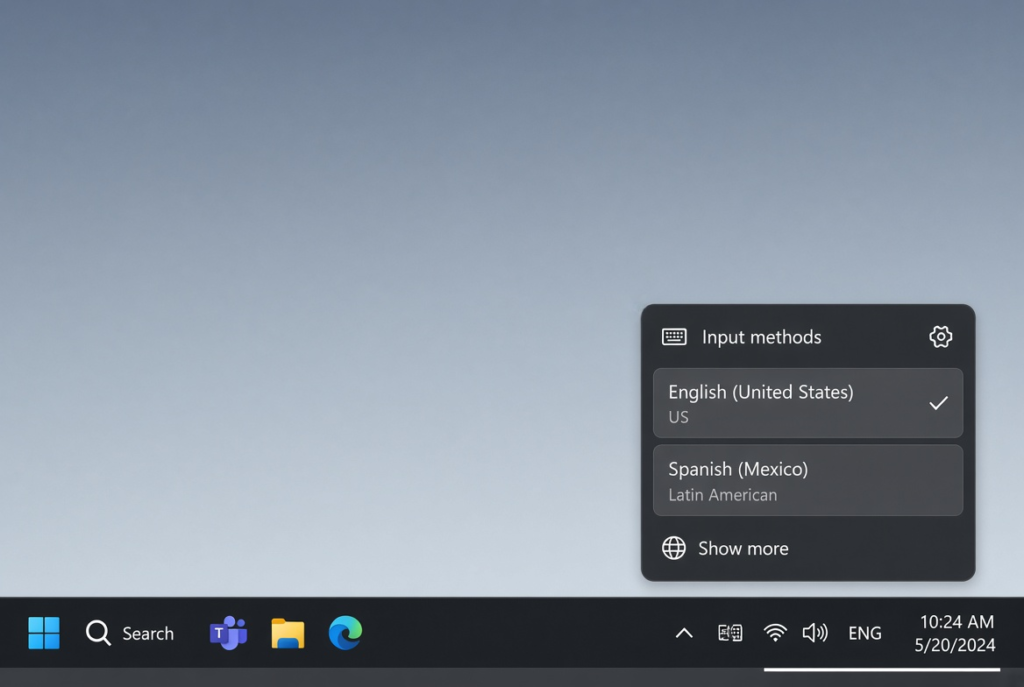
Quick Answer: Look at the language indicator next to the clock on the taskbar (for example ENG US or ENG UK). If it is not the layout printed on your keyboard, press Win + Space to switch, and remove the layout you do not use in Settings > Time & language > Language & region.
Tested on: Lenovo Ideapad 1 15ALC7
Why This Happens
Windows decides what each key types based on the keyboard layout you have selected. If the layout does not match your physical keyboard, keys produce the wrong symbols. Common causes are:
- The wrong keyboard layout. US and UK layouts, for example, swap symbols such as @ and “.
- Accidental layout switching. Shortcuts like Alt + Shift or Win + Space change the layout without you noticing.
- Num Lock on some laptops. On laptops with a built-in number pad on the letter keys, Num Lock makes certain letters type numbers.
- Accessibility features. Sticky Keys or Filter Keys can make keys behave unexpectedly.
- Driver or hardware problems. A faulty driver, spilled liquid or a damaged keyboard can send the wrong keys.
Fix 1: Check and Switch the Keyboard Layout
- Look at the language indicator next to the clock on the taskbar.
- Click it to see the installed layouts, and choose the one that matches your keyboard.
- Or press Win + Space to cycle through layouts.
- Type a few symbols, such as @, ” and #, to check.
Fix 2: Remove Layouts You Do Not Use
- Open Settings > Time & language > Language & region.
- Click the three dots next to your language and choose Language options.
- Under Keyboards, add the layout that matches your keyboard if it is missing.
- Click the three dots next to any layout you do not use and choose Remove.
- Remove extra languages you do not need in the same way.
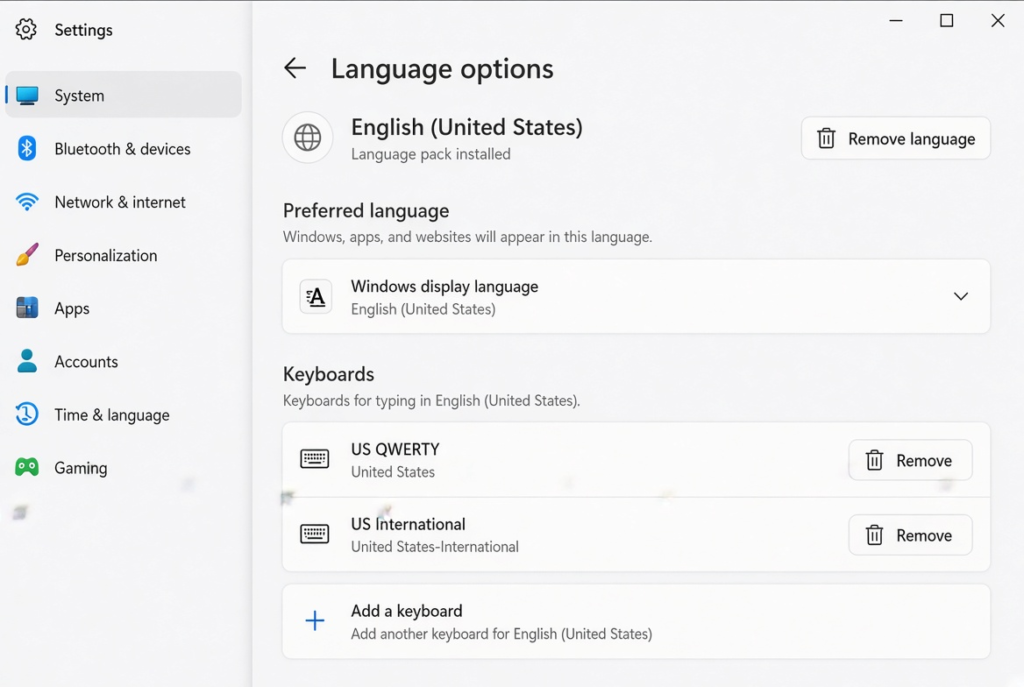
With only one layout installed, Windows can no longer switch to the wrong one by accident.
Fix 3: Turn Off Layout Switching Shortcuts
- Open Settings > Time & language > Typing > Advanced keyboard settings.
- Click Input language hot keys.
- On the Advanced Key Settings tab, select Between input languages and click Change Key Sequence.
- Choose Not Assigned for both options and click OK.
On the Advanced keyboard settings page, you can also set Override for default input method to your preferred layout.
Fix 4: Check Num Lock and the Fn Key
If letters such as U, I, O, J, K or L type numbers on a laptop, press Num Lock (often Fn + a key marked NumLk) to turn it off. If the function keys do strange things, check whether your laptop has an Fn Lock key that changes their behaviour.
Fix 5: Turn Off Sticky Keys and Filter Keys
- Open Settings > Accessibility > Keyboard.
- Turn off Sticky keys and Filter keys if you do not use them.
- Also turn off the keyboard shortcuts for these features to stop them turning on by accident.
Fix 6: Test With the On-Screen Keyboard
- Press Win + Ctrl + O to open the On-Screen Keyboard.
- Click keys with your mouse in a text box. If they type correctly, the layout is right and the physical keyboard may be the problem.
- Press keys on your real keyboard and watch which keys light up on screen.
Fix 7: Reinstall the Keyboard Driver
- Right-click Start and choose Device Manager.
- Expand Keyboards, right-click your keyboard and choose Uninstall device.
- Restart your PC. Windows reinstalls the driver automatically.
For external keyboards, also try a different USB port or another keyboard to rule out hardware faults.
Wrong Characters Only on the Sign-In Screen?
If your password fails at sign-in but your keyboard works fine afterwards, the sign-in screen may use a different layout. Click the layout indicator in the bottom-right corner of the sign-in screen and choose the correct one before typing your password.
To fix it for good, sign in and open Settings > Time & language > Language & region > Administrative language settings. On the Administrative tab, click Copy settings, tick Welcome screen and system accounts and click OK. The sign-in screen will then use the same layout as your account.
My Experience
In my experience, checking the keyboard layout is the easiest way to fix incorrect characters in Windows 11. I found that switching between US and UK layouts can change the position of symbols such as @, quotation marks and #. Removing unused layouts also helps prevent the issue from returning accidentally. For laptops that type numbers instead of letters, checking Num Lock is another useful step. If the problem continues, the On-Screen Keyboard can help identify whether the issue comes from Windows settings or the physical keyboard. These simple checks can save time and avoid unnecessary repairs.
Which Fix Should You Try First?
Check the layout indicator on the taskbar and switch to the layout that matches your keyboard. Remove extra layouts and turn off layout switching shortcuts so it does not happen again. If letters type numbers, check Num Lock. Use the On-Screen Keyboard to tell software from hardware problems, and reinstall the driver or try another keyboard if keys are still wrong.
Frequently Asked Questions
Why does my keyboard type ” instead of @?
Your layout is probably set to UK while your keyboard is US, or the other way round. These layouts swap @ and “. Switch to the matching layout from the taskbar language menu.
Why do some letters type numbers on my laptop?
Num Lock is on, and your laptop uses some letter keys as a hidden number pad. Press Num Lock, often with the Fn key, to turn it off.
How do I stop Windows changing my keyboard layout?
Remove layouts you do not use and turn off the input language hot keys in Advanced keyboard settings. With only one layout, Windows cannot switch.