
You join a Discord voice channel and talk, but nobody can hear you. Your name never lights up green, or friends say your voice cuts in and out. Your microphone may work fine in other apps, which makes it even more confusing. This guide is for Discord desktop users on Windows 11, and it covers Windows privacy settings, Discord’s voice settings and audio drivers.
Quick Answer: Open Settings > Privacy & security > Microphone and turn on Microphone access and Let desktop apps access your microphone. Then, in Discord, open User Settings > Voice & Video, choose your actual microphone (not Default) as the Input Device, and use Let’s Check to test it.
Tested on: [FILL IN: your device and Windows/Android version]
Why This Happens
Your voice has to pass through Windows’ privacy controls, the right input device and Discord’s own processing before anyone hears it. A problem at any stage silences you. Common causes are:
- Windows privacy blocks the mic. If desktop apps are not allowed to use the microphone, Discord hears nothing.
- The wrong input device. Discord may be listening to a webcam mic, a disconnected headset or a virtual device.
- Muted or push-to-talk. You may be muted in Discord, server-muted, or using push-to-talk without pressing the key.
- Input sensitivity is too high. Discord may decide your voice is too quiet to transmit.
- Another app has exclusive control. Some apps lock the microphone so others cannot use it.
Fix 1: Check Mute, Deafen and Push-to-Talk
- Look at the microphone and headphone icons at the bottom-left of Discord. If either has a red line, click it to unmute or undeafen.
- Check the server: if your icon shows a red microphone in the voice channel list, a moderator may have server-muted you.
- In User Settings > Voice & Video, check Input Mode. If it is set to Push to Talk, make sure you know the key, or switch to Voice Activity.
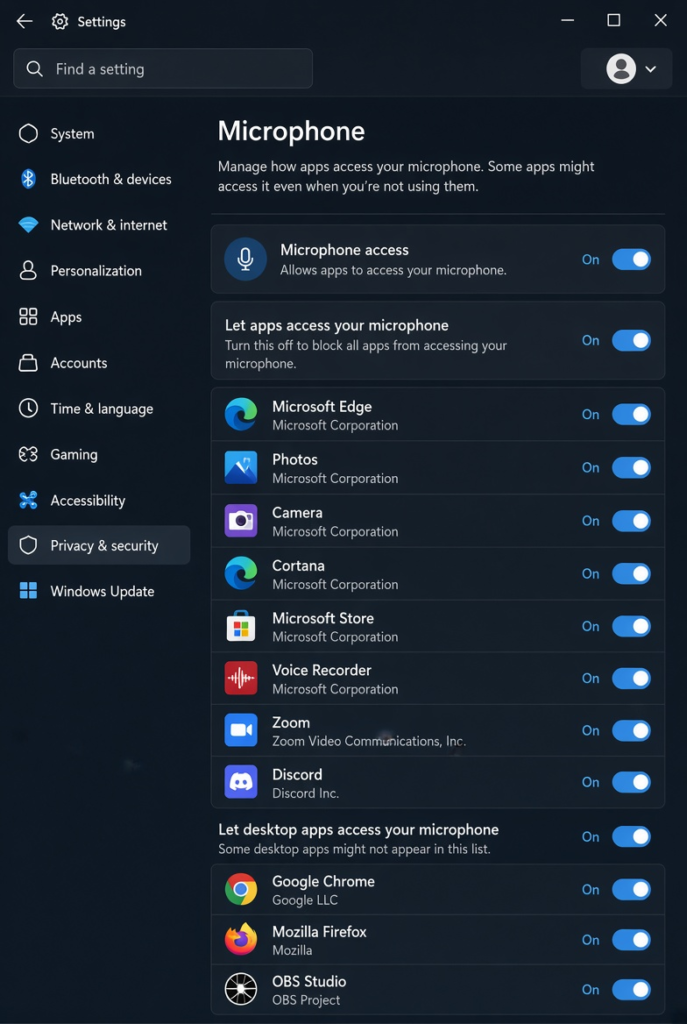
Fix 2: Allow Microphone Access in Windows
- Open Settings > Privacy & security > Microphone.
- Turn on Microphone access.
- Turn on Let apps access your microphone.
- Scroll down and turn on Let desktop apps access your microphone. The Discord desktop app needs this one.
Fix 3: Check the Microphone in Windows
- Open Settings > System > Sound.
- Under Input, select your microphone.
- Speak and watch the input level bar. If it does not move, the problem is Windows or the hardware, not Discord.
- Click the microphone to check its Input volume and make sure it is not near zero.
Fix 4: Choose the Right Input Device in Discord
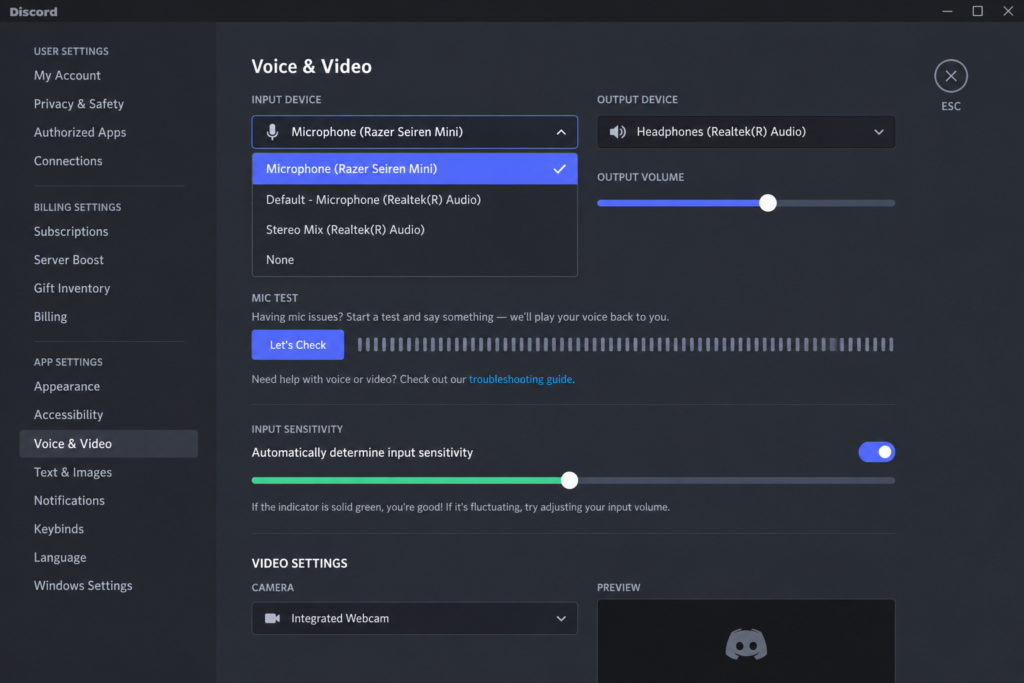
- In Discord, open User Settings (gear icon) > Voice & Video.
- Under Input Device, choose your microphone by name instead of Default.
- Set Input Volume to a sensible level.
- Click Let’s Check and speak. The bar should move.
Fix 5: Adjust Input Sensitivity
On the same page, find Input Sensitivity. If automatic sensitivity is on and your voice cuts out, turn it off and drag the slider to the left until the bar turns green when you speak normally. If background noise triggers your mic, move it slightly to the right.
Fix 6: Reset Discord Voice Settings
Scroll to the bottom of Voice & Video and click Reset Voice Settings. Confirm, then select your input device again and test. This clears any odd setting you may have changed by accident.
Fix 7: Stop Other Apps Taking Exclusive Control
- Press Win + R, type mmsys.cpl and press Enter.
- Open the Recording tab, right-click your microphone and choose Properties.
- On the Advanced tab, untick Allow applications to take exclusive control of this device.
- Click OK and restart Discord.
Fix 8: Update Audio Drivers and Restart
- Right-click Start and open Device Manager.
- Expand Audio inputs and outputs, right-click your microphone and choose Update driver.
- For USB or gaming headsets, also check the maker’s website for software or firmware updates.
- Restart your PC and fully restart Discord from the system tray.
Using a Bluetooth Headset?
Bluetooth headsets handle microphones differently. Their mic only works in hands-free mode, which Windows usually lists as Headset or Hands-Free. In Discord, choose that entry as your Input Device, and make sure the hands-free service has not been turned off in the headset’s Bluetooth settings.
When the mic is active, sound quality in your ears drops because the headset switches into call mode. That is normal for Bluetooth. If you want good sound and a working mic at the same time, use a separate USB microphone or a wired headset for voice chat.
My Experience
In my experience, checking Windows microphone permissions and Discord’s selected input device is the best place to start when friends cannot hear you. Even if the microphone works in other apps, Discord may be listening to the wrong device or using settings that prevent your voice from being detected. The Let’s Check option in Voice & Video helps identify whether Discord is receiving audio. If your voice cuts in and out, adjusting input sensitivity can make a noticeable difference. For persistent problems, resetting Discord’s voice settings and checking audio drivers are sensible next steps before reinstalling the app.
Which Fix Should You Try First?
Check that you are not muted or using push-to-talk, then allow microphone access for desktop apps in Windows. Confirm the mic works in Windows Sound settings, and choose it by name in Discord. Adjust sensitivity if your voice cuts out, reset voice settings for odd behaviour, and look at exclusive mode and drivers if the mic works elsewhere but not in Discord.
Frequently Asked Questions
Why does my mic work in other apps but not Discord?
Discord may be using a different input device, or its sensitivity or input mode is blocking your voice. Select the mic by name and use Let’s Check to confirm Discord can hear you.
Why does my voice cut in and out on Discord?
Input sensitivity is often set too high. Turn off automatic sensitivity and lower the threshold so your normal speaking voice keeps the bar green.
Does Discord need administrator rights to use my microphone?
No. Discord only needs Windows microphone access for desktop apps. Running it as administrator is not normally necessary.
Related: Discord stuck on Starting | Bluetooth headphones connected but no sound