
Open Task Manager on almost any Windows 11 PC and Google Chrome is near the top of the memory list, often with many separate entries. On computers with 8 GB of RAM or less, that can make everything feel slow. This guide is for Chrome users on Windows 11, and it explains why Chrome uses so much memory and the settings that bring it down without giving up the browser.
Quick Answer: Press Shift + Esc inside Chrome to open its own Task Manager and close the tabs or extensions using the most memory. Then go to Settings > Performance and turn on Memory Saver, and in Settings > System turn off Continue running background apps when Google Chrome is closed.
Tested on:Lenovo Ideapad 1 15ALC7
Why This Happens
Chrome runs each tab, extension and some site features as separate processes. This keeps one crashing tab from taking down the whole browser, but it uses more memory. Usage climbs further because of:
- Many open tabs. Every tab keeps its page in memory, and busy sites such as video, email and web apps use a lot.
- Extensions. Each extension runs in the background and can use memory constantly.
- Background apps. Chrome can keep running after you close the window, using memory you cannot see.
- Heavy websites. Some pages load large scripts, adverts or videos that keep growing over time.
- Outdated versions. Older versions may lack memory improvements or contain leaks that later updates fix.
Fix 1: Use Chrome’s Own Task Manager
- In Chrome, press Shift + Esc, or open the three-dot menu and choose More tools > Task manager.
- Click the Memory footprint column to sort by memory.
- Select tabs or extensions you do not need and click End process.
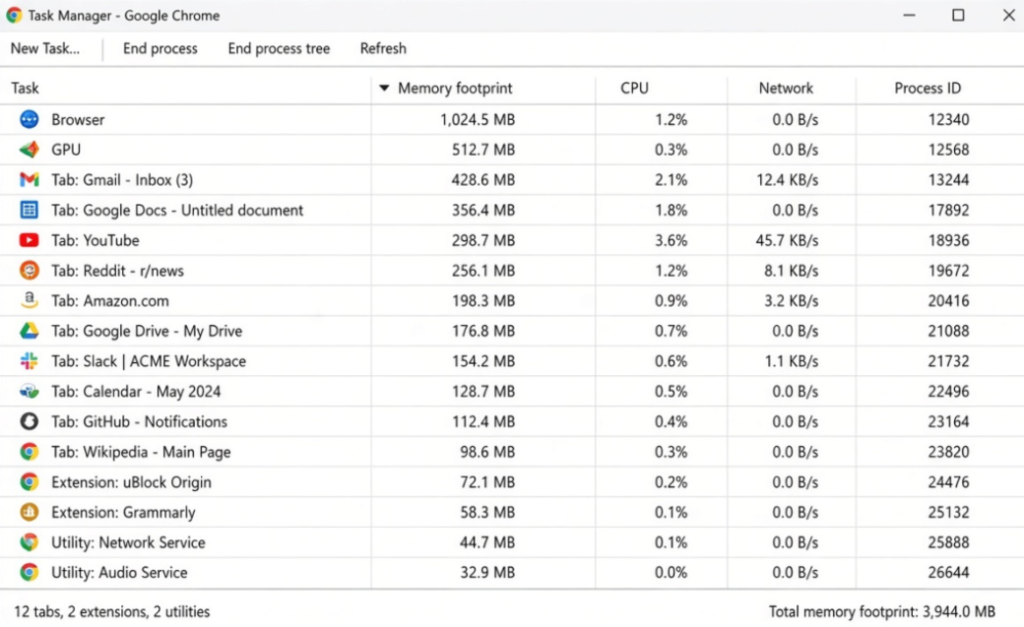
This shows exactly which tabs and extensions are responsible, so you know what to change.
Fix 2: Turn On Memory Saver
- Open Chrome Settings and choose Performance.
- Turn on Memory Saver. Some versions let you choose how aggressively it frees memory.
- Add sites you always want active, such as music or chat, to the list of sites that stay active.
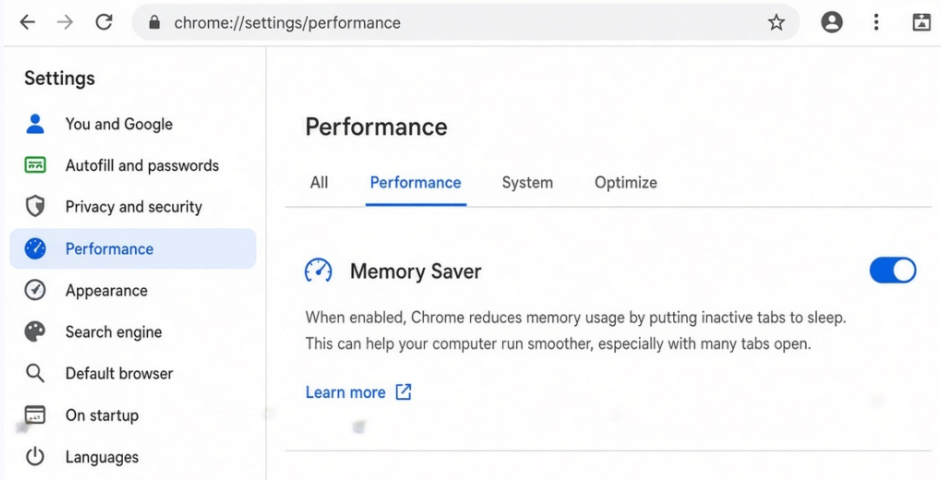
Inactive tabs are paused and reload when you click them again.
Fix 3: Remove or Disable Extensions
- Type chrome://extensions in the address bar and press Enter.
- Turn off extensions you rarely use, and click Remove on any you do not need.
- Restart Chrome and check memory use again.
Fix 4: Stop Chrome Running in the Background
- Open Chrome Settings > System.
- Turn off Continue running background apps when Google Chrome is closed.
- Close Chrome completely and check Task Manager. Chrome entries should disappear.
Fix 5: Manage Your Tabs
- Bookmark tabs you want to read later instead of leaving them open.
- Use tab groups to collapse sets of tabs you are not using right now.
- Close tabs with auto-playing video or live feeds when you are not watching them.
Fix 6: Update Chrome
Open the three-dot menu, choose Help > About Google Chrome, and let it update. Click Relaunch when it finishes. Updates often include memory and performance fixes.
Fix 7: Check Graphics Acceleration
In Settings > System, try turning Use graphics acceleration when available off, then relaunch Chrome. On some PCs this reduces memory use or fixes problems; on others it makes Chrome slower. Keep whichever setting works better for you.
Fix 8: Reset Chrome Settings and Scan for Malware
- Open Chrome Settings > Reset settings and choose Restore settings to their original defaults. This disables extensions and resets the start page, but keeps bookmarks and saved passwords.
- Run a full scan with Windows Security to check for unwanted software that may have added hidden extensions.
Check How Much Memory Your PC Has
Open Task Manager with Ctrl + Shift + Esc, go to Performance and click Memory. The top-right corner shows your total RAM, and the graph shows how much is in use. If your PC has 8 GB or less and the graph is often nearly full, even a well-tuned Chrome will feel heavy when you open many tabs. Closing other apps helps, and on many desktops and some laptops, adding more RAM is a worthwhile upgrade. Check your PC maker’s specifications before buying.
Using Several Chrome Profiles?
Each Chrome profile, such as separate work and personal profiles, runs its own windows, extensions and background processes. Having several profiles open at once adds up quickly. Close profiles you are not using, and remove extensions from each profile separately, because extensions installed in one profile do not affect the others.
Tip: after making these changes, restart your PC and use Chrome normally for a day before judging the results. Memory use naturally rises as you open more sites, so compare similar workloads.
My Experience
In my experience, enabling Memory Saver is one of the easiest ways to reduce Chrome’s memory usage on Windows 11. Checking Chrome’s built-in Task Manager also helps identify tabs and extensions consuming the most RAM. Disabling unnecessary extensions and stopping background apps can further improve performance, especially on laptops with limited memory. I recommend updating Chrome before trying more advanced fixes, as updates may resolve performance issues. If Chrome still feels slow, check your PC’s total RAM and overall memory usage in Windows Task Manager. These simple changes can make browsing smoother without switching to another browser.
Which Fix Should You Try First?
Open Chrome’s Task Manager to see what is really using memory, then turn on Memory Saver and remove extensions you do not need. Stop Chrome running in the background so it does not use memory after you close it. Manage your tabs, keep Chrome updated, and use reset and a malware scan if memory use stays unusually high.
Frequently Asked Questions
Why does Chrome show so many processes in Task Manager?
Chrome separates tabs, extensions and some site features into their own processes for stability and security. Many entries are normal; what matters is the total memory and which entries use the most.
Is high Chrome memory use bad?
Using available memory is not a problem by itself. It becomes a problem when your PC slows down or other apps struggle because memory is full.
Does Memory Saver close my tabs?
No. It pauses inactive tabs to free memory. They stay in your tab bar and reload when you click them.
Related: Firefox privacy settings checklist | File Explorer slow or not responding