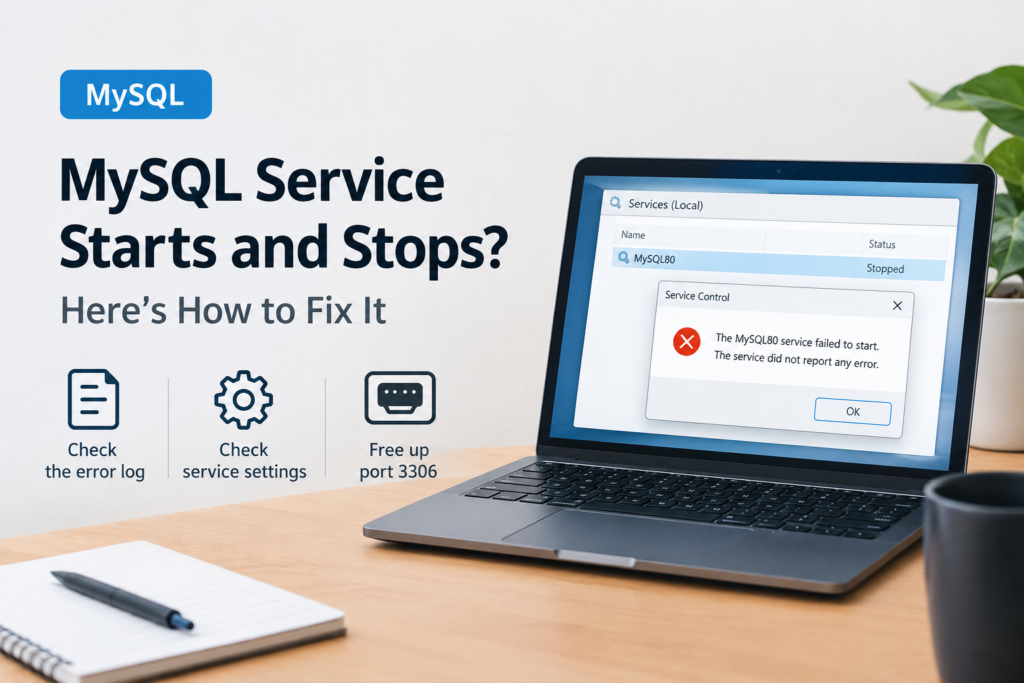

You try to start MySQL on Windows and get a message that the service started and then stopped, or that it could not be started at all. Your apps and MySQL Workbench cannot connect until it runs. This guide is for developers and students running MySQL Server 8 on Windows 11 or Windows 10, and it shows how to find the real error and fix the most common causes.
Quick Answer: Open the MySQL error log, usually at C:\ProgramData\MySQL\MySQL Server 8.0\Data\ in a file ending in .err, and read the last lines. They tell you exactly why MySQL stopped. The most common causes are port 3306 already in use, a mistake in my.ini, or a full disk.
Tested on: Lenovo Ideapad 1 15ALC7
Why This Happens
The MySQL service starts the database server in the background. If the server hits a problem during start-up, Windows reports that the service stopped. Common causes are:
- Port 3306 is already in use. Another MySQL copy, XAMPP, WAMP or a different database may be using the same port.
- A configuration mistake. A typo or invalid setting in my.ini stops MySQL from starting.
- Disk or permission problems. A full drive, or a data folder MySQL cannot write to, prevents start-up.
- Damaged data files. A crash or power cut can leave database files in a bad state.
- Leftovers from another install. Old versions or services can point to the wrong folders.
Fix 1: Read the MySQL Error Log
- Open File Explorer and go to C:\ProgramData\MySQL\MySQL Server 8.0\Data. ProgramData is hidden, so type the path into the address bar.
- Open the file ending in .err (usually named after your computer) with Notepad.
- Scroll to the bottom and read the most recent lines marked [ERROR].
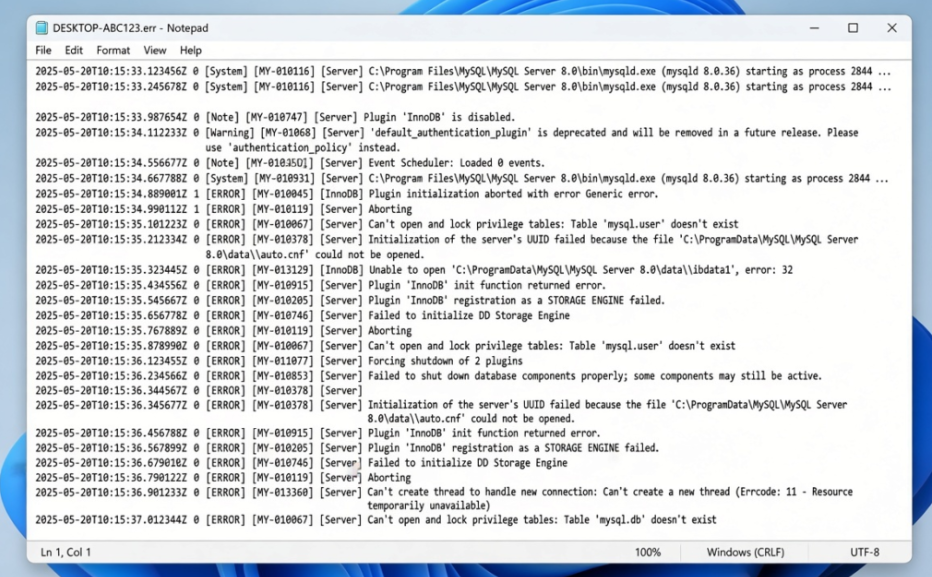
You can also open Event Viewer > Windows Logs > Application and look for entries from MySQL. Match the error to the fixes below.
Fix 2: Start the Service and Check Its Settings
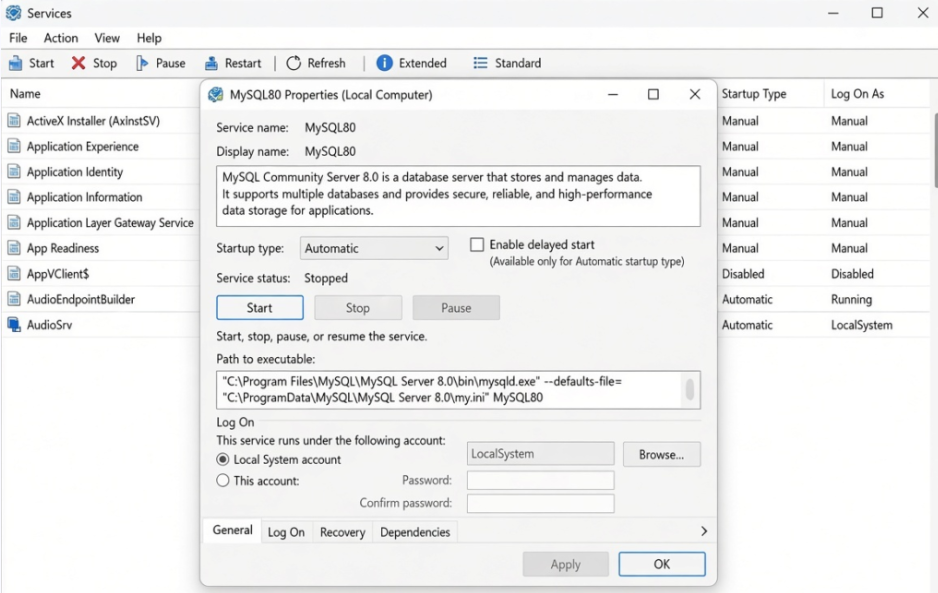
- Press Win + R, type services.msc and press Enter.
- Find your MySQL service (often MySQL80) and double-click it.
- Check that Startup type is Automatic or Manual, not Disabled.
- Click Start and note any error message.
Fix 3: Free Up Port 3306
⚠️ Warning: This step uses Command Prompt. It only reads information, but if you end a process, save your work in other apps first.
- Open Command Prompt and run netstat -ano | findstr :3306.
- If a line shows LISTENING, note the number at the end. That is the process ID.
- Open Task Manager, go to Details, and find that ID in the PID column.
- If it is XAMPP, WAMP or another MySQL, stop that program or its service, then start MySQL80 again.
If you need both, change the port in one of them so they do not clash.
Fix 4: Undo Recent Changes to my.ini
⚠️ Warning: my.ini controls how MySQL runs. Always copy it to a safe place before editing, so you can put the original back.
- Open C:\ProgramData\MySQL\MySQL Server 8.0\my.ini in Notepad (run Notepad as administrator to save changes).
- Look for settings you changed recently, especially paths, port numbers or memory sizes.
- Undo the change or restore your backup copy.
- Save the file and start the service again.
Fix 5: Check Disk Space and Folder Permissions
- Open Settings > System > Storage and make sure the drive with your MySQL data has free space.
- If the error log mentions permission denied, right-click the MySQL Data folder, choose Properties > Security, and check that the account the service runs as (shown on the service’s Log On tab) has full control.
Fix 6: Start MySQL in a Console to See Errors Live
- Make sure the MySQL service is stopped.
- Open Command Prompt as administrator.
- Run cd “C:\Program Files\MySQL\MySQL Server 8.0\bin”.
- Run mysqld –console. Errors appear directly in the window.
- Press Ctrl + C to stop it, fix the problem shown, then start the service normally.
Fix 7: Protect Your Data if Files Are Damaged
⚠️ Warning: If the log mentions corrupted InnoDB files, do not delete files from the Data folder. Stop the service and copy the entire Data folder to another drive before trying anything else.
With a backup made, use MySQL’s official documentation on InnoDB recovery, or restore from your latest database backup. If you have no important data, you can reinstall MySQL using MySQL Installer’s Reconfigure or Remove options and start fresh.
Confirm MySQL Is Running
Once the service starts, check that the Status column in the Services window says Running. Then open MySQL Workbench or run mysql -u root -p from the MySQL bin folder in Command Prompt and enter your password. If you can connect, MySQL is working and your apps should be able to reach it again.
My Experience
In my experience, checking the MySQL error log is the most useful first step when the service starts and then stops on Windows. The latest error messages can reveal whether the problem is caused by a port conflict, incorrect configuration or insufficient disk space. I would first check whether another MySQL instance or XAMPP is using port 3306, then review any recent changes to my.ini. If the service still fails, running MySQL in console mode can provide more detailed error information. Always back up your database files before attempting repairs or reinstalling MySQL to avoid losing important data.
Which Fix Should You Try First?
Read the error log first, because it usually tells you the exact cause. Port conflicts with XAMPP or another MySQL are the most common problem, followed by mistakes in my.ini. Check disk space and permissions next, use the console to see errors live, and treat damaged data files carefully with a full backup before any repair.
Frequently Asked Questions
Why does the MySQL service start and then stop immediately?
MySQL hit an error during start-up. The error log explains why, and common causes are port 3306 already in use, an invalid my.ini setting or a full disk.
Can I run MySQL and XAMPP at the same time?
Yes, but they cannot both use port 3306. Stop one of them or change the port in one configuration so they do not clash.
Will reinstalling MySQL delete my databases?
It can, depending on the options you choose. Always back up the Data folder or export your databases before reinstalling.
Related: Unable to connect to localhost in MySQL Workbench | Visual Studio Unable to start program