
You tap Install in the Google Play Store and the button changes to Download pending, then nothing happens. Minutes pass and the app never starts downloading. This guide is for Android users who see this message, and it explains the common causes, from a busy download queue to settings that hold downloads until you are on Wi-Fi.
Quick Answer: Open the Play Store, tap your profile picture, choose Manage apps & device and stop any updates that are running so your app can start. Then go to Play Store Settings > Network preferences > App download preference and choose Over any network if you are not on Wi-Fi.
Tested on: Iphone 17 Air
Why This Happens
The Play Store downloads apps one at a time and follows your network and storage settings. “Download pending” means it is waiting for something. Common reasons are:
- Other downloads are in the queue. App updates may be downloading first.
- Wi-Fi only downloads. If the Play Store is set to download only on Wi-Fi, it waits when you are on mobile data.
- Low storage. Without enough free space, downloads cannot start.
- A stuck Play Store cache. Damaged temporary data can freeze the download process.
- Account or approval issues. On child accounts, a parent may need to approve the app first.
Fix 1: Clear the Download Queue
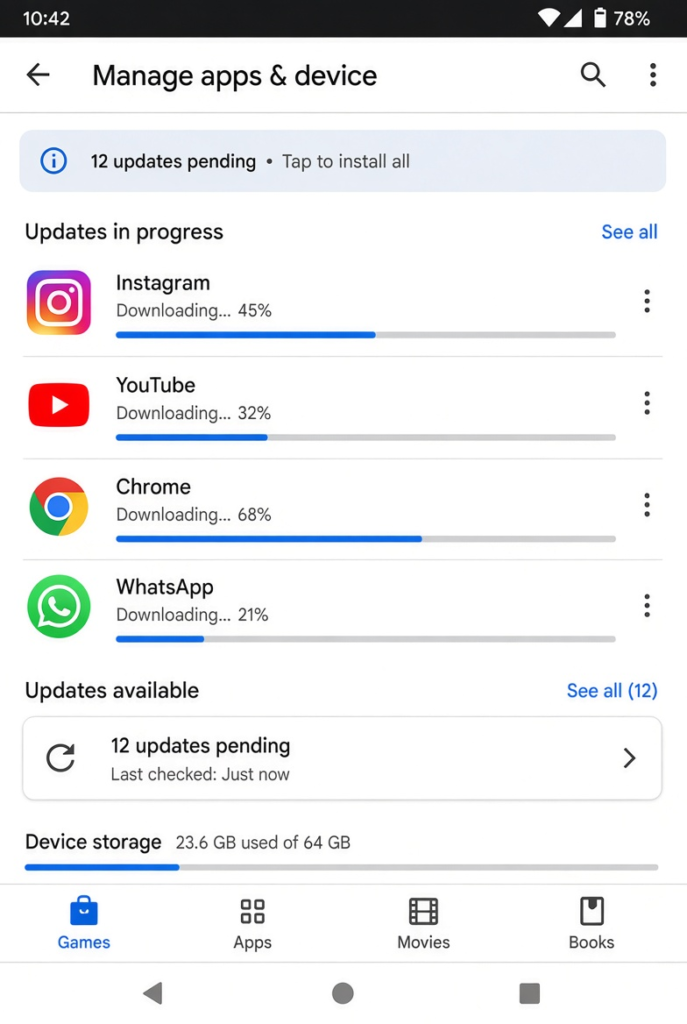
- Open the Play Store and tap your profile picture.
- Tap Manage apps & device.
- If updates are downloading, tap Cancel all or stop them individually.
- Go back to the app you want and tap Install again.
Fix 2: Check the Download Network Setting
- In the Play Store, tap your profile picture and choose Settings.
- Open Network preferences.
- Tap App download preference and choose Over any network or Ask me every time.
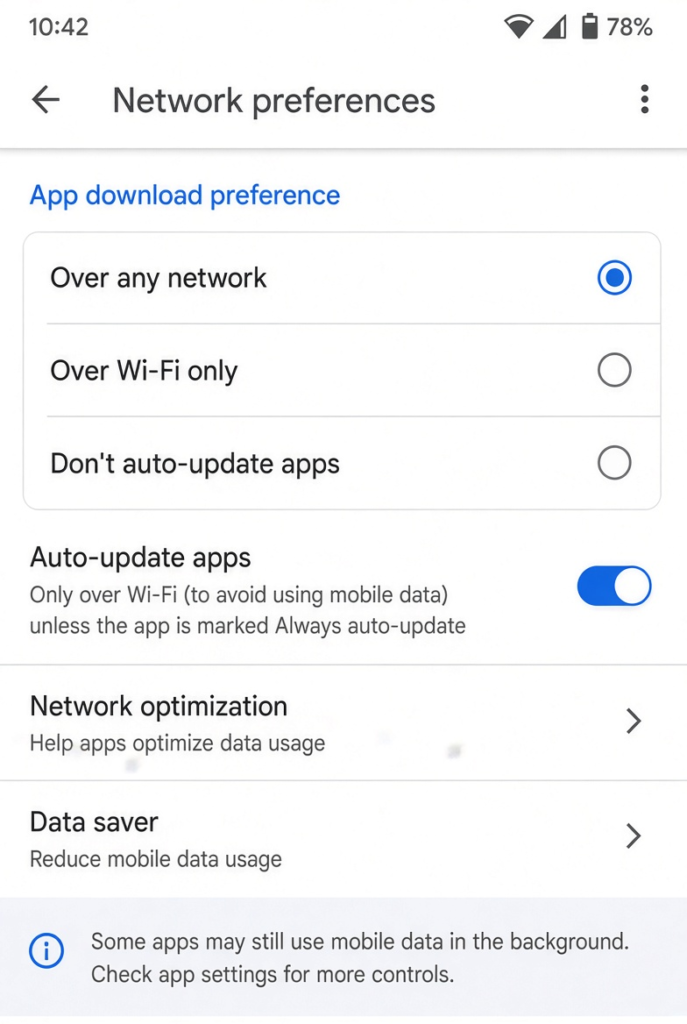
Large apps can use a lot of mobile data, so choose Ask me every time if your data plan is limited.
Fix 3: Free Up Storage Space
Open Settings > Storage and check how much space is free. Delete unused apps, old videos or downloads until you have comfortably more space than the app needs. Apps need extra room to install, not just their download size.
Fix 4: Check Your Connection
- Turn Wi-Fi off and on, or switch between Wi-Fi and mobile data.
- Turn off any VPN app.
- If you use Private DNS in network settings, set it to Automatic or Off to test.
Fix 5: Clear the Play Store Cache
- Open Settings > Apps and select Google Play Store.
- Tap Force stop.
- Tap Storage & cache, then Clear cache.
- Open the Play Store and try the download again.
- If it still sticks, return and tap Clear storage. This resets Play Store settings but does not remove your apps.
Doing the same for Google Play services (clear cache only) can also help.
Fix 6: Check Date and Time
Open Settings > System > Date & time and turn on automatic date and time. Wrong time settings can stop secure downloads from Google’s servers.
Fix 7: Uninstall Play Store Updates
- In Settings > Apps > Google Play Store, tap the three dots in the top-right corner.
- Tap Uninstall updates and confirm.
- Open the Play Store. It will update itself again to the latest version, often fixing download problems.
Fix 8: Remove and Re-Add Your Google Account
⚠️ Warning: Removing your Google account from the phone stops syncing for that account until you add it back. Make sure your contacts, photos and other data are backed up, and that you know your Google password before continuing.
- Open Settings > Passwords & accounts (or Accounts).
- Select your Google account and tap Remove account.
- Restart the phone, add the account again and try the download.
Seeing a Similar Message?
- Waiting for Wi-Fi: the Play Store is set to download only on Wi-Fi. Connect to Wi-Fi or change the download preference in Fix 2.
- Waiting for download: usually the same causes as Download pending, so work through the same fixes.
- Pending during updates: several updates are queued. Let them finish, or cancel them to install a specific app first.
Stop It Happening Again
To keep your queue clear, open Play Store Settings > Network preferences > Auto-update apps and choose Over Wi-Fi only, so updates run when you are on Wi-Fi rather than competing with apps you want right now. Keep some free storage space on your phone, and restart it every so often to clear stuck background tasks. These small habits make pending downloads much less likely.
If none of these steps help and the problem affects every app, try installing a small free app as a test. If even that stays pending, the issue is with your account, network or phone rather than the specific app you wanted.
My Experience
In my experience, clearing the download queue and checking the Play Store’s network preferences are the best first steps when an app stays stuck on Download pending. Sometimes, other app updates are taking priority, or downloads are waiting for a Wi-Fi connection. If that does not help, checking available storage and clearing the Google Play Store cache can resolve the issue. Restarting the phone may also help if a background process is stuck. I recommend trying these simple fixes before removing your Google account or resetting settings, as they can solve many download problems without affecting your installed apps.
Which Fix Should You Try First?
Clear the download queue and check the network download preference first. These two steps solve most pending downloads. Free up storage and check your connection next, then clear the Play Store cache. Uninstall Play Store updates and re-add your Google account only when the quicker fixes do not help.
Frequently Asked Questions
What does “Download pending” mean on Google Play?
It means the Play Store is waiting before starting the download, usually because other downloads are in the queue, it is waiting for Wi-Fi, or storage is low.
Will clearing Play Store storage delete my apps?
No. It resets the Play Store’s own settings and cache. Your installed apps and their data stay on the phone.
Why does my child’s phone say Download pending?
On supervised accounts, a parent may need to approve the app first. Check the parent’s Family Link app for a pending request.
Related: Android notifications late or missing | Android phone not showing on PC over USB