
Clipboard history lets you press Win + V and paste anything you copied recently, not just the last item. When the panel will not open, stays empty or keeps forgetting items, you lose one of Windows 11’s handiest shortcuts. This guide is for anyone whose clipboard history has stopped working, and it walks through settings, quick restarts and less obvious causes such as policies and other clipboard apps.
Quick Answer: Open Settings > System > Clipboard and make sure Clipboard history is turned on. Then restart Windows Explorer from Task Manager, copy a few items and press Win + V again. If the switch is greyed out, your PC may be managed by a policy.
Tested on: Ideapad 1 15ALC7
Why This Happens
Clipboard history depends on a Windows setting, a background service and the panel that appears when you press Win + V. Problems usually come from:
- The feature is off. Clipboard history is not always on by default, and some updates or resets turn it off.
- The panel has frozen. The Win + V panel is part of Windows’ shell and can stop responding.
- A blocked shortcut. A locked Windows key on gaming keyboards, or another app that uses Win + V, can stop the panel from opening.
- Unsupported items. Very large items, and some file types, are not saved in clipboard history.
- Policies or other apps. Work PCs may disable clipboard history, and third-party clipboard managers can interfere.
Fix 1: Turn On Clipboard History
- Press Win + I to open Settings.
- Go to System > Clipboard.
- Turn on Clipboard history.
- Copy two or three pieces of text, then press Win + V.
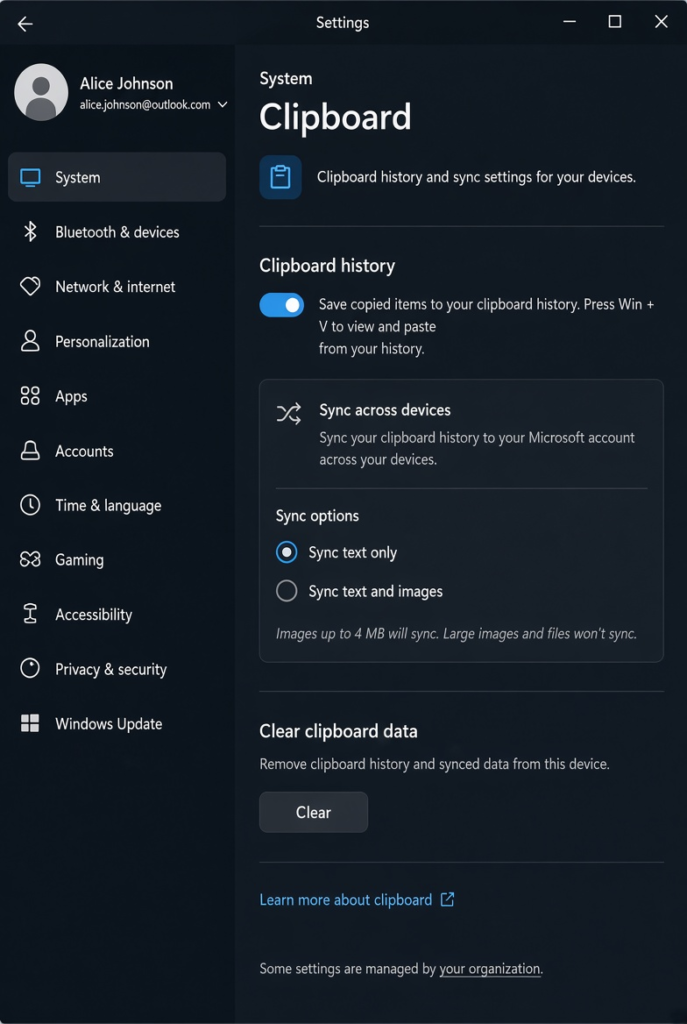
Items you copied before turning it on will not appear, so copy something new to test.
Fix 2: Restart Windows Explorer
- Press Ctrl + Shift + Esc to open Task Manager.
- Right-click Windows Explorer and choose Restart.
- Copy something new and press Win + V.
If that does not help, sign out and back in, or restart the PC.
Fix 3: Check the Windows Key
- Try another Windows shortcut, such as Win + E. If it also fails, your Windows key may be locked.
- On gaming keyboards, turn off the Win Lock key or game mode.
- Close apps that might use Win + V as their own shortcut, such as some clipboard managers or remote desktop tools, and try again.
Fix 4: Clear the Clipboard and Start Fresh
- Open Settings > System > Clipboard.
- Next to Clear clipboard data, click Clear.
- Copy a new item and test Win + V.
Pinned items are kept when you clear the clipboard. Unpin any you no longer need from the Win + V panel.
Fix 5: Understand What Clipboard History Saves
Clipboard history stores text, HTML and images, but there is a size limit for each item, and very large images or files are not saved. Copied files from File Explorer also do not appear as items you can paste from history. If only certain items are missing, this is probably the reason rather than a fault.
Fix 6: Check for Conflicting Clipboard Apps
Third-party clipboard managers, password managers and remote access tools can take over the clipboard. Temporarily close or disable them, restart Windows Explorer and test again. If Win + V starts working, check the app’s settings for an option to stop it controlling the clipboard.
Fix 7: Check Policies on Managed PCs
⚠️ Warning: This step uses the Group Policy Editor, which changes system-wide settings and is only available on Windows 11 Pro and above. Create a restore point first, and on a work or school PC ask your IT team instead of changing policies yourself.
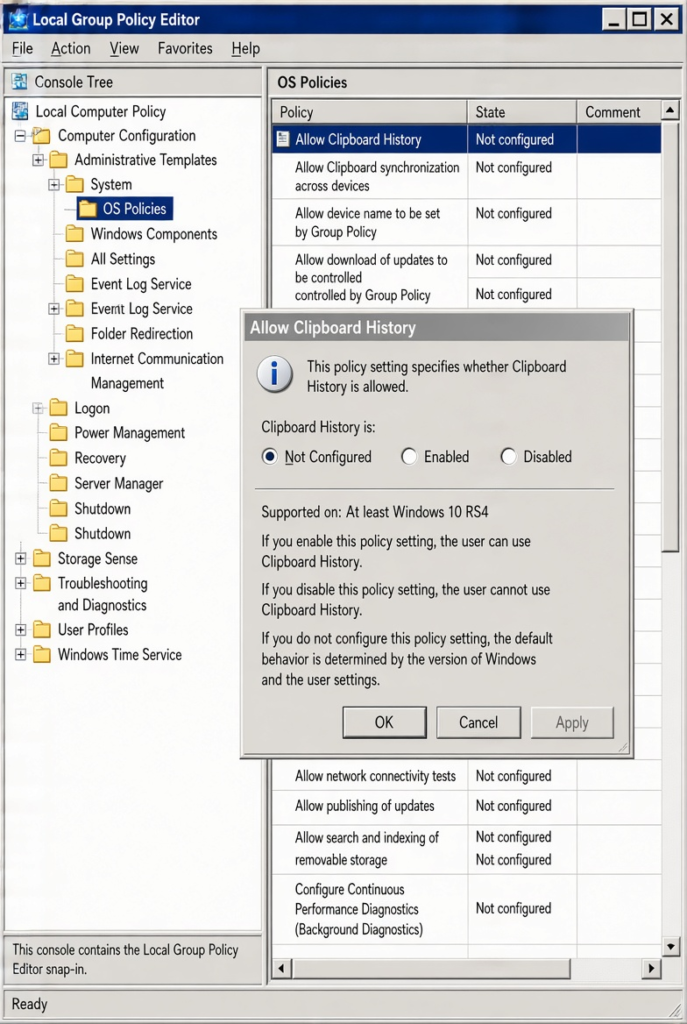
- Press Win + R, type gpedit.msc and press Enter.
- Go to Computer Configuration > Administrative Templates > System > OS Policies.
- Open Allow Clipboard History.
- If it is set to Disabled, change it to Not Configured, click OK and restart.
Fix 8: Update Windows and Repair System Files
⚠️ Warning: the second part of this fix runs commands as administrator. They are built-in repair tools, but create a restore point first by searching for Create a restore point in the Start menu and clicking Create.
Some Windows updates have temporarily broken clipboard history until a later fix. Install the latest updates from Settings > Windows Update. If the problem continues, open Command Prompt as administrator (create a restore point first) and run DISM /Online /Cleanup-Image /RestoreHealth followed by sfc /scannow, then restart.
Bonus: Sync Your Clipboard Between PCs
Once clipboard history works, you can also share copied text between Windows PCs signed in with the same Microsoft account. In Settings > System > Clipboard, turn on Clipboard history across your devices and choose whether to sync automatically or only when you choose. Leave it off if you often copy passwords or private information.
My Experience
In my experience, turning on Clipboard history in Windows Settings is the first thing to check when Win + V stops working. After enabling it, copy a few new text snippets because items copied earlier will not appear retroactively. If the panel still does not open, restarting Windows Explorer is a simple next step that does not require reinstalling Windows. I would also check whether the Windows key is locked or another clipboard app is interfering with the shortcut. If the Clipboard history option is greyed out, a system policy may be responsible, especially on work or school computers.
Which Fix Should You Try First?
Turn on clipboard history and restart Windows Explorer first. These two steps fix most cases. Check your Windows key and any apps that use Win + V, then clear the clipboard. If the setting is greyed out, look at policies, and use updates and system file repairs when nothing else works.
Frequently Asked Questions
How many items does Windows clipboard history keep?
It keeps a limited number of recent items, and older ones drop off as you copy new ones. Pin important items in the Win + V panel to keep them.
Does clipboard history survive a restart?
Unpinned items are cleared when you restart your PC. Pinned items stay until you unpin them or clear them.
Why is the Clipboard history switch greyed out?
A policy set by your organisation, or a setting on your PC, is controlling it. On a work device, contact your IT team.
Related: Windows 11 touch keyboard themes | Windows 11 search not working