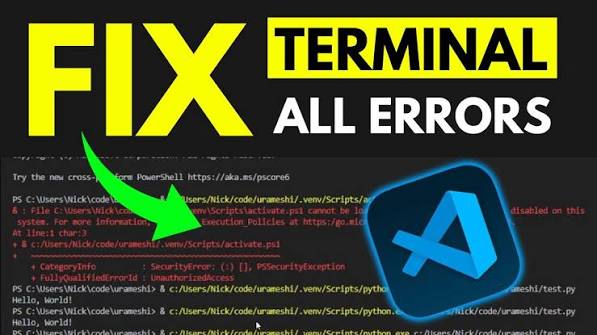

The integrated terminal is one of the best parts of Visual Studio Code, so it is a real problem when it opens blank, closes straight away, or shows an error that the terminal process failed to launch. This guide is for VS Code users on Windows 11 and Windows 10, and it covers shell profiles, settings, PowerShell restrictions and display issues that commonly break the terminal.
Quick Answer: Press Ctrl + Shift + P, run Terminal: Select Default Profile and choose PowerShell or Command Prompt. Then kill any open terminals with the trash icon and open a new one with Ctrl + Shift + `. If you see a red error about scripts being disabled, fix PowerShell’s execution policy as shown in Fix 5.
Tested on: [FILL IN: your device and Windows/Android version]
Why This Happens
The VS Code terminal starts a shell program, such as PowerShell or Git Bash, inside the editor. If VS Code cannot start that shell, or the shell fails as it loads, the terminal breaks. Common causes are:
- A missing or wrong shell. The default profile may point to a shell that was uninstalled or moved.
- Old or broken settings. Outdated terminal settings in settings.json can stop the shell from launching.
- PowerShell script restrictions. A blocked profile script can cause errors or make the terminal close.
- Rendering problems. GPU acceleration can make the terminal appear blank on some graphics drivers.
- Extensions or security software. Extensions that change the terminal, or antivirus tools, can block it.
Fix 1: Restart the Terminal and VS Code
- Click the trash icon in the terminal panel to kill all terminals.
- Open a new terminal with Terminal > New Terminal or Ctrl + Shift + `.
- If that fails, close VS Code completely and open it again.
Fix 2: Choose a Working Default Shell
- Press Ctrl + Shift + P to open the Command Palette.
- Type Terminal: Select Default Profile and press Enter.
- Choose PowerShell or Command Prompt, which are always available on Windows.
- Open a new terminal.
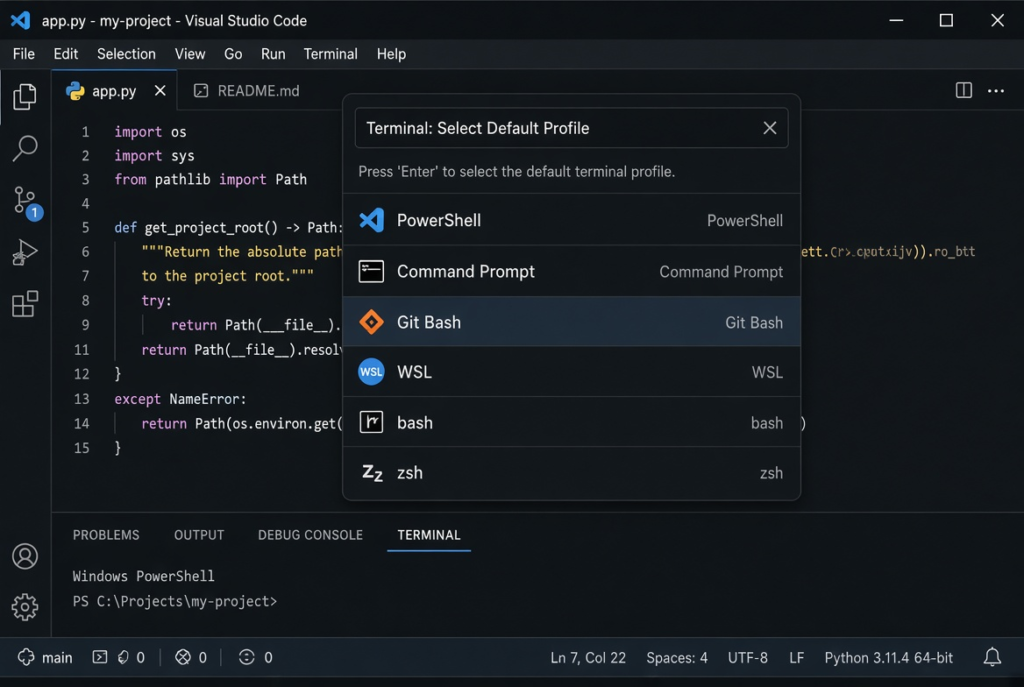
If you prefer Git Bash, make sure Git for Windows is installed, then select it here.
Fix 3: Clean Up Terminal Settings
- Press Ctrl + Shift + P and run Preferences: Open User Settings (JSON).
- Look for lines starting with terminal.integrated.
- Remove any old setting named terminal.integrated.shell.windows, which is no longer used.
- Check that paths in terminal.integrated.profiles.windows point to programs that exist, and that terminal.integrated.cwd (if set) is a real folder.
- Save the file and open a new terminal.
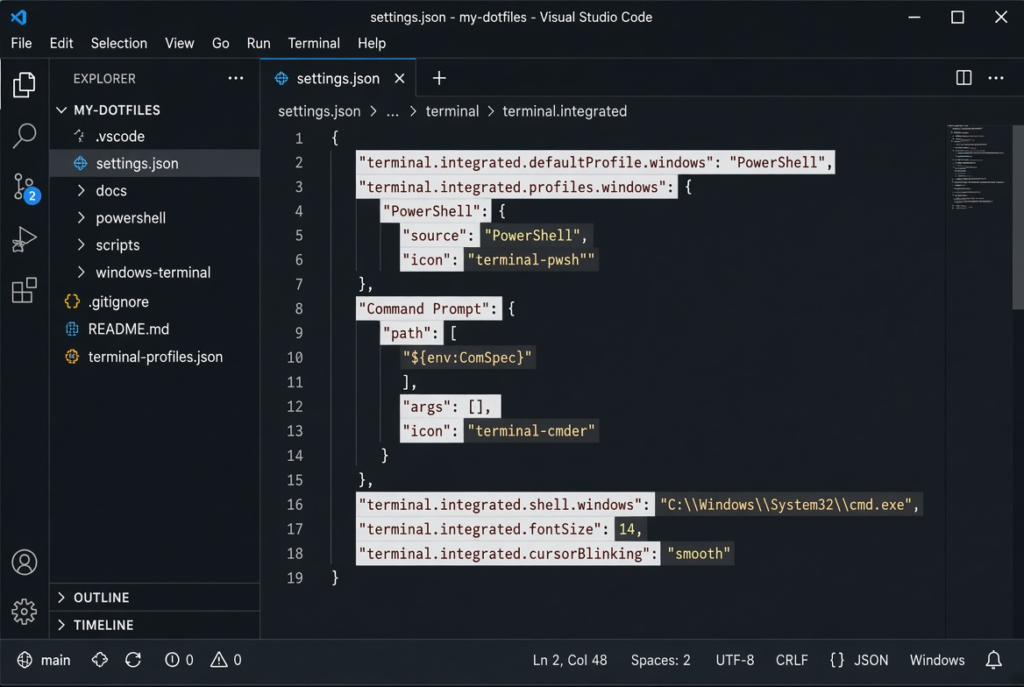
Copy your settings.json somewhere safe before editing, so you can restore it if needed.
Fix 4: Turn Off GPU Acceleration for the Terminal
If the terminal opens but stays blank or shows garbled text, open Settings, search for terminal gpu acceleration, and set Terminal > Integrated: Gpu Acceleration to off. Open a new terminal to test.
Fix 5: Fix PowerShell’s Execution Policy
⚠️ Warning: This step changes a PowerShell security setting for your user account. Only do it if you see an error saying running scripts is disabled. The setting below still blocks unsigned scripts downloaded from the internet.
- Open Windows PowerShell from the Start menu (not as administrator).
- Run Set-ExecutionPolicy -Scope CurrentUser RemoteSigned.
- Type Y and press Enter to confirm.
- Restart VS Code and open a new terminal.
Fix 6: Test Without Extensions
⚠️ Warning: this fix starts VS Code with a command. It only disables extensions for that session and changes nothing permanently, but save any open work first.
- Close VS Code.
- Press Win + R, type code –disable-extensions and press Enter.
- Open a terminal. If it works now, an extension is the cause. Re-enable extensions one by one to find it.
Fix 7: Check Compatibility Mode and Security Software
- Right-click the VS Code shortcut, choose Properties > Compatibility, and untick compatibility mode and run as administrator unless you need them.
- Check your antivirus history for blocked VS Code or shell files, and allow them if they were blocked.
Fix 8: Update or Reinstall VS Code
Choose Help > Check for Updates in VS Code. If the terminal still fails, download the latest installer from Visual Studio Code’s official website and install it over your current copy. Your settings and extensions are kept.
“code” Is Not Recognised in the Terminal?
If the terminal works but typing code . gives an error that the command is not recognised, VS Code was not added to your PATH. Run the VS Code installer again, tick Add to PATH on the additional tasks page, and finish the install. Then close and reopen all terminals and VS Code windows so the change takes effect.
My Experience
In my experience, restarting VS Code and selecting the correct default terminal profile are the first fixes worth trying. Choosing PowerShell or Command Prompt can resolve problems caused by a missing or incorrect shell configuration. If the terminal opens but displays a blank screen, disabling GPU acceleration may help. I also recommend checking the settings.json file for outdated terminal paths and testing VS Code with extensions disabled if the issue continues. These troubleshooting steps can help identify the cause without reinstalling the application immediately. Always back up your settings before making changes, especially when editing configuration files.
Which Fix Should You Try First?
Kill and reopen the terminal, then select PowerShell or Command Prompt as the default profile. Clean up old terminal settings next. If the terminal is blank, turn off GPU acceleration, and if PowerShell shows a scripts disabled error, change the execution policy for your user. Test without extensions and update VS Code for anything that remains.
Frequently Asked Questions
Why does the VS Code terminal close immediately?
The shell VS Code tries to start is failing, often because the default profile points to a missing program or a profile script errors out. Select a different default profile to test.
How do I change the terminal to Git Bash or Command Prompt?
Run Terminal: Select Default Profile from the Command Palette and choose the shell you want. Git Bash appears once Git for Windows is installed.
Is it safe to change PowerShell’s execution policy?
Setting RemoteSigned for your user account is a common choice for developers. It allows local scripts while still blocking unsigned scripts downloaded from the internet.
Related: MySQL service won’t start on Windows | Visual Studio Unable to start program